 foxxcyber/docs
Instance Administration
Manage the instance's organization details, assessor accounts, and local users.
The admin panel is where the local administrator account manages the instance. Sign in with the admin credentials created during setup — admin accounts land directly on the panel instead of the assessor portal.
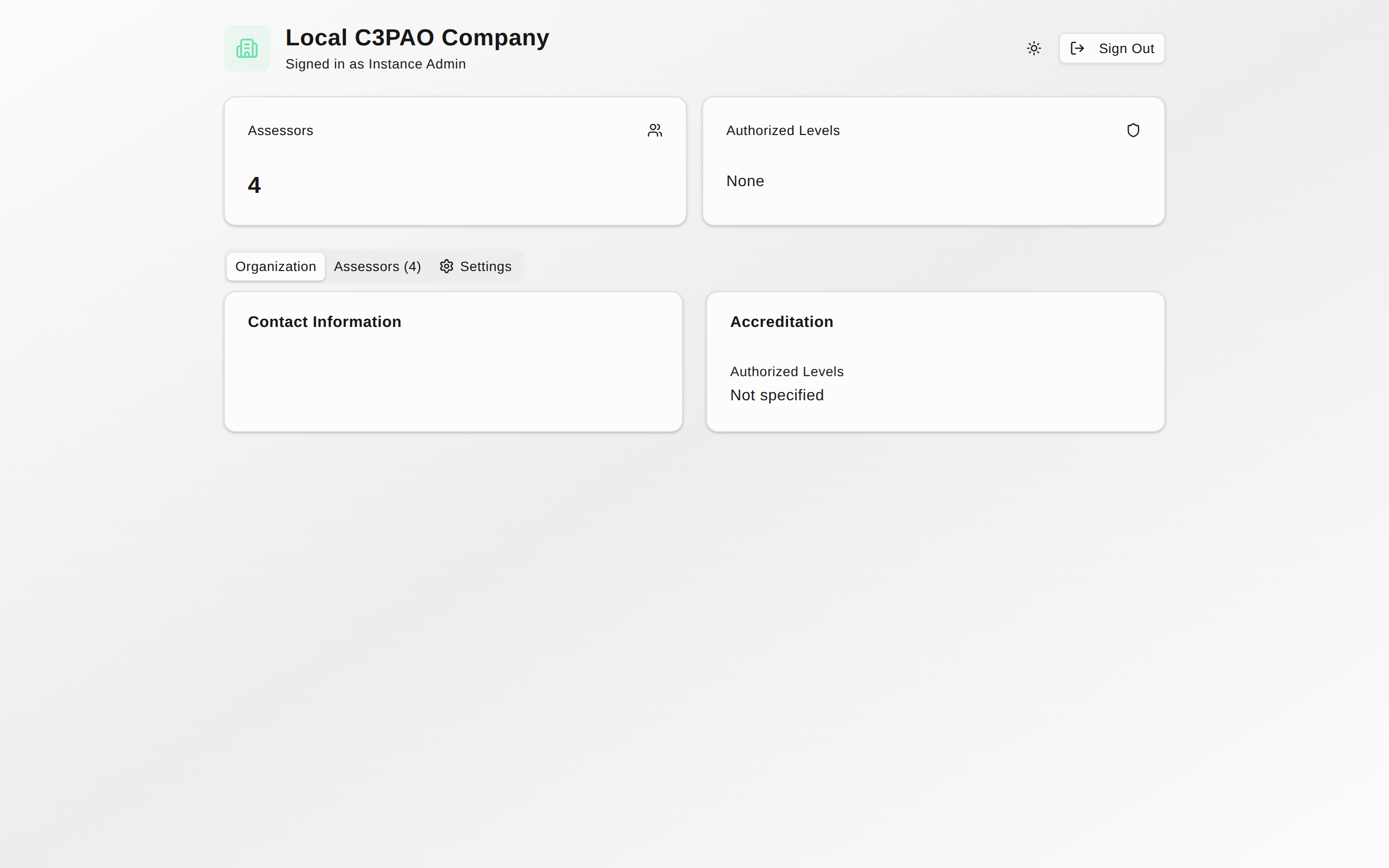
The header shows your organization's name and Signed in as your admin name, with a theme toggle and Sign Out on the right. Two stat cards summarize Assessors and Authorized Levels, and three tabs organize the panel: Organization, Assessors, and Settings.
Organization tab
Read-only cards showing Contact Information (email, phone, website, address) and Accreditation (Cyber-AB Accreditation ID, CAGE Code, Authorized Levels). Assessor-facing contact details are edited on the portal's Profile page; accreditation values come from the instance configuration.
Assessors tab
The Assessors card lists the C3PAO team with columns Name, Job Title, Certifications, Status, Last Login, and Actions.
Add an assessor
- Click Add Assessor.
- In the Add Assessor dialog, fill in Full Name, Email, and Password (minimum 8 characters). Phone, Job Title, CCA Number, and CCP Number are optional.
- Check Can lead assessments (Lead Assessor) if this person should have lead permissions — leads can start assessments, record determinations, manage the team, and see the COI Register.
- Click Add Assessor.
Manage an assessor
The ⋮ menu at the end of each row offers Activate and Deactivate. Deactivated accounts can no longer sign in; the row remains for the record.
Settings tab
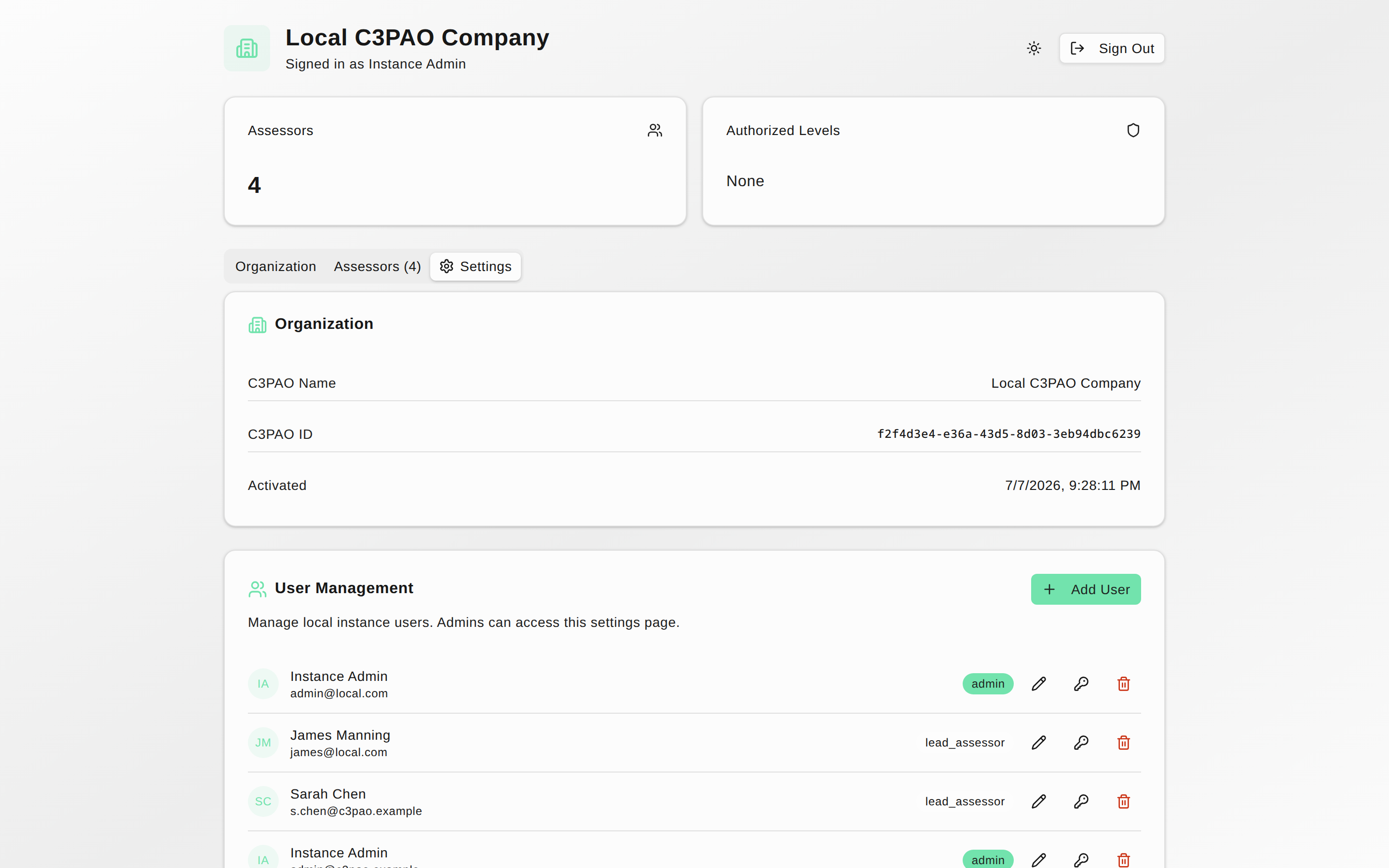
- The Organization card shows the C3PAO Name, C3PAO ID, and Activated timestamp.
- The User Management card manages local instance users — including additional admins. Click Add User and fill in Full Name, Email, Password (minimum 12 characters), and Role (Admin or User; admins can access this settings page). Each user row has edit (pencil), Reset Password (key), and Delete User (trash) buttons, each opening a confirmation dialog.
All accounts are local to this instance. There is no password recovery outside the panel — if an assessor forgets their password, an admin resets it here.