foxxcyber/docs
Signing In & Navigation
Log in to the C3PAO Portal and find your way around the sidebar, header, and dashboard.
Sign in
Open the client in your browser. The C3PAO Portal login card asks for your Email and Password.
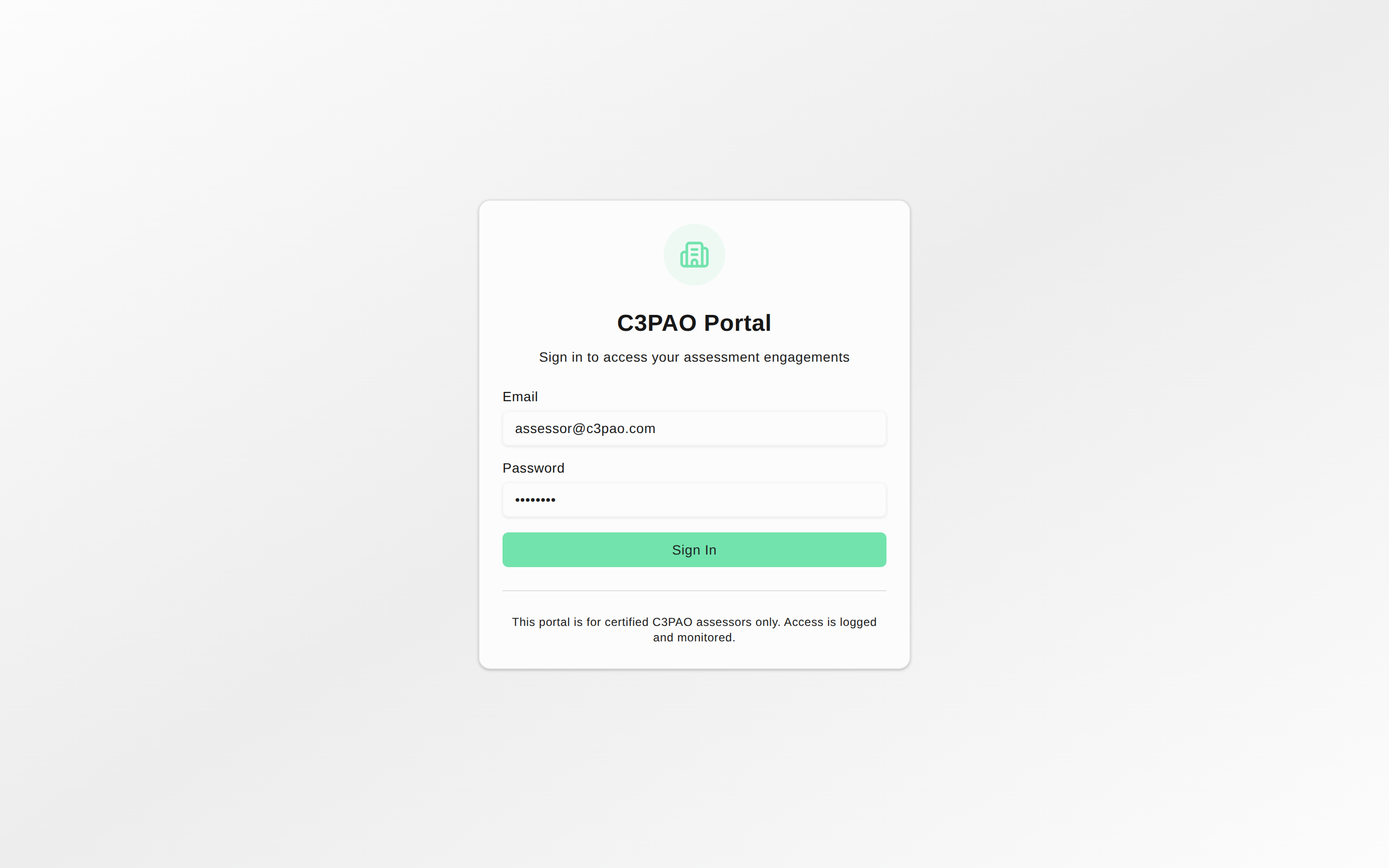
- Enter the email and password your instance administrator created for you.
- Click Sign In.
Where you land depends on your account type:
- Assessors and lead assessors land on the portal Dashboard.
- The instance admin account lands on the admin panel instead (see Instance administration).
Sessions last 8 hours. To sign out, click your name in the top-right of the header and choose Sign Out.
The portal layout
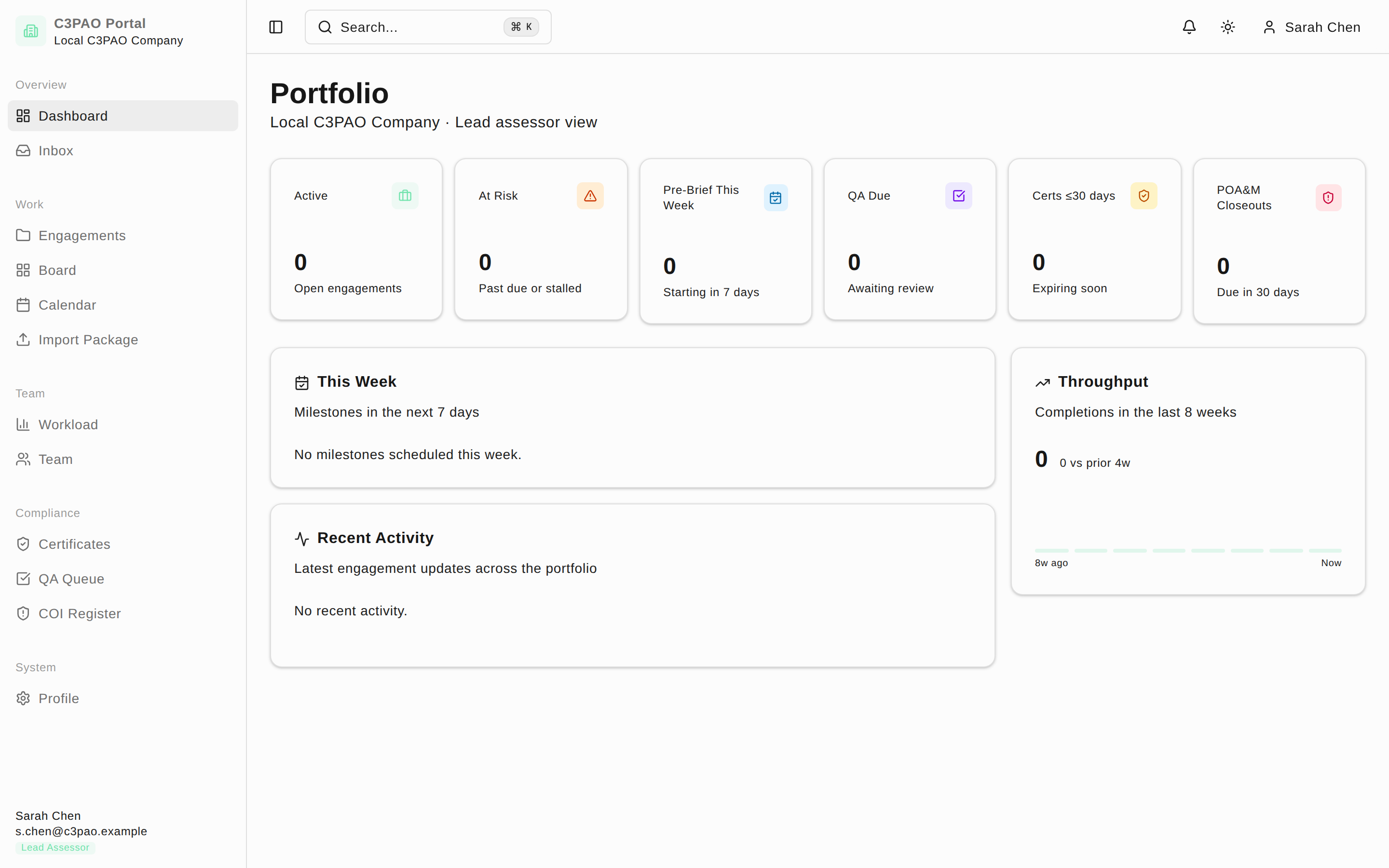
The portal has a collapsible left sidebar and a sticky top bar.
Left sidebar
The sidebar header shows C3PAO Portal and your organization's name. Below it, navigation is grouped into five sections:
| Group | Items |
|---|---|
| Overview | Dashboard, Inbox |
| Work | Engagements, Board, Calendar, Import Package |
| Team | Workload, Team |
| Compliance | Certificates, QA Queue, COI Register |
| System | Profile |
COI Register only appears for lead assessors. The sidebar footer shows your name, email, and a Lead Assessor badge if you have that role.
Top bar
- The sidebar toggle (leftmost icon) collapses the sidebar to icons.
- The Search... box opens the command palette — you can also press ⌘K (or Ctrl+K) anywhere.
- The bell icon shows notifications.
- The theme toggle switches between light and dark mode.
- Your name opens the user menu with your account details and Sign Out.
The dashboard
What the dashboard shows depends on your role:
- Lead assessors see the Portfolio view: KPI tiles across the top (Active, At Risk, Pre-Brief This Week, QA Due, Certs ≤30 days, POA&M Closeouts), a This Week card listing milestones in the next 7 days, a Recent Activity stream, and a Throughput chart of completions in the last 8 weeks.
- Assessors see My Assignments: a Your Assignments card with Active, In Progress, Pending Approval, and Completed counts, plus the same This Week and Recent Activity cards filtered to their own engagements.
Inbox
Click Inbox in the sidebar to see mentions, phase changes, QA assignments, and other notifications on a full page. Click Mark all read in the top-right to clear the unread state.