foxxcyber/docs
The Engagements List, Board & Calendar
Filter, group, tag, and track every engagement across the portfolio.
The Work section of the sidebar gives you three views of the same portfolio: a filterable list (Engagements), a kanban board by phase (Board), and a milestone Calendar.
The Engagements list
Click Engagements in the sidebar.
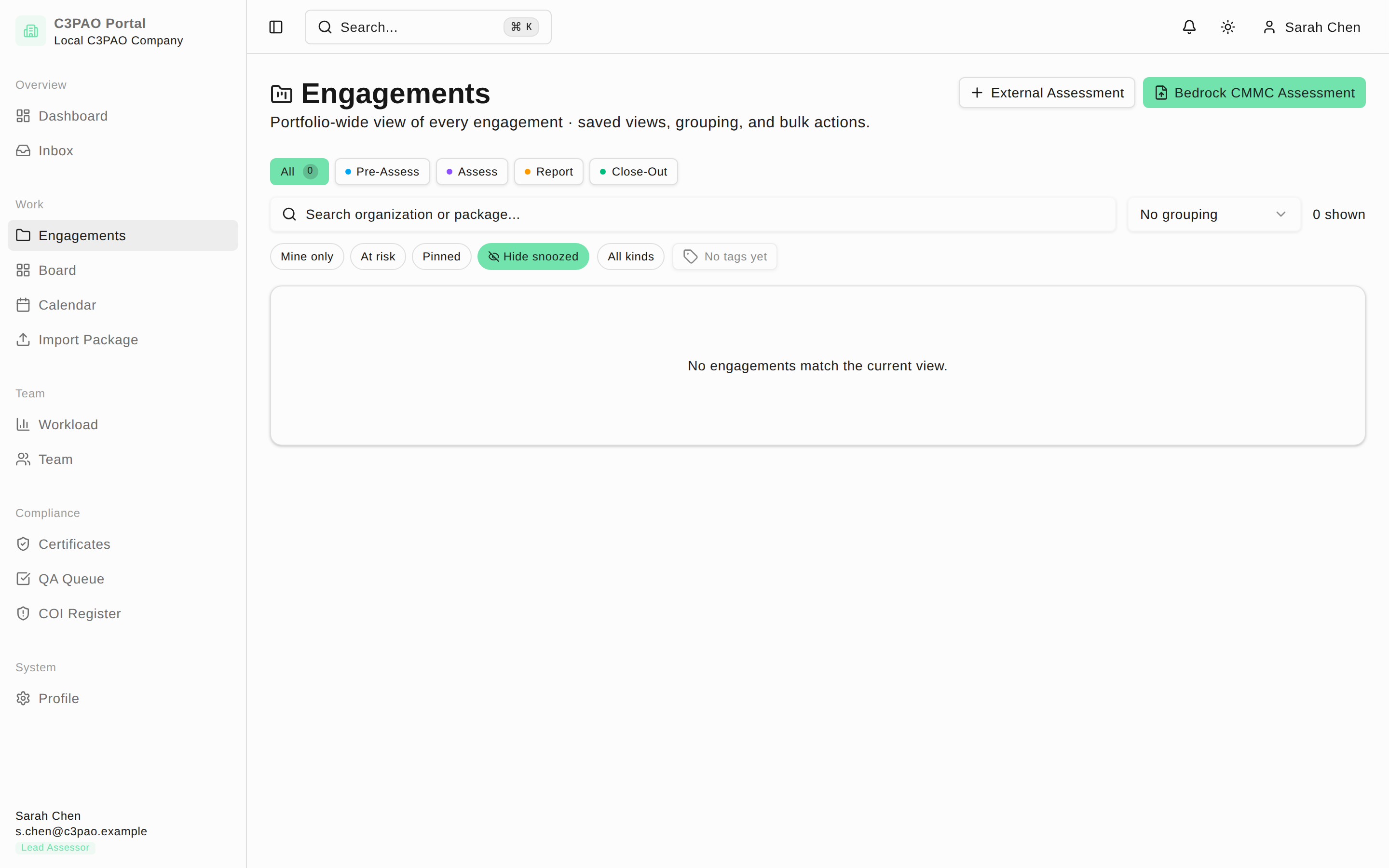
The header has two buttons on the right:
- External Assessment — create a local-only engagement for a client that doesn't use Bedrock CMMC (see External assessments).
- Bedrock CMMC Assessment — opens the Import Package wizard.
Filtering
- Phase tabs — All, Pre-Assess, Assess, Report, Close-Out filter by CMMC Assessment Process (CAP) phase. Each tab shows a count.
- Search — the Search organization or package... box matches organization and package names.
- Grouping — the dropdown next to the search box groups rows (the default is No grouping). The N shown counter reflects the current filters.
- Filter chips — Mine only, At risk, Pinned, and Hide snoozed toggle quick filters. Hide snoozed is on by default.
- All kinds — a chip that cycles between imported Bedrock engagements, external engagements, and both.
- Tag filter — filters rows by the tags you've applied.
Saved views
When you have an interesting combination of filters active, a Save current filter button appears. Click it, name the view, and it's added to a strip below the toolbar so you can re-apply it with one click. Saved views are private to you.
Row actions
Each row links to its engagement workspace. Rows also support personal organization — pinning, snoozing, and tagging — available from the row controls; these markers are visible only to you and drive the Pinned and Hide snoozed chips.
Bulk actions
Selecting rows shows a bulk bar with the selection count (N selected), a Re-assign lead to... dropdown with a Re-assign button, and Clear to drop the selection.
The Board
Click Board in the sidebar for a kanban view of engagements grouped by CAP phase.
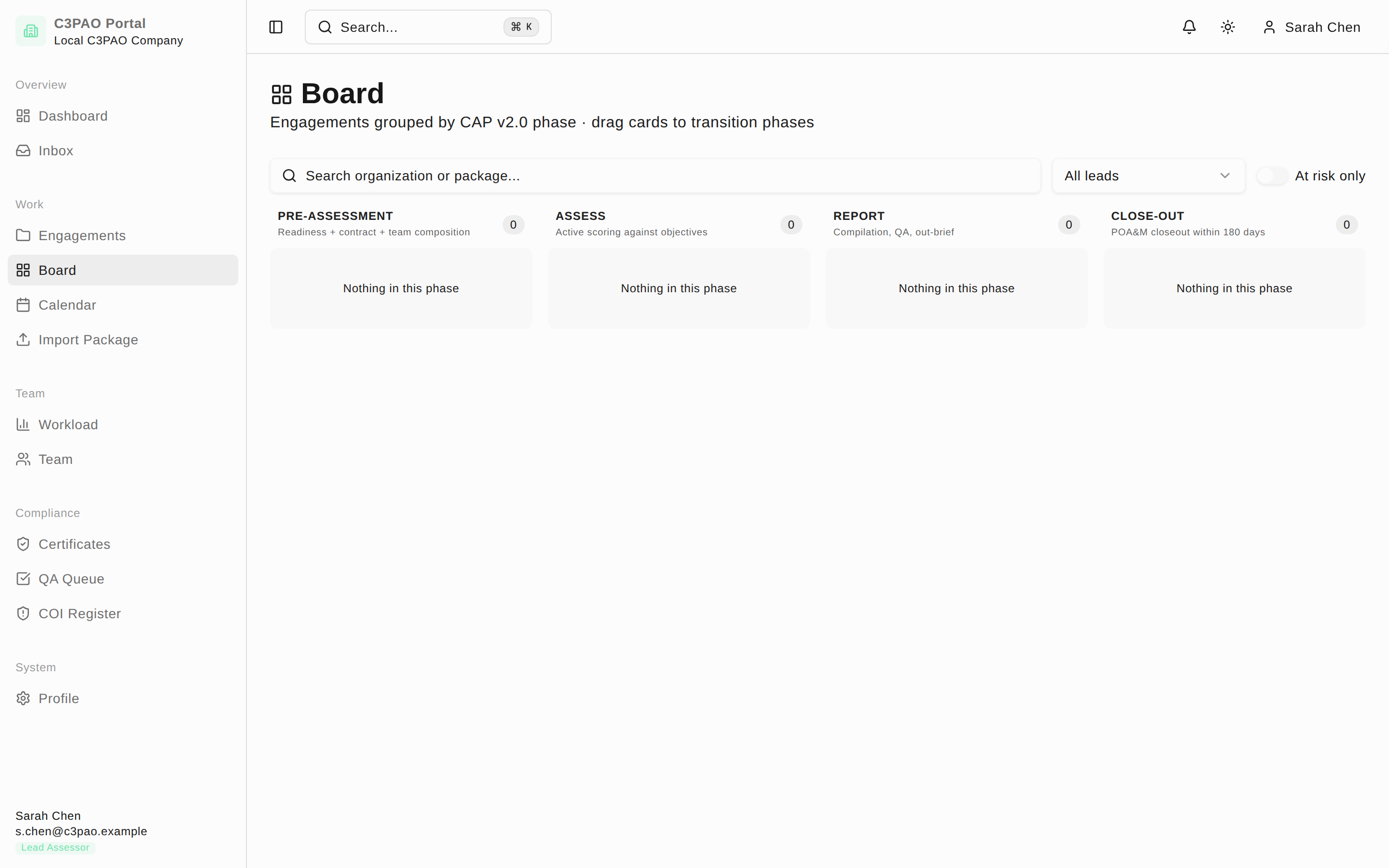
Lead assessors can drag cards between columns to transition an engagement's phase; other assessors see the same board read-only.
The Calendar
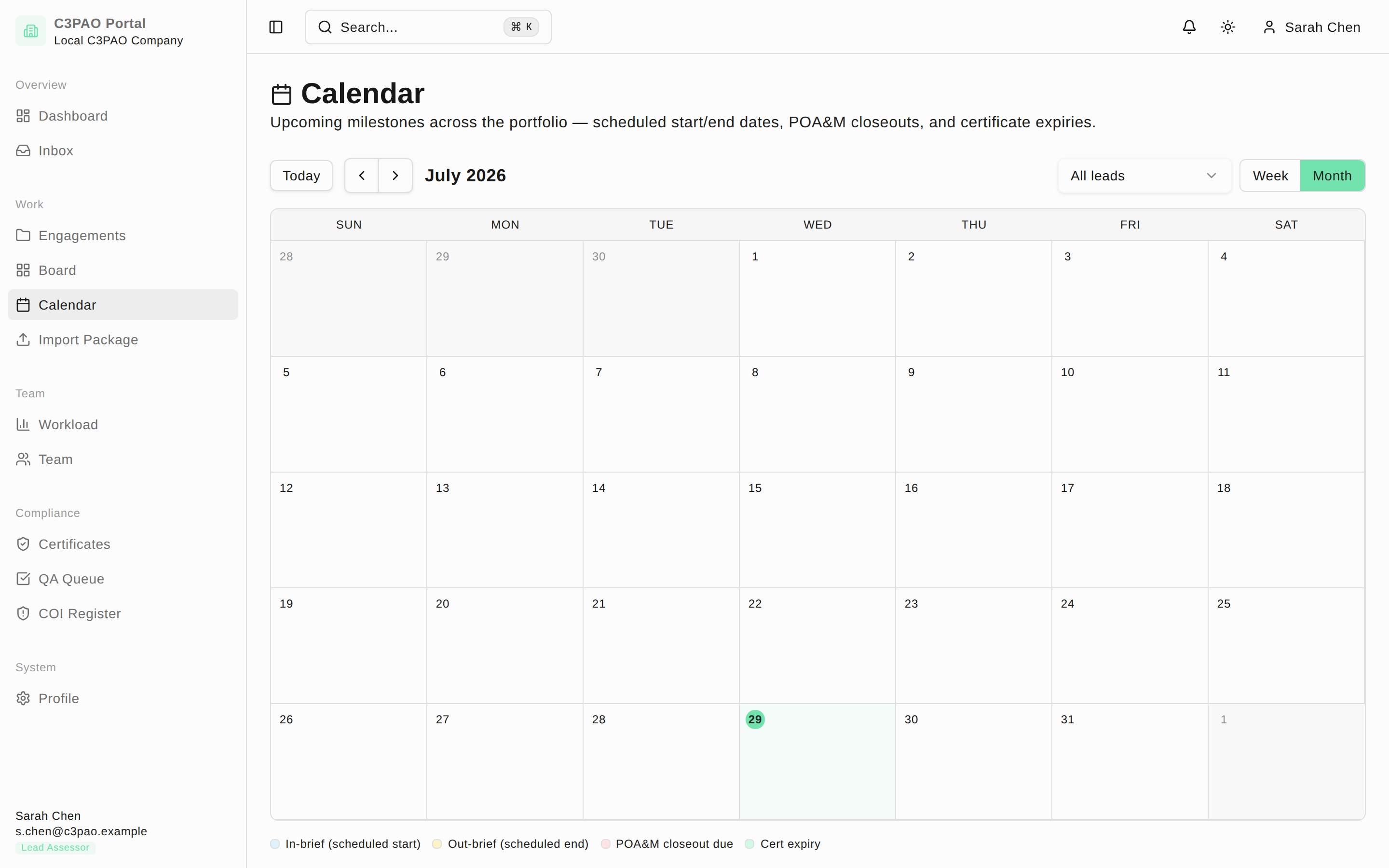
Click Calendar in the sidebar to see upcoming milestones across the portfolio — scheduled start and end dates, POA&M closeouts, and certificate expiries.