 foxxcyber/docs
Importing an Assessment Package
Load an OSC's exported assessment package into the client for offline assessment.
Contractors export their assessment package from Bedrock CMMC as a file and hand it to you (for example on approved removable media). Importing that file is how an engagement gets into the client — nothing is downloaded from the network.
Open the import wizard
In the left sidebar, click Import Package. You can also click Bedrock CMMC Assessment in the top-right of the Engagements page — both lead to the same Import Assessment Package wizard.
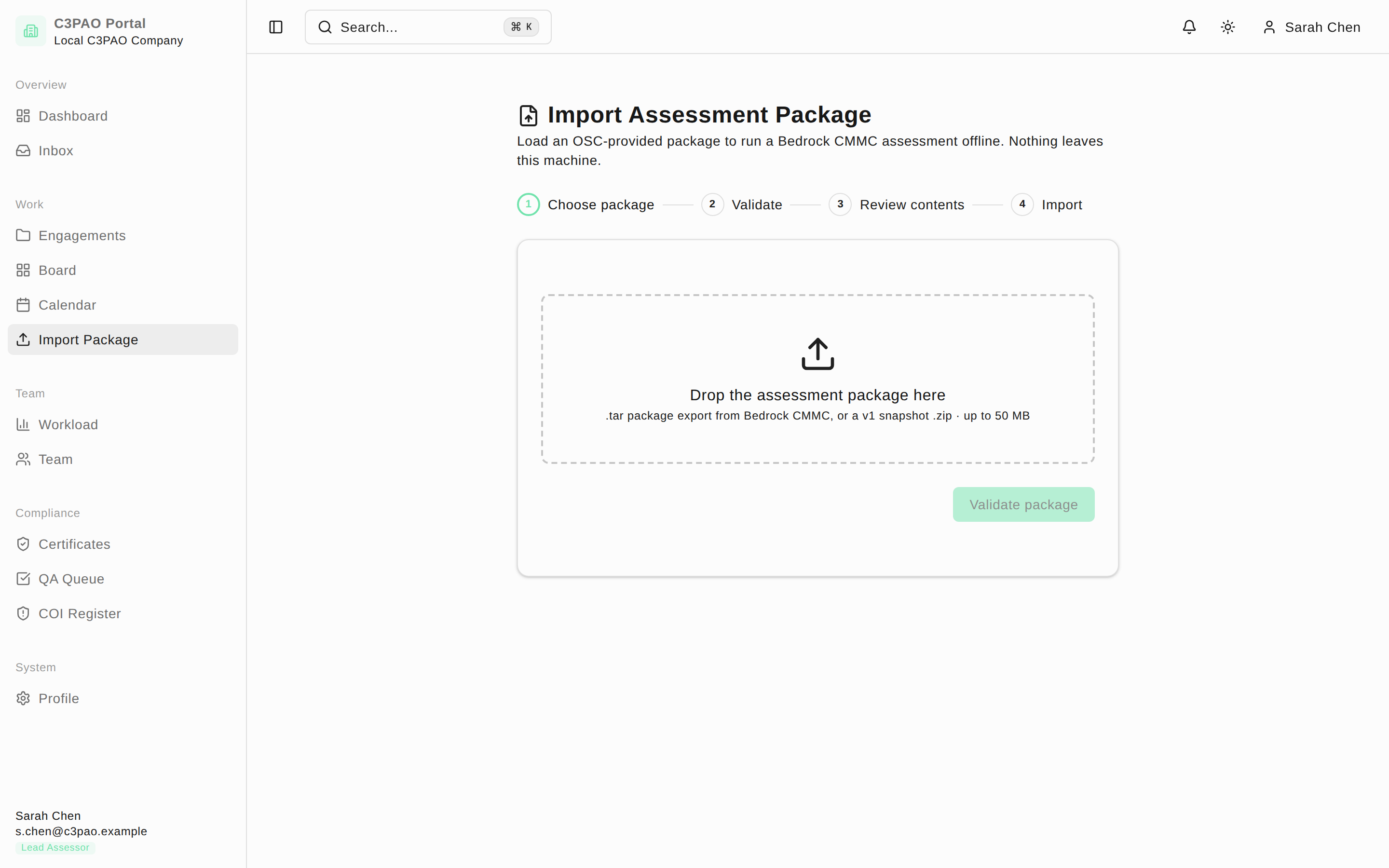
The wizard has four steps, shown across the top: Choose package, Validate, Review contents, and Import.
Step 1 — Choose and validate the package
- Drag the package file onto the dashed drop zone labeled Drop the assessment package here, or click the zone to browse. The wizard accepts a .tar package export from Bedrock CMMC or a v1 snapshot .zip, up to 50 MB.
- Click Validate package. Validation reads the file without writing anything to the database, so you can safely inspect a package before committing to it.
If validation fails, an error banner explains why and you can choose a different file.
Step 2 — Review and import
The preview card shows exactly what the package contains — the organization, package name, and record counts — before anything is imported.
- Review the contents. Click Choose a different file to start over.
- Click Import N rows (the button shows the total row count) to load the package. When it finishes you'll see a toast: "Package imported — the assessment is ready to open."
- On the final card, click Open assessment to go straight to the new engagement, or Import another package to run the wizard again.
Each import creates a fresh engagement with its own ID. Importing the same package file twice creates two separate engagements — it does not merge into the first one.
After the import
The engagement appears in Engagements, on the Board, and on the Calendar like any other. Open it to begin pre-assessment readiness.