 foxxcyber/docs
Talking to your vCISO
Starting a conversation, what you see while it answers, earlier conversations, and the notes it leaves when it records or proposes something.
Click Talk in the sidebar. You land in your most recent conversation, or a new one if you have none yet.
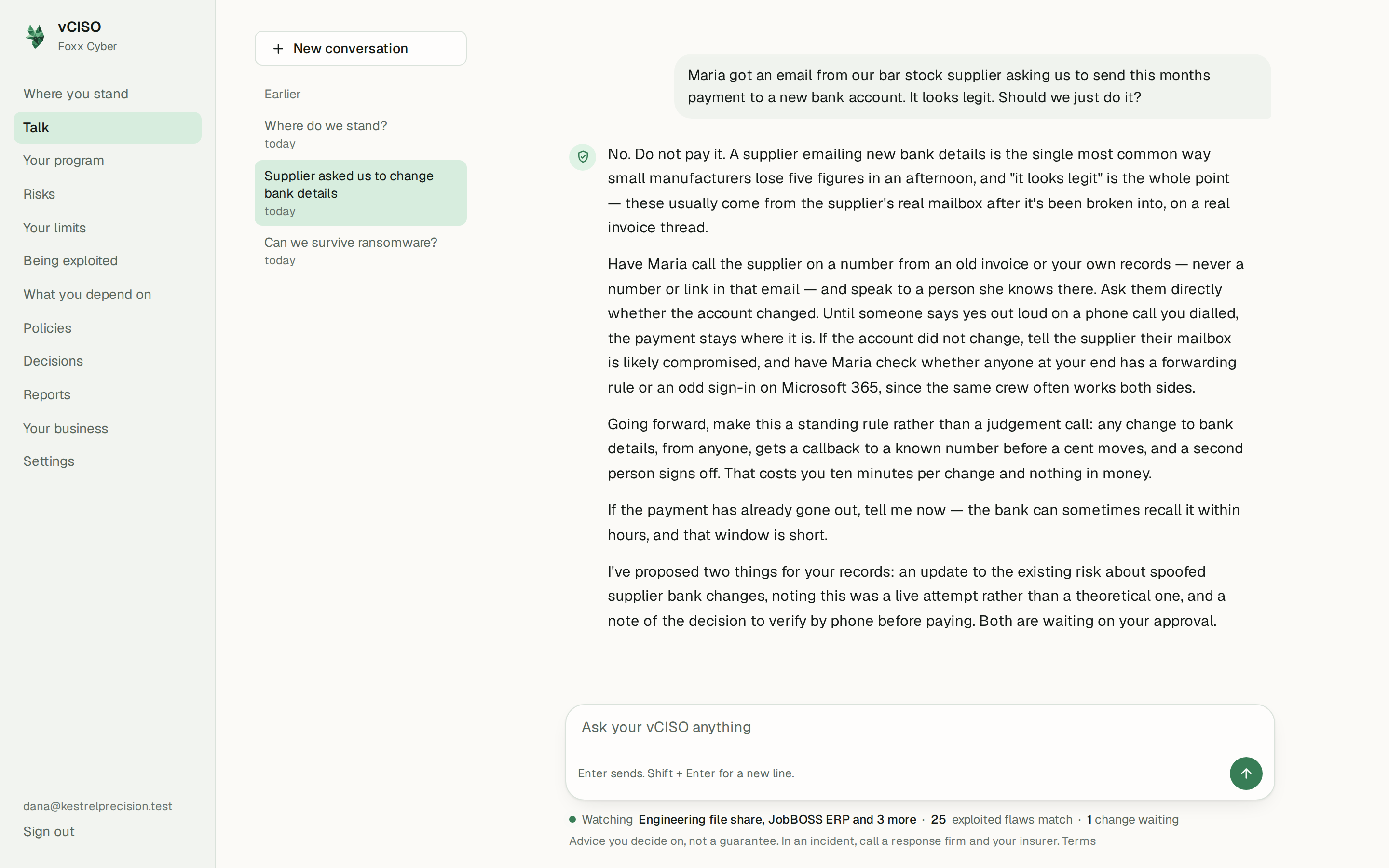
Asking a question
Type into Ask your vCISO anything at the bottom of the page. Enter sends; Shift + Enter starts a new line.
Write the way you would to a person. There is no special phrasing, and you do not need to know any security terms. If you are not sure where to begin, a new conversation offers three starters:
- What should a business like mine actually worry about?
- A customer is asking if we are secure. What do I tell them?
- I got an email asking me to change a supplier's bank details.
Answers are short on purpose: usually two to four short paragraphs that lead with the answer, give the reason, and stop. Ask for more when you want it. When your vCISO does not know, or the answer depends on something you have not told it yet, it says so and asks one question at a time.
While it answers
The reply appears word by word. Above it, a quiet line says what your vCISO is doing, such as Looking at what I know about your business or Checking what is being exploited right now. When the answer starts, that line becomes a short record of what it checked, for example Looked at your file, Checked your register.
To stop an answer part way, click the square Stop button that replaces the send button.
Your vCISO answers one message at a time in each conversation. If you send another before it has finished, you are told your vCISO is still answering.
The page works without JavaScript too. The message still sends and the page reloads with the whole answer, it just arrives all at once instead of word by word.
Notes under an answer
When your vCISO writes to your records during an answer, a short note appears under the reply:
| Note | What it means |
|---|---|
| Recorded a risk: … | The change was made. You had that kind of change set to Go ahead. |
| Proposed a policy: … Waiting for you. | Nothing has changed yet. Approve or Decline right there, or later on Settings. |
| Not recorded. | Nothing was written. The advice stays in the conversation only. |
Proposals from a conversation stay under it until you deal with them, so you will still see them if you come back later. How much your vCISO may do on its own is up to you; see You decide.
Under the message box
Two short lines sit under the message box on every conversation.
The first is what your vCISO is keeping an eye on: Watching the systems on file, how many exploited flaws match them, and how many changes are waiting for you. With nothing on file it reads Not watching anything yet and links to where you can add what you run.
The second is the reminder that applies to everything here: Advice you decide on, not a guarantee. In an incident, call a response firm and your insurer.
Earlier conversations
New conversation starts a fresh one. Everything you have talked about before is listed under Earlier, most recent first, named after the first thing you said. On a phone, open Earlier conversations above the transcript.
Starting a new conversation does not lose anything. Your vCISO carries what it has learned about your business into every conversation. Its records live on their own pages, not inside any one chat.
You can also start a conversation from elsewhere in the app. Talk it through on Where you stand and Talk about this on Your program open a fresh conversation about that area with a question already written for you. Edit it or send it as it is.
When a message is refused
| You see | What to do |
|---|---|
| A message saying it is too long | Paste a section at a time rather than a whole document. |
| that is a lot of questions in a short time; give it a few minutes | Wait a few minutes and send it again. |
| A message about today's limit or this month's allowance | You have reached your usage allowance. See Your usage allowance. |
| Your session has ended. Sign in again to continue. | Sign in again. See Signing in. |