 foxxcyber/docs
Password Policy
The team's password policy in Bedrock GRC: the settings admins choose, the rules that always apply, where each rule is checked, what happens at sign-in to a password that falls short, and how admins set temporary passwords.
Every password in Bedrock GRC follows one password policy, set by admins for the whole team. It covers the passwords people choose for themselves, the temporary passwords admins set, and passwords chosen when accepting an invitation. The same policy is checked against the password typed at each sign-in.
The settings follow NIST SP 800-171 requirements 3.5.7 (minimum password complexity, and a change of characters when a new password is created) and 3.5.8 (no reuse for a set number of generations). Whether a deployment meets those requirements also depends on how the settings are chosen and how the service is run.
The settings
Admins set the policy on the Team page, in the Sign-in security card under Password policy, and choose that row's Save.
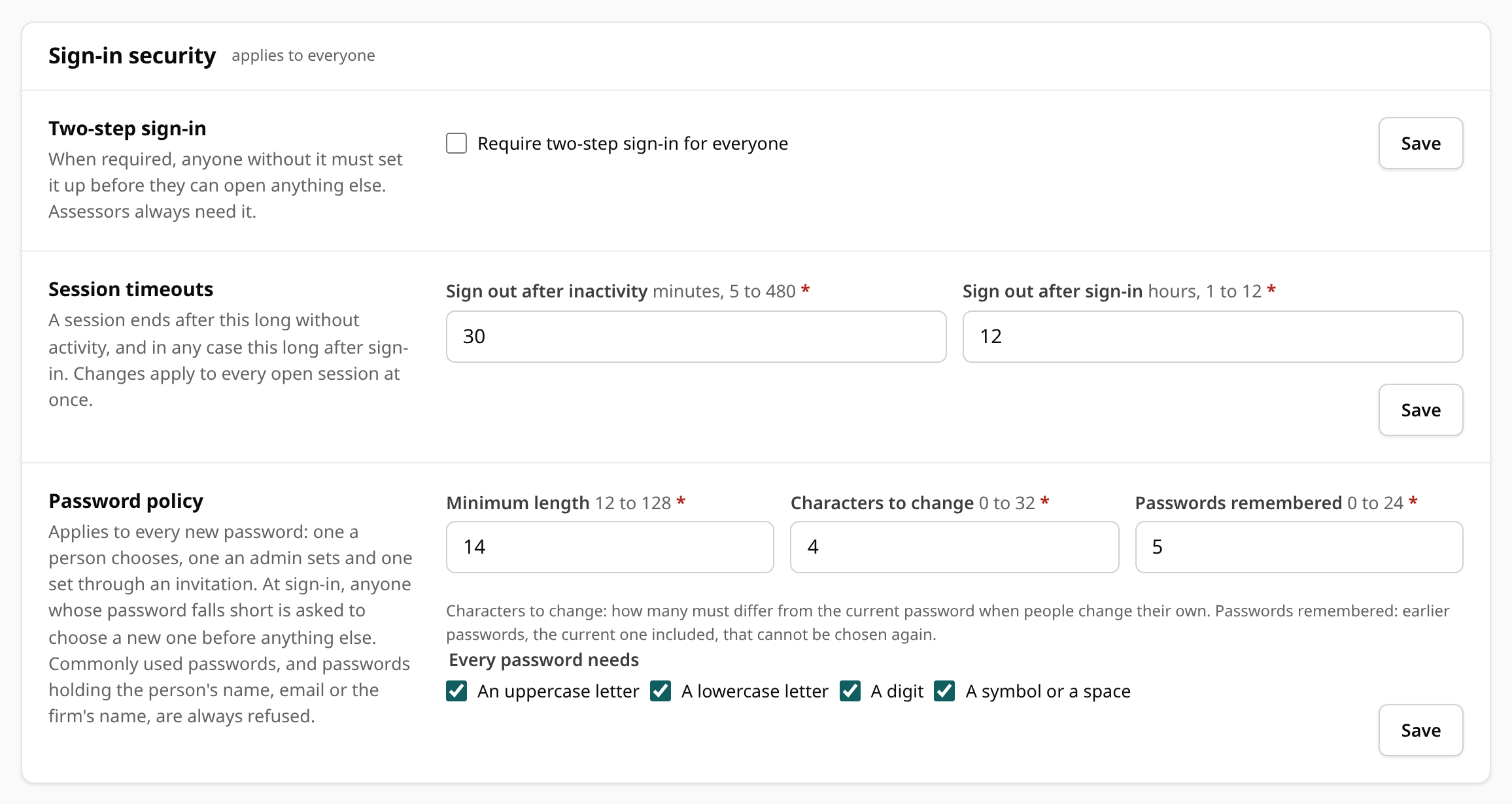
| Setting | What it does | Range | Default |
|---|---|---|---|
| Minimum length | The fewest characters a password may have. | 12 to 128 | 14 |
| Every password needs | Which kinds of character each password must contain: an uppercase letter, a lowercase letter, a digit, a symbol or a space. A symbol is anything that is neither a letter nor a digit. | Each on or off | All four on |
| Characters to change | How many characters must differ from the current password when people change their own: added, removed or replaced. It cannot be more than the minimum length. | 0 to 32 | 4 |
| Passwords remembered | How many earlier passwords, the current one included, cannot be chosen again. | 0 to 24 | 5 |
Until an admin saves the policy, the defaults apply. A value out of range is refused with a message under that field, and nothing is saved. Every change is written to the audit log with the rules chosen (never a password).
A change applies at once: to every password set from then on, and to the password each person types at their next sign-in (below).
Rules that always apply
Whatever the settings, a password is refused when:
- it is on the built-in list of commonly used passwords, ignoring upper and lower case. The list is drawn from passwords exposed in public breaches and ships with Bedrock GRC, so the check needs no outside service;
- it contains the person's identity: the part of their email address
before the
@, any word of three letters or more in their name, the practice's name, or, for an assessor, their firm's name. A firm name counts with and without an ending such as "LLC" or "Inc". The check ignores upper and lower case, spaces and punctuation, so "Dana.Kim" and "danakim" are the same; - it is longer than 256 characters.
Lengths count characters, not bytes: an accented letter such as é counts as one.
Where each rule is checked
| Where the password is set | What is checked |
|---|---|
| Account → Change password | Every rule: the settings, the rules above, the characters changed from the current password, and the person's own earlier passwords. The earlier passwords are checked only when the current password typed is right. |
| Accepting an invitation | The settings and the rules above, with the name typed on the form (or the invitation's name, when the field is left blank). A new account has no earlier passwords. |
| Team → Add a person with a temporary password | The settings and the rules above, with the name, email and firm typed on the form. |
| Team → a person's menu → Reset password… | The settings, the rules above, and the person's own earlier passwords, so an admin cannot hand back a password they used before. The characters-changed rule does not apply: the admin does not know the current password. |
| Sign-in | The password typed is checked against the settings and the rules above (below). |
When a password is refused, every rule it breaks is listed under the field, and nothing else on the form is lost.
A refusal never says whether a password is one of the person's earlier ones unless it passes every other rule. That way an admin resetting someone's password cannot use refusals to test guesses at that person's old passwords.
The checklist under the field
Every field where a new password is chosen has a checklist of the policy in force: the length, each kind of character required, no name, email or firm name and, under Change password, the characters to change. Each item ticks as you type, and the form cannot be sent until the items the browser can check are met. Whether a password is commonly used, or one of your earlier ones, is checked when you save.
At sign-in: passwords that fall short
When the policy changes, existing passwords are not changed for people. Instead, each sign-in checks the password just typed against the policy's length, kinds of character, the common-password list and the identity rule:
- A password that meets them signs in as usual.
- A password that falls short still signs in, but only as far as Account. The person must choose a new password there before they can open anything else, and before setting up two-step sign-in if the team requires it. Signing out still works.
- Account names the reason in plain words, for example "it is shorter than the policy asks" or "it is on a list of commonly used passwords". It never shows anything of the password itself.
- The person's row on Team shows Below password policy until they choose a new password, and the sign-in is recorded in the audit log as Password below the policy at sign-in.
So after raising the minimum length, for example, everyone with a shorter password is asked to choose a new one at their next sign-in. Nobody is locked out, and an admin does not have to reset anyone. Choosing the new password signs out the person's other sessions and turns off their calendar feed, as any password change does.
Temporary passwords
Admins set a temporary password when they add a person without an invitation, or reset someone's password with Reset password… in their row's menu on the team list.
- Generate a password, beside the field, fills it with a random password
that meets the policy and shows it in plain text: groups of four letters
and digits joined by hyphens, at least 19 characters, with look-alike
characters such as
0andOleft out. It is made fresh each time and never stored or logged. Copy it before you save, and share it with the person directly. - A temporary password is only good for choosing a new one: every sign-in with it goes to Account until the person chooses their own, and it keeps working until they do, so share it directly and promptly. Team shows Temporary password on their row until they do.
- Each admin can try 8 password resets (refused ones included) in any 15 minutes. After that, resets are refused, whoever they are for, until the oldest try is 15 minutes old.
- A reset refused because the password is one of the person's earlier ones
is recorded in the audit log as Temporary password refused: used
before, under the admin who tried it, with the person (
user:N) as the target.
A reset signs the person out everywhere, turns off their calendar feed and clears any lockout. See Team and Roles.
Self-hosted deployments
On a self-hosted deployment, the command that creates the first admin's password hash checks the password against the default policy's length, kinds of character and common-password list. The name, email and firm rules are checked when that password first signs in, like any other.
Related pages
- Your Account and First Sign-In: the rules as each person sees them.
- Team and Roles: adding people, resets and the team list.
- Security Model: how accounts and sign-in are protected.