 foxxcyber/docs
Your Account and First Sign-In
How you get a Bedrock GRC account, accepting an invitation, signing in for the first time, the password rules, lockout, and your Account page.
Bedrock GRC has no self-serve sign-up. An admin adds you, usually by sending an invitation to your work email. If you think you should have an account and don't, write to support@foxxcyber.com.
Accept an invitation
The invitation email is titled "Your invitation to Bedrock GRC" and names the admin who sent it and the role you are invited as (or, for an assessor, your firm). Choose Accept the invitation.
- The page Set up your account shows the email you will sign in with. Check your name (if you leave it blank, the name on the invitation is kept), then choose a password and type it again. A checklist under the password shows the team's password rules and ticks each one as you meet it.
- Choose Create my account. You are signed in straight away.
- If your team requires two-step sign-in, you are taken to set it up next. Assessors from a partner firm always are. See Two-Step Sign-In.
The link is personal to you and works once. It expires after 7 days; the email gives the date. It also stops working if the admin withdraws it, sends you a newer one (only the newest link works), or is no longer an admin. If the page says This invitation is not active, ask for a new one.
When email is not set up, or the email could not be sent, the admin copies the invitation link and sends it to you some other way. It works the same.
If the page comes back with a message under a field (for example, a password that breaks a rule, or two passwords that do not match), fix that field and choose Create my account again. Your name is kept; passwords are never filled back in.
Sign in with a temporary password
When an invitation is not an option, an admin can create your account with a temporary password and share it with you directly.
- Sign in with your email and the temporary password.
- You land on Account, with a note saying an admin set your current password. Until you choose your own password under Change password, that is the only page you can use (you can still sign out).
- After that, set up two-step sign-in if your team requires it.
An admin resetting your password gives you a new temporary password, and the same steps apply at your next sign-in.
When your password falls short of the policy
Each sign-in checks the password you type against the team's current password policy. If your admins have made the rules stricter since you chose it (for example, a longer minimum length), you are still signed in, but you land on Account with a note saying why, such as "it is shorter than the policy asks". Choose a new password under Change password before you continue, exactly as with a temporary password. Nothing is wrong with your account, and an admin does not need to do anything.
Password rules
Your admins set the rules for the whole team. Unless they have changed them, every password you choose must:
- be at least 14 characters long (256 at most);
- contain an uppercase letter, a lowercase letter, a digit and a symbol or a space;
- not be on the built-in list of commonly used passwords;
- not contain your name, your email address or the firm's name;
- when you change your own, differ from your current password in at least 4 characters, and not be one of your last 5 passwords.
The checklist under each new-password field shows the rules in force on your team and ticks them off as you type. Whether a password is commonly used, or one of your earlier ones, is checked when you save. If anything is wrong, every rule the password breaks is listed under the field. The full policy, and where each rule applies, is on Password Policy.
A few unrelated words make a good password that is easy to type. A password manager is better still.
Signing in
Open your Bedrock GRC address and sign in with your email and password. If
two-step sign-in is on for your account, enter the six-digit code from your
authenticator app on the next page, or one of your recovery codes (ten
letters and digits, like abcde-12345). Spaces and hyphens in a six-digit
code are ignored, and a recovery code may be typed with or without its
hyphen.
If you leave the email or password empty, the form says so under the field. A wrong email or password brings the form back with your email filled in and the message "Incorrect email or password."; the message is the same whether or not the account exists.
If your firm has set up single sign-on and you have linked your account, choose Sign in with single sign-on instead. If your firm requires it, your password is refused and the page offers the single sign-on button first. See Single Sign-On.
If your admins have published a sign-in notice, it appears above the form.
Lockout after failed attempts
After 10 failed sign-in attempts in a row (wrong passwords or wrong two-step codes), the account is locked for 15 minutes. While it is locked, the password page answers exactly as it does for a wrong password, so a lock reveals nothing to someone guessing. If the lock starts while you are on the code page (wrong codes count too), you are sent back to sign-in with a message saying the account is locked for a few minutes. When email is set up, you get an email saying the account was locked and until when, in your practice's time zone.
- A browser you have signed in from before is not held by the lock, so someone guessing your password elsewhere cannot keep you out.
- Single sign-on does not get round the lock: from any other browser, a locked account is refused at the single sign-on step too, with a message saying it is locked for a few minutes.
- To get in sooner, ask an admin: the Team page shows the lock, with Unlock now in your row's menu.
- If the attempts were not yours, tell an admin, and change your password once you are back in.
Repeated attempts from one place are also slowed down for a few minutes, whoever they are for.
Forgotten password
There is no "forgot password" email. Ask an admin to reset your password (they give you a new temporary one), or write to support@foxxcyber.com.
Your Account page
Account (under You in the sidebar) shows your email, role (and firm) under its heading, and holds:
| Section | What it does |
|---|---|
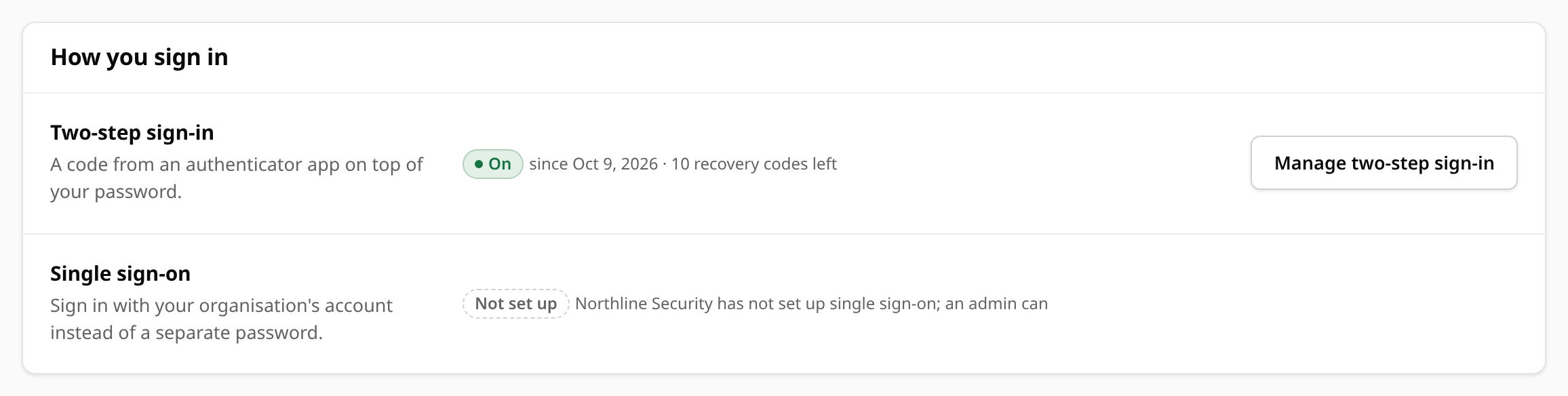
| How you sign in | Where your account stands, with the button that changes it. Two-step sign-in shows On (since when, and how many recovery codes are left) or Off, with Manage two-step sign-in, Set up two-step sign-in, or Finish setting it up for a setup you started. Single sign-on shows Linked (to which provider, since when, and whether your firm requires it), Not linked, Linked to an old provider, Not set up or Unavailable, with Link your provider account or Manage single sign-on (admins see Set it up while it is not set up). |
| Profile | Your Display name, shown across the console, in the audit log and on what you send to clients, with Save profile. Your email cannot be changed here. |
| Change password | Your Current password, then the New password and Confirm new password, and Change password. A checklist under the new password shows your team's rules as you type. A wrong current password, a rule the new one breaks, or a mismatch between the two is shown under that field. |
| Where you are signed in | Every live session of yours, with Sign out for each and Sign out other sessions. See Sessions. |
While you must choose a new password (after a temporary password, or one below the policy), Account shows only a note saying why, Profile and Change password.
Changing your password signs out your other sessions and turns off your calendar feed; make a new feed from Monitoring if you use one. After eight tries in 15 minutes, the form asks you to wait a few minutes before the next one.
Times on Account, such as when each session signed in, are in your practice's time zone.
When you leave
When you leave the practice or your firm, an admin offboards you: your account is disabled, every session ends, you are removed from every client, your calendar feed stops, and the client access links you made are revoked. See Team and Roles.