 foxxcyber/docs
Two-Step Sign-In
Set up two-step sign-in with an authenticator app, use and renew recovery codes, move to a new phone, and how admins require it or reset it.
Two-step sign-in adds a six-digit code from an authenticator app (such as 1Password, Microsoft Authenticator, Google Authenticator or Authy) to your password. With it on, a correct password only takes you to the code page; you are signed in after the code. Each code works once.
Who must use it:
- Assessors from a partner firm, always. They cannot turn it off.
- Foxx Cyber staff, whenever the team policy Require two-step sign-in for everyone is on. It is on unless an admin turns it off.
Anyone the policy covers who has not set it up is sent to set it up before they can open anything else.
Set it up
- On Account, under How you sign in, choose Set up two-step sign-in, then Set up two-step sign-in again on the page that opens. (If your team requires it, you are taken there after signing in.)
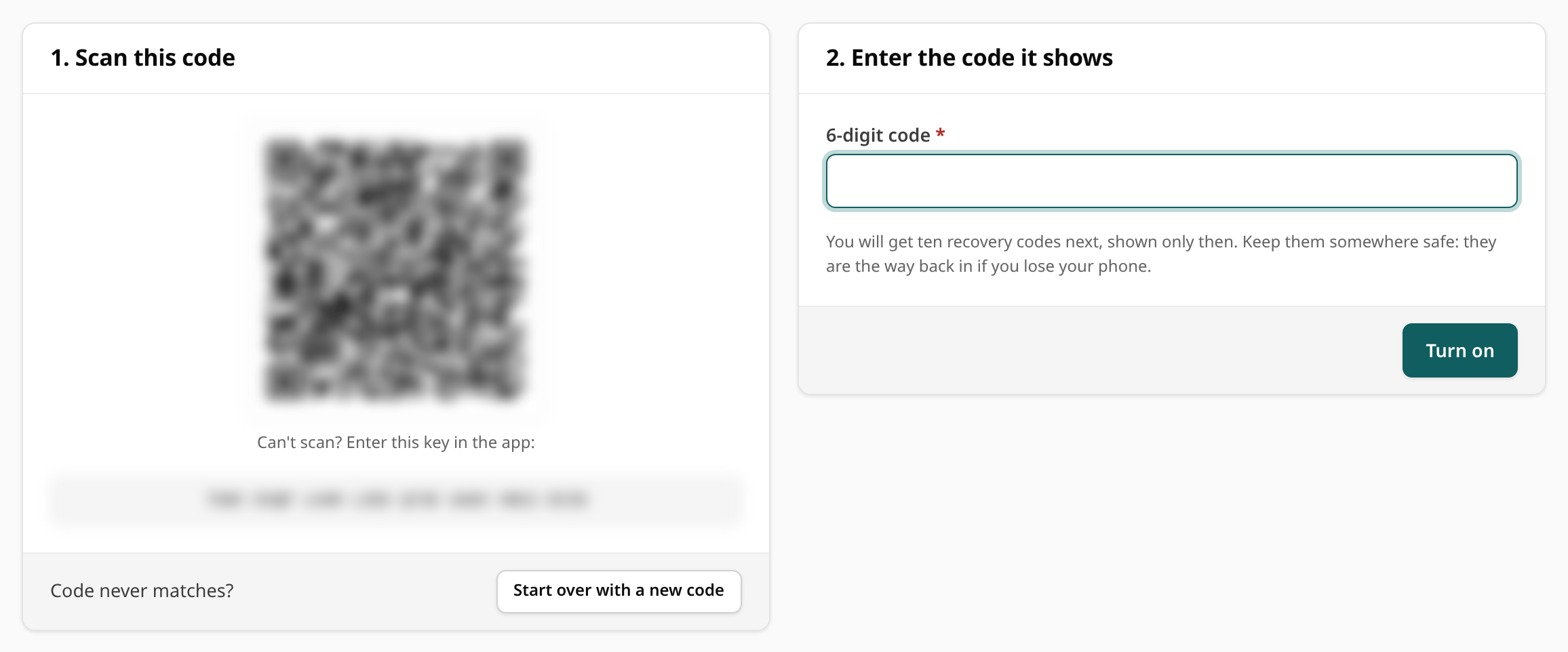
- Scan the QR code under 1. Scan this code with your authenticator app. If you can't scan it, type the key shown under the code into the app instead. The QR code is drawn by Bedrock GRC itself; the key never goes to another service.
- Type the six-digit code the app shows under 2. Enter the code it shows and press Enter (or your phone keyboard's Go key), or choose Turn on.
- Save your ten recovery codes. The Your recovery codes page shows them for 10 minutes, until you choose I've saved them or go back to Two-step sign-in; after that they cannot be shown again. Use Copy all and keep them in your password manager, or Print them, then choose I've saved them.
Turning two-step sign-in on signs out your other sessions.
If the code is refused, check that your phone's clock is set automatically and type the newest code. If you need a fresh QR code, choose Start over with a new code. It asks first: remove the Bedrock GRC entry you already added to your authenticator app, then scan the new code.
Sign in with it
After your password, the Enter your code page asks for the six-digit code
from your app. Lost your phone? Type one of your recovery codes in the same
box instead: ten letters and digits, shown as two groups of five such as
abcde-12345. Spaces and hyphens are ignored, so 123 456 and 123-456
work too, and a recovery code may be typed with or without its hyphen
(abcde 12345 and abcde12345 work). Anything of another shape gets a
message under the box and does not count as a failed attempt. Choose
Verify to sign in. Each recovery code works once;
after you use one, Bedrock GRC tells you how many are left.
Wrong codes count towards the account lockout just as wrong passwords do. The code page also expires after a few minutes; choose Start over to sign in again.
Manage it
Manage two-step sign-in on Account opens the Two-step sign-in page. It shows since when it has been on and how many recovery codes you have left, and its Manage card has:
| Row | What it does |
|---|---|
| New recovery codes | Type a current code from your app (or a recovery code) and choose Make new codes. It asks first, then replaces all your recovery codes with ten new ones; the old ones stop working at once. Do this if you used some or think they were seen. |
| Move to a new phone | Type a current code (or a recovery code) and choose Start the move (below). |
| Turn off | Staff only, and only when your team does not require two-step sign-in. Needs your password and a current code, then Turn off two-step sign-in and a confirmation. |
A code of the wrong shape, or an empty password, comes back with a message under the field and does not count as an attempt.
Move to a new phone
You can move to a new phone yourself, without an admin, as long as you have a current code from the old phone or one recovery code.
- Under Move to a new phone, enter a current code from the old phone, or a recovery code if the old phone is gone, and choose Start the move.
- Scan the new QR code with the new phone's authenticator app.
- Enter the code the new phone shows and choose Switch to the new phone.
Until step 3, your current phone keeps working, so you are never left without a way in; Cancel and keep the current phone abandons the move. Once the new phone is confirmed, the old phone's codes stop working, your other sessions are signed out, and your recovery codes stay the same.
Lost your phone and your recovery codes
Ask a Foxx Cyber admin to Reset two-step sign-in for you (it is in your row's menu on the Team page), or write to support@foxxcyber.com. A reset signs you out everywhere and turns off your calendar feed. If your team requires two-step sign-in, or you are an assessor, you set it up again with new recovery codes at your next sign-in. Otherwise you sign in with your password alone until you set it up again from Account.
The team policy
Admins set the policy on the Team page, in the Sign-in security card under Two-step sign-in: tick Require two-step sign-in for everyone and Save.
- While it is on, anyone without two-step sign-in sets it up at their next page load, and nobody can turn theirs off.
- Turning it off makes it optional for staff. Assessors still need it.
- A person who signs in with a temporary password, or with a password that falls short of the password policy, chooses a new password first, then sets up two-step sign-in.
Admins can Reset two-step sign-in for anyone else from that person's row menu on the team list, after a confirmation. Every setup, reset and move is written to the audit log, and so is every recovery code used (at sign-in or on Account) and every refused code: at sign-in (Two-step code refused), and on Account or when linking single sign-on (Two-step code refused on Account).
With single sign-on
Signing in through your firm's identity provider does not replace this app's two-step code by default: after the provider sends you back, you are asked for your code as usual (or sent to set it up, if the policy covers you). The code is skipped only when your firm has chosen to trust the provider's own multi-factor sign-in and the provider reports that it happened. See Single Sign-On.