 foxxcyber/docs
Clients and the Portfolio
Create a client record, fill in the profile, contacts and people on the client, read the client overview and the portfolio, and archive a former engagement.
A client is one security program. Everything else in Bedrock GRC (risks, frameworks, roadmap, documents, registers, the calendar, the portal and the report) hangs off a client, and no record is shared between clients.
Create a client
Admins and consultants can create clients. Open Clients → New client. The form has three parts, and only the name is required. Choose Create client when you are done:
| Part | Fields |
|---|---|
| Who they are | Name, legal name, industry, location, employee count band, annual revenue band, website. |
| What matters to them | Mission (what the business does and why it matters), crown jewels (the data and systems whose loss would hurt most), regulations and obligations, and whether they are a defense supplier (DIB), handle CUI, and their CMMC target (none, Level 1, 2 or 3). |
| Engagement | Status, service tier (free text), engaged since, next program review date, and notes. |
You become the client's lead, with edit access. For admins, the same page also restores a client from a backup; see Client Backup and Restore.
Status
A client moves through Prospect → Onboarding → Active → Paused → Former. Status matters beyond the badge:
- The portfolio's Active clients count includes active and onboarding clients.
- Quarterly posture-snapshot reminders and the loose ends check in Monitoring cover active and onboarding clients only.
The next program review date shows as a chip in the client header (red once it has passed) and appears in Monitoring.
The Profile tab
Profile holds the fields above plus two lists:
- Client contacts: the people at the client, with their title, role (executive sponsor, decision maker, IT lead, finance, legal, other), email, phone and notes. Contacts do not sign in. Contacts with an email address can be picked as recipients when you email the board report.
- People on this client: Foxx Cyber staff as Lead or Support, and assessors from a partner firm as Assessor, each with their Access: a consultant Edits or Reads only, as an admin chooses; admins always edit, viewers only read, and assessors work only on the frameworks their firm holds and on evidence. Only admins add people (Person, Role on this client, Access, then Add person), and change or remove them from the menu on each person's row (Save changes, or Remove from this client, which asks first). A client with nobody assigned is visible to admins only. Assigning an assessor is the first step of an outside assessment; see Assigning a Firm. The full rules are on Team and Roles.
Changing the profile (Save profile), contacts (Add contact) and archiving needs edit access to the client. A profile change that is refused comes back with a message under each field to fix and what you typed kept. Every profile change is recorded in the client's audit trail.
The Overview tab
The client overview is the one-page picture of the program:
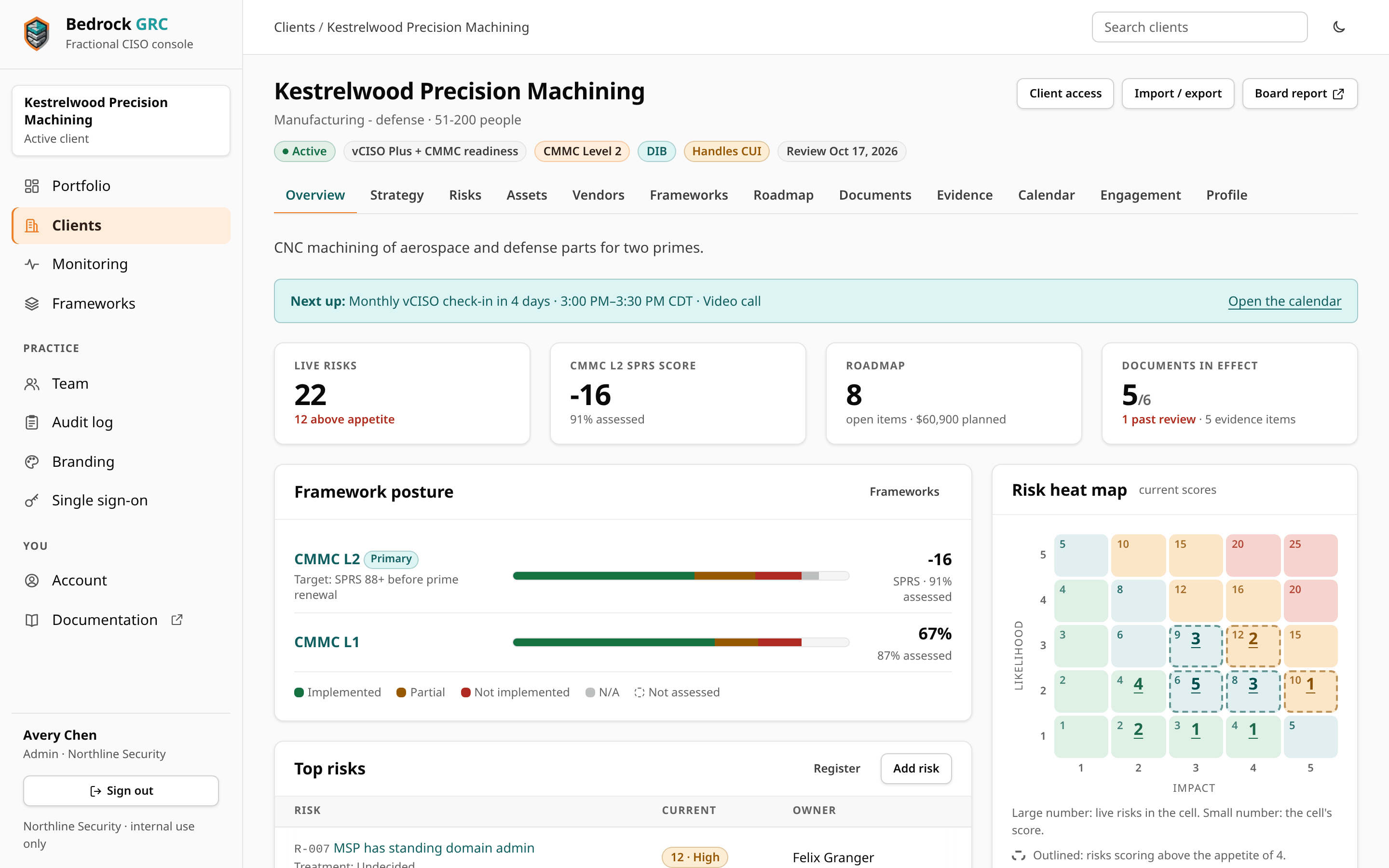
- Next up: the next event on the client's calendar, with its time and place, and Open the calendar.
- Set up client: for people who edit a new client (its first 30 days, or any client with no risk recorded yet), a checklist of five first steps: adopt a framework, capture business goals, record the first risks, add the client's people, and list key assets and vendors. It goes once every step is done.
- Tiles for Live risks (open, treating or accepted, and how many are above appetite), the primary framework's SPRS score or coverage, open roadmap items (overdue and planned spend), and documents in effect.
- Framework posture for every adopted framework.
- Top risks (each with its treatment and owner) and the risk heat map. In each cell, the large number is the live risks in it and the small number is the cell's score. Until a risk is recorded, the heat map card says there is nothing to map yet.
- The roadmap for the next 90 days.
- Business goals, vendors worth watching, crown jewels, recent engagement, the client contacts and the team on this client.
The portfolio
Portfolio is the staff home page. It shows, for every live client you can see:
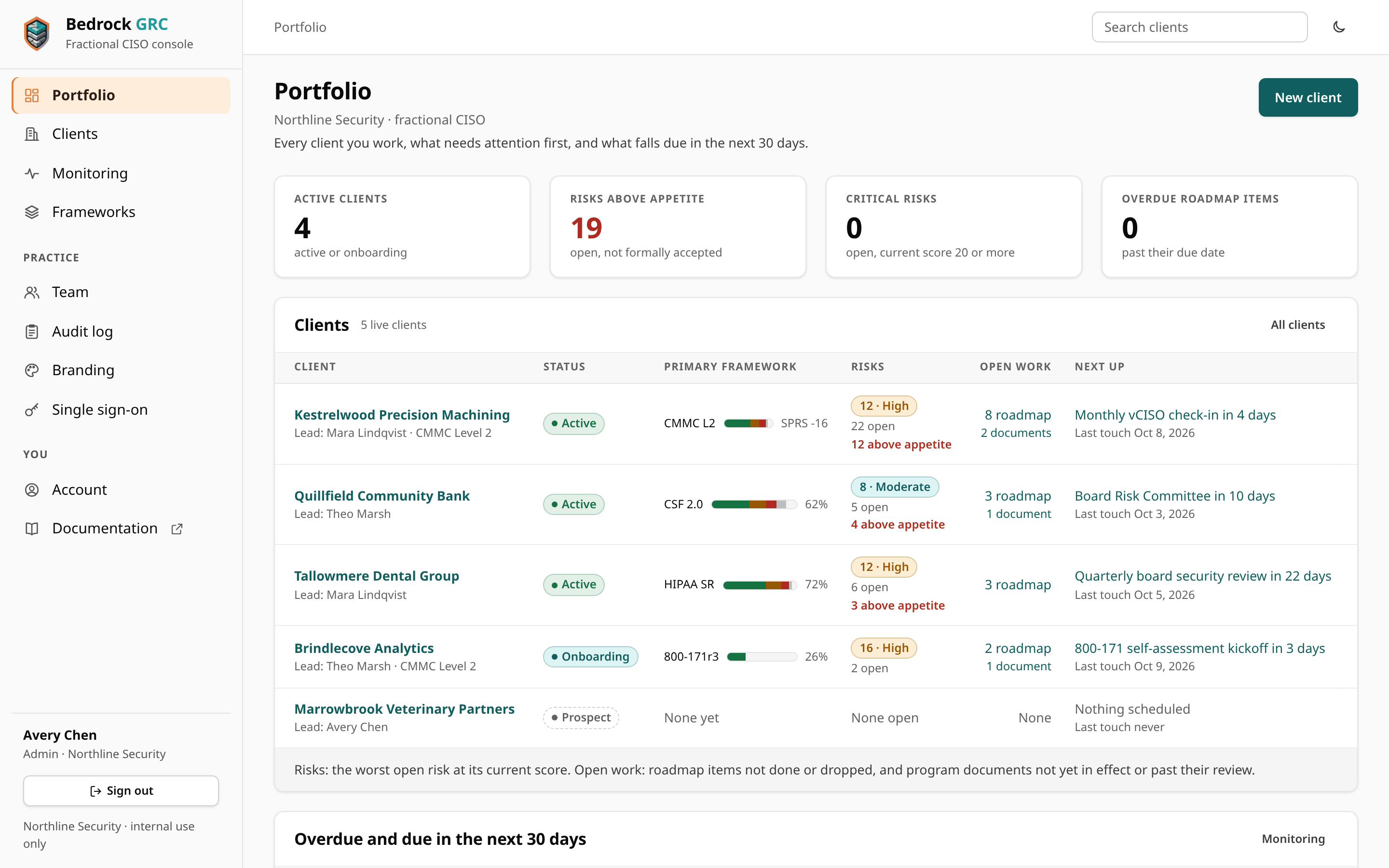
- headline tiles: Active clients, Risks above appetite (open and not formally accepted), Critical risks (current score 20 or more) and Overdue roadmap items;
- Clients, a row per client: the name with its lead and CMMC target, Status, Primary framework posture, Risks (the worst live risk, how many there are and how many are above appetite), Open work (open and overdue roadmap items, and program documents not yet in effect or past their review), and Next up (the next calendar event, with the date of the last engagement log entry as Last touch). The list pages at 50 clients;
- Overdue and due in the next 30 days, overdue first. It shows the first 25; when there are more it says so, with See them all opening the same list in Monitoring.
Mark one adopted framework as primary to choose what the portfolio shows for a client.
Archive a former engagement
At the bottom of Profile, Archive client (after a confirmation) closes the client. Nothing is deleted:
- It leaves the portfolio, the client list, Monitoring and search. Find it under Clients → Archived clients; its header reads Archived · read-only.
- Its records become read-only, for admins too. Staff on it can still open every page and download exports (and, with edit access, the full backup), but every change is refused with a message saying the client is archived.
- Assessors from partner firms no longer see it at all.
- Its client access links are revoked. The confirmation after archiving says how many. Clients archived before archiving revoked links had their live links revoked, and those links' portal sessions ended, when this release was installed; each is in the audit log as Client access link revoked.
Restore client, at the bottom of the archived client's profile, brings it back with its records as they were. Its client access links stay revoked: make new ones for the people at the client who need them. Anyone with edit access to the client can archive or restore it. Both are recorded in the audit log (Client archived, Client taken out of the archive).
An admin can also delete an archived client permanently, with all of its records and files. See Deleting a Client.