 foxxcyber/docs
Documents and Evidence
Run policies, standards, procedures, plans and evidence through a versioned lifecycle: drafts, client review, approval, periodic reviews and retirement, with starter sets linked to controls.
The Documents and Evidence tabs are the client's library. Documents are written in the client's own tools (Word, Google Docs, a wiki); the library is where each one's versions, approvals, review dates and history live, together with the files.
| Library | Types |
|---|---|
| Documents | Policy, standard, procedure, plan, guideline |
| Evidence | Diagram, screenshot, configuration, report, record, attestation, other |
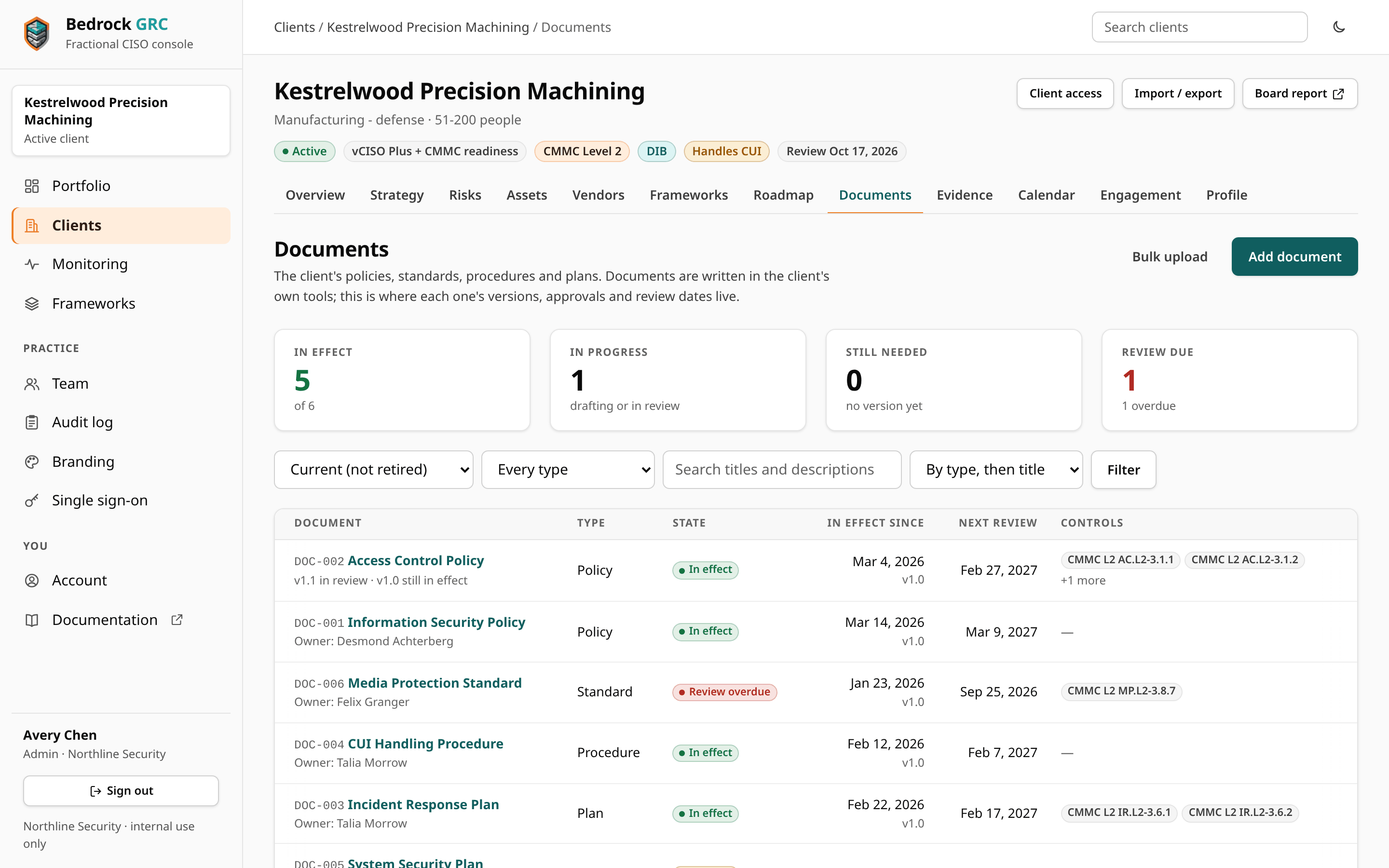
Four tiles head each library: In effect (Accepted for evidence), In progress, Still needed (Still to collect for evidence) and Review due. Choosing a tile lists only those, keeping the rest of the filter. The filter bar narrows the list by state, type and a search of titles and descriptions, and orders it By type, then title, Next review first or By title. Add document (or Add evidence) starts a new one, and Bulk upload opens the bulk upload on Import / export.
Your own agreements with the client (MSA, statement of work, NDA, proposals) use the same lifecycle but live on the Engagement tab and never reach the client portal. See Engagement Records.
Start with a starter set
Starter sets add the documents a practice usually stands up. Each adds the documents a client does not already have (matched by title) as Needed, with a 12-month review cycle, and links each one to the controls it chiefly supports in the frameworks the client has adopted. The first two sets are on the Documents tab; the engagement placeholders are on the Engagement tab.
| Set | What it adds |
|---|---|
| Core program set | 17 documents: information security, acceptable use, access control, data classification, risk management and third-party risk policies; password and authentication, secure configuration and logging standards; access review, onboarding and offboarding, patch and vulnerability, backup and restore, and change management procedures; incident response, business continuity and disaster recovery, and security awareness training plans. |
| CMMC Level 2 additions | 12 items: system security plan, plan of action and milestones, security assessment plan, configuration management plan, CUI marking and handling, media protection and sanitization, audit log review, personnel security, physical security and DFARS 252.204-7012 incident reporting procedures, a system boundary and network diagram, and an external service provider responsibility matrix. |
| Engagement paperwork | Master services agreement, statement of work and mutual NDA placeholders. |
The lifecycle
A document's state is worked out from its versions and dates:
| State | Meaning |
|---|---|
| Needed | Nothing drafted yet. |
| Drafting | The first version is being written. |
| In review | The first version is with the client for review. |
| In effect | An approved version applies. |
| Review due | In effect, with its review date in the next 30 days. |
| Review overdue | In effect, and the review date has passed. |
| Retired | No longer in use. History and files are kept. |
Draft, review, approve
- Upload the first version (or Start a revision on a document in effect): a version label, what changed, and the files, then Start version.
- Save draft as often as you like, attaching or removing files.
- Send for review when it is ready for the client. Return to draft takes it back; Discard throws the version and its files away.
- Approve records who approved it and when, and when it takes effect (by default, the approval date). You must tick the confirmation that the approver has read this version and confirms it is current and accurate. If the approval is refused (for example, no approver named), the form comes back with the message under the field and the box still ticked. For evidence the action is Accept, and for agreements it is Record signature.
The version in effect stays in effect while a revision is drafted and reviewed. It is superseded only when the next version is approved, so there is never a gap. Links to controls belong to the document, not to a version, so a new version keeps them.
Periodic reviews
Each document has a review cycle in months (or none). Approving a version schedules its next review one cycle after the version takes effect. When the review comes due, Record a periodic review with who reviewed it and when:
- Still current: tick the confirmation, choose Record review, and the next review is scheduled from this one.
- Needs changes: add a note, and a new draft version is opened for the revision (unless one is already open).
Review dates feed Monitoring: policy reviews for documents, re-checks for evidence, and renewal checks for agreements. A version still in review two weeks after it was last updated appears there as awaiting approval.
Retire or delete
- Retire takes a document out of use. Any open draft is discarded, and the history and files are kept. Restore brings it back; a retired document cannot get a new version until it is restored.
- Delete permanently removes the document with every version and file. Prefer retiring: deleting keeps no history.
Details and history
Each document's Details hold its title, type, review cycle, owner (the client signatory, for agreements), description and master copy location (where the editable original lives), plus the controls it supports. Link a document to controls here; the control page then lists it. Every lifecycle action is written to the document's History.
Evidence
Evidence follows the same lifecycle. The fastest route is from a control page: Add evidence starts an evidence item already linked to that control. On the vendor page, Upload adds a contract or assurance report as evidence linked to that vendor.
The Evidence field on a control assessment is different: it says where the proof lives. Use the library for the proof itself.
Uploading many files at once
To bring in an existing policy folder or a pile of screenshots, use the bulk upload on Import / export: many files or one ZIP, typed from folder and file names or from a manifest, and matched to existing documents as new versions. See Import and Export.
File handling
- Executable and script files (such as
.exe,.dll,.bat,.msi) are refused. - Each upload has a size cap, by default 25 MB per request.
- Files are always downloaded as attachments, never opened inline, except image previews. Every download is checked against the file's recorded SHA-256.
Assessors and evidence
Assessors from a partner firm work in the Evidence library of the clients they are assigned to. They can:
- read the practice's evidence and their own firm's;
- add evidence;
- on their firm's evidence, and on the practice's while it is linked to a framework their firm holds: edit its details, start new versions, attach files and send a version for review;
- link evidence to controls of the frameworks their firm holds.
Evidence an assessor adds belongs to their firm. Another firm's assessors on the same client never see it, and it is left out of that firm's issued versions.
Foxx Cyber staff accept, return, discard, review, retire and delete evidence. Assessors also have a read-only Documents tab: it lists only the program documents that have a version in effect, and each opens on that version and its files. They never see drafts, documents still needed or retired, document history or engagement paperwork. See Working as an Assessor.
What the client sees
Through the client portal, people at the client see documents and evidence that are in effect or out for their review, with downloads. They never see drafts, retired documents or your engagement paperwork.