 foxxcyber/docs
Team and Roles
Who can sign in to Bedrock GRC, the four roles, per-client edit and read access, inviting people, temporary passwords, lockout, offboarding and the rule that keeps an admin.
Admins manage everyone who signs in on the Team page (under Practice in the sidebar). There is no self-registration: every account starts with an admin.
Roles
Each person has one role for the whole practice:
| Role | Who | Reaches |
|---|---|---|
| Admin | Foxx Cyber staff who run the practice | Every client, archived ones included, and changes everything on live clients. An archived client is read-only for admins too, apart from restoring it or deleting it permanently. Only admins manage the team, the password policy, the audit log, branding, single sign-on, who is on each client, which firm assesses a framework, restoring backups and deleting clients. |
| Consultant | Foxx Cyber staff doing the work | The clients they are on. On each one they either edit or only read, as an admin sets it (below). Consultants can also create clients. |
| Viewer | Foxx Cyber staff who only read, such as an executive or a reviewer | The clients they are on, read only, everywhere. |
| Assessor (outside firm) | An assessor from a partner assessment firm | The live clients they are on. There they work on the frameworks their firm holds, the evidence library and their firm's calendar events, and read the business goals, risk appetite, assets, vendors, the client's events that are not tied to a framework and the policies in effect, for context. See Working as an Assessor. |
A staff account cannot become an assessor account, or the reverse. If someone moves between Foxx Cyber and a partner firm, give them a new account.
Who is on a client
Everyone except admins sees only the clients they are on. An admin puts people on a client from its Profile, under People on this client:
| Column | Choices |
|---|---|
| Role | Lead or Support for staff, Assessor for a partner firm's assessor. The lead is named on the portfolio, and the board report's "prepared by" lists the leads and support staff (never assessors or viewers). |
| Access | Edits or Reads only, for consultants. |
Access is a choice only for consultants:
| Account | Access on a client |
|---|---|
| Admin | Always edits, on every live client. |
| Consultant | Edits or Reads only, set per client. |
| Viewer | Always reads only. |
| Assessor | Works only on the frameworks their firm holds and on evidence. |
Someone who only reads a client sees every page of it but no forms that would change it, and any change they attempt is refused. That includes importing, bulk uploads, creating client access links and downloading a full backup, which all need edit access.
A consultant who creates a client is added to it as the lead, with edit access. To change someone's role or access on a client, open the menu on their row under People on this client, change Role on this client and Access, and choose Save changes.
Remove from this client, in the same menu, takes someone off a client after a confirmation. The client access links they made for that client stop working (an admin's links keep working, since an admin still reaches every client). Removing an assessor leaves the frameworks their firm is assessing with the firm until an admin hands them back; see Assigning a Firm.
A client with nobody on it is visible to admins only.
Archived clients
Archiving a client closes it:
- Staff who are on it can still read everything and download exports, and those with edit access can still download a full backup. Every change is refused, admins' included, with a message saying the client is archived (people who only read the client see the read-only message instead). The exceptions are Restore client, which anyone with edit access can use, and permanent deletion by an admin.
- Assessors lose it entirely, until it is restored.
- Its client access links are revoked, each recorded in the audit log. Restoring the client does not bring them back; make new ones if the client returns.
See Clients and the Portfolio and Deleting a Client.
Add people
Invite by email
Invite by email is the usual way. Enter the person's email, optionally their name, and their role. For an assessor, choose Assessor (outside firm) and their Firm (the role appears once a firm exists). Then Send invitation.
- The person gets a one-time link that is valid for 7 days; the confirmation and the email give the expiry date in your practice's time zone. They choose their own password under the team's password policy and are signed in; your team's two-step policy then applies. See Your Account and First Sign-In.
- When email is not set up, the button reads Create invitation link: the link is shown once on the Team page with Copy link. Send it to the person yourself.
- When email is set up but the message could not be sent, the button still reads Send invitation. The page says the email could not be sent and shows the link once in the same way, to send yourself.
- A problem with what you typed (an email address that is not valid, or one that already has an account) is shown under that field, with the rest of the form kept.
- Inviting the same address again replaces the earlier invitation; only the newest link works. An address that already has an account cannot be invited.
- Pending invitations are listed under Pending invitations with who sent them and their state: Waiting (with the expiry date), Expired or Not working. Withdraw stops a link at once.
- An invitation works only while the admin who sent it is still an enabled admin. If that changes, the invitation is marked Not working; send a new one.
Add a person with a temporary password
When email is not an option, Add a person with a temporary password creates the account directly. The temporary password must meet the team's password policy, checked against the name, email and firm on the form. Generate a password fills in one that does. Choose Add person, then share the password with the person directly. At their first sign-in they must choose their own password before they can open anything else.
A new consultant, viewer or assessor sees no client until an admin puts them on one. A new admin sees every client straight away.
The team list
The People card lists everyone. Each row shows the person's name and email (and firm, for an assessor), their role, their status and their last sign-in, with when they joined underneath. Times are in your practice's time zone. The status badges are:
- Two-step on or Two-step off;
- Locked while a lockout lasts (point at it to see until when);
- Temporary password until they choose their own after an admin set one;
- Below password policy when the password they signed in with falls short of the password policy;
- Disabled for an account that cannot sign in.
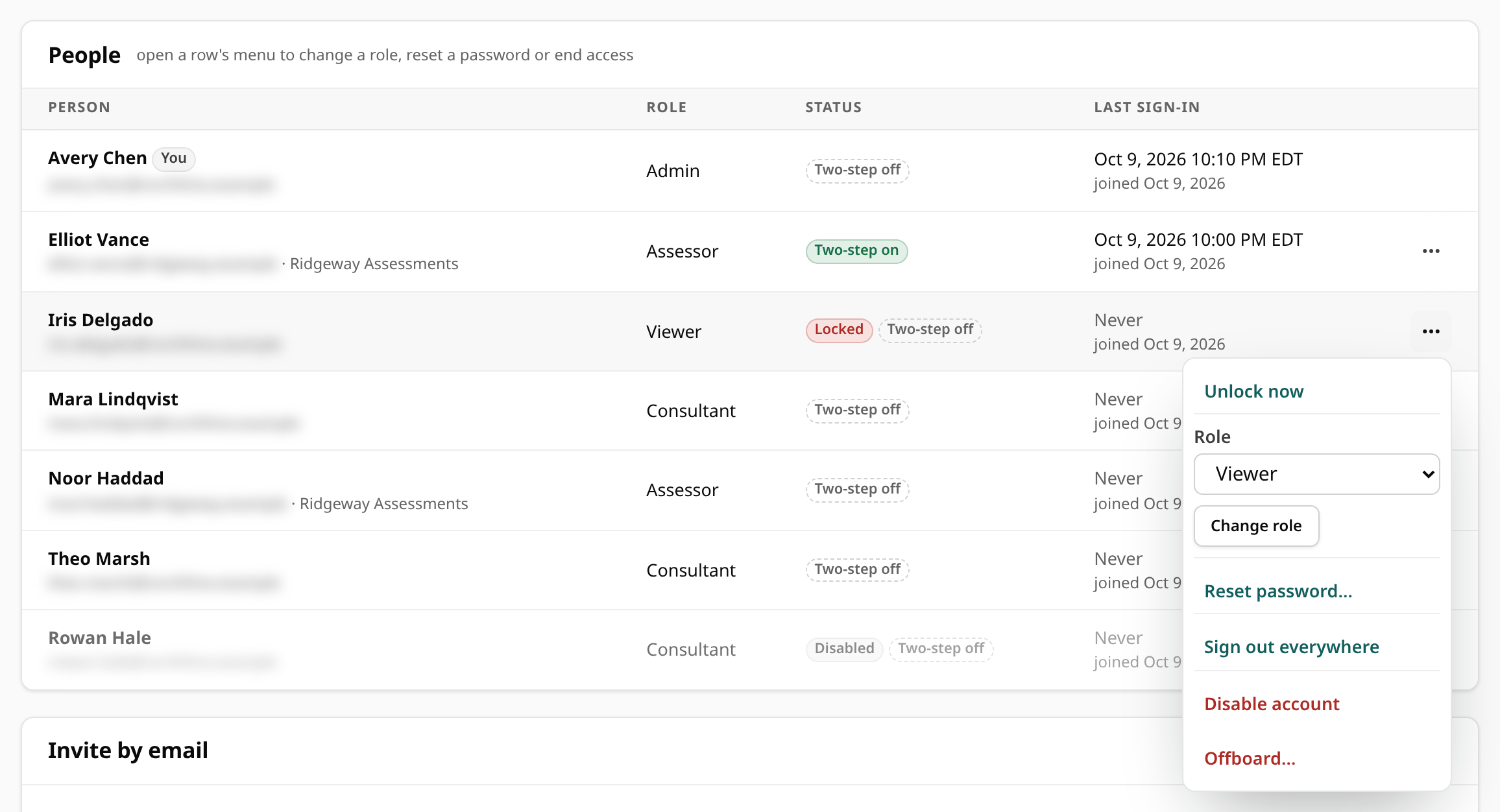
Every action on a person is in the menu at the end of their row (the button with three dots). Your own row has no menu, unless your account is locked. The menu holds, in this order:
| Action | What it does |
|---|---|
| Unlock now | Shown while the account is locked after failed sign-ins. Lets them sign in again now. |
| Role, then Change role | Changes a staff member's role. Demoting an admin revokes the client access links they made on clients they are not on. An assessor's role cannot be changed, so assessors have no Role field. |
| Reset password… | Opens a short form inside the menu: type a New temporary password or choose Generate a password, then Reset password and confirm. It must meet the password policy and cannot be one of the person's own earlier passwords. They are signed out everywhere, their calendar feed stops, any lockout is cleared, and they choose their own password at their next sign-in. A refused password brings the menu back open, with the message under the field. |
| Sign out everywhere | Ends every session they have, after a confirmation. They can sign in again. |
| Reset two-step sign-in | Shown when two-step sign-in is on. Clears it when they have lost both their phone and their recovery codes. They are signed out and their calendar feed stops. They set it up again at their next sign-in if the team requires two-step sign-in or they are an assessor; otherwise they sign in with their password alone until they set it up again from Account. See Two-Step Sign-In. |
| Disable account or Enable account | Disabling stops someone signing in, after a confirmation: it ends every session they have and revokes every client access link they made. Enable account lets a disabled account sign in again. |
| Offboard… | Opens the offboarding page (below). Shown, like Sign out everywhere, while the account is enabled. |
Each admin can try 8 password resets (refused ones included) in any 15 minutes; after that, resets are refused until the oldest try is 15 minutes old. A reset refused because the password is one the person used before is recorded in the audit log.
You manage your own password and two-step sign-in from Account, not from this list.
Lockout and unlock
Ten failed sign-in attempts in a row (wrong passwords or wrong two-step codes) lock an account for 15 minutes. The person is emailed when email is set up, and the lock shows on their row. A browser the person has signed in from before is not held by the lock. The lock holds for single sign-on too: a locked account cannot sign in through its identity provider either, except from that browser. Unlock now ends it early; so does a password reset. Locks and unlocks are written to the audit log.
Offboard someone
Offboard… in a person's row menu opens a page that lists exactly what will happen, then does it all at once:
- disables the account, so it cannot sign in;
- ends every open session;
- removes them from every client they were on;
- turns off their calendar feed;
- withdraws the invitations they sent, listed on the page;
- revokes the client access links they created that are still live, listed on the page. A disabled person's links never keep working, so there is no way to keep them: make new links for anyone who still needs one. Links that had already expired are left as they were.
Choose Offboard name at the foot of that page to go ahead, or Cancel. You cannot offboard yourself. The account and its history stay: an admin can enable it again from the team list (Enable account), but must put the person back on clients on purpose. Offboarding an assessor leaves the frameworks their firm holds with the firm, and every version they issued stays as it was.
The team always keeps an admin
- Nobody can demote or disable their own account, or offboard themselves.
- A role change made by someone who has just lost admin access (for example, demoted in another tab a moment earlier) is refused.
So there is always at least one enabled admin. If the last admin is locked out of two-step sign-in, write to support@foxxcyber.com.
Team settings
The Sign-in security card at the bottom of the Team page holds three practice-wide settings, each with its own Save:
- Two-step sign-in: Require two-step sign-in for everyone. See Two-Step Sign-In.
- Session timeouts: how long a session lasts without activity and in total. See Sessions.
- Password policy: minimum length, the kinds of character every password needs, how many characters must change and how many earlier passwords are remembered. See Password Policy.
A value out of range is refused with a message under its field, and nothing is saved until every field is right.
Assessment firms
Assessment firms lists the partner firms whose assessors sign in here, with how many assessor accounts each has and links to its Branding and Single sign-on. Type a name under New firm and choose Add firm; names must be unique. Then invite its assessors, put them on clients, and set the firm's branding. The whole sequence is on Assigning a Firm.
What admins see that others don't
Under Practice in the sidebar, only admins see:
- Team (this page);
- Audit log: see Audit Log;
- Branding: see Branding;
- Single sign-on: see Single Sign-On.
For anyone else, these pages do not exist.