 foxxcyber/docs
The Client Portal
Give people at a client a read-only view of their own program with an expiring, revocable link: no account, an optional passcode, and every open and download audited.
Clients never get an account in Bedrock GRC. Instead, you give the people you work with at the client a link to a read-only view of their own program. Every link expires, can carry a passcode, and can be revoked at any time.
Create a link
Open the client's Client access page (the button in the client header) and fill in New link. Creating and revoking links needs edit access to the client; anyone on the client's team can see the list.
| Field | Notes |
|---|---|
| Who it is for | A label, for example "Dana Ruiz, CEO". The list of links uses it. |
| Expires after | 7, 30, 90, 180 or 365 days. Every link expires. |
| Passcode | Optional, at least 10 characters. Send it by a different channel from the link. |
| Email it to | Optional, when email is set up: sends the link to one address with a note from you. |
Choose Create link. The link is shown once, with a Copy link button: the server keeps only a keyed hash of it and cannot show it again. Send it directly to the person it is for. If you lose it, revoke it and create another.
You can also send personal links when you email the board report. Each recipient gets their own link, which you can revoke on its own.
What the client sees
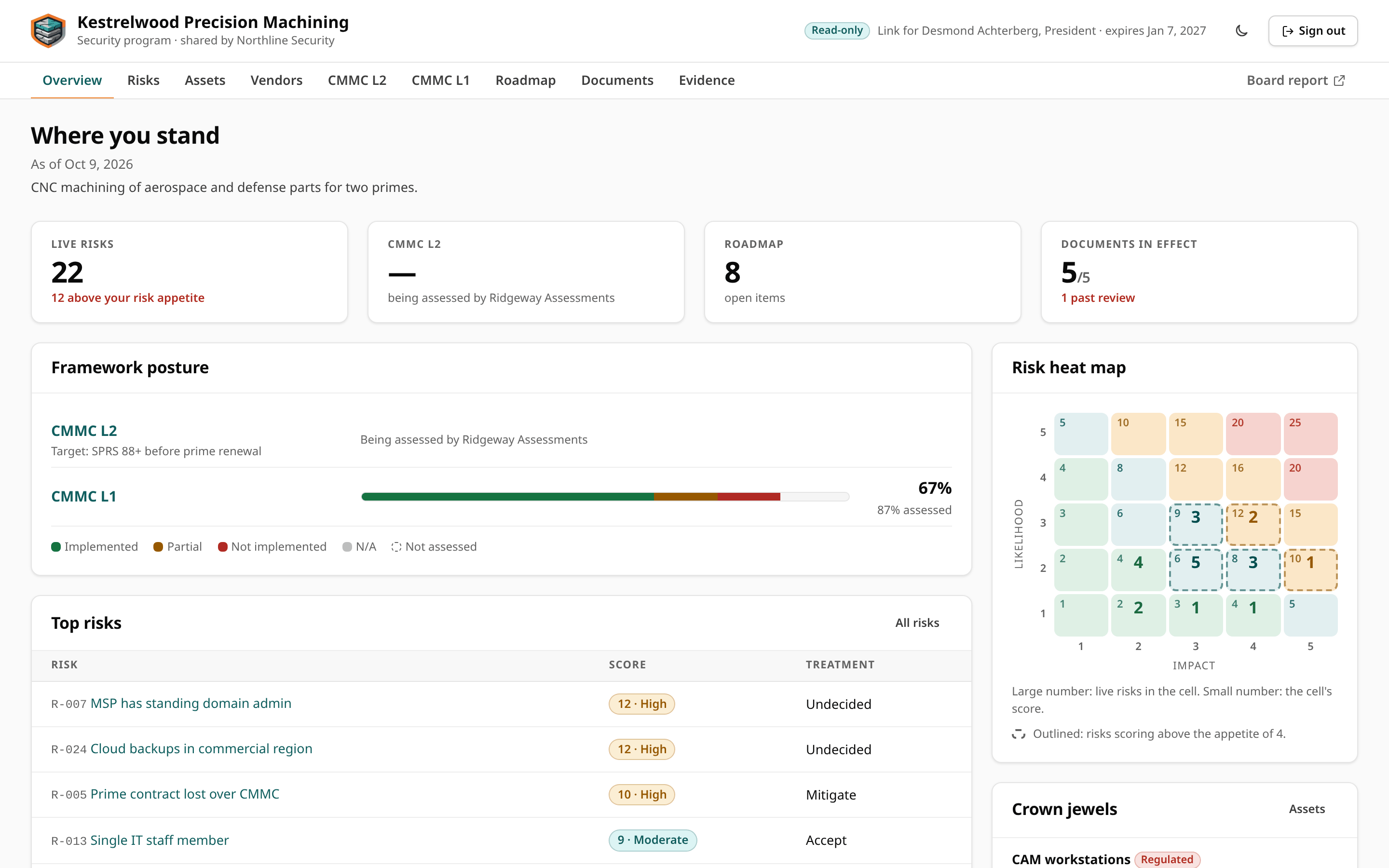
The portal opens on Where you stand, with the client's tabs across the top (Overview, Risks, Assets, Vendors, one per adopted framework, Roadmap, Documents, Evidence) and Board report at the end. The header says the view is read-only, whom the link is for and when it expires, with Sign out.
| Shown | Never shown |
|---|---|
| An overview: framework posture, top risks, Upcoming with your team (calendar events marked for the client), the next 90 days, the heat map, crown jewels, key vendors and the client's goals | Drafts |
| The risk register and heat maps | Your engagement agreements and other internal paperwork |
| The asset and vendor registers | Profile notes, and internal notes on vendors and assets |
| Each adopted framework, with every control's status, maturity and notes (except a framework a partner firm is assessing, below) | The engagement log |
| The roadmap | The audit trail |
| Documents and evidence that are in effect or out for their review, with downloads | Anything about another client |
| The board report, also as a PDF | Calendar event notes, and events not marked for the client |
| Issued assessments and their reports |
The portal carries the practice's branding, and its footer says the program is advice to inform the client's decisions, not a certification or a guarantee of security. It is read-only: nothing a client does in it changes their record.
Frameworks a partner firm is assessing
The portal lists every adopted framework. One that a partner firm is assessing is shown as being assessed by the firm, with none of its live answers: no posture on the overview, no controls on its page, and its control pages do not open. The answers stay with the firm until it issues. The firm's issued versions and assessment reports are never shown in the portal either.
How a link works
- The person opens the link. If it has a passcode, they enter it; repeated wrong passcodes are rate-limited.
- Their browser gets a portal session for that client only. It lasts up to 12 hours and never outlives the link.
- They can open the link again until it expires, on the same or another device.
A link stops working when it expires, when you revoke it, or when the client is archived: archiving revokes every link of the client, and restoring the client does not bring them back. It also stops when the person who created it loses the client: they are removed from it, or their account is disabled or offboarded (offboarding always revokes the links the person made). Revoking signs out anyone using it at once, because every portal page checks the link again.
Track and revoke
The Links table on Client access shows each link: whom it is For (with a Passcode badge when it has one, and who created it and when), its Status (Live, Expired, or Revoked with the date), when it Expires, when it was Last opened and how many Opens. Revoke stops a live link immediately, after a confirmation.
Every link opened, board report viewed and file downloaded through the portal is written to the client's audit trail.
Give each person their own link rather than sharing one around. You see who is actually opening the program, and when someone leaves the client you can revoke their access without affecting anyone else.