 foxxcyber/docs
Reviewing findings
Work a checklist rule by rule — statuses, CAT severities, review provenance, exporting the checklist back out, and how a finding reaches the SCTM through its CCIs.
Every imported checklist opens into a scan detail page: one row per rule, with the status the scanner (or a reviewer) recorded. This is where an ISSE confirms results, marks false positives and documents fixes, and it is the source every downstream view — posture, control impact, the POA&M queue, the SCTM's STIG column — is derived from.
Opening a checklist
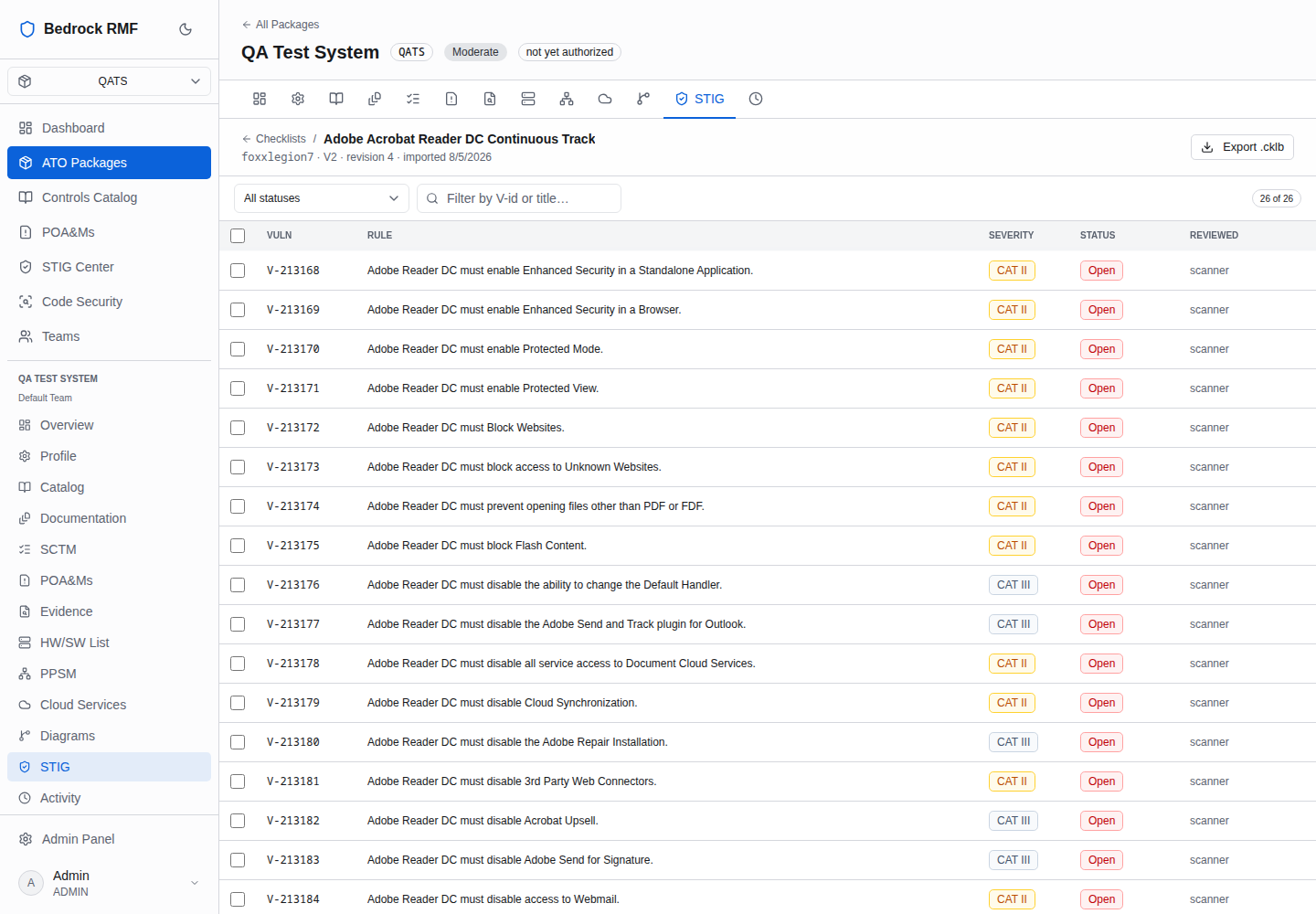
From the package's STIG page, expand a host in the grid and click one of its checklists. The page header reads Checklists / <Benchmark> with the host, the benchmark version, the revision number and the import date, for example msp-web-01 · V2 · revision 2 · imported Aug 27, 2026.
The rule table
Filter by status with All statuses; the count on the right (26 of 26) shows how many rules are listed.
| Column | Meaning |
|---|---|
| Vuln | the DISA vulnerability ID (V-…), stable across benchmark releases |
| Rule | the rule title |
| Severity | CAT I, CAT II or CAT III |
| Status | Open, Not a Finding, Not Applicable or Not Reviewed |
| Reviewed | who set the status — the scanner that produced the checklist, or a user who reviewed it in Bedrock RMF |
The four statuses carry their STIG meanings: Open means the check failed and a weakness exists; Not a Finding means the check passed; Not Applicable means the rule does not apply to this host and needs no fix; Not Reviewed means nobody has determined it yet. Only Open rules count toward open findings, control impact and POA&M proposals; Not Reviewed rules count against the package's reviewed percentage until someone decides them.
A single finding
Click a rule to open it. The finding page shows the check text (how to verify the rule), the fix text (how to remediate), the comments carried in the checklist, and the review status. Setting a status here records you as the reviewer, which is what the Reviewed column reports.
Not Applicable is a decision, not a shrug
Marking a rule Not Applicable removes it from the open count and from control impact. Put the reason in the comments; an assessor will read the exported checklist and expect to see why.
Exporting the checklist
Export .cklb writes the checklist back out in the same format it came in, with the statuses and comments as they now stand. Use it to hand a reviewed checklist to an assessor or to load it into STIG Viewer.
How a finding reaches the SCTM
A STIG rule cites one or more CCIs (Control Correlation Identifiers), and each CCI belongs to a NIST SP 800-53 control. Bedrock RMF walks that chain for every open finding on every live host:
- the failing rule → its CCIs,
- each CCI → its NIST control,
- the control's STIG status in the control impact view (Non-compliant, Partial, Compliant, Not assessed), computed on read.
When you choose Apply to SCTM on the control impact page, that derived status is written into the SCTM's STIG column next to the control's assessed compliance, so the technical evidence and the narrative sit side by side. See From findings to POA&Ms for the impact view and Control implementations for the SCTM itself.