 foxxcyber/docs
The Directory and Referrals
List your organization so others can find it, hand a client to another practice or assessment firm with the client's approval, and follow each referral from the first step to the client's new copy.
Every consulting practice and assessment firm on Bedrock GRC can hand one of its clients to another. An assessment firm can pass a client to a practice for remediation. A practice can pass a client to a firm for an assessment, or to another practice. The client approves first, and the organization that receives the referral gets its own copy. Neither organization ever sees the other's working papers.
How a referral works
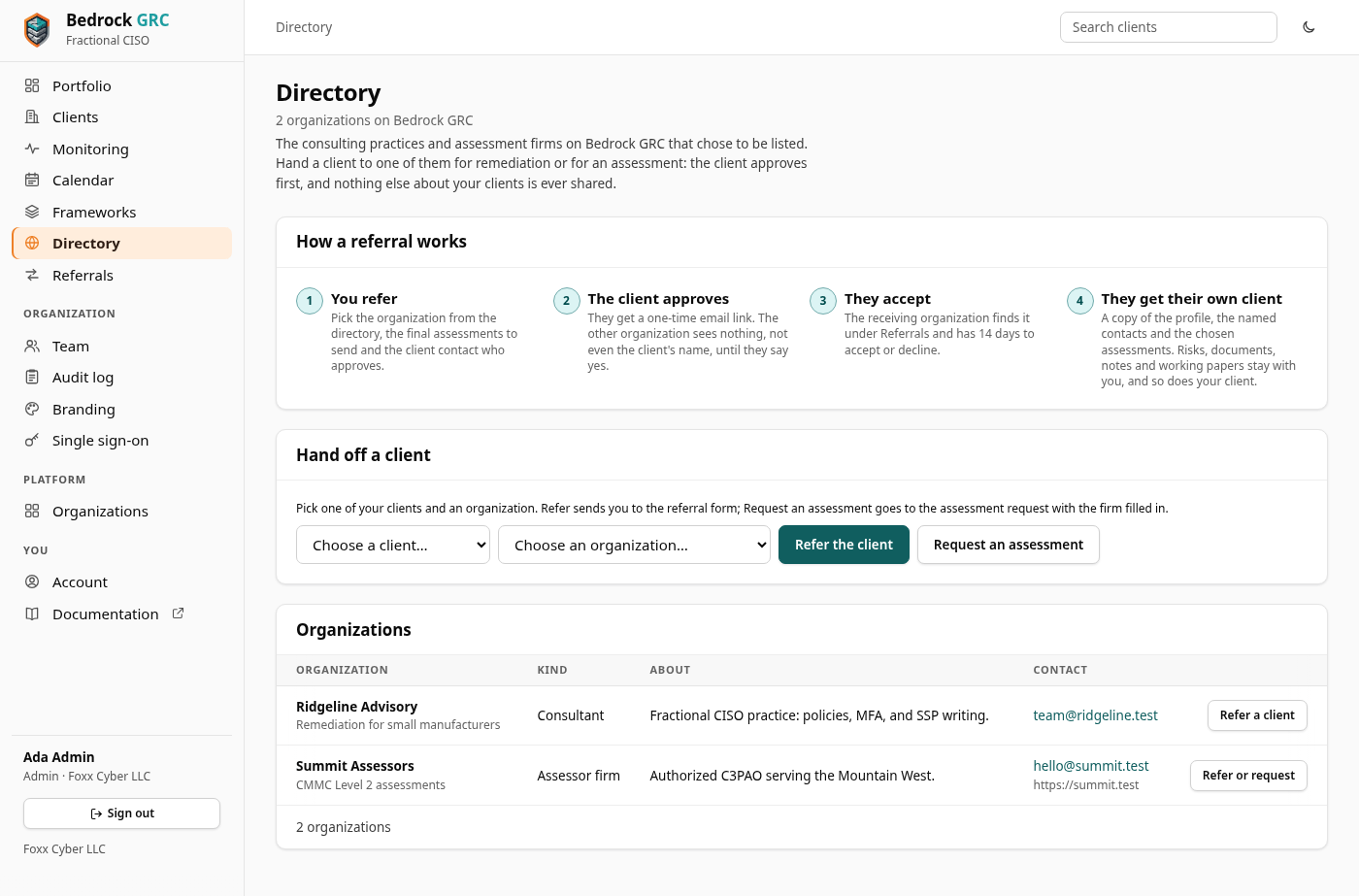
The Directory, Referrals and a client's Refer to another organization page all open with the same four steps:
- You refer. Pick the organization from the directory, the final assessments to send and the client contact who approves.
- The client approves. The contact gets a one-time link. The other organization sees nothing, not even the client's name, until the client says yes.
- They accept. The receiving organization finds the referral under Referrals and has 14 days to accept or decline.
- They get their own client. A copy of the profile, the named contacts and the chosen assessments. Risks, documents, notes and working papers stay with you, and so does your client.
The client has 14 days to answer. When the client approves, the receiving organization gets a fresh 14 days.
The directory
Directory in the sidebar is open to everyone who signs in. It lists the other organizations that chose to be listed: each one's logo, name, tagline, a line about what it does, its kind (Consultant or Assessor firm) and its contact email and website. It shows nothing else about an organization: no people, no counts and no clients.
Get listed
An admin lists the organization on Branding, under Directory: tick List name in the directory and, if you like, write an About line of a line or two. Save branding keeps it. An organization that is not listed cannot be found, referred to or asked for an assessment by anyone else, and the Directory says so at the top.
Hand off a client
On the Directory, the Hand off a client bar is the quickest way to start. It is shown to admins and consultants of a consulting practice, and to the admins of an assessment firm, for their own clients.
- Choose one of your clients under Choose a client….
- Choose an organization under Choose an organization…. A button on each listing (Refer a client, or Refer or request for an assessment firm) fills this in for you.
- Choose Refer the client, or Request an assessment.
Refer the client opens the client's referral form with the organization already chosen. Request an assessment opens the assessment request with the firm already chosen. It is offered for assessment firms only. If the client has more than one framework, it opens the client's Frameworks tab instead, where each framework's request link already names the firm.
You can also start from the client: Refer to another organization on its Profile (or in the client header, for an assessment firm).
The referral form
| Part | What to do |
|---|---|
| Organization | Who takes the client on. Only listed organizations can be chosen. |
| What goes | The profile and every contact always go. Tick the Issued assessments to send along: each goes as issued, with its answers, findings and the list of evidence by name, never the files. |
| Note | Optional. Why you are referring the client. The client's approver reads it too. |
| Approver | The client contact who approves. They need an email address. |
The profile that goes is the name and legal name, industry, size and revenue, website and location, mission, crown jewels, regulations, defense-industry and CUI flags and CMMC target. Never the profile's notes, the client's status and dates, or any other record you keep.
Choose Send for approval. With email on, the approver gets an email with the link. Without it, the page shows the link once, to copy and send yourself (Create the approval link). The link works once and expires in 14 days. Nothing is shared until the client approves and the other organization accepts.
Who can refer: an admin of the client's organization, or a member with edit access to the client. An archived client cannot be referred. An assessment firm can refer only the clients it owns, not one it is assessing for another organization.
What the client sees
The approver opens the link, with no account. The page says who wants to hand the client to whom, shows your note and lists exactly what would be received. Approve the referral or Decline records the answer. The client can see that the other organization gets a copy and no access to your records.
Follow a referral
Referrals in the sidebar (admins) has two views, Incoming and Outgoing, each with a count. The sidebar shows how many incoming referrals wait for your decision.
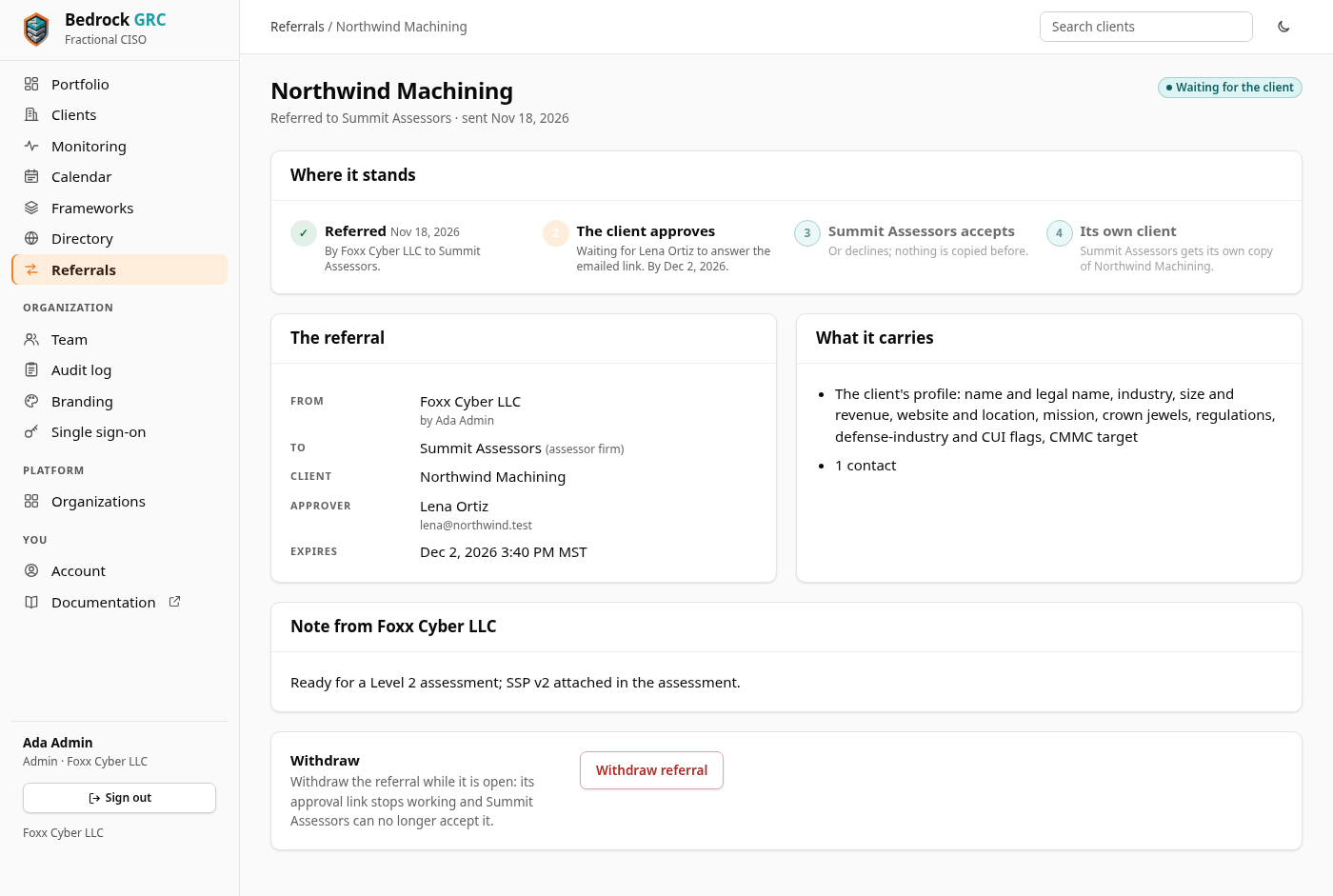
Open a referral to see Where it stands: the same four steps, each with its date, the step under way with its deadline, and, if the referral stopped, who stopped it: the client, the receiving organization, you, or the clock.
| Status | Meaning |
|---|---|
| Waiting for the client | Sent. The client has not answered. |
| Waiting for you, or Waiting for the receiving organization | The client approved. The receiving organization has 14 days to accept or decline. |
| Accepted | The receiver accepted and has its own client. |
| Declined by the client, Declined or Declined by the receiver | Someone said no, and nothing was copied. |
| Withdrawn | You withdrew it, or you archived the client. |
| Expired | Nobody answered in time, or an organization was disabled. |
Withdraw
While a referral is open, Withdraw (on its row under Outgoing, or on its page) stops it: its approval link stops working and the other organization can no longer accept it. A client can have one open referral to an organization at a time.
Accept or decline a referral
When a client has approved a referral to your organization, an admin opens it under Incoming and sees what would come, without the records. Accept referral adds the client to your organization as a new client with a copy of what the referral carries (for an assessment firm, its frameworks are yours to assess). Decline turns it down: the sender sees that you declined and nothing is copied.
The referring organization keeps its own client and records either way.