 foxxcyber/docs
The Client Sign-Up Page
Give prospective clients a public page to ask to work with your organization, then accept or decline each sign-up from the Sign-ups inbox. Acceptance creates a prospect client and its contact, and nothing else.
A prospective client can ask to work with you without you typing anything in. An admin turns on a public sign-up page in the organization's branding and links to it from a website or an email. Each person who fills it in lands in the Sign-ups inbox, where an admin accepts or declines it.
This is for clients only. Staff accounts are never created this way: people join an organization by invitation. A sign-up creates a record for you to review, nothing more. It never creates an account or a portal link.
It is available to consulting practices and assessment firms alike.
Turn it on
Open Branding (admins only) and find Client sign-up page.
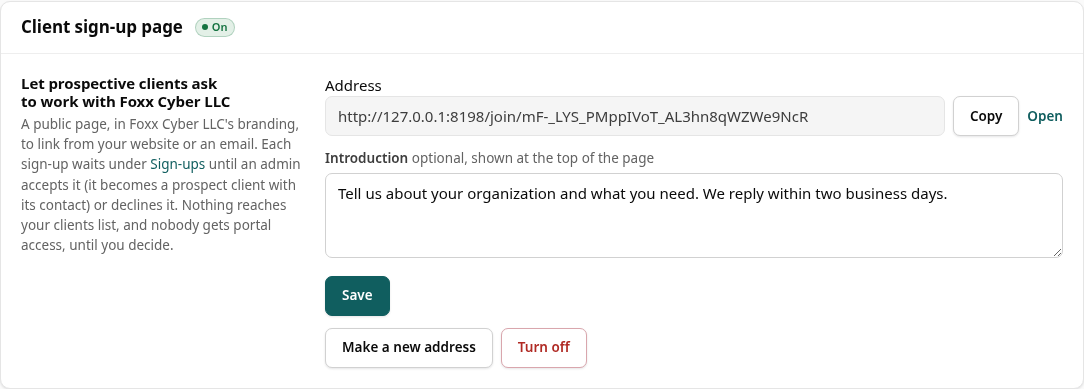
- Write an Introduction, if you like. It heads the page, up to 1,000 characters. Without one, the page says to tell you about the organization and what it needs.
- Choose Turn on the sign-up page.
- Copy the Address with Copy, or choose Open to see the page.
The address looks like /join/ followed by a long random string. It is meant
to be published, so you can copy it again whenever you need it. It grants
nothing but the right to send you a sign-up.
| Button | What it does |
|---|---|
| Save | Keeps the introduction. |
| Make a new address | Retires the old address at once. Use it if the page is being misused, then update your website. |
| Turn off | Closes the page. Its address stops working. Sign-ups already received stay. |
The page wears your organization's name, tagline and logo from Branding.
What a prospective client sees
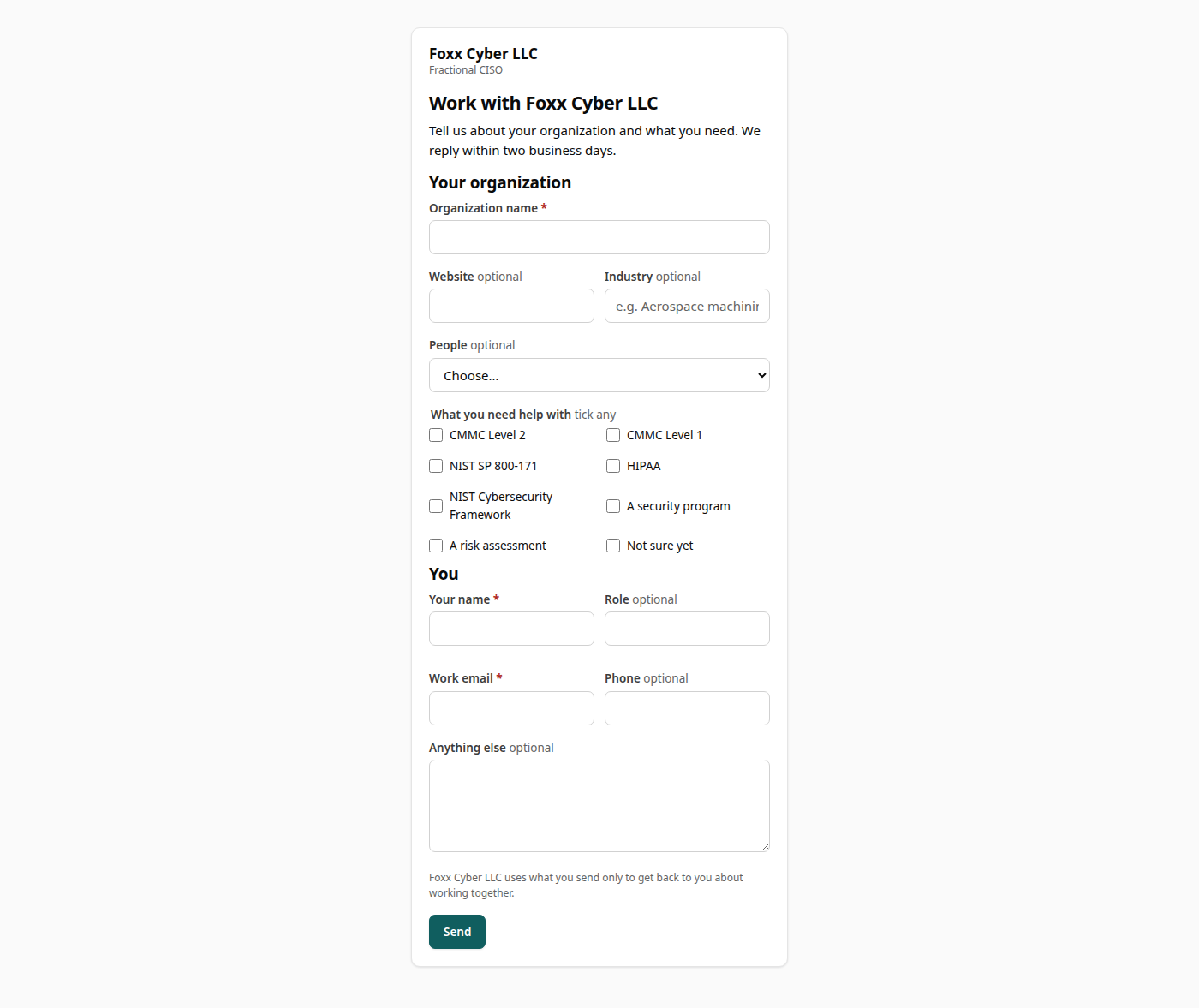
The page asks for:
| Field | Notes |
|---|---|
| Organization name | Required. |
| Website, Industry, People | Optional. People is a size band. |
| What you need help with | Tick any: CMMC Level 2, CMMC Level 1, NIST SP 800-171, HIPAA, NIST Cybersecurity Framework, a security program, a risk assessment, or not sure yet. |
| Your name, Work email | Required. |
| Role, Phone, Anything else | Optional. The message can be up to 2,000 characters. |
When the person chooses Send:
- With email on, they see Check your email. Bedrock GRC sends a link under your organization's branding. The link opens a page with a Confirm and send button, so a mail scanner that opens links confirms nothing. The sign-up reaches your inbox only once they press it. The link works once and expires in 7 days.
- With email off on this deployment, the sign-up goes straight to your inbox, marked email not confirmed.
A sign-up that is never confirmed never shows in your inbox, and is deleted after 7 days.
To keep the page from being used to send mail to someone else, a second unconfirmed sign-up from the same email address within a day is not recorded and sends no email, and there is a limit on how many unconfirmed sign-ups one organization holds. A person who hits a limit is asked to try again later.
The Sign-ups inbox
Sign-ups in the sidebar (admins) shows a count of the sign-ups waiting. The chips Waiting, Accepted and Declined pick the view, each with its count.
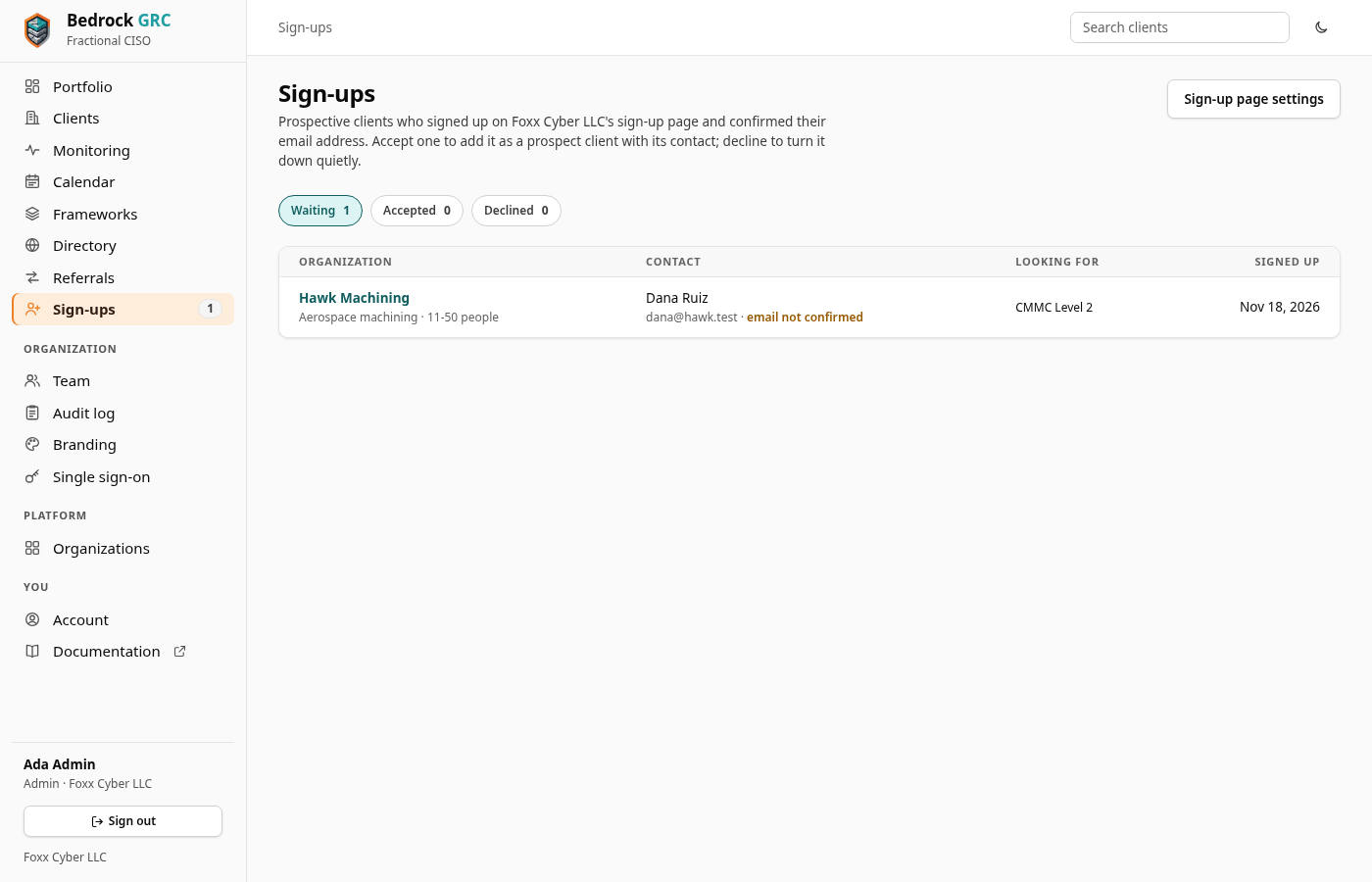
Open a sign-up to read everything the person sent: the organization, the contact and their message. A sign-up whose email was not confirmed says so.
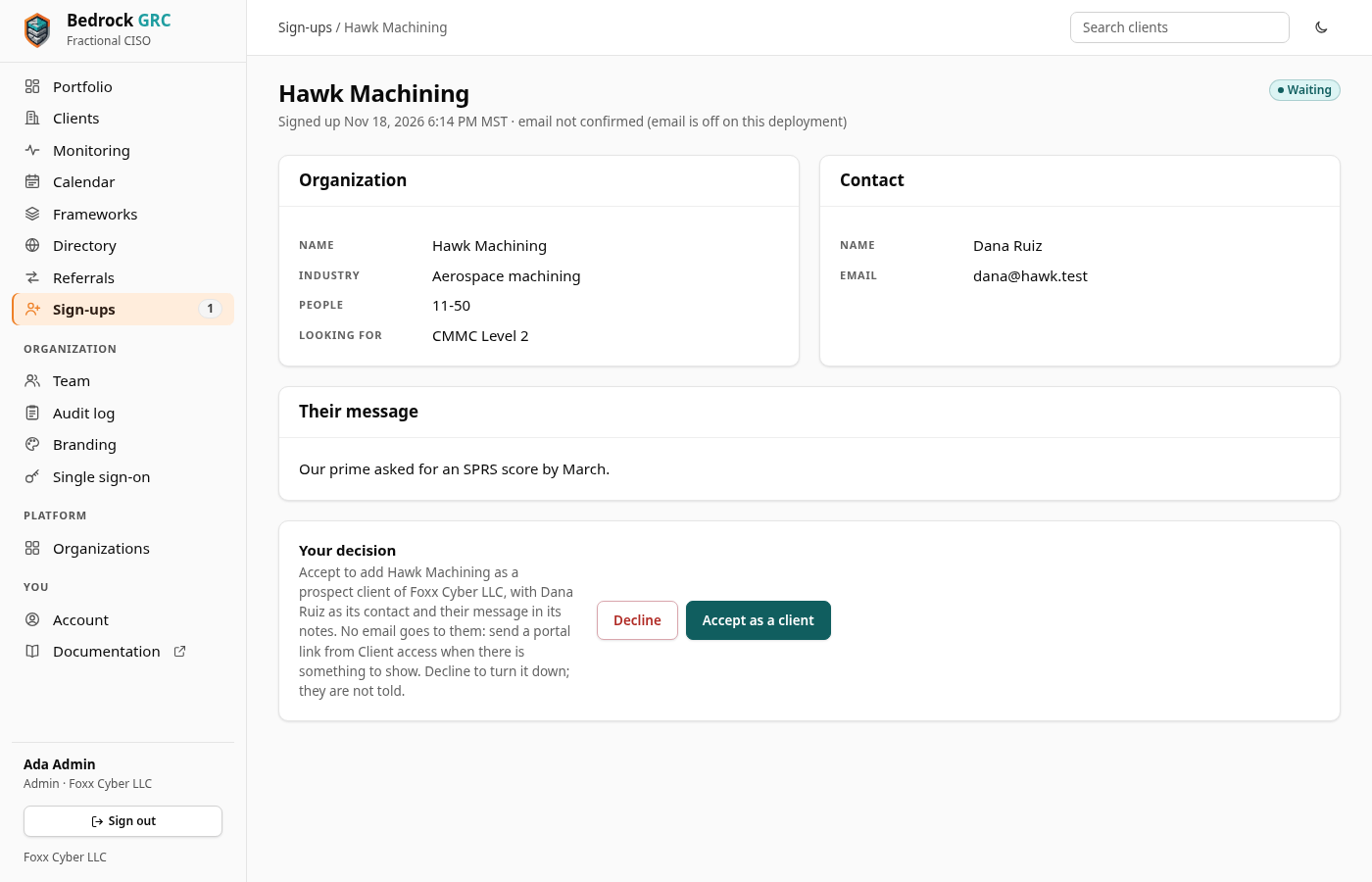
Accept
Accept as a client does three things together:
- creates a prospect client of your organization, with the admin who accepted as its lead (a name that is already taken gets a dated suffix);
- adds the person as the client's contact and decision maker;
- adds a note to the client's notes with the date, what they ticked and their message.
You land on the new client. Nothing is sent to the person, and they get no portal link or account. When there is something to show them, send a portal link from Client access. See The Client Portal.
Decline
Decline (after a confirmation) records the decision. The person is not told. A sign-up that is already decided cannot be decided again.
Declined sign-ups are deleted 90 days after the decision. Accepted ones stay, pointing at the client they made.
Who sees what
Only admins of your organization see the page settings and the inbox. Another organization's sign-ups do not exist for you. Turning the page on, making a new address, turning it off, each sign-up and confirmation, and each decision are recorded in the audit log, by id only.