 foxxcyber/docs
Running an Assessment
Snapshot the package, hand it to your C3PAO, and record the results.
With a package selected, click Assessment in the sidebar. The Assessments page explains the three-step flow and lists past assessments.
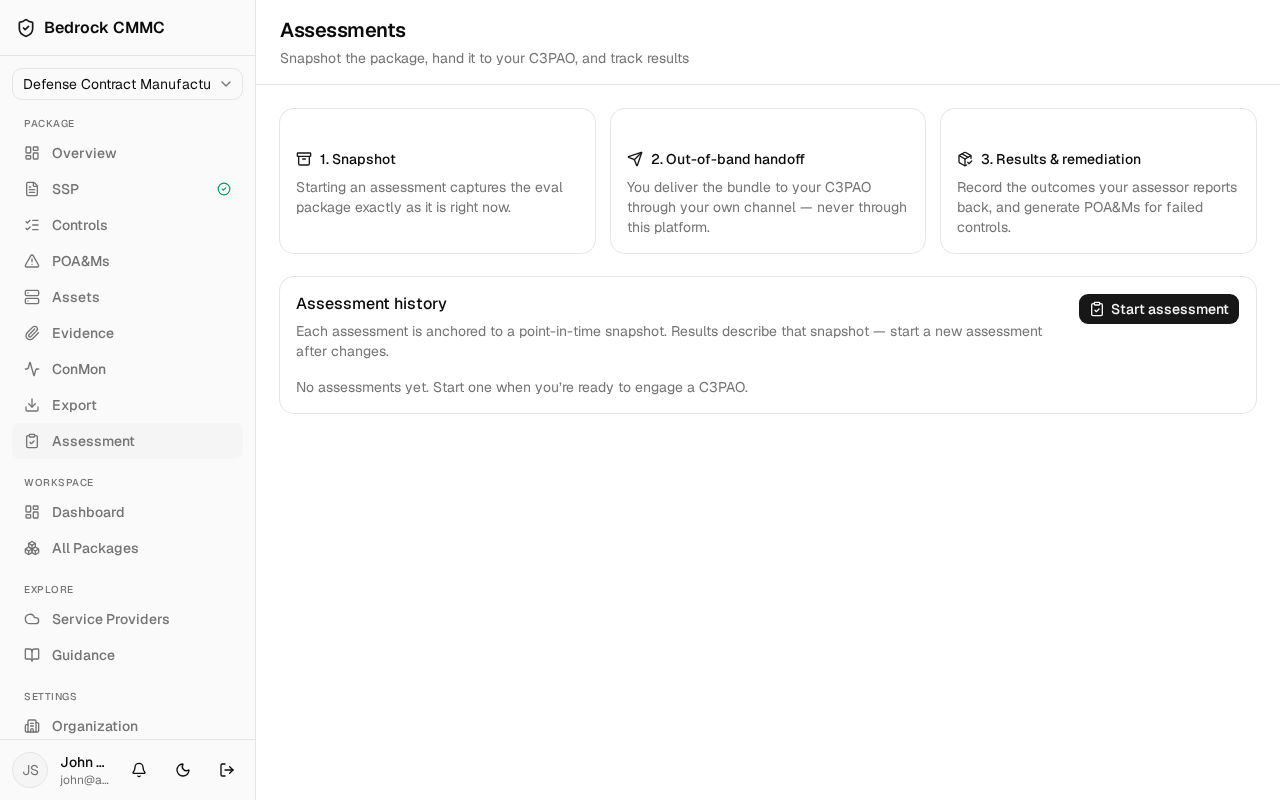
How the handoff works
The three cards at the top describe the model:
- Snapshot — starting an assessment captures the eval package exactly as it is right now.
- Out-of-band handoff — you deliver the bundle to your C3PAO through your own channel — never through this platform.
- Results & remediation — record the outcomes your assessor reports back, and generate POA&Ms for failed controls.
Nothing is transmitted to the assessor by the platform. The snapshot is a download you control, and the results you record are your organization's own remediation record.
Starting an assessment
- In the Assessment history card, click Start assessment.
- In the dialog, optionally set a Title (it defaults to "Assessment — today's date").
- Click Start & snapshot. The assessment appears in the history table with status Snapshot in progress, then Awaiting results when the snapshot bundle is ready. The status updates automatically while you're on the page.
The history table shows Title, Started, Status, and Results columns; click View details to open an assessment.
The assessment detail page
- The Snapshot card (right side) shows a timeline — Assessment started, Snapshot exported, Results posted — and a Met / Not met / N/A tally.
- Download snapshot bundle downloads the frozen package bundle to hand to your C3PAO.
Recording results
Use the Record a result card:
- Under Controls, open the control picker and select one or more controls the assessor reported on.
- Set the Verdict: Met, Not met, or Not applicable.
- Optionally add Notes.
- Click Record result (the button counts selections, e.g. "Record 3 results").
Recorded verdicts appear in the Results table with Control, Verdict, Notes, and POA&M columns.
Generating POA&Ms for failures
When results include Not met verdicts without a remediation item, a Create POA&Ms button appears above the results table (e.g. "Create 2 POA&Ms"). Click it to generate a POA&M for each failed control; each row then links to its POA&M via View POA&M.
Each assessment is anchored to its snapshot. If the package changes after the snapshot, start a new assessment rather than recording results against the old one.