 foxxcyber/docs
Users & Roles
Invite teammates, assign roles, and transfer ownership.
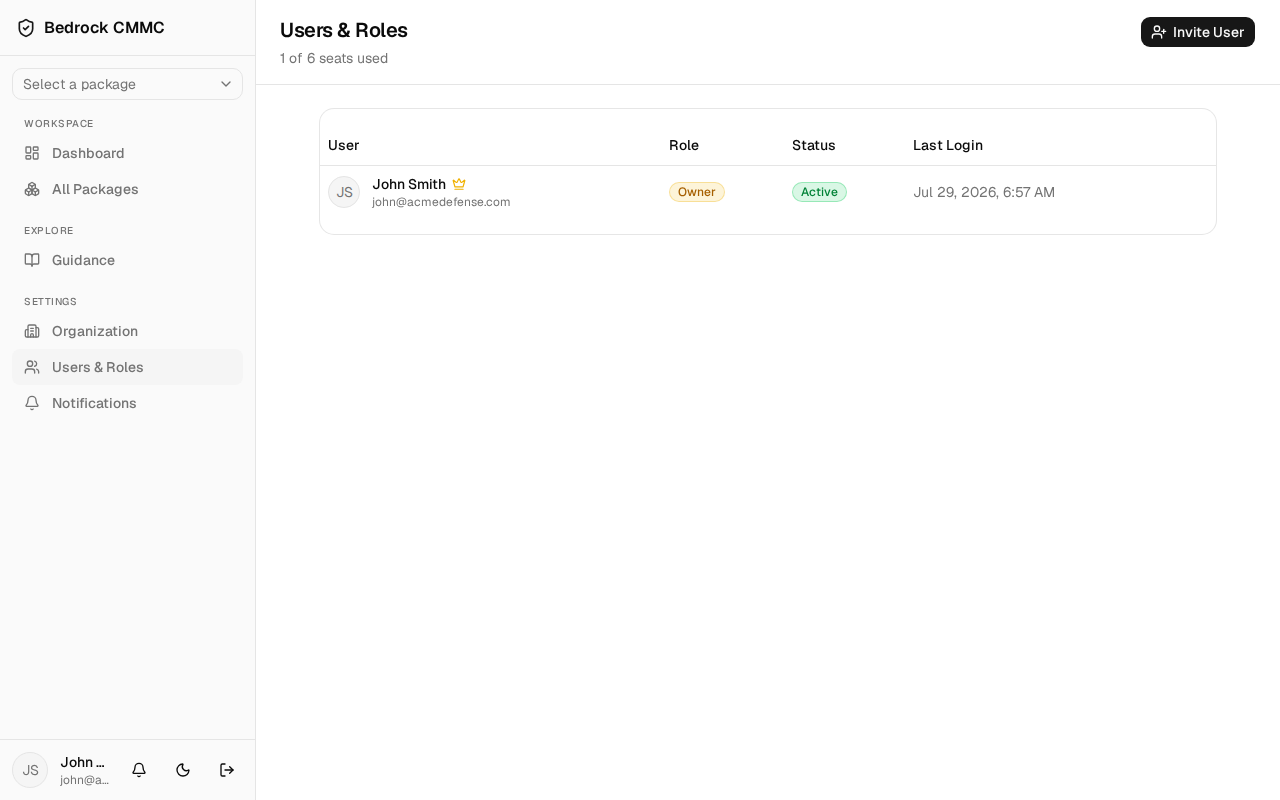
Click Users & Roles in the sidebar's SETTINGS section. The header shows your seat usage (for example, "3 of 5 seats used") and, for owners and admins, the management buttons.
Roles
| Role | What it allows |
|---|---|
| Owner | Full control, billing, and ownership transfer |
| Admin | Manage users, packages, and organization settings |
| User | Day-to-day work in packages |
| Viewer | Read-only access to packages and evidence |
| Consultant | Read-only external access |
Owners can assign Admin, User, Viewer, and Consultant; admins can assign User, Viewer, and Consultant. Only ownership transfer creates a new Owner.
Inviting a user
- Click Invite User in the top-right.
- Enter the invitee's Name and Email, and pick a Role (each role shows its description in the dropdown).
- Send the invitation. It appears in the pending-invitations card until accepted, and pending invites count against your seats.
When every seat is in use, Invite User is disabled with the hint "All seats are in use. Deactivate a user or upgrade your plan."
Managing members
The members table lists your team with User, Role, Status, and Last Login columns. Owners and admins can open the ⋯ menu on a row to:
- Edit — change the member's details or role.
- Deactivate — suspend access (a confirmation dialog asks first).
- Reactivate — restore a deactivated member.
Transferring ownership
Owners see a Transfer Ownership button next to Invite User. Click it, choose the New owner from your active members, and confirm. There is always exactly one owner.