 foxxcyber/docs
System Security Plan
Generate, edit, review, and export your SSP.
With a package selected, click SSP in the sidebar. The page is titled System Security Plan and shows the plan's version and status once one exists.
Starting an SSP
If the package has no SSP yet, the page shows Start your System Security Plan with two cards:
- Generate — click Generate SSP to bootstrap the plan from your package data (system info, assets, controls, and POA&Ms). The fastest start for most teams.
- Start blank — click Start blank to create an empty plan and author every section yourself.
You can switch between viewing modes at any time afterwards.
The three views
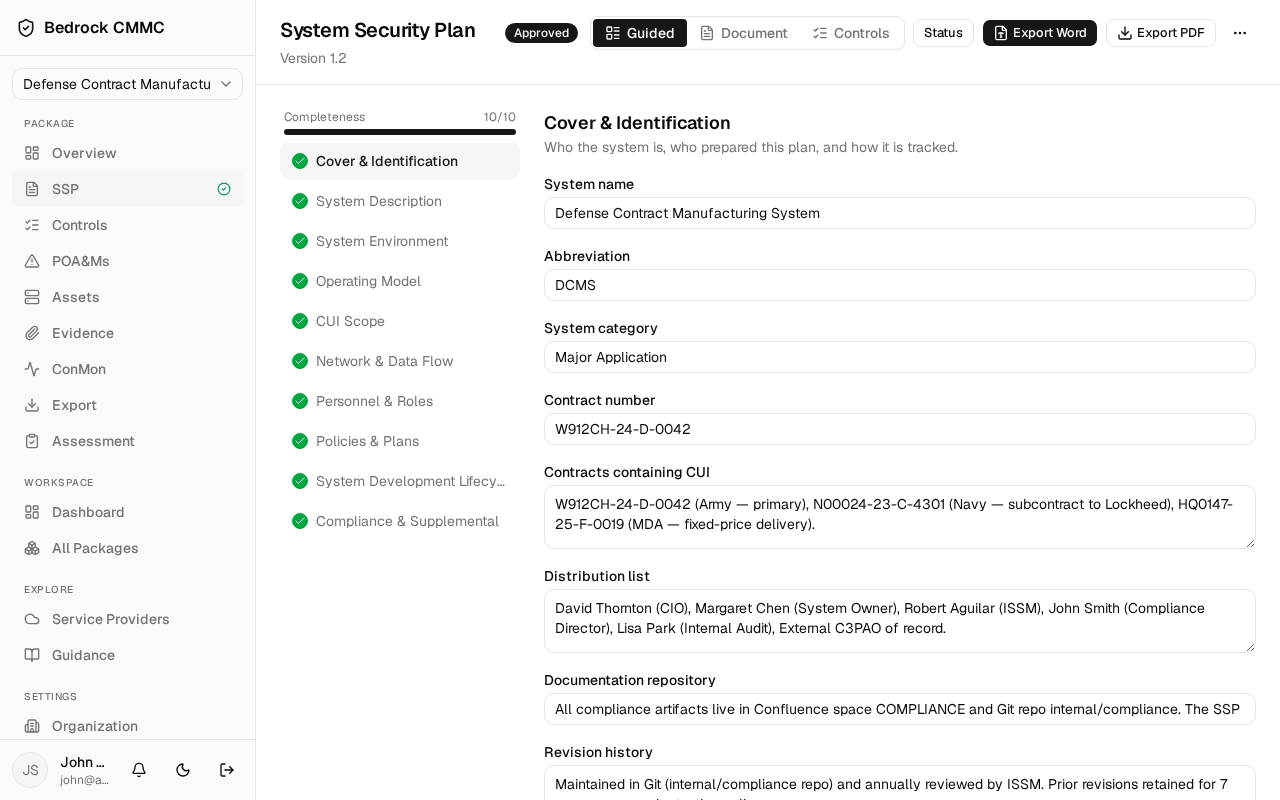
A three-way toggle in the header switches views:
- Guided — a section-by-section editor. The left column lists the ten sections (Cover & Identification, System Description, System Environment, Operating Model, CUI Scope, Network & Data Flow, Personnel & Roles, Policies & Plans, System Development Lifecycle, Compliance & Supplemental) with a completeness meter. Click a section to edit its fields.
- Document — the plan rendered as one continuous document.
- Controls — the control-implementation portion of the plan.
Status and lifecycle
Click the Status button in the header to open the status menu:
- Under "Set status": Draft or In Review.
- Below the separator: Approve or Archive.
The current status shows as a badge next to the title.
Exporting
- Export Word downloads the SSP as a Word document.
- Export PDF downloads it as a PDF.
Regenerating or deleting
Click the ⋯ menu at the right end of the header:
- Regenerate from package data rebuilds the generated content from the package's current state.
- Delete SSP opens a confirmation dialog titled "Delete this SSP?" — deleting permanently removes the plan and all its section content. You can generate a new one afterwards.