 foxxcyber/docs
Service Providers
Register external service providers, upload their documents, and map inherited controls.
With a package selected, click Service Providers in the sidebar's EXPLORE section. The page lists the package's external service providers (ESPs) with an Add Provider button in the top-right.
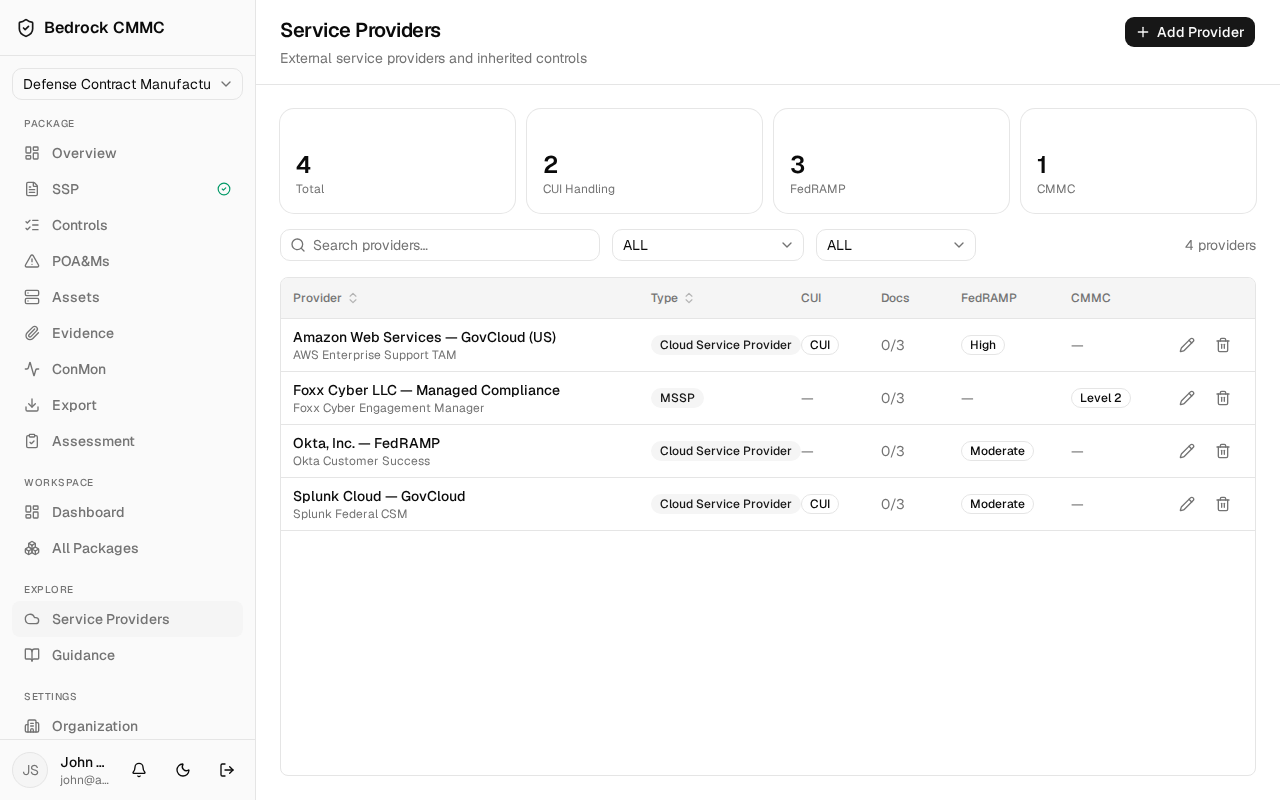
The provider list
Four stat cards summarize the list: Total, CUI Handling, FedRAMP, and CMMC. Below them:
- Search providers… filters by name.
- The type dropdown filters by MSP, MSSP, Cloud Service Provider, ISP, Consultant, or Other.
- The CUI dropdown filters by All CUI, Handles CUI, or No CUI.
- Table columns: Provider, Type, CUI, Docs (documents uploaded out of 3), FedRAMP, and CMMC, plus edit and delete icons.
Click a row to open the provider.
Adding a provider
- Click Add Provider. The Add Service Provider form opens with four
tabs:
- Identity — Provider name (required), Type, Status (Active, Inactive, Under Review, Terminated), and the Stores CUI / Processes CUI / Transmits CUI checkboxes.
- Contact — primary contact, email, phone, website, and address fields.
- Compliance — FedRAMP and CMMC certification details.
- Services — what the provider does and which systems it touches.
- Click Add provider.
The provider detail page
The provider page has three tabs:
- Overview — the provider's details grouped into Provider, Contact, and Compliance sections. Click Edit in the header to change them.
- Documents — upload slots for the provider's three shared-responsibility documents: Security Requirements Matrix (SRM), Customer Responsibility Matrix (CRM), and Provider SSP.
- Mappings — the control requirements this provider is responsible for or contributes to, with an add-mapping dialog to link more.
Once a provider is registered, it appears as a checkbox option under "Dependent service providers" when you record control objectives — see Working with Controls.