 foxxcyber/docs
Uploading Evidence
Add policies, procedures, screenshots, and other artifacts to the package.
With a package selected, click Evidence in the sidebar. The header shows the artifact count and an Upload button.
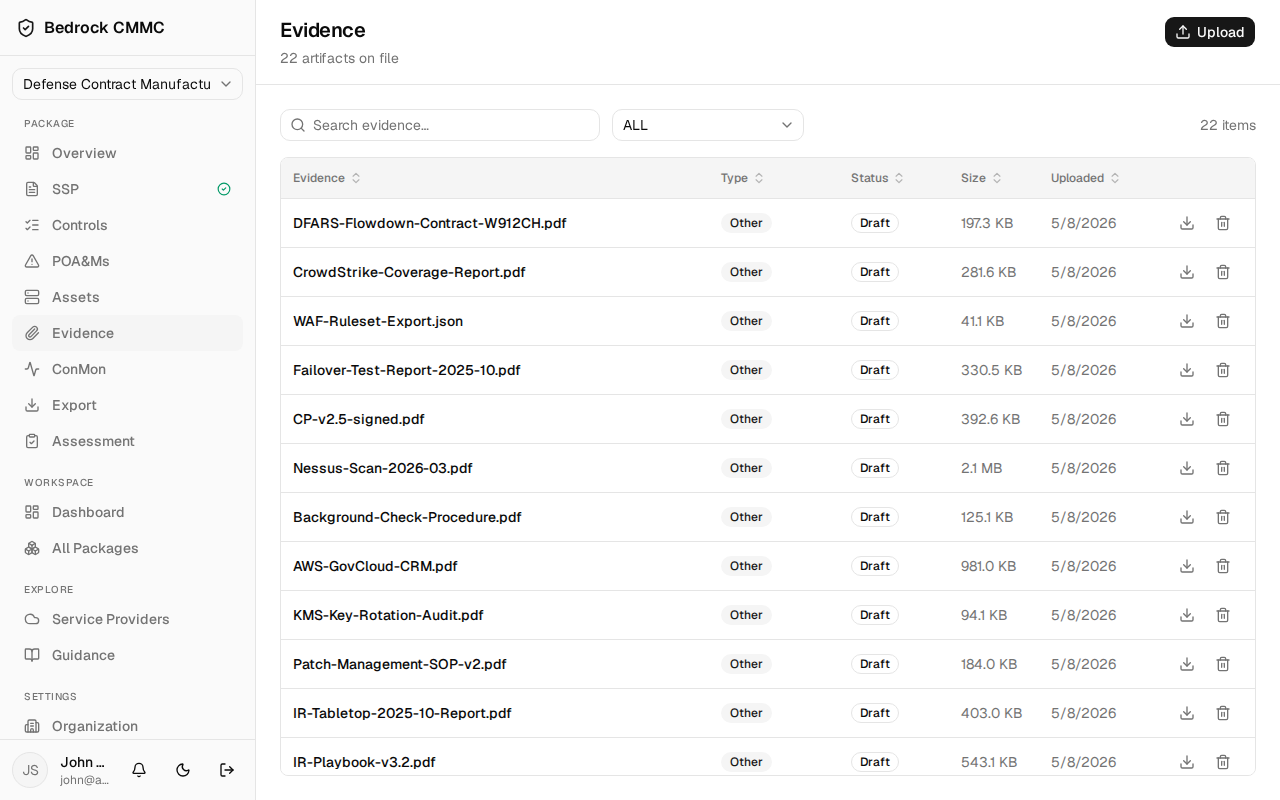
The evidence list
- Search evidence… filters by name.
- The type dropdown filters by Policy, Plan, Procedure, Diagram, Screenshot, or Other.
- Table columns: Evidence (file name), Type, Status, Size, and Uploaded, with download and delete icons on each row.
- Click a row to open the artifact's detail page.
Uploading a file
- Click Upload in the top-right. The Upload evidence dialog opens.
- Choose a File.
- Optionally set:
- Display name (optional) — defaults to the file name.
- Type — Policy, Plan, Procedure, Diagram, Screenshot, or Other.
- Status — Draft or Approved.
- Expiration (optional) — a date after which the artifact counts as expired.
- Review cadence — None, Weekly, Monthly, Quarterly, or Annual. This feeds the evidence-freshness tracking on the ConMon page.
- Description (optional) — what the evidence demonstrates.
- Click Upload.
Files are stored in your organization's dedicated storage area. Previews and downloads are served through short-lived secure links, so a link copied from the browser does not remain usable.