 foxxcyber/docs
Reviewing Evidence
Preview an artifact, submit reviews, manage versions, and link evidence to controls.
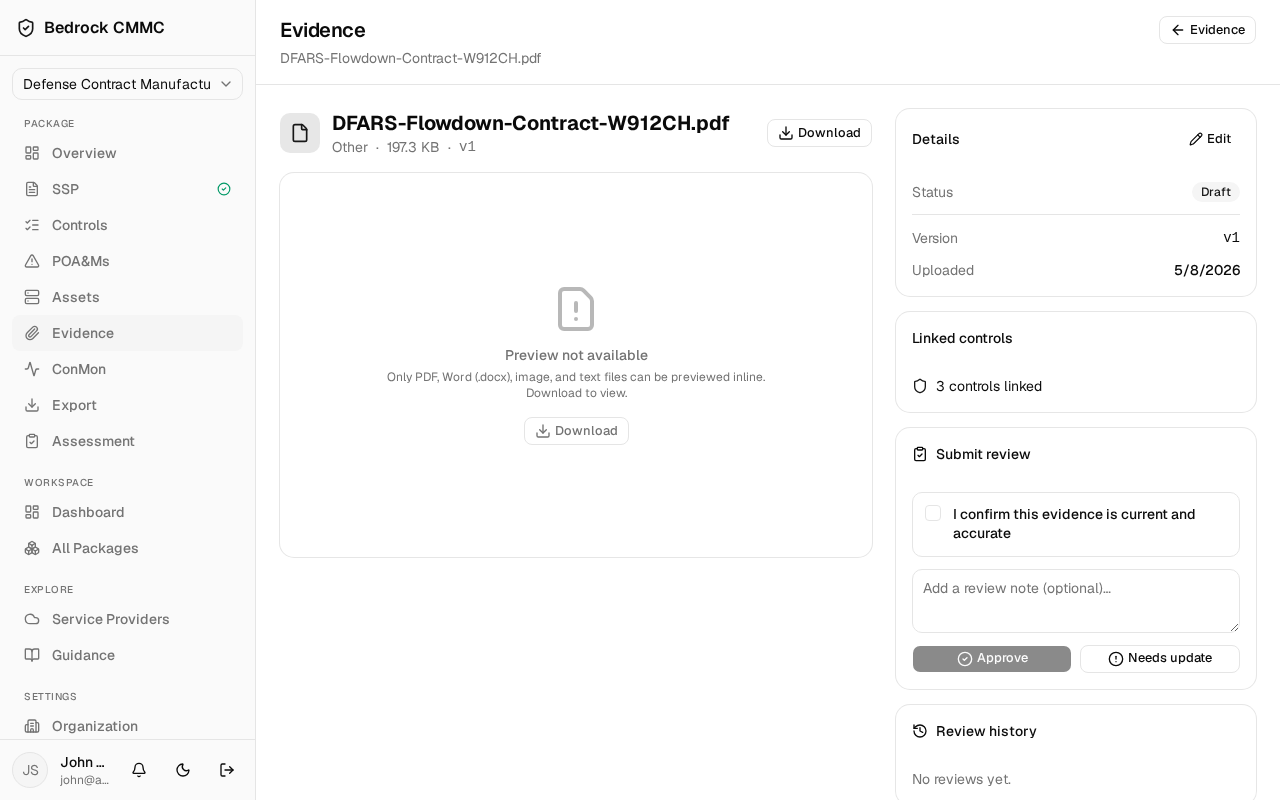
Click any row in the evidence list to open the artifact's detail page. The left side previews the file; the right side holds its metadata and actions.
Preview and download
PDF, Word (.docx), image, and text files render inline. Other formats show "Preview not available" with a Download button. A Download button also sits next to the file name.
The right-hand panels
- Details — status badge (Draft or Approved), version, upload date, uploader, review cadence, expiration, and description. Click Edit to change the name, type, status, description, expiration, or review cadence. Expiration dates turn amber when within 30 days and red once passed.
- Linked controls — how many controls reference this artifact.
- Submit review — an attestation flow: tick I confirm this evidence is current and accurate, optionally add a review note, then click Approve or Needs update. Past reviews appear under Review history.
- Versions — the artifact's version history. Click Upload new to open the Upload new version dialog and replace the file while keeping history; the page switches to the new version after upload.
- The bottom card holds Download and Delete evidence. Deleting asks for confirmation and permanently removes the file, its versions, and any control links.
Linking evidence to controls
Evidence gets linked to controls from the ConMon page: open a control's review panel there and use Link Evidence (or Manage next to "Linked Evidence") to pick artifacts from the repository. Evidence can also be attached to POA&Ms from a POA&M's Linked Evidence panel.