 foxxcyber/docs
Guest Access
Give a client a read-only window into their package's compliance posture.
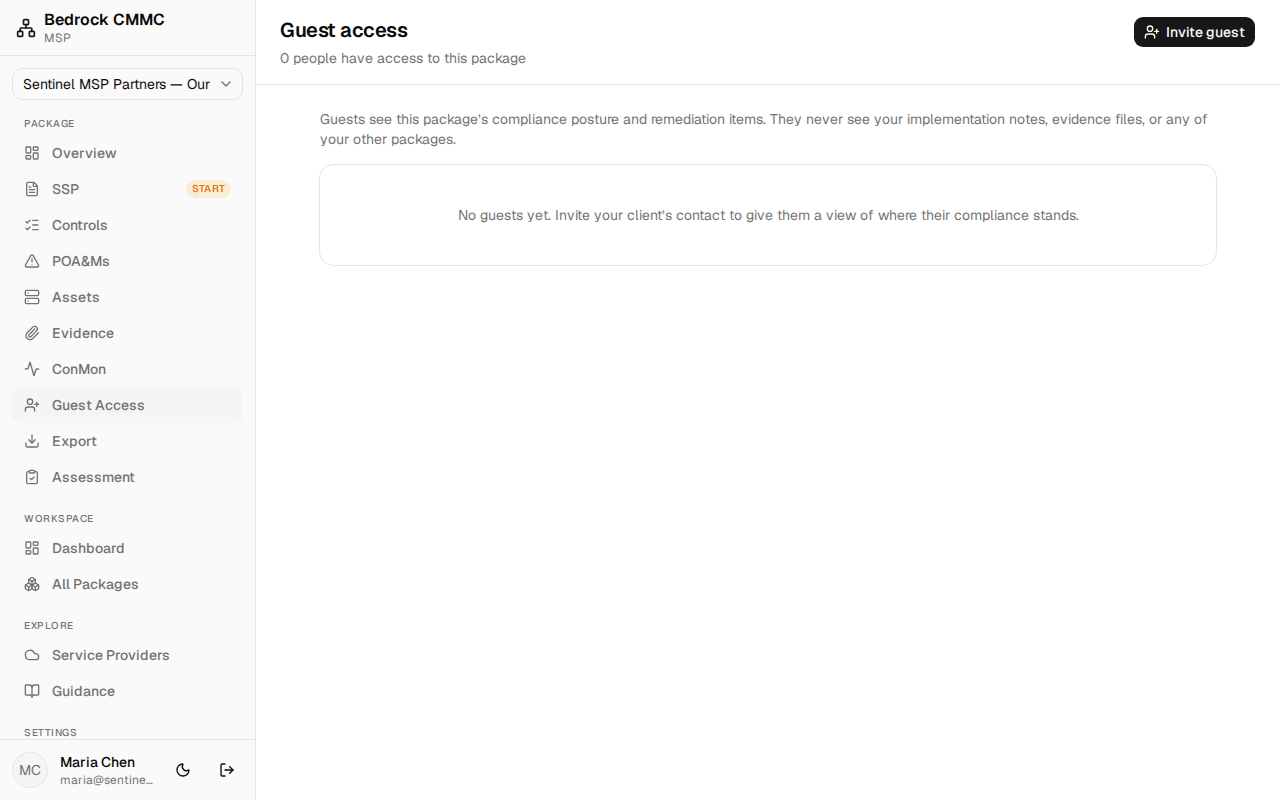
Guest access lets someone outside your organization — typically your client's point of contact — sign in and see where a single package stands, without seeing how the sausage is made.
With a package selected in the MSP workspace, click Guest Access in the sidebar to open the Guest access page.
What guests can and cannot see
As the page itself states: guests see this package's compliance posture and remediation items. They never see your implementation notes, evidence files, or any of your other packages.
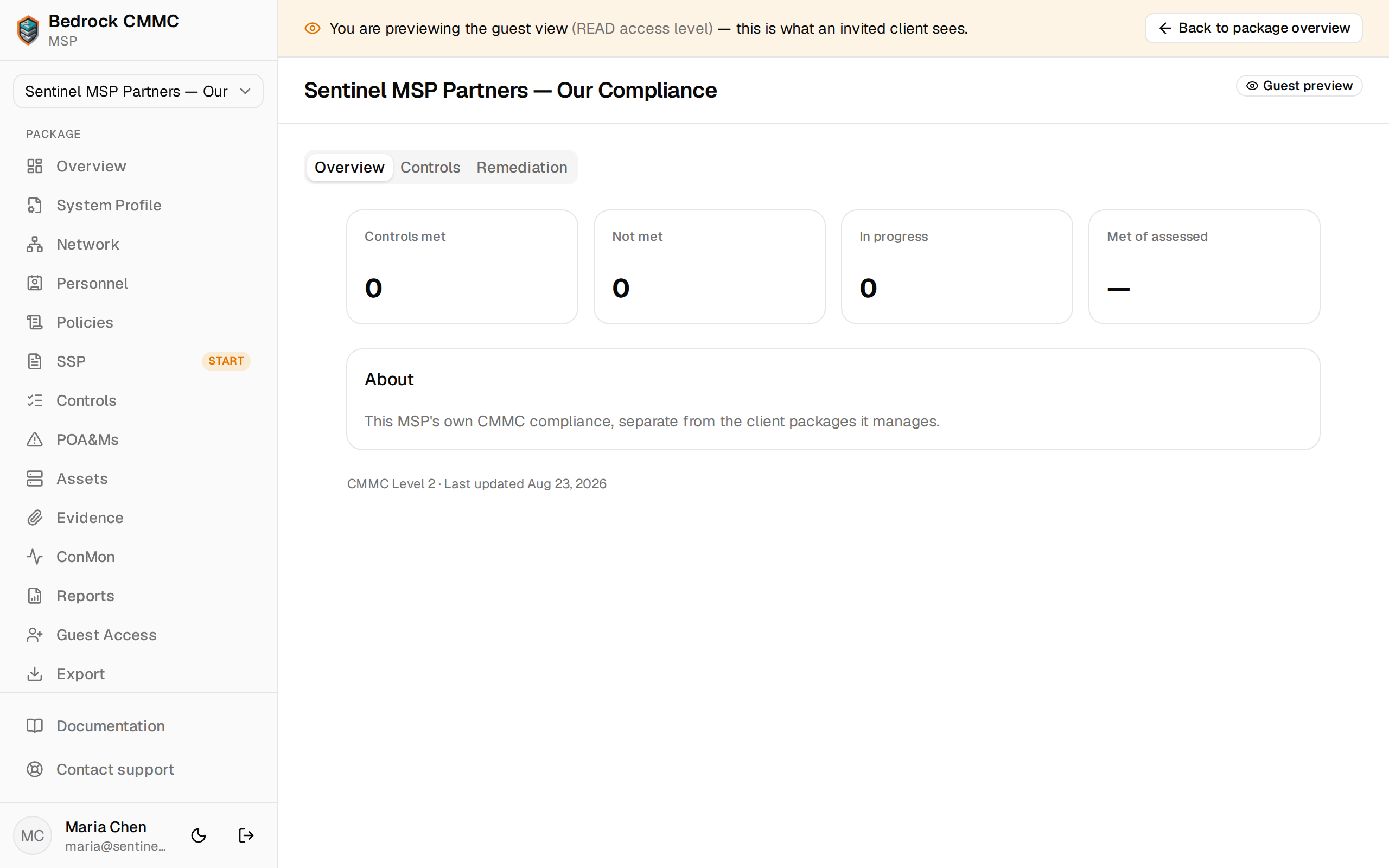
Guests sign in on the Guest tab of the login page and get a read-only view of the package's overview, controls, and POA&Ms. Guests with the View & comment access level can also comment on POA&Ms.
Previewing what a guest sees
Before you invite anyone, click Guest preview in the package header. The package re-renders exactly as a read-only guest sees it — Overview, Controls, and Remediation tabs only — under an amber banner that reads "You are previewing the guest view". Click Back to package overview to leave the preview.
Inviting a guest
- Click Invite guest in the top-right. The Invite a guest dialog opens.
- Enter the guest's Name and Email.
- Choose an Access level: View only or View and comment.
- Choose when the grant Expires: 7 days, 30 days, 90 days, 1 year, or Never expires.
- Click Send invite.
- For a new guest, the dialog shows an Invite link. Copy it and send it to the guest — it is valid for 14 days and can be used once, to set their password. (If the person already has a guest account, no link is needed; the package simply appears in their list.)
Managing existing guests
The guest table shows Guest, Access, and Expires columns. Pending invites are marked "invite not yet accepted"; lapsed grants show Revoked or Expired badges.
Click the ⋯ button on an active guest's row for:
- Allow commenting / Change to view only — switch the access level.
- Extend by 30 days — push the expiry out.
- Make permanent — remove the expiry (shown only for expiring grants).
- Revoke access — cut access immediately.