 foxxcyber/docs
Managing Assets
Build the system asset inventory and keep each asset's details current.
With a package selected, click Assets in the sidebar. The header shows the inventory size (for example, "17 assets in inventory") and an Add Asset button.
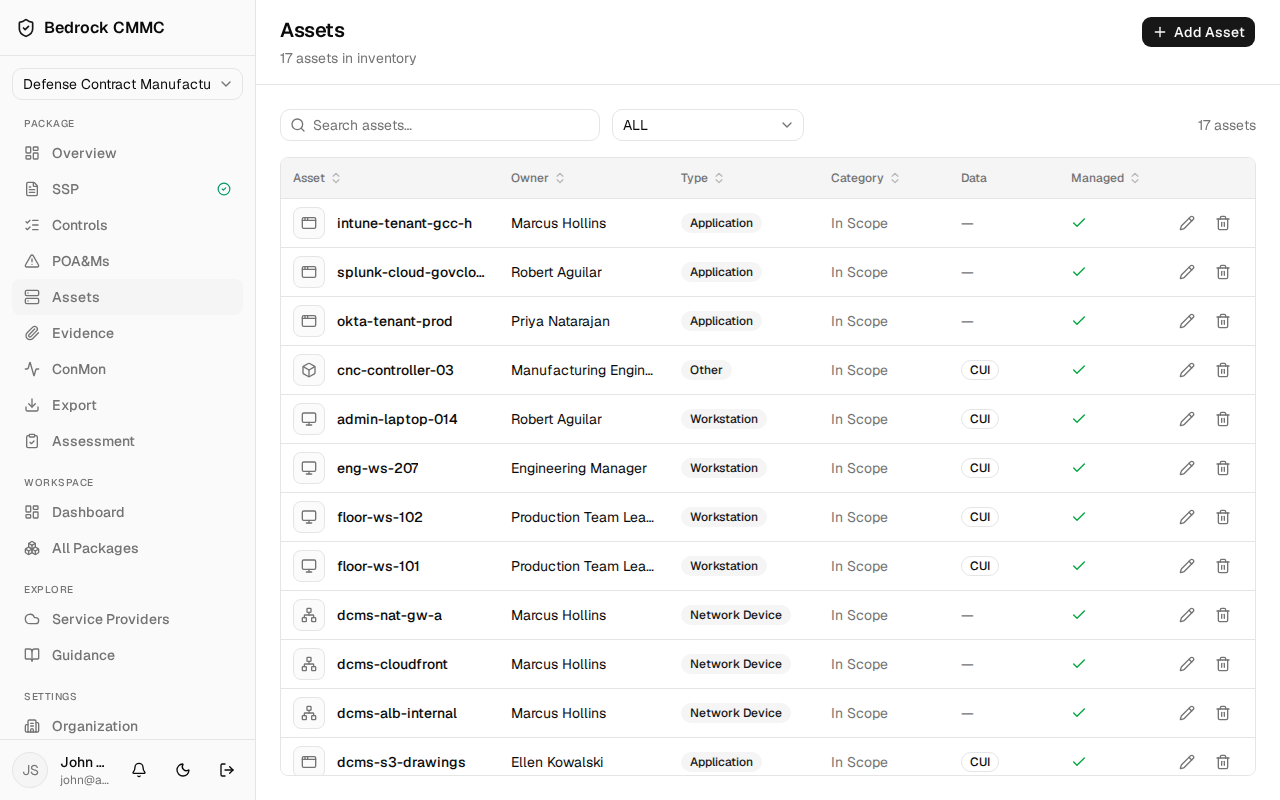
The asset list
- Search assets… filters by name and details.
- The type dropdown filters by asset type: Server, Workstation, Network Device, Mobile Device, Application, Database, VoIP Device, Virtual Machine, or Other.
- Table columns include Asset, Owner, Type, Category, Data (FCI/CUI badges), and Managed, with edit and delete icons on each row.
- Click a row to open the asset's detail page.
Adding an asset
- Click Add Asset. The Add Asset form opens with four tabs:
- Basic — Name (required), Type, Category (In Scope, Out of Scope, or one of the Specialized categories — IoT, IIoT, OT, GFE, RIS, Test), Description, and three checkboxes: Processes FCI, Processes CUI, and Managed.
- Network — IP address, MAC address, Hostname.
- Details — Manufacturer, Model, Serial number, Software version, Operating system, Owner, Location, Facility, Department.
- Security — Patch level and Last patch date.
- Click Add asset.
Only the name is required — you can start thin and fill in details later.
Editing an asset
Open an asset from the list. Its detail page groups fields into Overview, Network, Hardware & ownership, and Security posture cards. The hint under the asset name says it directly: "Click any value to edit it." Changes save as you confirm each field, and an "Asset updated" toast confirms the save. Use the Assets button in the header to return to the list.