 foxxcyber/docs
Managing POA&Ms
Create remediation items and track them in table, board, calendar, and dashboard views.
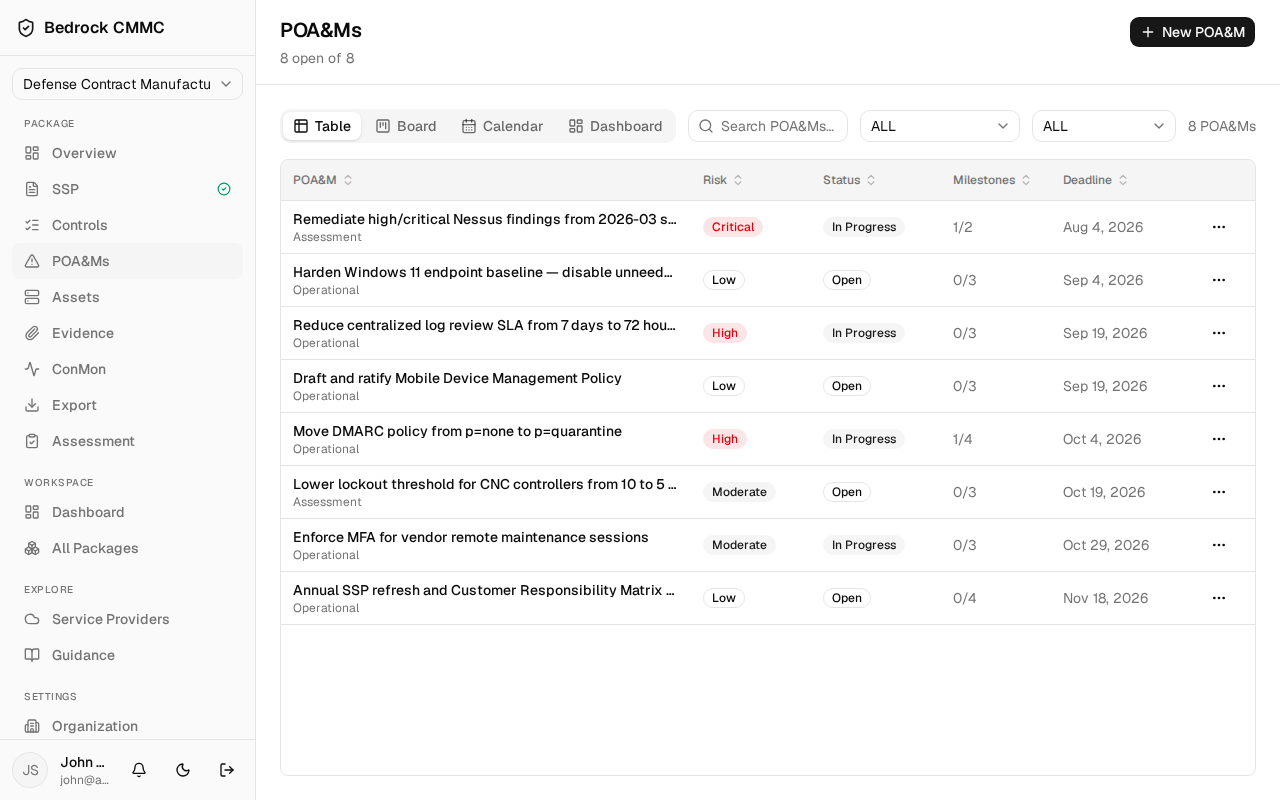
With a package selected, click POA&Ms in the sidebar. The header shows how many items are open (for example, "8 open of 8") and a New POA&M button.
Creating a POA&M
- Click New POA&M in the top-right.
- Fill in the form:
- Title (required).
- Type — Assessment, Operational, or Finding.
- Risk level — Critical, High, Moderate, or Low.
- Target date (required).
- Description (required) — what weakness or finding is being addressed.
- Remediation plan (required) — how it will be remediated.
- Click Create POA&M. You return to the list.
Switching views
A view switcher sits at the left of the toolbar with four options:
- Table — the default list. Columns: POA&M (title and type), Risk, Status, Milestones, and Deadline. Use Search POA&Ms… plus the status filter (Open, In Progress, Closed, Overdue) and risk filter to narrow the list. Click a row to open the POA&M.
- Board — a kanban-style board grouped by status.
- Calendar — items placed on their scheduled dates.
- Dashboard — summary charts; clicking a status there jumps back to the table filtered to it.
You can set Open, In Progress, or Closed yourself. Overdue is applied automatically when an item passes its deadline.