foxxcyber/docs
Sandboxes & Your Organization
Trial environments for prospects, your redemption code, team management, and your own compliance.
Prospect sandboxes
A sandbox is a trial environment you spin up for a prospect. Find them on the Clients page under the Sandboxes tab.
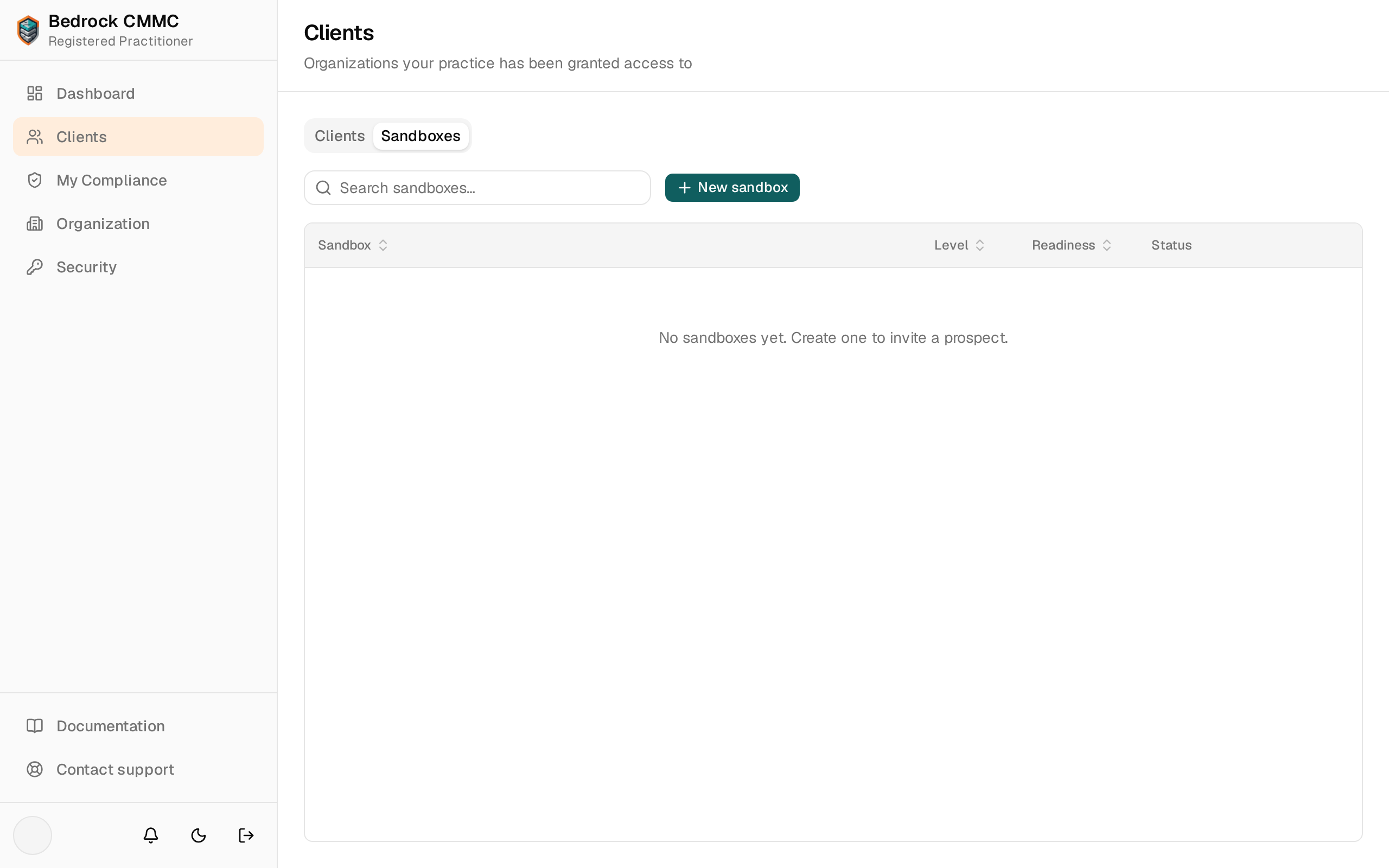
The sandbox table shows Sandbox (organization name and prospect email), Level, Readiness (a percentage), and Status, with per-row lifecycle actions.
Creating a sandbox
- On the Sandboxes tab, click New sandbox. The New prospect sandbox dialog opens.
- Enter the Prospect name and Prospect email.
- Enter a Sandbox name — this becomes the trial organization's name.
- Pick the CMMC level (Level 1, 2, or 3).
- Submit. The trial environment is created and the prospect is emailed an invitation.
Tracking a sandbox
Click a sandbox row to open its detail page: the prospect and trial package at the top, a conversion funnel panel, and an activity feed showing what has happened in the trial. Use the Clients button to go back.
Your organization
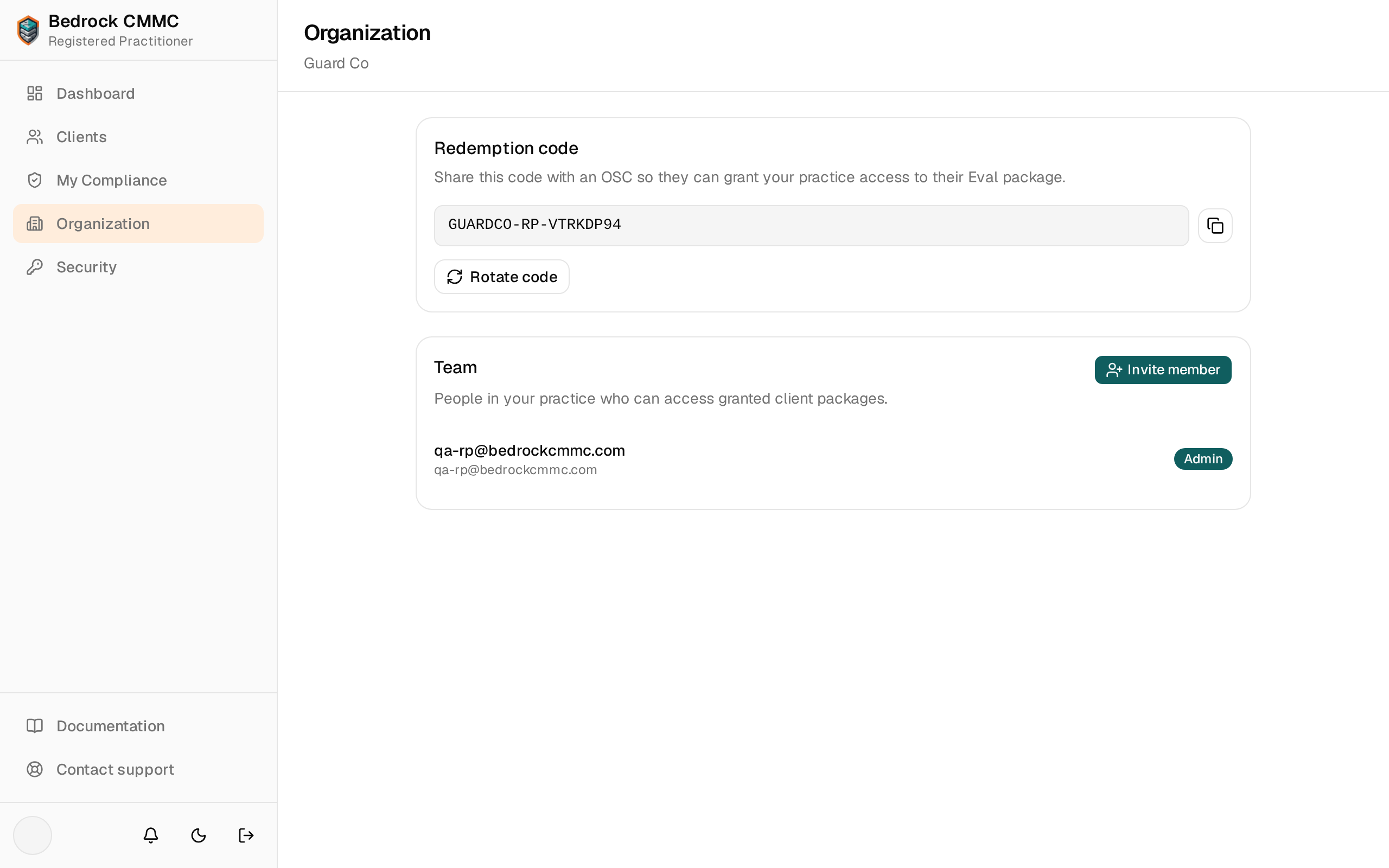
Click Organization in the sidebar.
Redemption code
The Redemption code card shows your practice's code: "Share this code with an OSC so they can grant your practice access to their Eval package."
- Click the copy icon to copy it.
- Admins can click Rotate code. A dialog titled "Rotate redemption code?" warns that the current code stops working immediately — any OSC that hasn't redeemed it yet will need the new code.
Team
Below the code card, the team management area lists your practice's users. Admins can manage the team; each member has a flat role of Admin or User.
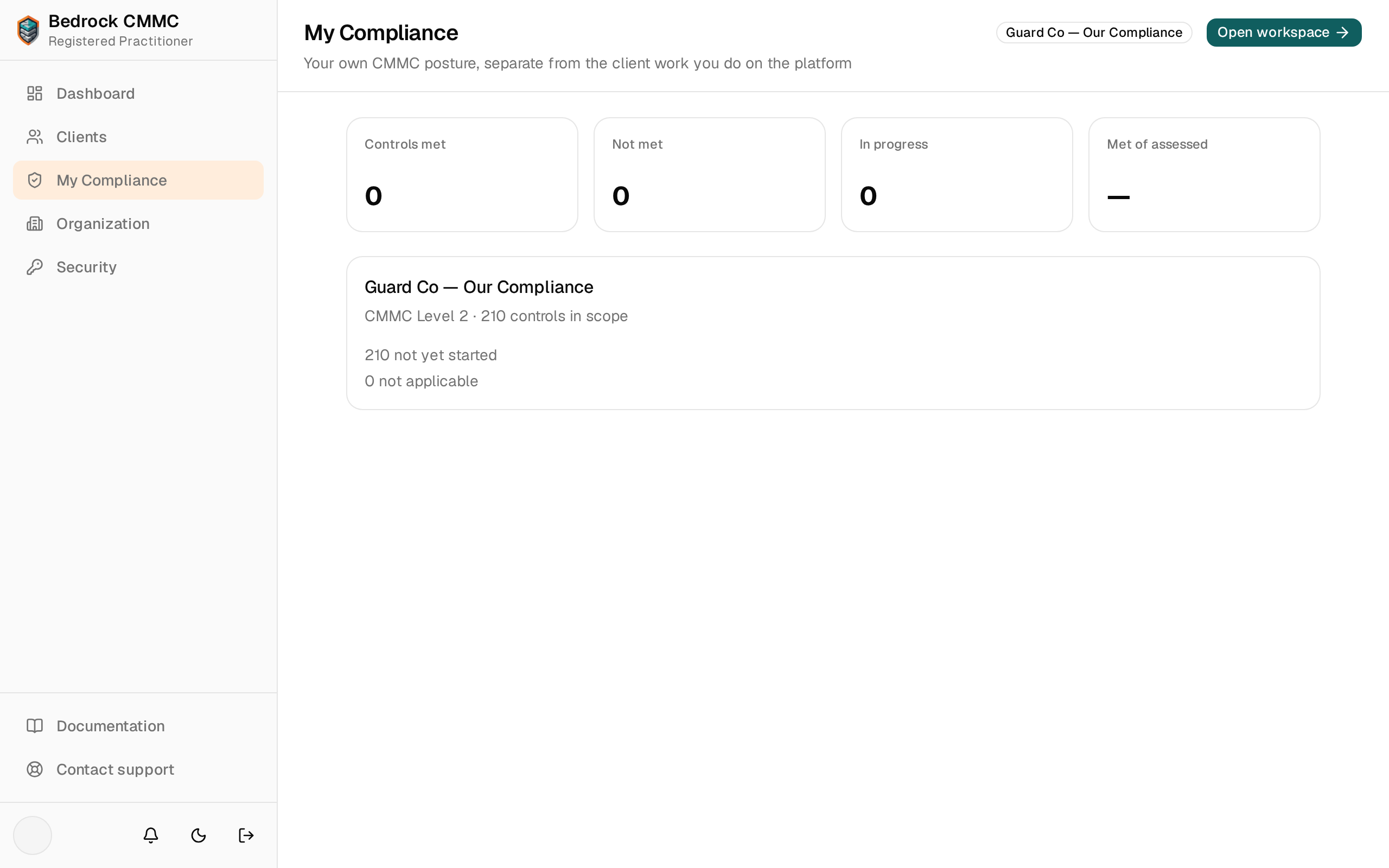
My Compliance
Click My Compliance in the sidebar to see your own firm's CMMC posture — "separate from the client work you do on the platform." The page shows stat cards (Controls met, Not met, In progress, Met of assessed) and a summary card for your firm's package. Click Open workspace to work in your firm's package exactly as you would in a client's — it is fully editable by your practice.