 foxxcyber/docs
Navigating the App
A tour of the sidebar, the dashboard, and how the package selector works.
This page tours the contractor (OSC) workspace. The MSP workspace is laid out the same way; the RP and Guest portals have their own simpler navigation covered in their sections.
The left sidebar
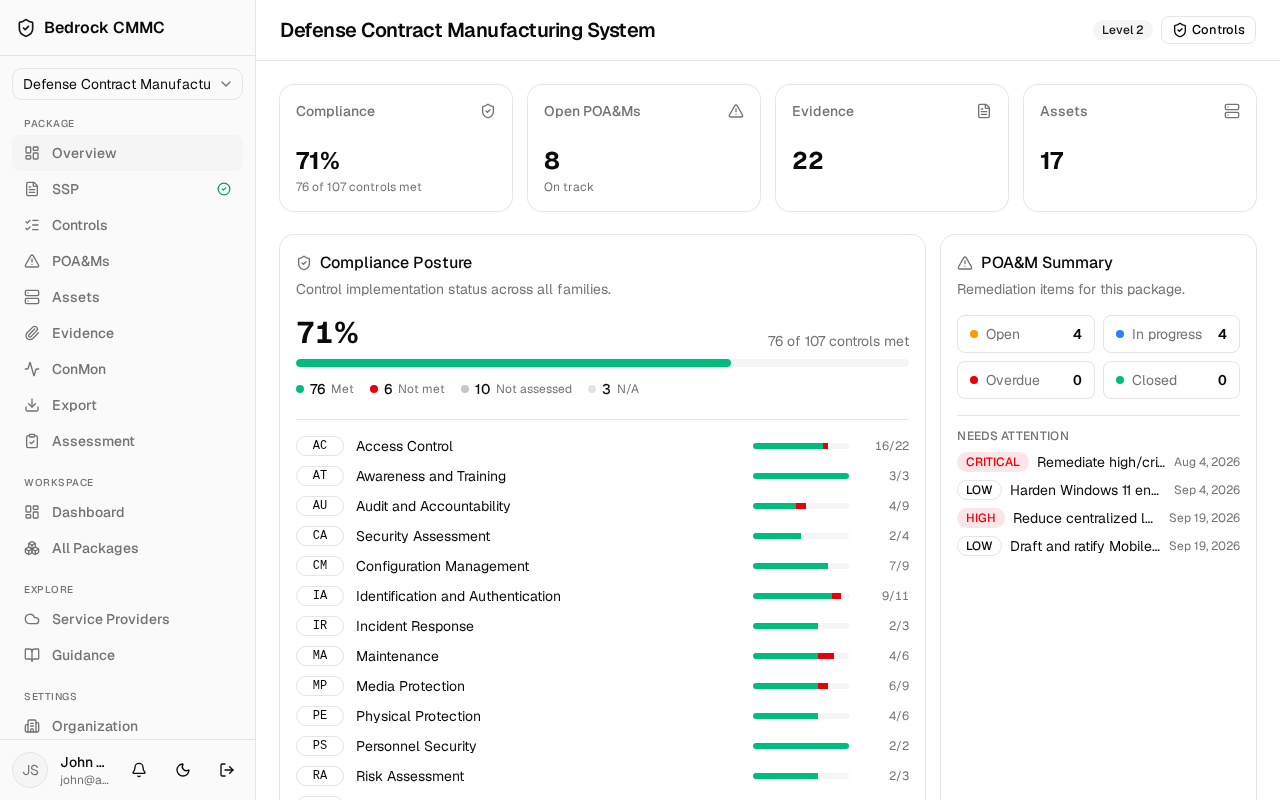
Everything in Bedrock CMMC hangs off the left sidebar. From top to bottom:
- Package selector — a dropdown at the very top labeled Select a package. Choosing a package here opens it and reveals the package navigation below.
- PACKAGE section — appears only while a package is selected. It links to the package's pages: Overview, System Profile, Network, Personnel, Policies, SSP, Controls, POA&Ms, Assets, Evidence, ConMon, Reports, Export, and Assessment.
- WORKSPACE section — Dashboard, All Packages, Artifacts, and Activity, available whether or not a package is selected.
- EXPLORE section — Checklist and Guidance.
- SETTINGS section — Organization, Users & Roles, Consultants, Notifications, and Security.
- User area — at the bottom: your avatar, name, and email, plus the notification bell, the light/dark theme toggle, and the Sign out button.
The dashboard
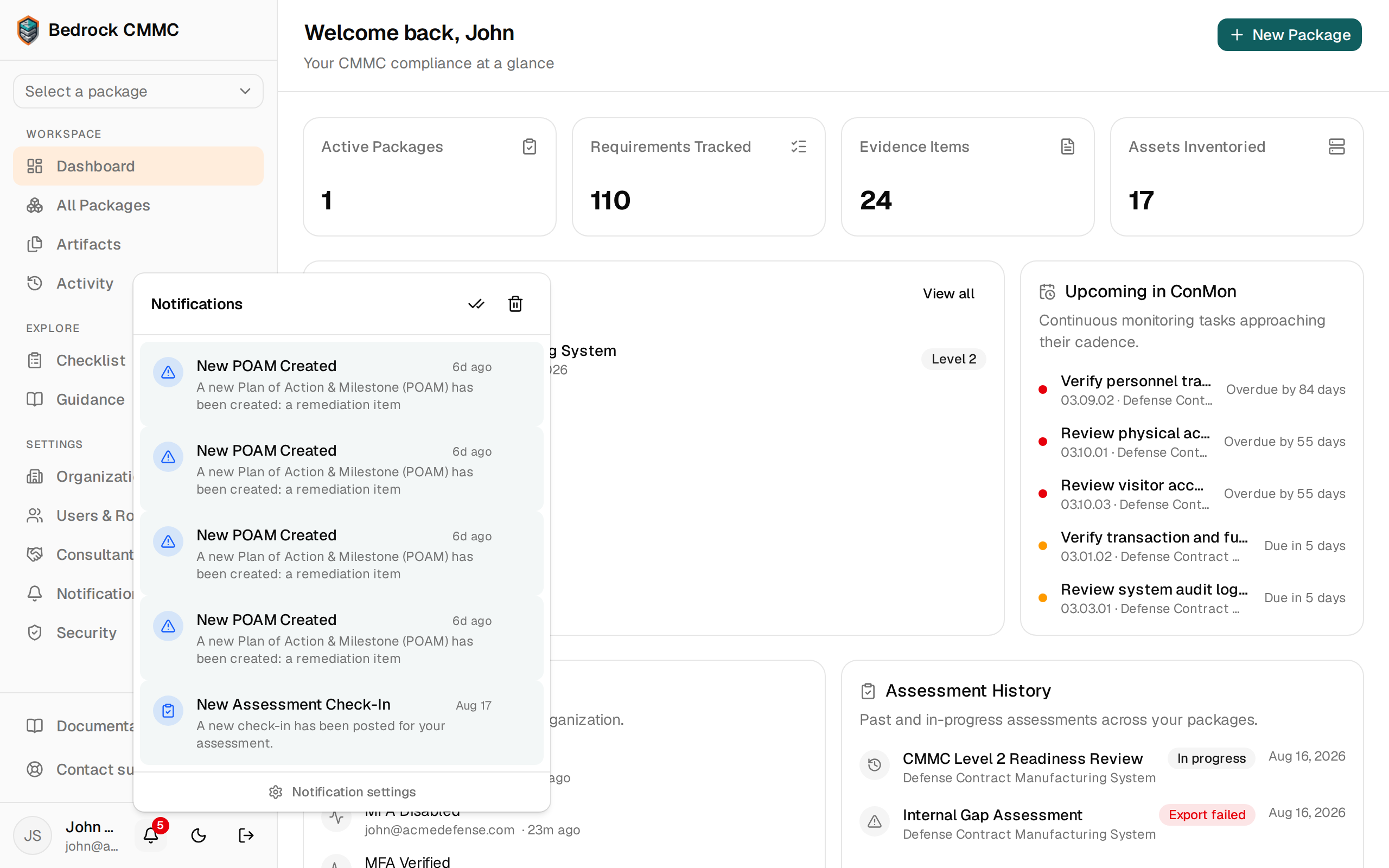
Click Dashboard in the sidebar to see your organization at a glance. The header greets you by name and shows a New Package button in the top-right.
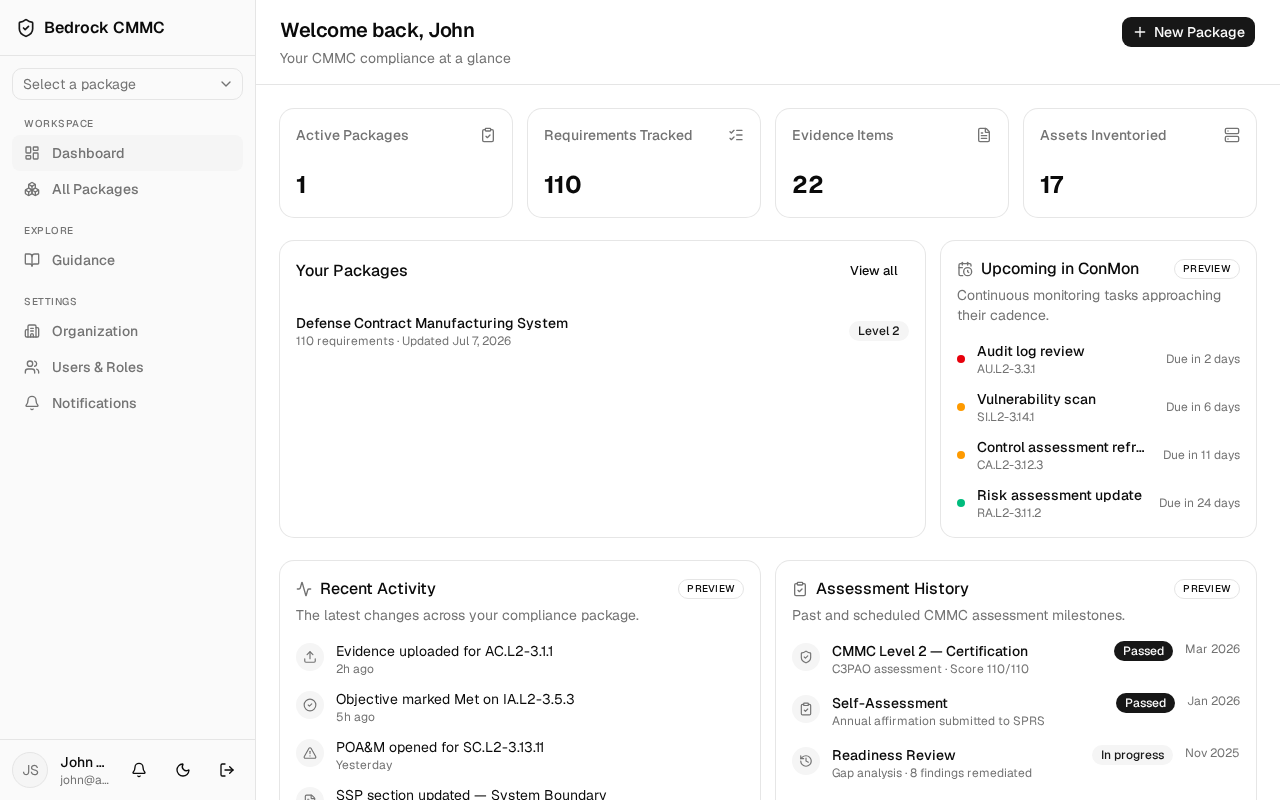
The dashboard shows:
- Four stat cards: Active Packages, Requirements Tracked, Evidence Items, and Assets Inventoried.
- Your Packages — your five most recently updated packages. Click a row to open that package's overview, or click View all to go to the full list.
- Upcoming in ConMon — continuous-monitoring tasks approaching their cadence.
- Recent Activity and Assessment History panels.
Artifacts
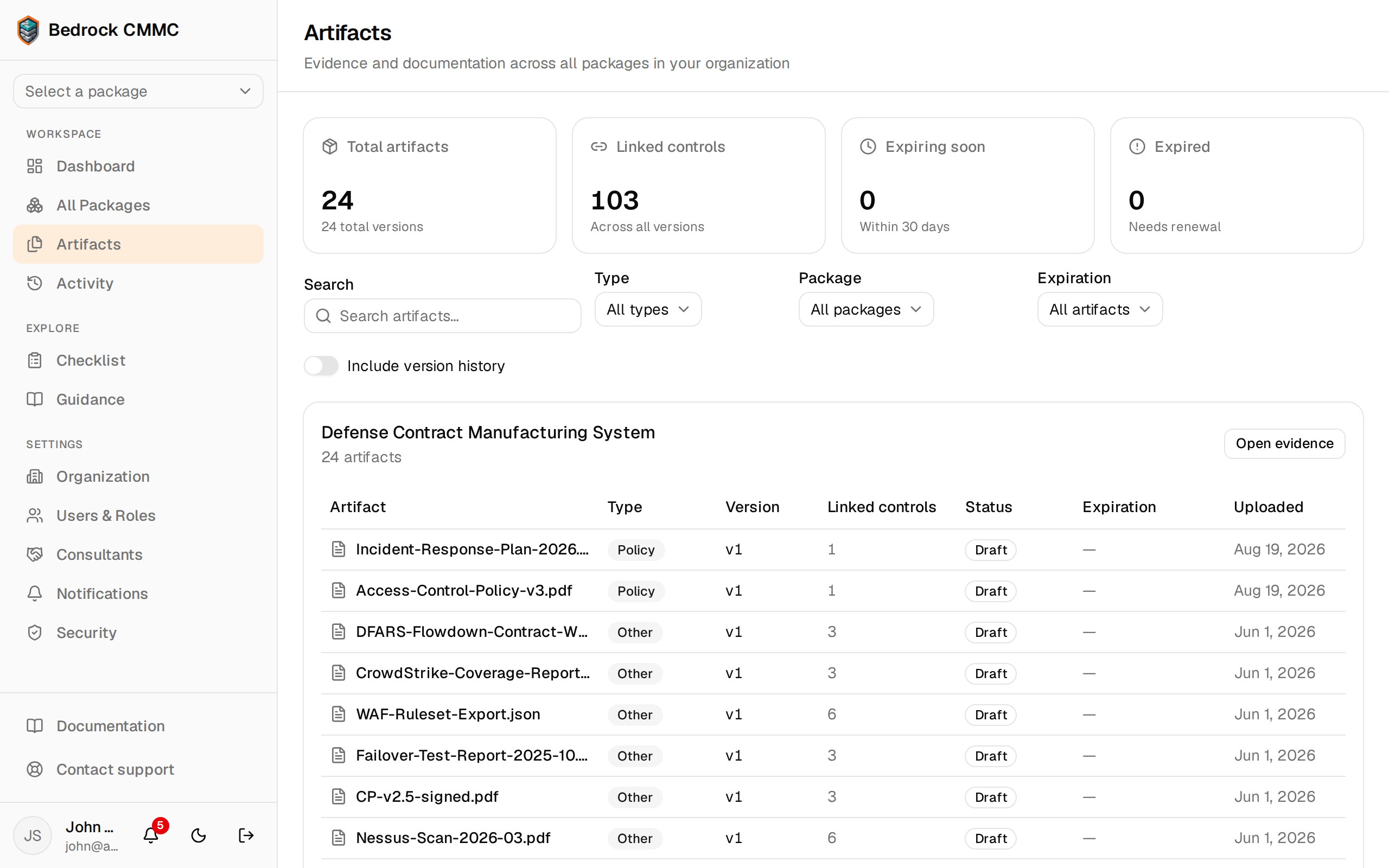
Click Artifacts to see evidence and documentation across every package in your organization in one place. Stat cards count Total artifacts, Linked controls, Expiring soon, and Expired; below them you can search, filter by type, package, or expiration, and switch on Include version history. Each package lists its artifacts with type, version, linked control count, status, expiration, and upload date, and an Open evidence button jumps into that package.
Activity
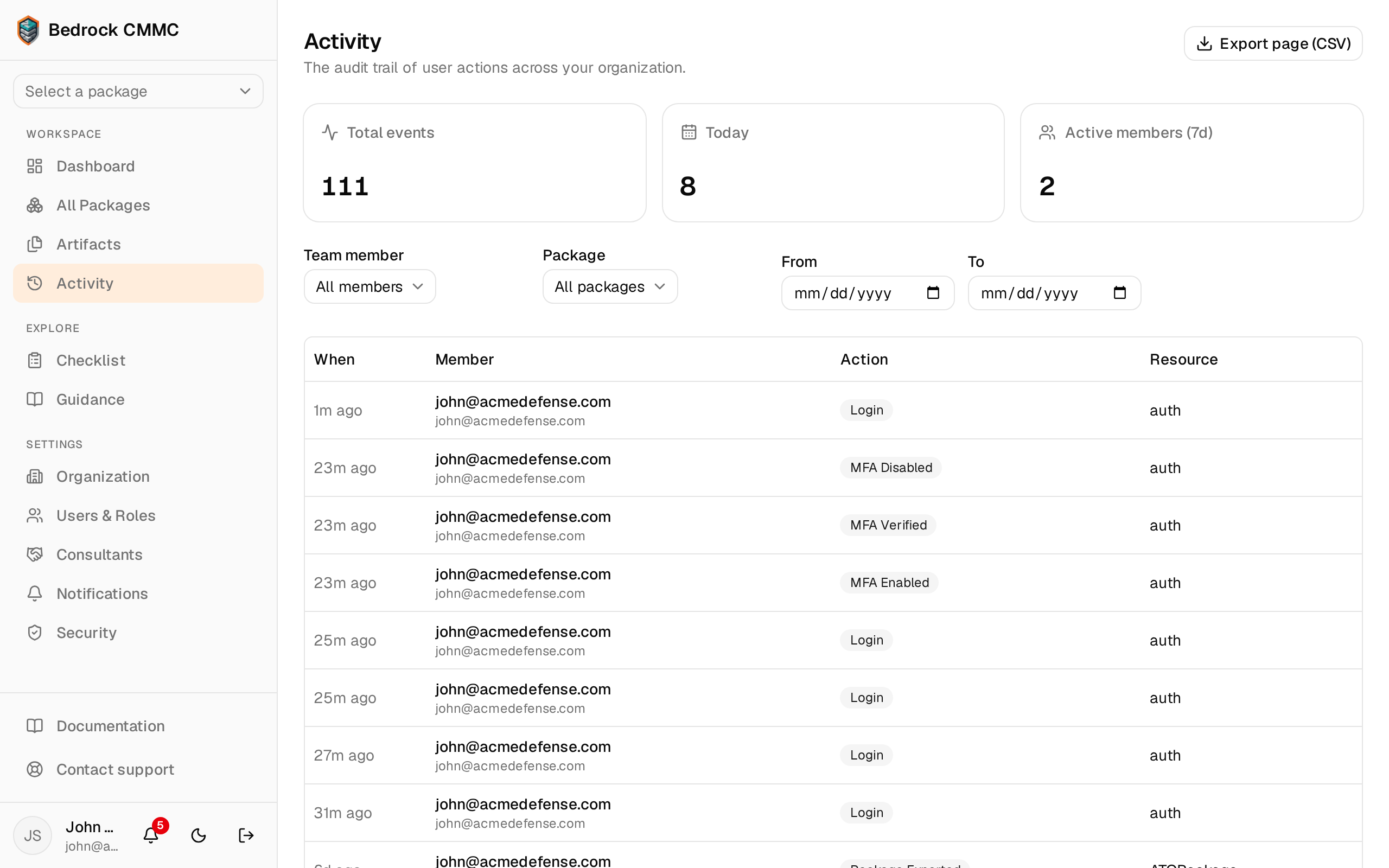
Click Activity for the audit trail of user actions across your organization — sign-ins, MFA changes, package exports, evidence and POA&M activity — with who did it and when. Stat cards count Total events, Today, and Active members (7d); filter by team member, package, or date range, and use Export page (CSV) to hand the trail to an assessor.
Checklist
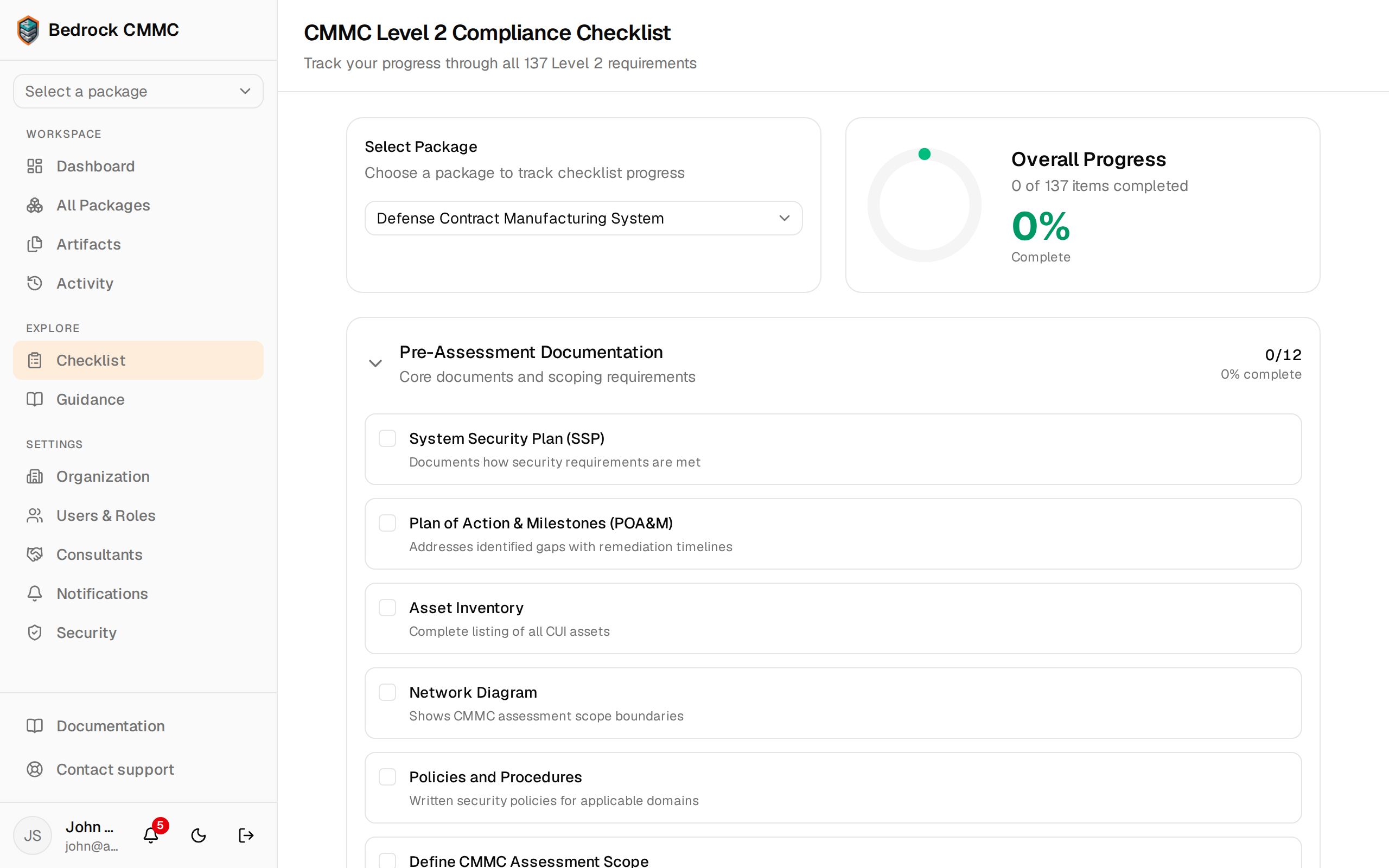
Click Checklist under EXPLORE for the CMMC Level 2 Compliance Checklist — a level-aware list of everything an assessment expects (pre-assessment documentation, scoping, and each requirement family). Pick a package to track against, tick items off as you complete them, and watch the Overall Progress ring fill.
Notifications
The bell icon in the sidebar's user area shows a badge when you have unread notifications. Click it to open the notification list — items such as new POA&Ms, assessment check-ins, and overdue ConMon reviews appear here. Use the icons in the header to mark everything read or clear the list; a Notification settings link at the bottom of the popover jumps to your email preferences.
The unread count refreshes automatically about every 30 seconds while the app is open — you don't need to reload the page.
Theme
Click the moon/sun icon next to the bell to switch between light and dark mode.