 foxxcyber/docs
Working with Controls
Browse the control list, open a control, and record objective statuses.
The controls list
With a package selected, click Controls in the sidebar.
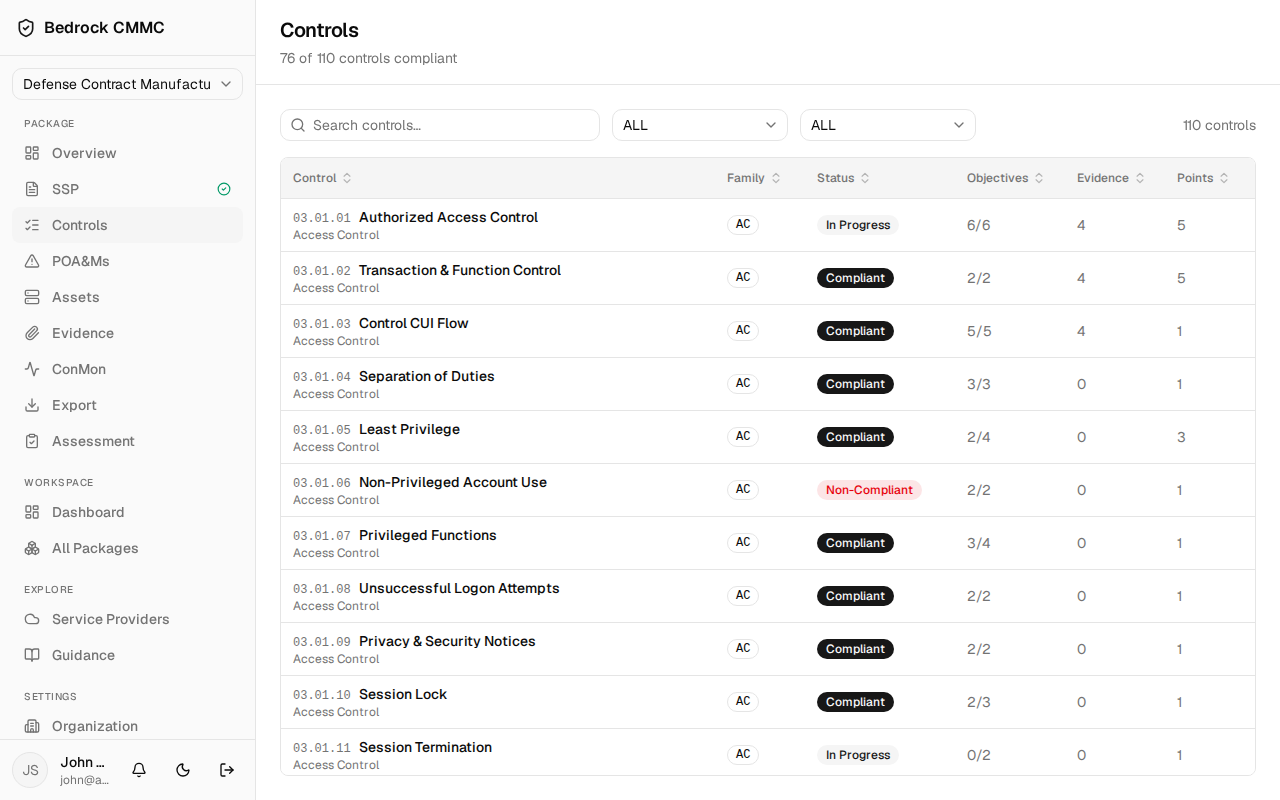
The page header shows how many controls are compliant (for example, "76 of 110 controls compliant"). Above the table:
- Search controls… filters by ID, title, or family.
- The first dropdown filters by family (All families, or a specific one like "AC — Access Control").
- The second dropdown filters by status: All statuses, Compliant, In Progress, Non-Compliant, Not Started, or N/A.
The table columns are Control (requirement ID and title), Family, Status, Objectives (met/total), Evidence (linked count), and Points. Click a row to open the control.
The control detail page
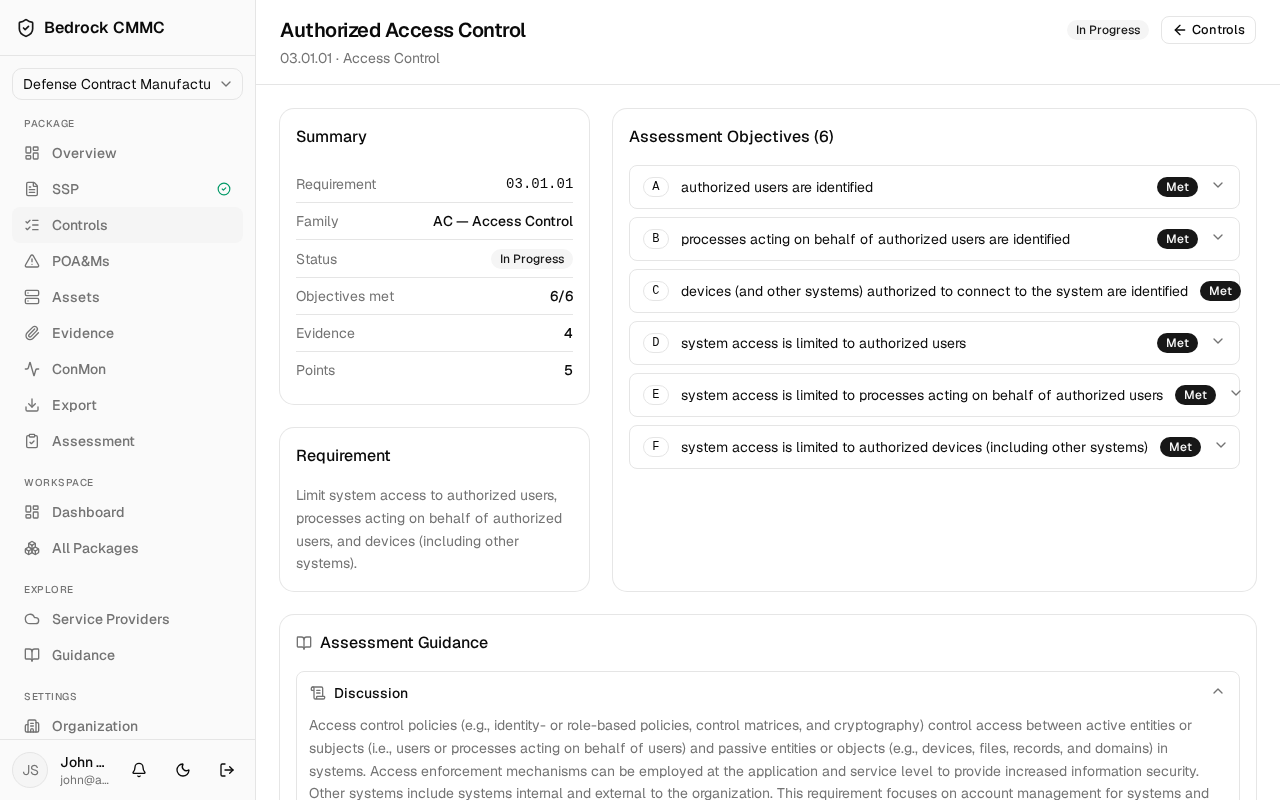
The header shows the control's title, ID, family, and current status badge, with a Controls button to go back. The page has three areas:
- Summary — requirement ID, family, status, objectives met, evidence count, and points.
- Requirement — the requirement text.
- Assessment Objectives — an accordion listing every objective (A, B, C…) with its own status badge.
Below these, an Assessment Guidance area shows reference discussion text for the requirement.
Recording an objective
- In Assessment Objectives, click an objective row to expand it.
- Set the Status dropdown: Implemented, Not Implemented, Not Applicable, or Not Assessed.
- Optionally fill in the supporting fields:
- Policy ref and Procedure ref
- Implementation statement
- Responsibility
- Assessment notes
- If the objective is satisfied by an external service provider, use the
boxed section at the bottom:
- Inherited from ESP — Not inherited, Partially inherited, or Fully inherited.
- Dependent service providers — tick the checkbox for each provider involved. Providers must first be registered on the package's Service Providers page.
- Click Save objective.
The control's overall status and the package's compliance score are derived from its objective statuses, so they update after you save.