 foxxcyber/docs
Working a POA&M
Milestones, comments, assignees, linked evidence, and closing out.
Click any row in the POA&M list to open its detail page. The header shows the title, a Close POA&M button (or Reopen if it's closed), a delete icon, and a POA&Ms button back to the list.
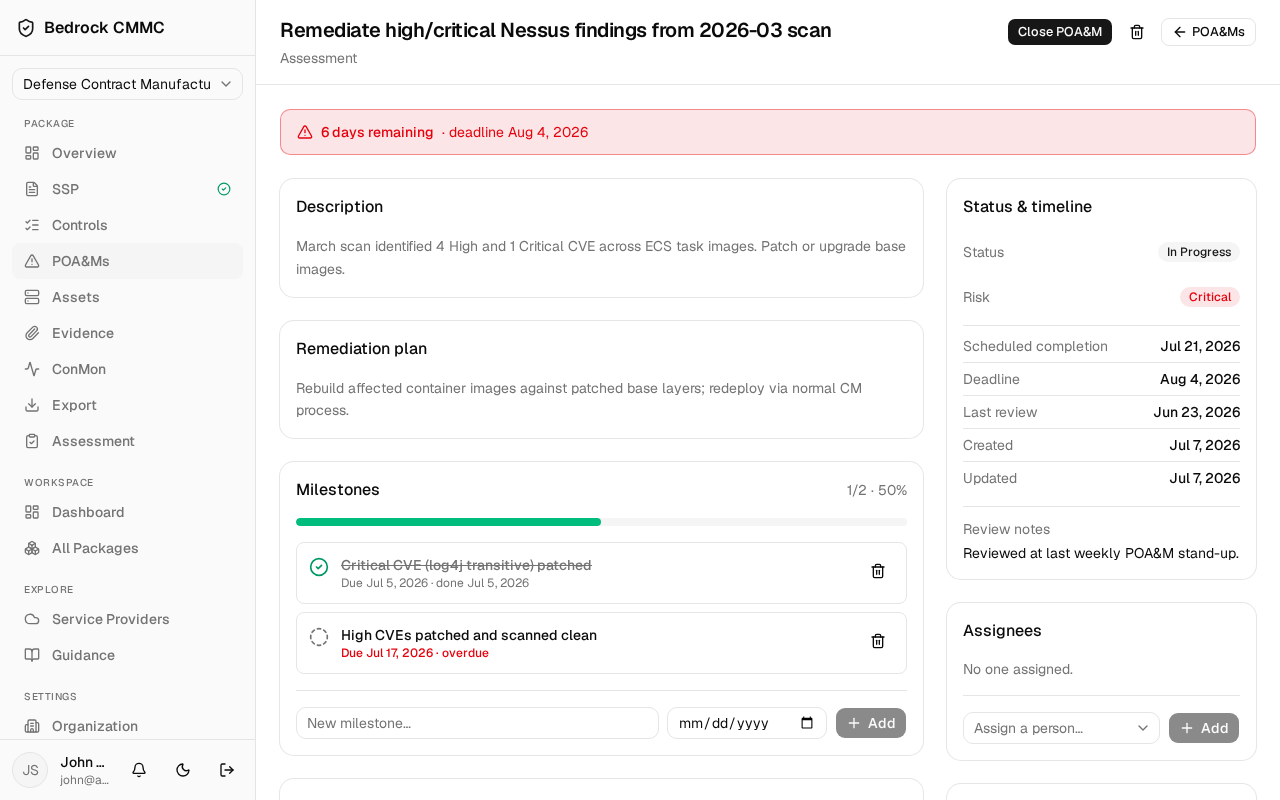
If a deadline is near or passed, a banner across the top shows the days remaining (or overdue) and the deadline date.
Left column
- Description and Remediation plan — the text entered when the item was created.
- Milestones — a checklist with a progress bar. Type into New milestone…, pick a due date, and click Add. Click a milestone's circle to toggle it done; use the trash icon to remove it.
- Comments — a running discussion. Type into Add a comment… and submit.
Right column
- Status & timeline — status and risk badges plus Scheduled completion, Deadline, Last review, Created, and Updated dates (with who made the change), and any Review notes.
- Assignees — pick a teammate from Assign a person… and click Add.
- Linked Evidence — attach evidence artifacts from the package's evidence repository to document the fix.
- Dependencies — link other POA&Ms that block or relate to this one.
- Linked requirements — shown when the POA&M is tied to specific controls (for example, when it was generated from assessment results).
Closing, reopening, and deleting
- Click Close POA&M when remediation is done. Milestones become read-only while closed.
- Click Reopen on a closed item to resume work.
- Click the trash icon to delete; a dialog titled "Delete this POA&M?" confirms before the item is permanently removed.