 foxxcyber/docs
Organization & Notifications
Your organization profile, plan usage, and email alert preferences.
Organization settings
Click Organization in the sidebar's SETTINGS section. A badge in the header shows your subscription plan.
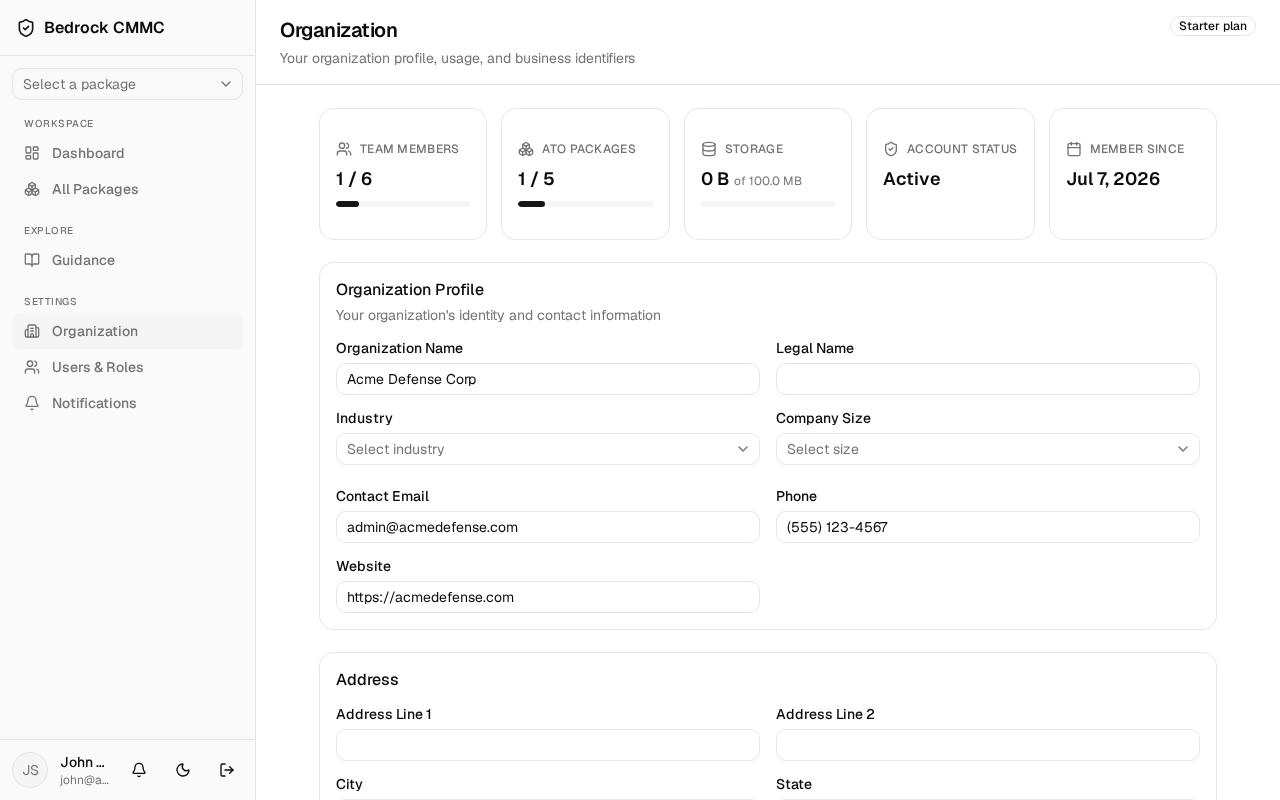
- Usage cards across the top: Team Members, ATO Packages, Storage, Account Status, and Member Since.
- Organization Profile — organization name, legal name, Industry, Company Size, contact email, phone, and website.
- Address — your business address.
- Business Identifiers — CAGE code and related identifiers.
Owners and admins can edit and save these; other roles see them read-only.
Notification settings
Click Notifications in the sidebar. The page has two parts: your personal email preferences and the organization-wide alert schedule.
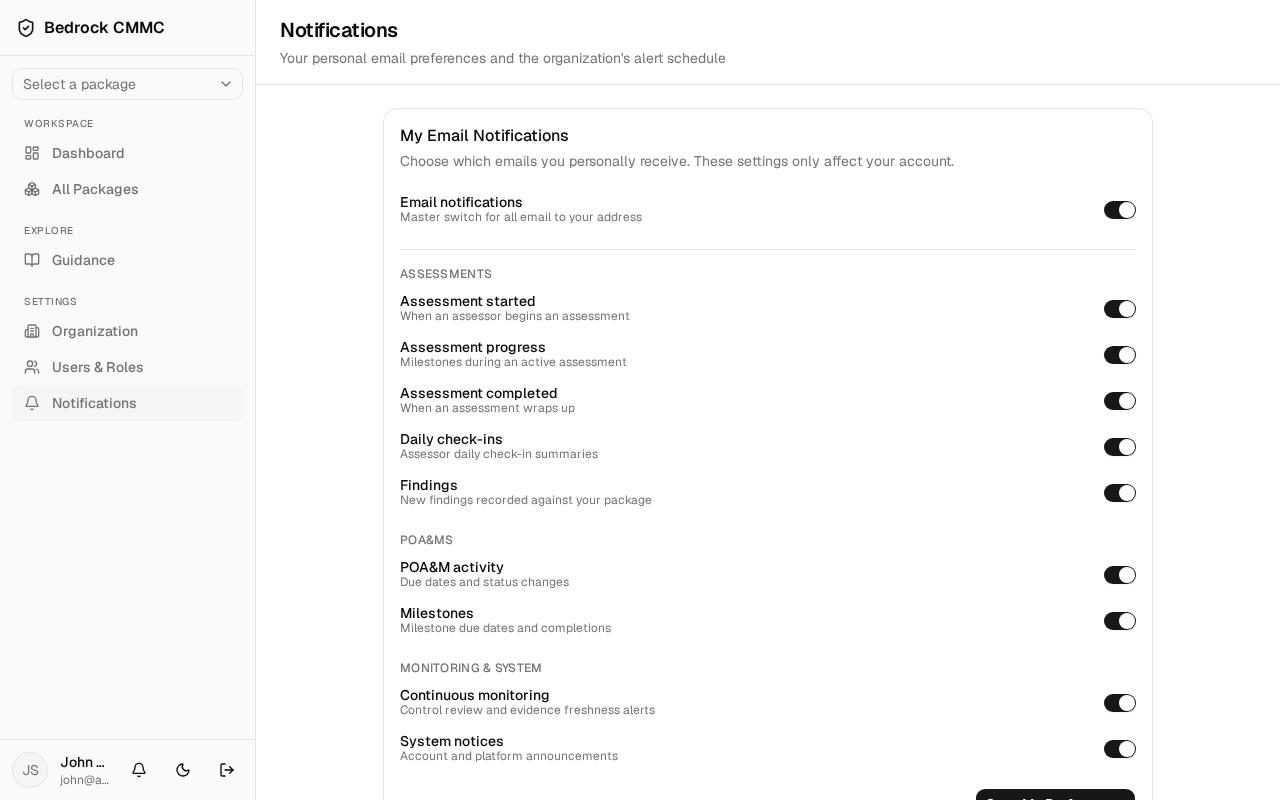
My Email Notifications
These toggles affect only your account. A master Email notifications switch turns all email on or off, followed by per-topic toggles grouped into:
- Assessments — Assessment started, Assessment progress, Assessment completed, Daily check-ins, Findings.
- POA&Ms — POA&M activity, Milestones.
- Monitoring & System — Continuous monitoring, System notices.
Organization Notification Schedule
This card (editable by owners and admins) controls the alerts generated for the whole organization: an Organization notifications master switch, per-alert rows such as Evidence expiring soon, Evidence expired, Review due soon, Review overdue, POA&M due soon, POA&M overdue, and Milestone due soon — several with a lead-time ("days before") setting — plus Recipient emails for where digests are sent.