 foxxcyber/docs
Signing In
Sign in to the right portal for your role — OSC, MSP, RP, C3PAO, or Guest.
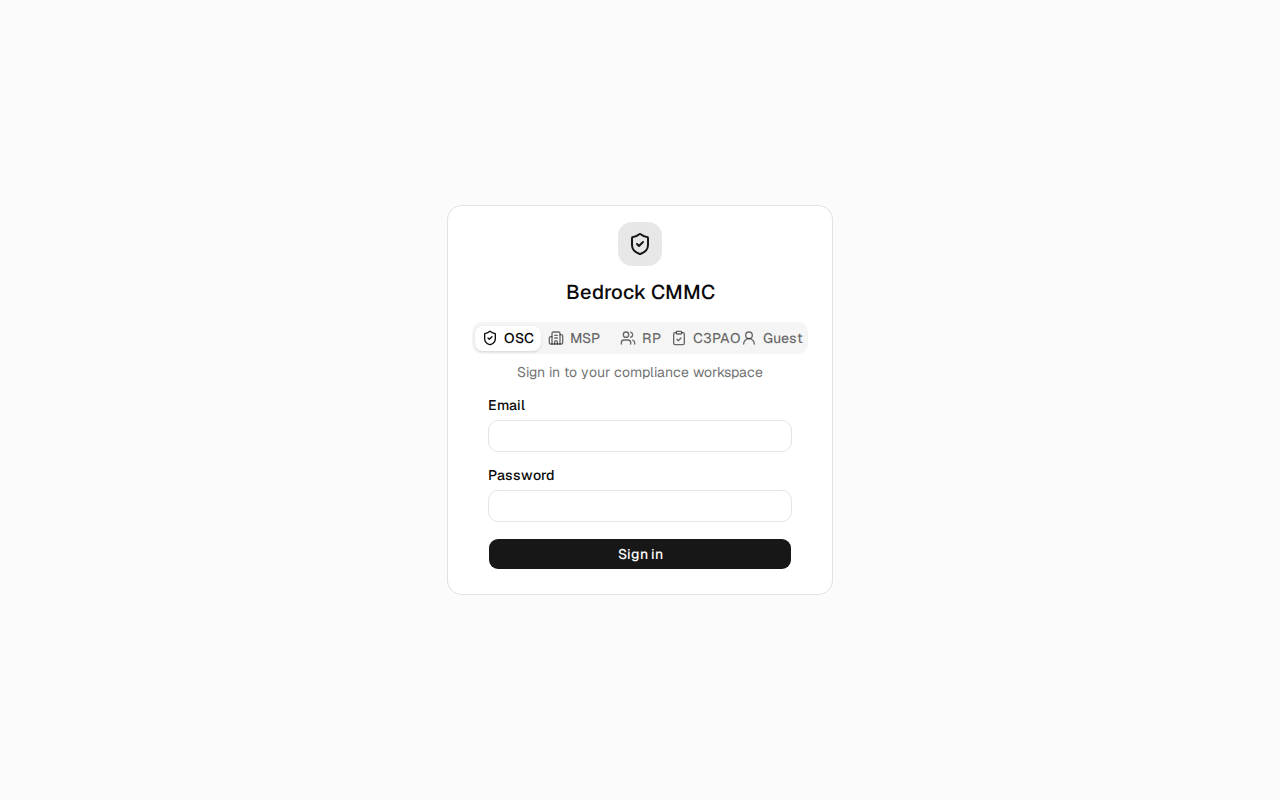
Bedrock CMMC has one sign-in page with a tab for each type of account. Pick the tab that matches your role before entering your credentials.
Choosing your portal
The tab row under the Bedrock CMMC title switches between portals:
| Tab | Who it's for | Where it takes you |
|---|---|---|
| OSC | Contractors managing their own compliance | Your packages workspace |
| MSP | Managed service providers running compliance for clients | The MSP workspace |
| RP | Registered Practitioner partner firms | The RP practice workspace |
| C3PAO | Certified assessors | The assessment workspace |
| Guest | Outside viewers invited to a single package | Your granted package list |
Each tab shows a short description of the workspace it signs you into — for example, the OSC tab reads "Sign in to your compliance workspace."
Steps
- Go to the sign-in page. If someone sent you a link, it may pre-select the right tab for you.
- Click the tab for your account type.
- Enter your Email and Password.
- Click Sign in.
Two-factor authentication
If your account has two-factor authentication turned on, a second step appears after your password is accepted: the card switches to Two-step verification.
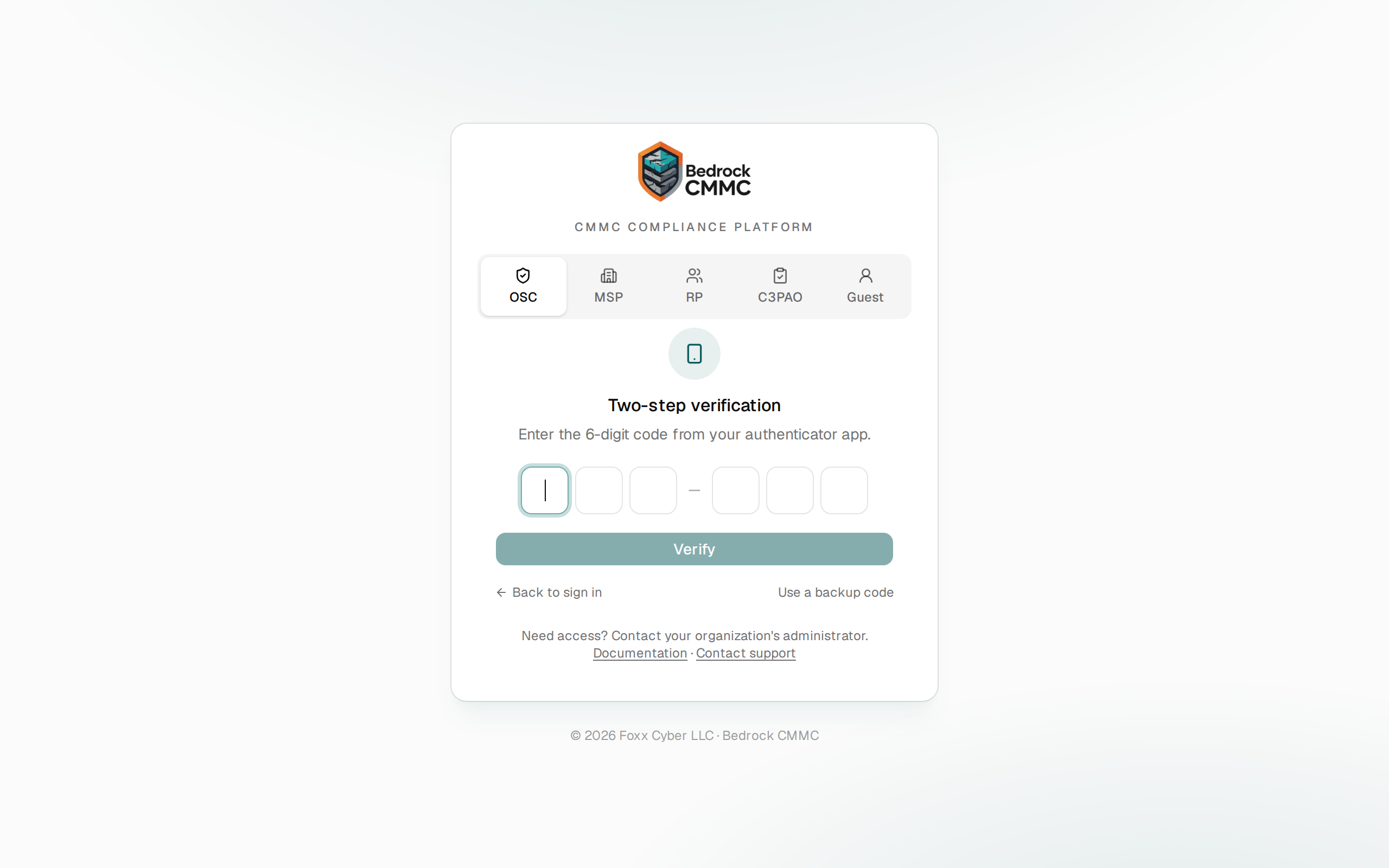
- Enter the six-digit code from your authenticator app. It is verified as soon as the last digit lands — you don't need to click Verify.
- If the code is refused, the boxes clear. Enter the newest code your app shows; codes change every 30 seconds.
- Lost your phone? Click Use a backup code and enter one of the 16-character backup codes you saved when you set up two-factor. Spacing and capitalization don't matter, and each code works once.
- Back to sign in returns you to the email and password form.
To turn two-factor on for your own account, see Two-Factor Authentication.
Guest accounts do not use two-factor authentication — guests sign in with just an email and password from their invitation.
Password change reminders
If an administrator has flagged your account for a password change, you will see a "You must change your password soon" notice after signing in.
Signing out
In every portal, your name and avatar sit at the bottom of the left sidebar. Click the Sign out icon (the arrow leaving a door) next to the theme toggle to end your session.