 foxxcyber/docs
Two-Factor Authentication
Turn on two-factor authentication with an authenticator app, save your backup codes, and manage it later.
Two-factor authentication (2FA) adds a second step to sign-in: your password plus a six-digit code from an authenticator app on your phone. CMMC Level 2 requires multifactor authentication (IA.L2-3.5.3), and every Bedrock CMMC account — contractor, MSP, RP, assessor, and administrator — can turn it on from its own security page.
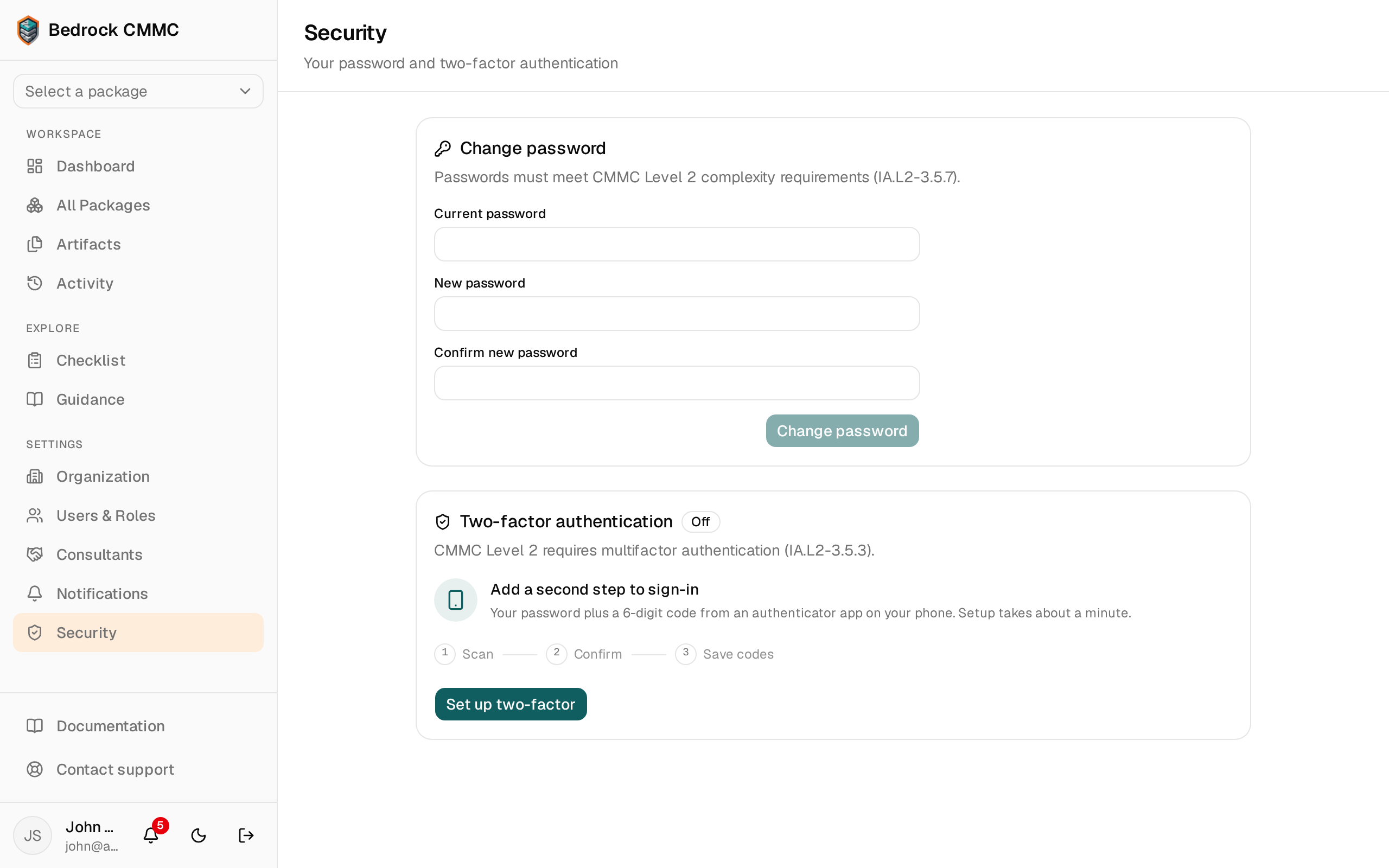
Click Security in the sidebar's SETTINGS section. The Two-factor authentication card shows whether 2FA is On or Off.
Turning it on
Setup is three steps — Scan, Confirm, Save codes — and takes about a minute.
-
Click Set up two-factor.
-
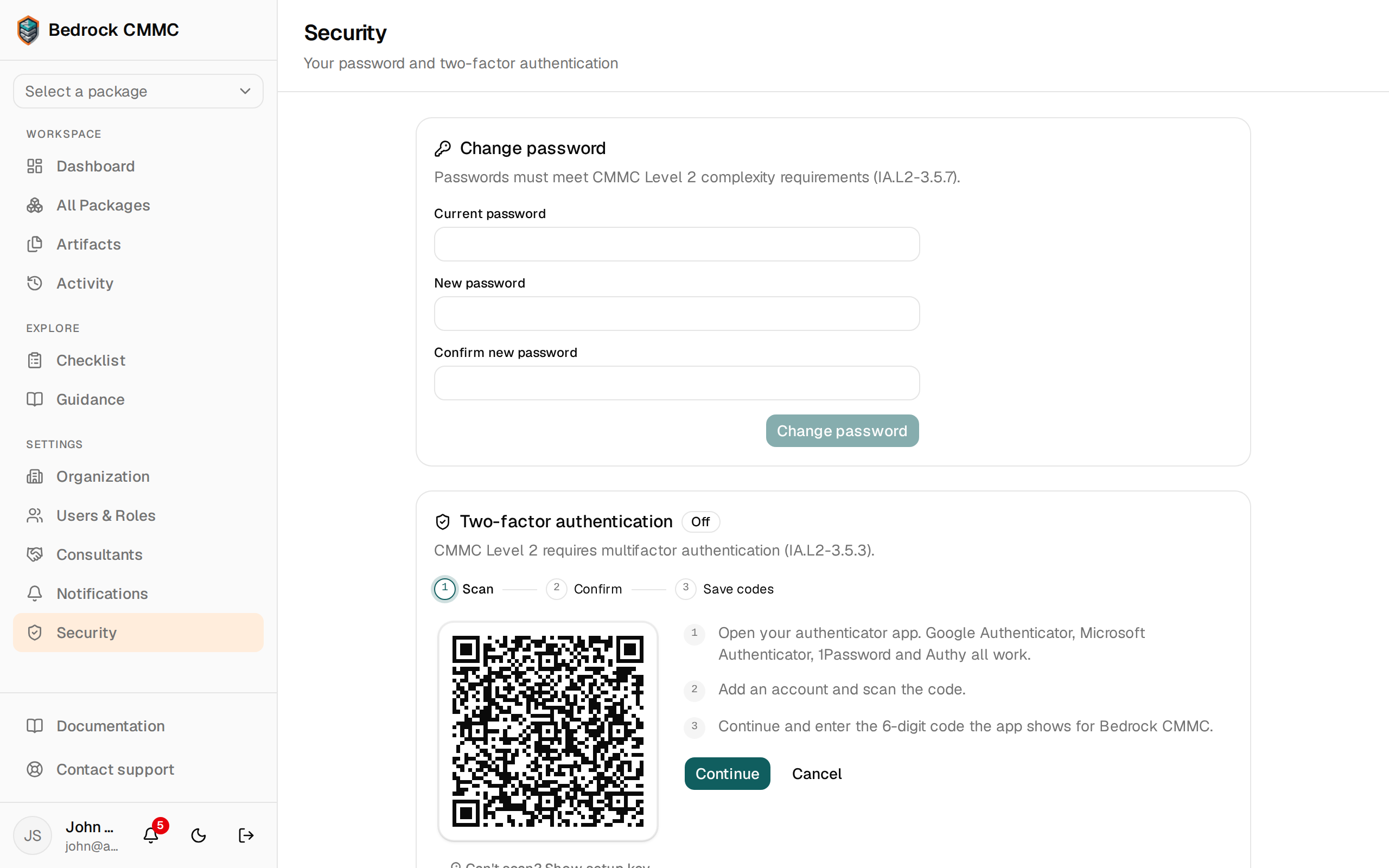
Scan. Open your authenticator app (Google Authenticator, Microsoft Authenticator, 1Password, and Authy all work), add an account, and scan the QR code. If you can't scan, click Can't scan? Show setup key and enter the key manually as a time-based code.
-
Click Continue.
-
Confirm. Type the six-digit code your app shows for Bedrock CMMC. The code is checked as soon as the last digit lands — there's nothing else to click. If it's refused, the boxes clear; enter the newest code your app shows (codes change every 30 seconds).
-
Save codes. Two-factor is now on, and eight backup codes are shown once. Use Copy codes or Download .txt and store them somewhere private, then click I've saved my codes.
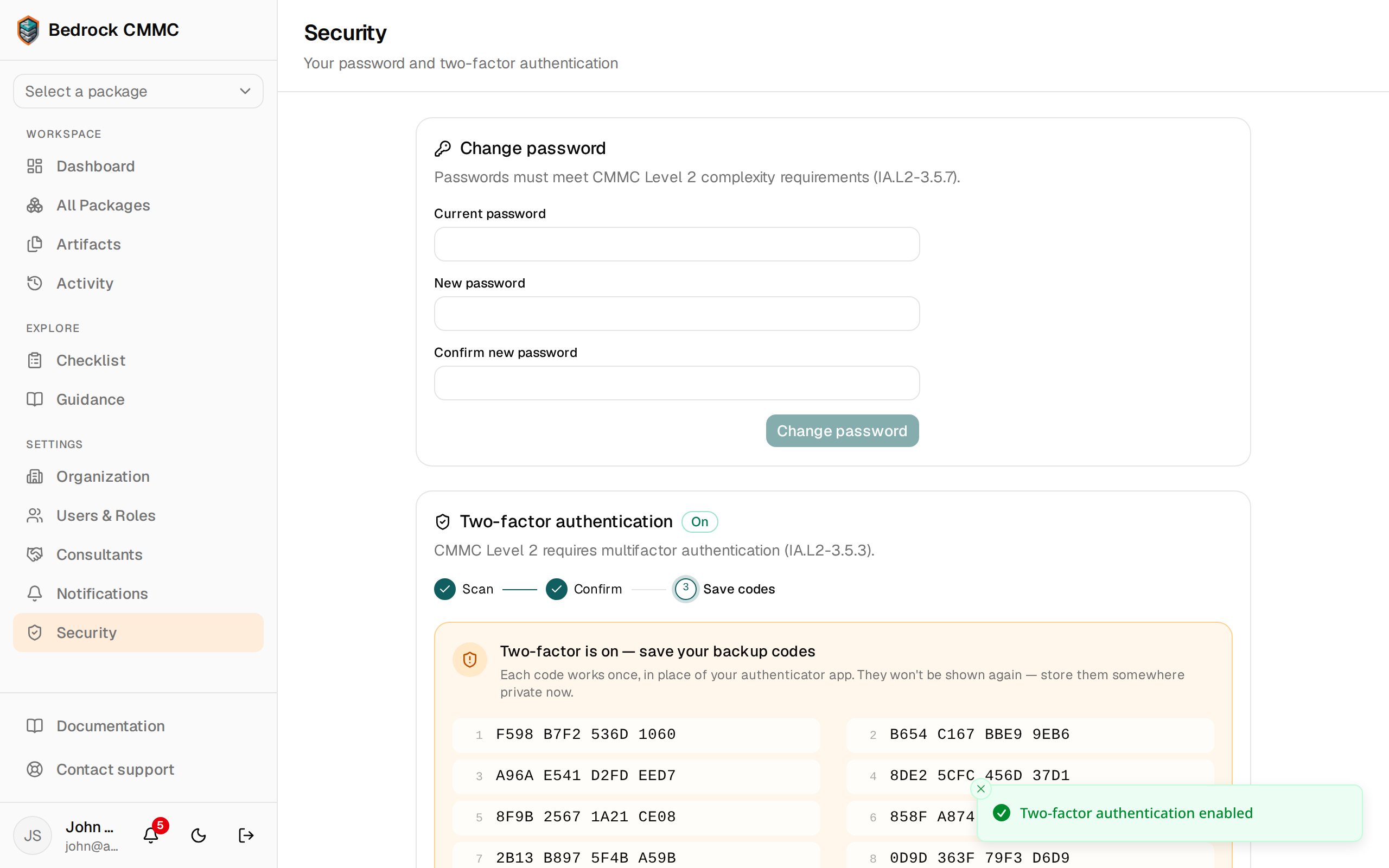
Backup codes are the only way back into your account if you lose your phone. Each code works once, in place of your authenticator app. They are never shown again — if you lose them, regenerate a new set (below).
Signing in with two-factor on
After your password is accepted, the sign-in card switches to Two-step verification. Enter the six-digit code from your app; you're signed in as soon as it's verified. See Signing In for the backup-code option.
Managing two-factor
Once 2FA is on, the card shows when it was enabled and two actions:
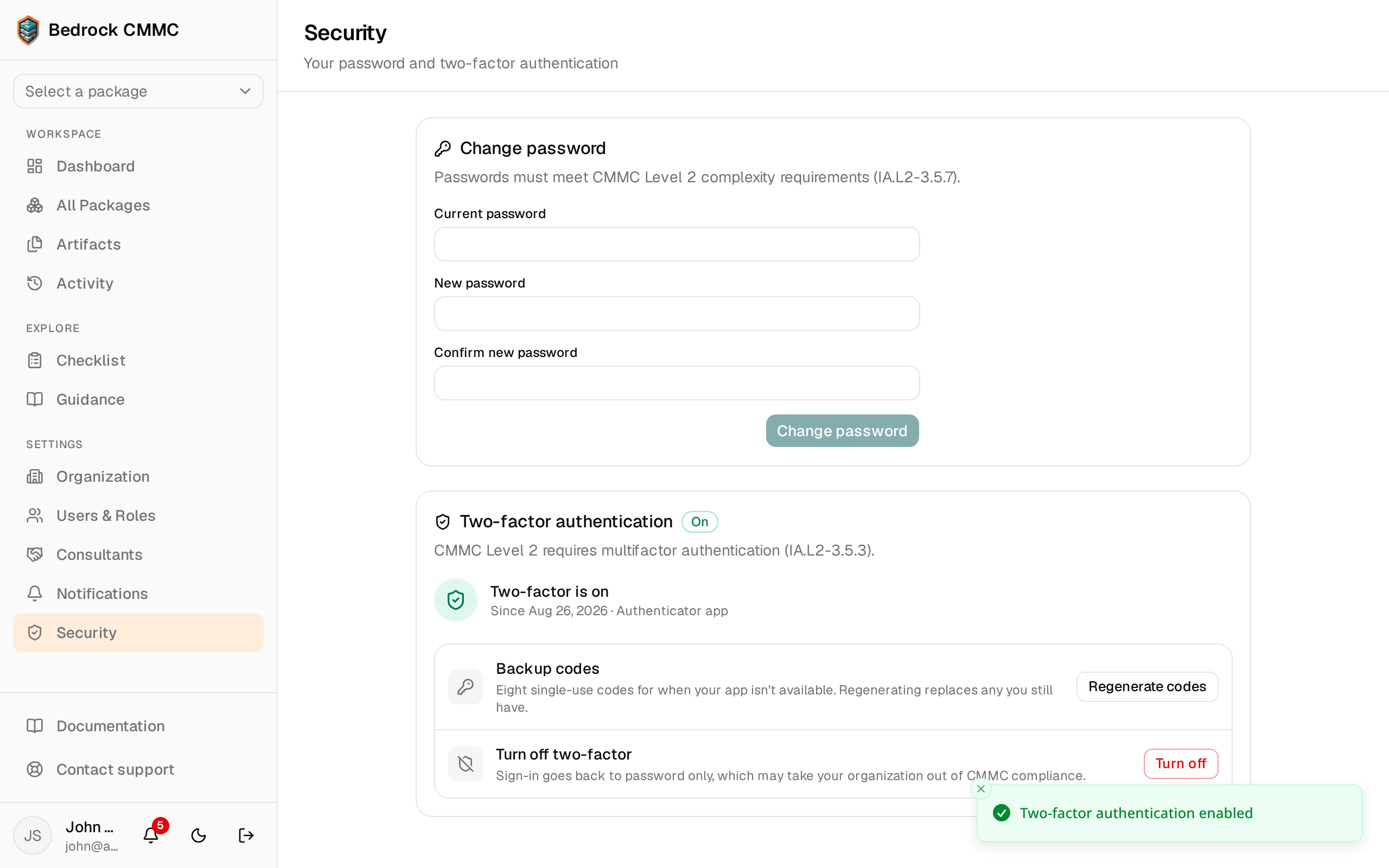
- Regenerate codes — issues eight new backup codes and immediately invalidates any you still have. You'll be asked for a current code from your app to confirm.
- Turn off — removes the second step from sign-in. Confirm with a current code. Turning 2FA off may take your organization out of CMMC compliance, so owners and admins should treat this as an exception.
Assessor (C3PAO) accounts can regenerate backup codes but cannot turn two-factor off.