 foxxcyber/docs
Profile & security
Your account details, password, two-factor authentication, and coach profile.
Settings holds everything about your own account. It is organised as a run of cards.
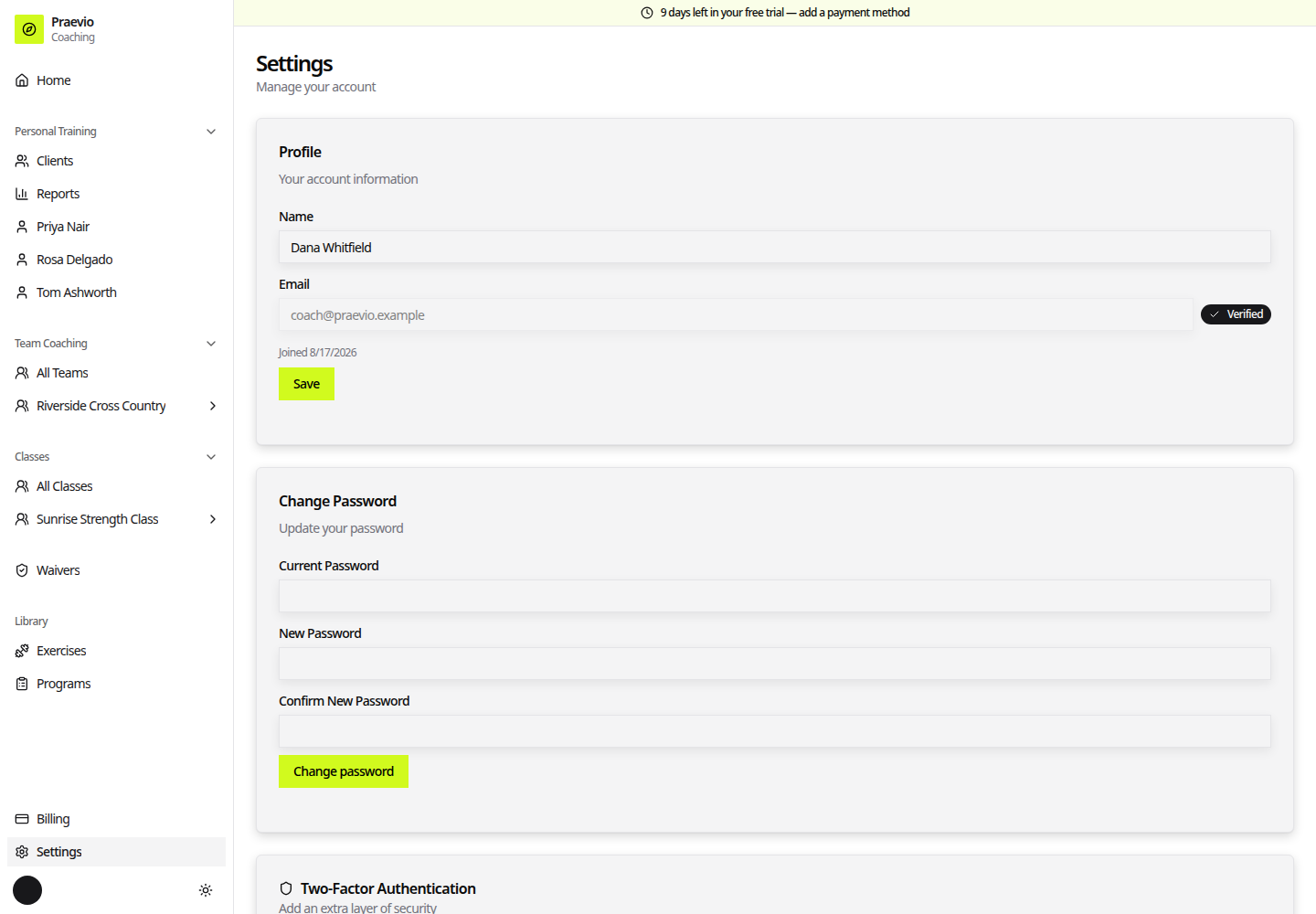
Profile
Your account information — your Name and Email.
The email carries a Verified badge once you have confirmed it. If it is not yet verified, use the resend control to have another verification email sent; a confirmation reads Verification email sent. An unverified email cannot be used to sign in, so clear this first if you are locked out.
Saving shows Profile updated.
Password
Update your password asks for your Current Password, then New Password and Confirm New Password. A strength meter reacts as you type. Change password applies it and confirms with Password changed successfully.
Two-Factor Authentication
Add an extra layer of security with an authenticator app.
- Click Enable MFA. A QR code appears, along with Or enter this code manually: for apps that cannot scan.
- Scan it with your authenticator app.
- Type the six-digit code from the app into Verification Code and confirm. The card then reads MFA is enabled on your account and shows an Enabled badge.
From then on, signing in asks for a code after your password.
To turn it off, click Disable MFA and enter your password — the dialog says Enter your password to disable MFA.
Turn two-factor on. Your account holds other people's medical intake and signed waivers, and a password on its own is the only thing standing between a reused credential and that information.
Coach profile
How your business shows up to clients — your Business name, Specialty (chosen from a list of focus areas), a Short bio of a couple of sentences, and your Timezone. Timezone matters more than it looks: it is what event and session times are shown against. Save changes confirms with Coach profile saved.
Additional intake questions
The last card is the question builder for client intake — Add question, with types Short text, Long text, Single choice (radio), and Multiple choice (checkboxes), a Required? toggle, and Move up / Move down to reorder. Questions appear after the standard health section on every client's intake form. Full detail is in Client intake.
The same card links to waivers — Manage waivers, or Set up waivers if you have none yet, with a warning that clients and athletes cannot sign until you publish one. See Waiver documents.