 foxxcyber/docs
Invitations & join codes
Getting athletes and parents into the portal, and approving the ones who sign themselves up.
Families reach the portal through a join code rather than individual invitations. One code covers the whole team, and you control who ends up on the roster.
The Portal tab
Open a team and go to its Portal tab.
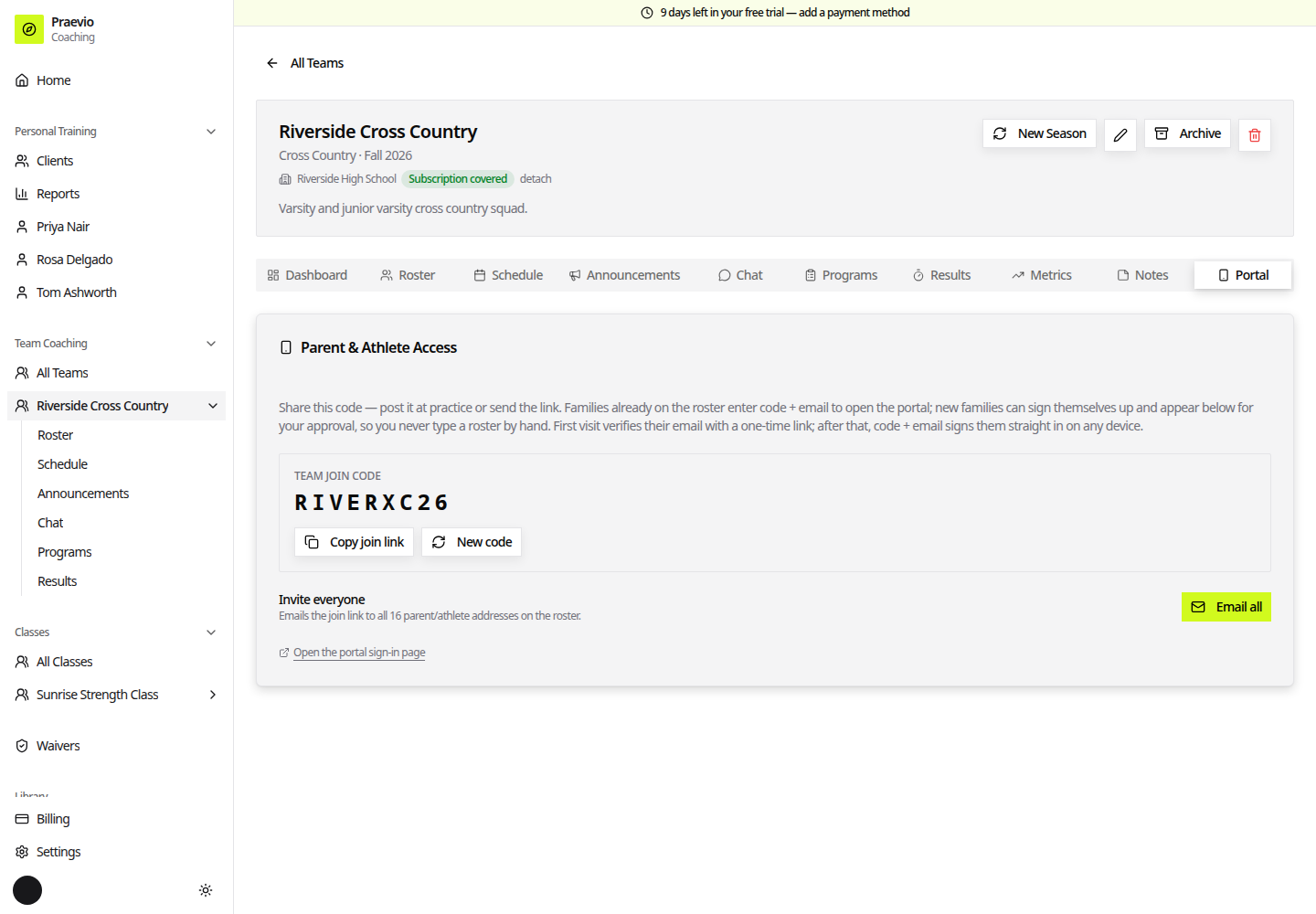
The Parent & Athlete Access card holds everything:
- Team join code — the short code families type on the sign-in page.
- Copy join link — copies a link that carries the code, so nobody has to type it. Paste it into a team email or a group chat.
- New code — rotates the code. Do this if the old one has spread somewhere you did not intend. Existing portal sign-ins are unaffected; only the code itself stops working.
- Email all — sends the join link to every parent and athlete email address on the roster in one go. If no addresses are on file yet, the button explains that instead.
- Open the portal sign-in page — opens what families see, so you can check it before sending anything.
What a family sees
The join page offers two paths.
Already on the roster — they enter the team code and their email and get a sign-in link, exactly as described in How the portal works.
New to the team — Sign up collects who they are (Parent / Guardian or Athlete), the athlete's name, and the relevant email addresses. The page tells them plainly that the coach approves it, and the form confirms with Signup sent.
Approving signups
Self-serve signups appear back on the Portal tab awaiting your decision. Approve adds the athlete to the roster and emails the family their portal link; Approve all clears the queue in one action; the dismiss control (✕) discards a request without adding anyone.
Nothing a family submits touches your roster until you approve it.
Requests that could not be matched
A second list, Couldn't be matched, collects people who tried to sign in with an email that is not on any athlete's profile. The card explains the fix: add the address on the Roster tab, then dismiss the request.
The sign-in page never tells someone whether their email matched a roster entry. That is deliberate — it stops a stranger with a join code from discovering who is on your team. The unmatched list is how you find out instead.
Personal-training clients
Clients do not use join codes. Each is invited individually with Invite to app on their record, or signs themselves up through your self-signup link for you to approve. See Managing clients.