 foxxcyber/docs
Reports & adherence
Per-client progress charts and a roster-wide view of who is actually training.
Reports gives you two views of the same session data: one client in depth, or the whole roster at a glance. Both are built from logged sessions, so they only reflect work that was actually recorded.
Client Progress
The Client Progress tab starts with a client picker — All Clients, or one client at a time.
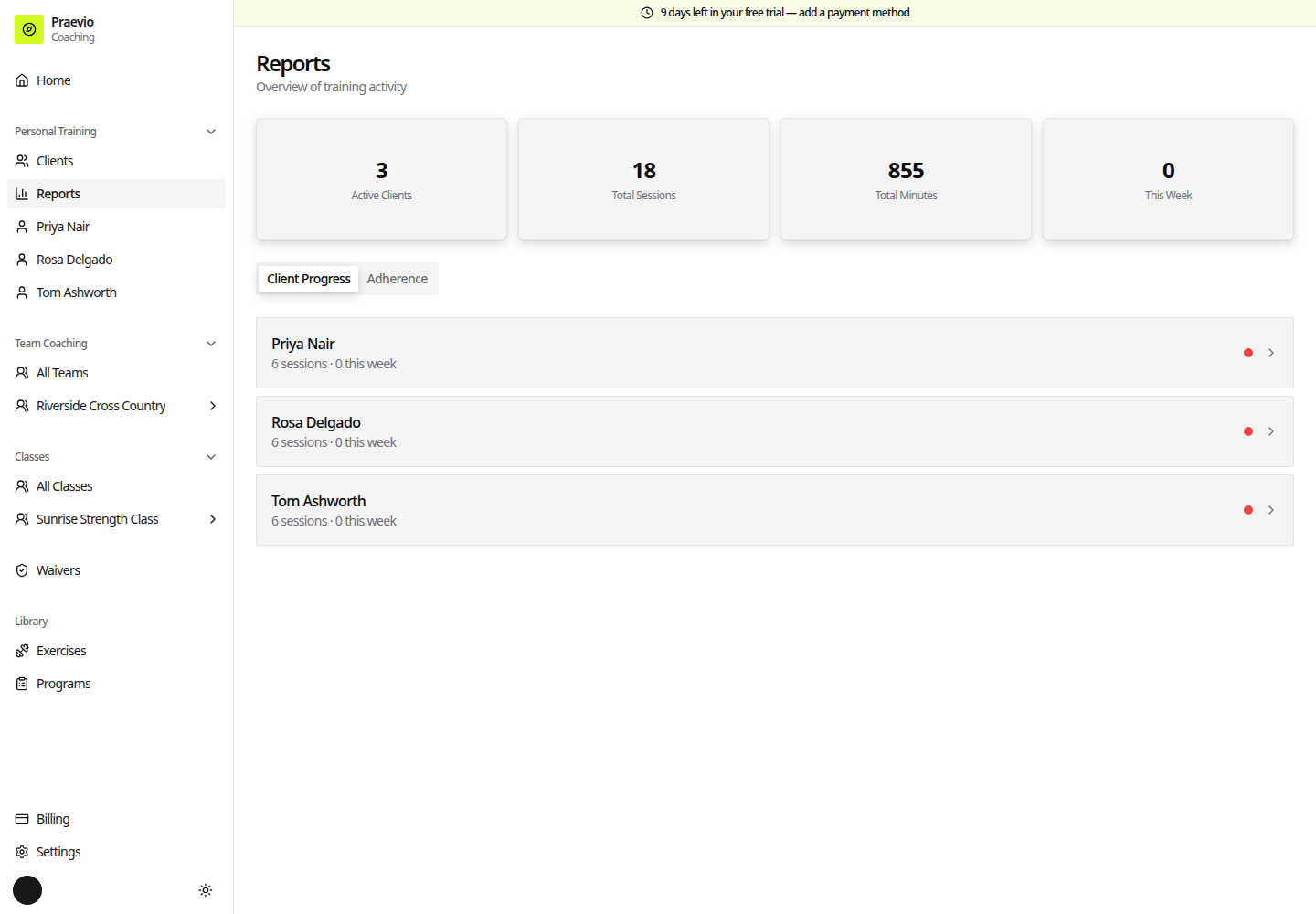
Four stat cards summarise the selection:
- Sessions — total sessions logged
- Total Mins — total time trained
- Programs — how many programs are assigned
- This Week — sessions in the current week
Below the cards, Strength Progress charts one line per exercise, plotting the weight logged over time. Because the numbers come from what was entered during a session, a flat line usually means the load has not been changed rather than that the client has stopped progressing — check the session log before drawing conclusions.
Adherence
The Adherence tab is the roster-wide view. Three stat cards sit at the top:
- Active Clients — clients currently on your active roster
- Active This Week — how many of them have logged a session this week
- Avg Sessions/Week — the roster average
Underneath, every client gets a row with a coloured dot:
| Colour | Meaning |
|---|---|
| Green | Three or more sessions logged this week |
| Amber | Some activity — fewer than three this week, or a session within the last fortnight |
| Red | Nothing logged in the last fortnight, or nothing ever |
Each row also shows when the client last trained (Today, Yesterday, or a day count) and their current streak where they have one. Clicking through opens the client record.
Using it in practice
The adherence list is a work queue, not a scoreboard. Read it from the bottom: reds are the clients who have quietly stopped, and they are the ones worth a message before the next billing cycle. Ambers are usually a scheduling problem rather than a motivation one.
If a client trains with you but their row stays red, the sessions are not being logged — check that the program is assigned and that whoever runs the session is finishing it properly in Running a live session.
To act on what you find, open the client from Managing clients.