 foxxcyber/docs
Creating a team or class
Add a team or class, carry a roster into a new season, and find your way around the workspace.
Teams and Classes are separate entries in the sidebar but the same workspace underneath. A class hides the competitive tabs; everything else on this page applies to both.
The list
The list page shows your active teams first, then an Archived section with a count. Each row shows the name, sport and season, athlete count, and a status badge (Active, Inactive, or Archived with the date).
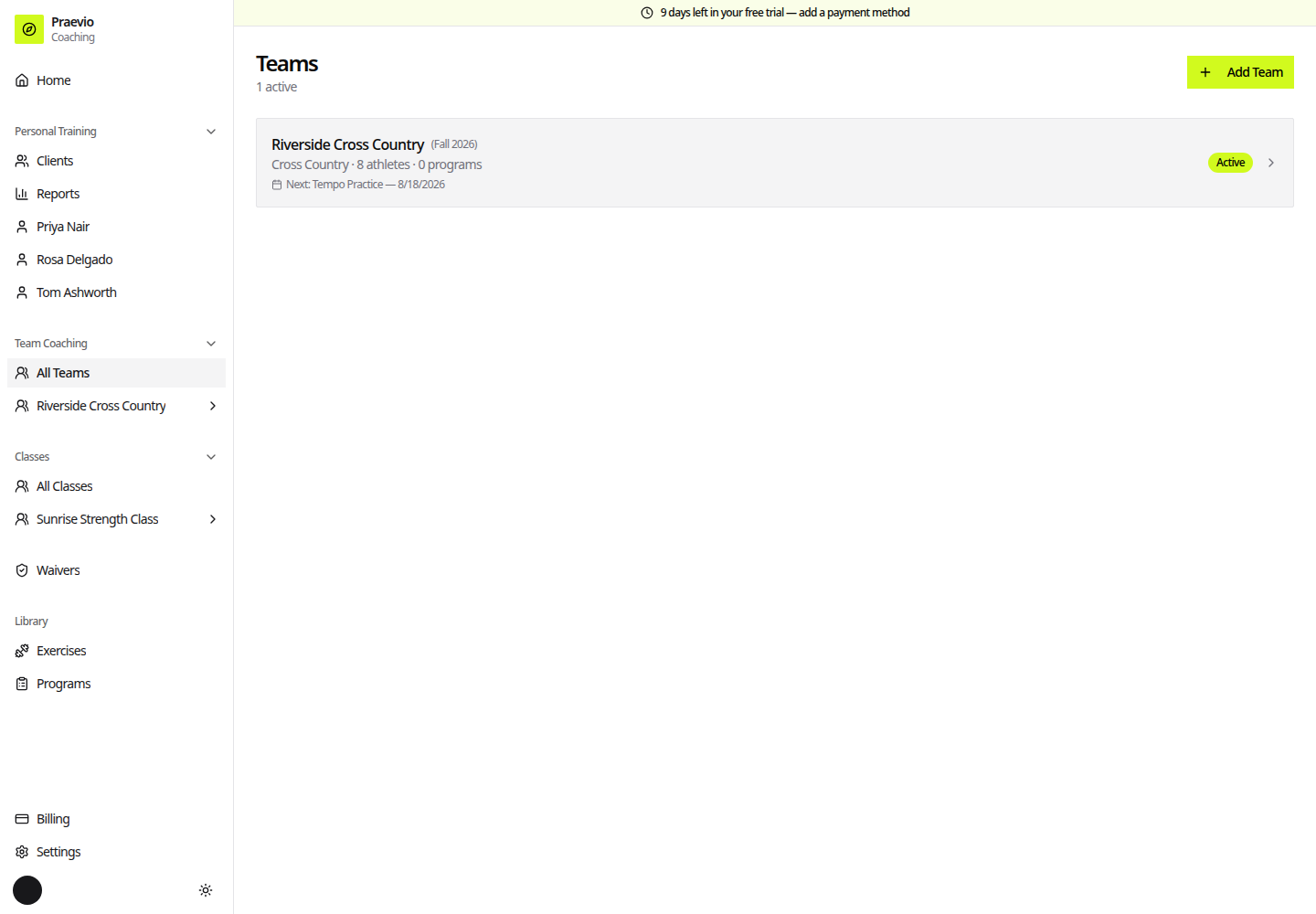
Click Add Team (or Add Class) to open the create dialog:
- Team Name (required) — for example, "Varsity Football".
- Sport — free text with common sports suggested as you type. The sport chosen also decides what the results tab is called for athletes, and the dialog tells you which label they will see.
- Season — for example, "Spring 2026".
- Description — team notes, goals, anything you want on the record.
- Start from a previous roster — pick an earlier team to copy its athlete and parent profiles into the new one, or leave it on Start empty.
Copying a roster forward carries the athlete and parent email addresses with it, so families who already verified their portal access do not have to do it again next season.
The workspace header
Above the tabs, the header shows the team name with its sport and season underneath, plus an organization badge if the team is attached to one. The header actions are:
- New Season — opens Start New Season, which creates a fresh team from this one. You set the new Team Name, New Season, and Sport, and choose whether to Carry over athletes to new season. The original season stays intact.
- Edit team — reopens the same fields as the create dialog.
- Archive season / Unarchive — see below.
- Delete team — permanent, and confirmed first.
Archiving
An archived season shows a banner across the top: records stay viewable and billing for it stops, but nothing new can be added. Portal access closes and chat becomes read-only. Unarchive resumes it, and billing with it.
Archiving is the right way to end a season you want to keep. Deleting is for a team created by mistake.
The tabs
The tab bar sits under the header and stays with you across the whole workspace.
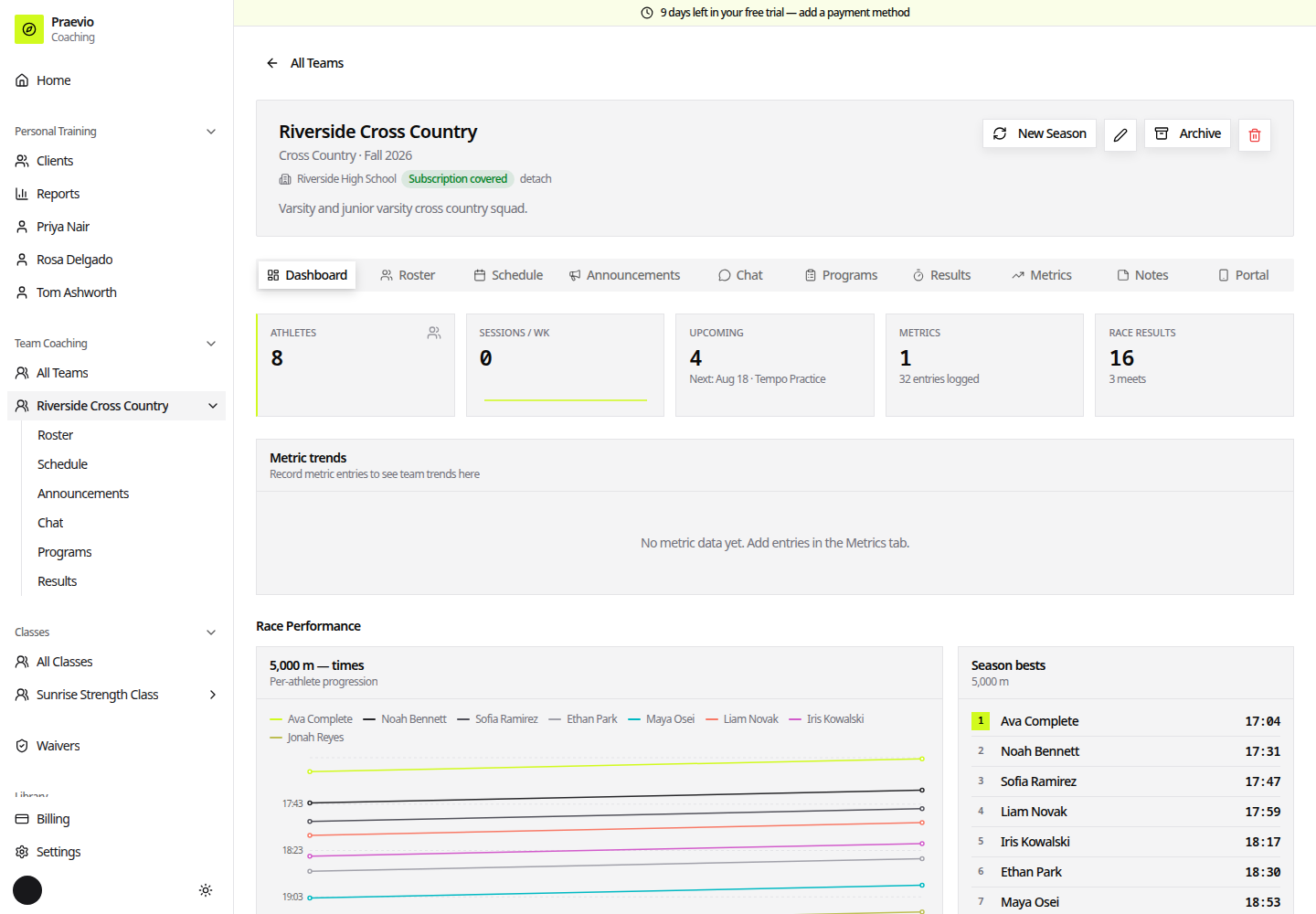
- Dashboard — activity, participation, and performance summaries for the season.
- Roster — athletes, contacts, positions, and waiver status.
- Schedule — practices, meets, games, and other events.
- Announcements — one-way messages to athletes and parents.
- Chat — the shared team room.
- Programs — training assigned to this team.
- Results and Metrics — teams only; hidden for classes.
- Notes — categorized, pinnable notes about the team.
- Portal — the join code, shareable link, and signup approvals.
A team also has a waivers view for its own roster — see Signatures and compliance.
Joining an organization
If your school, league, or club runs an organization in Praevio, the badge under the team name lets you join it by entering their join code. That attaches the team to their program overview and can pick up a sponsored seat if one is open. See The organization workspace.