 foxxcyber/docs
Waiver documents
Writing, scoping, publishing, and versioning the documents your athletes and clients sign.
Waivers in the sidebar has three tabs: Compliance, Documents, and Records. This page covers Documents — the library of things people sign. For who has signed what, see Signatures & compliance.
The document library
Each document in the library shows its status badge — Draft, Published, or Archived, with the current version number — plus an Optional marker on documents that may be declined and an External marker where the paperwork is handled off-app, a summary of who it applies to, who signs it, the renewal rule, and the signature count.
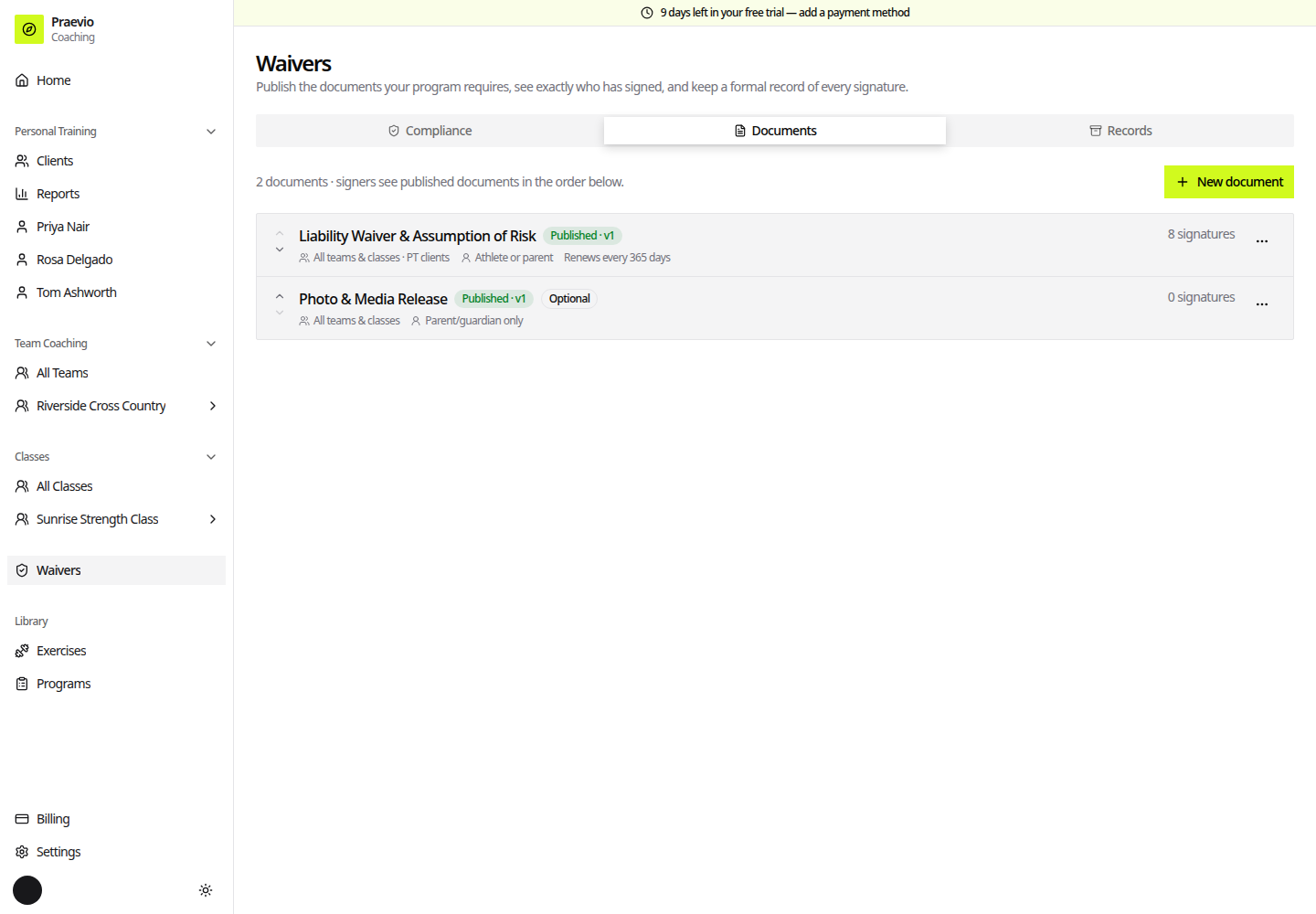
Row actions are:
- Edit — open the editor.
- Duplicate — copy it as a new draft, useful for a second sport or season.
- Archive — retire it without losing the signatures already on file. Archived documents offer Restore as draft.
- Delete — only available while no one has signed. Once a signature exists, archive instead.
The up and down controls reorder the library, which is the order signers see documents in.
Creating one
New document opens the New waiver document dialog. Give it a Title — for example Concussion Protocol Acknowledgment — and choose a starting point under Start from: one of the supplied starter templates, or Blank document to write it yourself or paste in your school's wording.
The editor
Document text (markdown) is the body signers read before typing their legal name. A preview shows the formatted result as you type.
Switch the format to External forms when the paperwork genuinely happens elsewhere — on a school portal, or on paper. In that mode no text is stored; the signer only acknowledges that it is done.
Who signs it sets the required signer:
| Option | Effect |
|---|---|
| Athlete only | Only that person's signature counts |
| Parent/guardian only | Only a parent's signature counts |
| Athlete or parent | Whoever signs first covers it |
| Both athlete and parent | Two signatures are collected |
Optional — signers may decline turns the document into something a signer can refuse without being blocked.
Who it applies to scopes the document to All teams and classes (including teams you create later), a specific list of teams, and/or Personal-training clients, where it is presented during client intake.
Renewal controls expiry: Never expires, Every 6 months, Every year, Every 2 years, or a fixed date under Or expire everyone on a date.
Publish makes the document live — signers see it immediately.
Editing a published document
If you change the text of a document that people have already signed, saving asks how to handle it under You changed the document text:
- Publish as vN — everyone signs again. Use this for substantive changes.
- Save as a correction — existing signatures stand. Use this for typos and formatting.
Either way, the exact wording each person agreed to is kept with their signature. Changing a document never rewrites what someone already signed.
Before you invite clients
You need at least one published waiver before you can invite a personal-training client to the app — the Invite to app button stays disabled with Add a waiver first until one exists. See Managing clients.