 foxxcyber/docs
The organization workspace
A program-level view across every team a school, league, or club runs.
The organization workspace is for athletic directors and program administrators — the person responsible for several teams and several coaches, who needs to know the program is in order without running any of the teams themselves.
Creating the organization
Choosing Athletic director when you sign up takes you to Set up your organization. It asks for two things:
- Organization name — for example Riverside High School.
- Type — School, League, or Club.
Save it and you land on the overview.
The overview
The Overview tab lists every team attached to the organization.
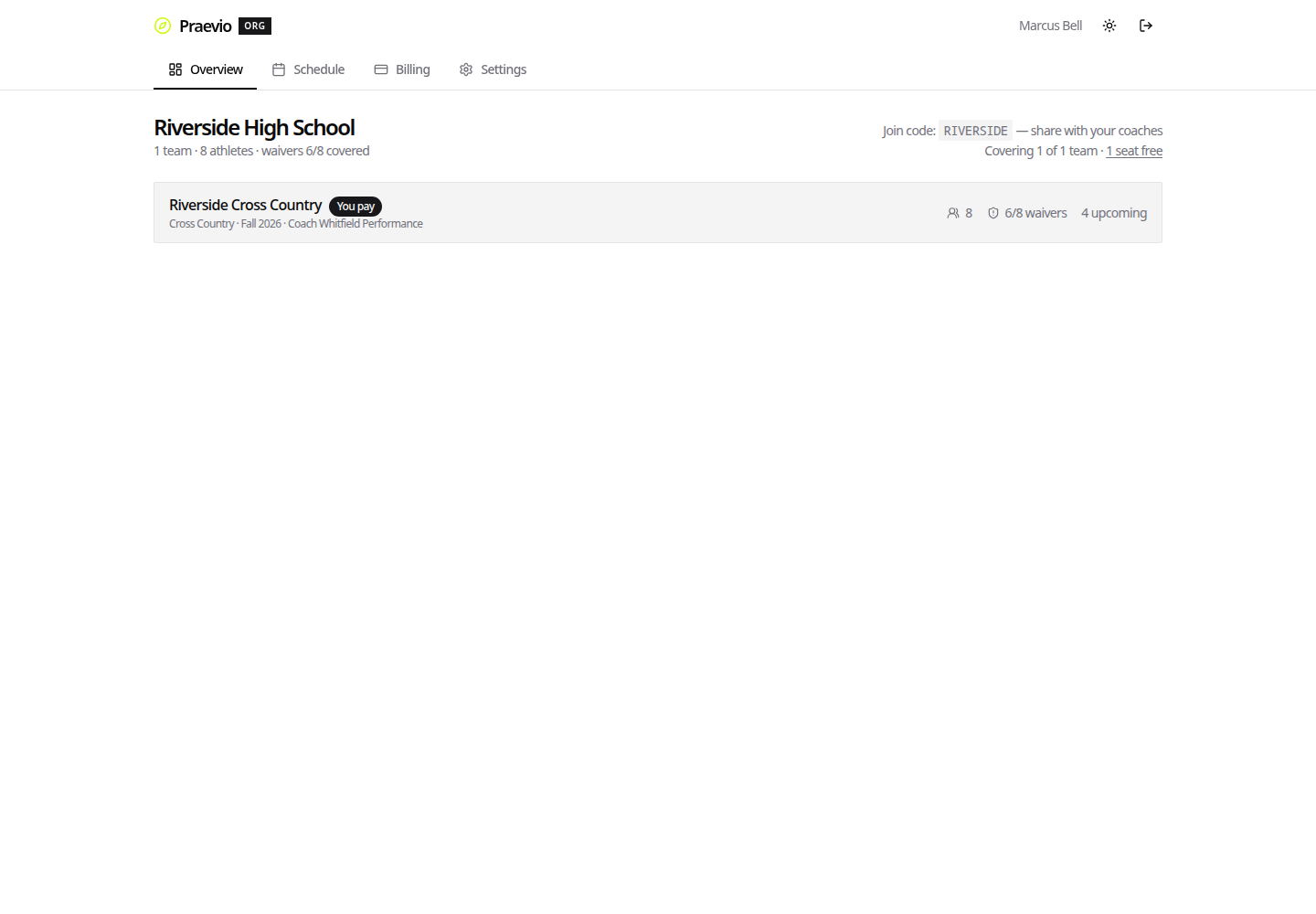
Each row gives:
- The team name, a Class badge where it is a class rather than a team, and a You pay badge where the organization is covering its cost.
- Sport, season, and the coach's name.
- Roster size.
- Waiver coverage as signed / total, shown in green when the team is fully covered.
- The count of upcoming events.
Across the top sits the join code and a link to seat management, which reads N seats free when you have unclaimed seats and Manage seats otherwise.
Attaching a team
Coaches attach their own teams — you hand out the join code and they do the rest. The empty state spells out the flow for you to relay: the coach creates their team in Praevio, chooses Join a school or league on the team page, and enters your join code. The team then appears on your overview.
You cannot attach a coach's team on their behalf, and removing a team is likewise not something the organization does unilaterally.
Settings
The Settings tab has two sections.
Identity — the organization Name and Type, plus the Join code with Copy join code and Regenerate. Regenerating asks for confirmation and warns that the old code stops working immediately; teams already attached stay attached.
Read-only viewers — a comma-separated list of up to ten email addresses. Anyone on that list can sign in through the portal and see the same program-level overview, without being the organization's owner. Use it for an assistant AD, a district administrator, or a booster committee.
What the organization can and cannot see
The overview is a rollup, deliberately. You see roster sizes, waiver coverage, event counts, and which coach runs which team.
You do not see a coach's private team or athlete notes, their personal-training clients, individual athlete records, medical intake, or measurements. Those stay with the coach who collected them. If you need something at athlete level, ask the coach.
Next steps
- Sponsored seats & shared schedules — pay for a team's subscription and publish a shared calendar.
- How the portal works — how read-only viewers sign in.