 foxxcyber/docs
Sponsored seats & shared schedules
Cover a coach's subscription from the organization, and publish a calendar coaches can pull from.
Two things an organization can do for its coaches: pay for them, and give them a shared calendar.
Sponsored seats
A seat is one team's monthly subscription, paid by the organization instead of the coach.
Open the Billing tab.
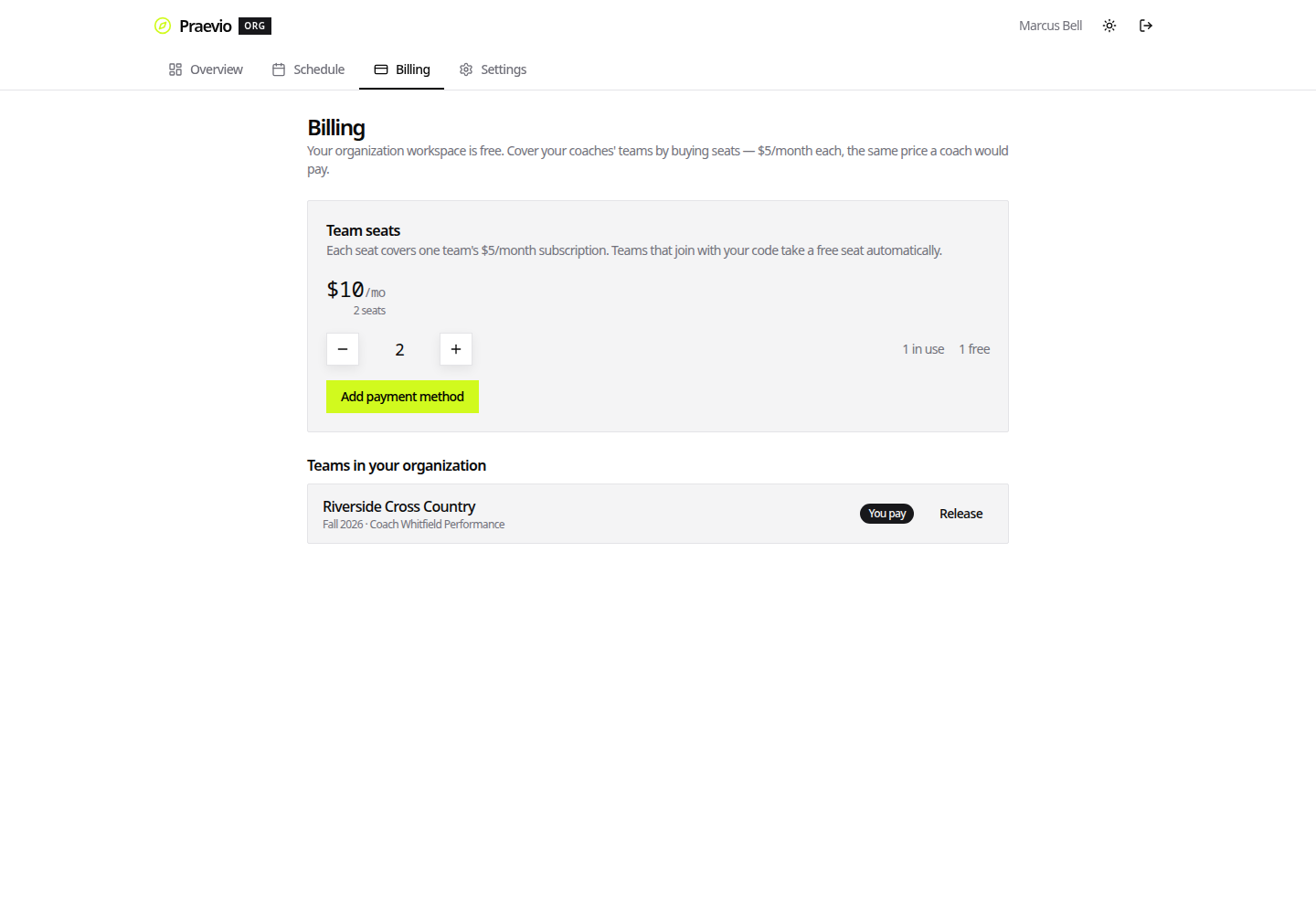
Team seats is where you set how many you hold — Add a seat buys one, Remove a seat releases one. Underneath, Teams in your organization lists every attached team with either Cover this team or, where the organization is already paying, Release.
Covering a team moves its charge off the coach's bill immediately. On their side the item still appears on their billing page, listed at $0 with Covered by and your organization's name. On yours it counts against the seats you hold, and the team carries a You pay badge on the overview.
Releasing a team hands the charge straight back to the coach for their next cycle, and frees the seat for another team.
When a coach attaches a new team and you have an unclaimed seat open, the team can take it — which is why the overview shows N seats free when you have spare capacity.
Seats are held by the organization, not tied to a particular team. Buy the number you intend to fund and assign them as teams come and go.
Payment itself is handled with Add payment method and, once set up, Manage billing. Organizations granted complimentary access see a note saying no payment is needed. The coach's side of the same arrangement is covered in Billing & plans.
The shared schedule
The Schedule tab is an organization-level calendar.
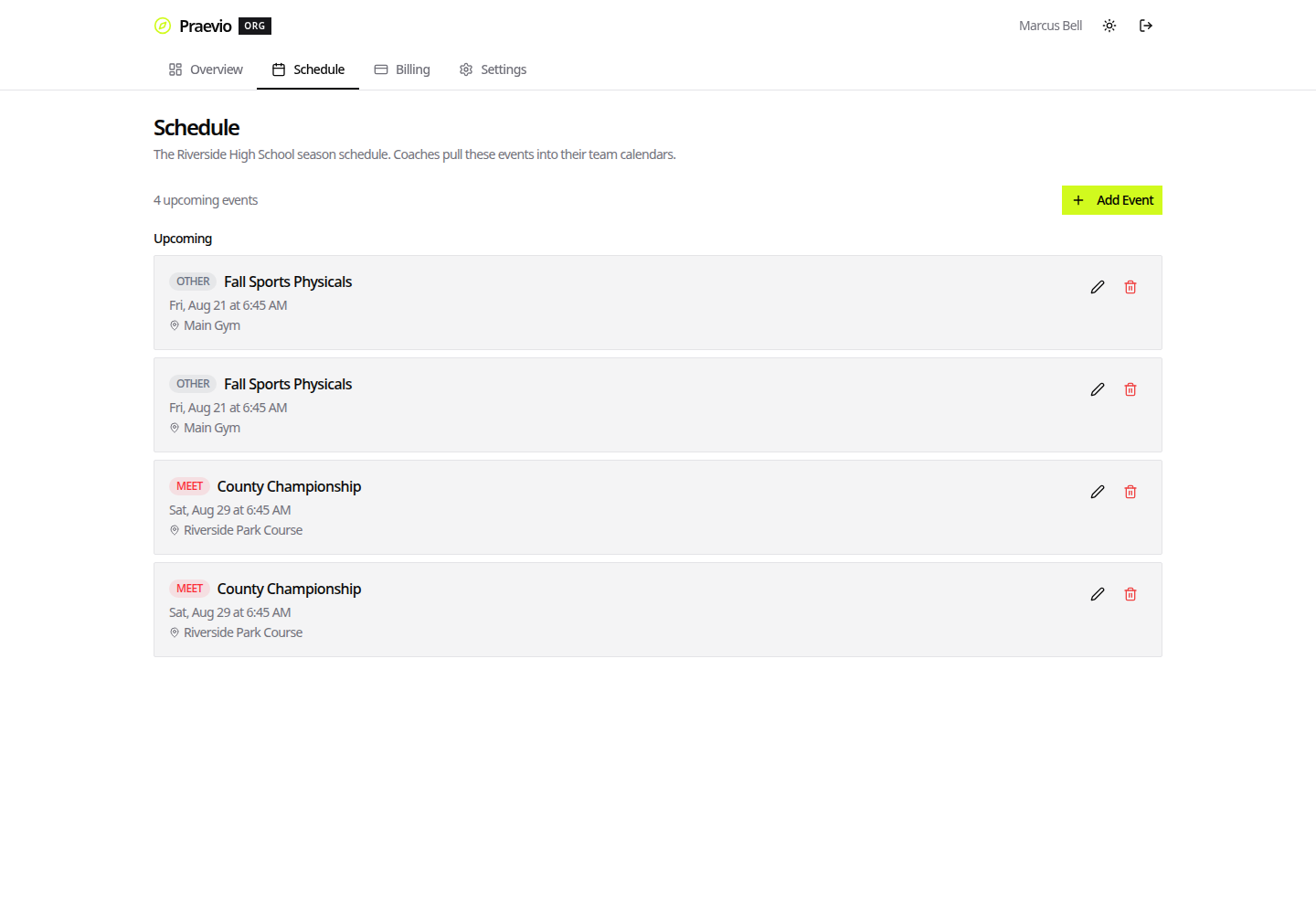
Add Event takes a Title, a Type (Practice, Meet, Game, Meeting, Tryout, Camp, Fundraiser, Other), a Date, Start Time and End Time or All day event, a Location, an Opponent where the type calls for one, and a Description. Events can be edited or deleted afterwards.
Coaches do not have these events forced onto them. An import panel appears on a team's schedule when the organization has events the team has not taken yet, and the coach chooses what to pull in. Once imported, an event is a normal team event they can edit like any other, and importing the same organization event twice is prevented.
That split is deliberate: you publish the district calendar once, and each coach decides which dates actually belong on their team's schedule. See Schedule & events for the coach's side.