 foxxcyber/docs
Importing & exporting data
Bring an existing fleet list in from a spreadsheet, and take every record back out as CSV.
Importing
Click Import Data in the sidebar. If your fleet already lives in a spreadsheet, this brings it in without retyping.
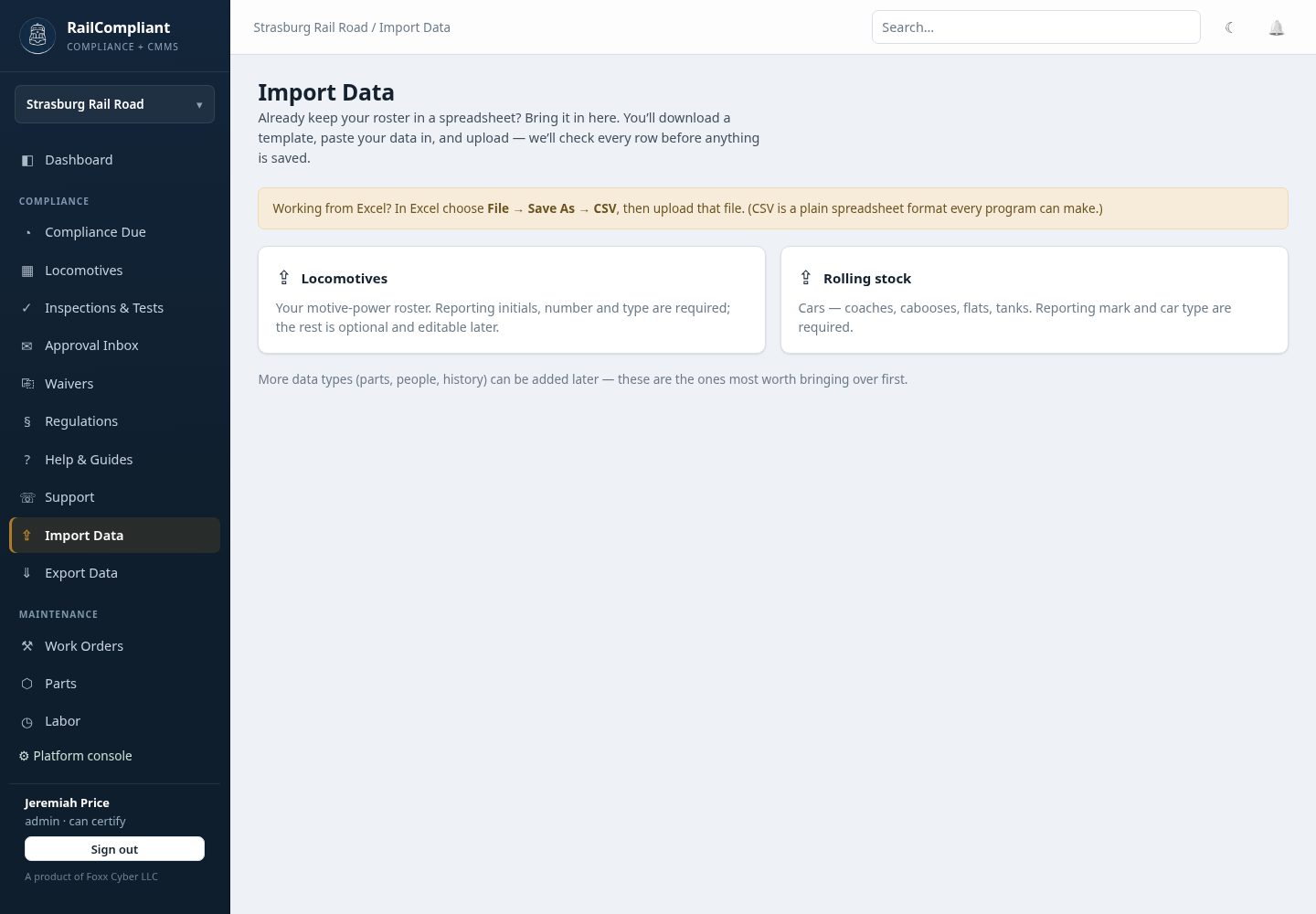
Two entities can be imported today:
- Locomotives — your motive-power roster. Reporting initials, number, and type are required; everything else is optional and editable afterwards.
- Rolling stock — coaches, cabooses, flats, and tanks. Reporting mark and car type are required.
Everything else — inspections, work orders, parts, people, history — is entered in the app. Those records carry signatures and a permanent history, so they are created deliberately rather than bulk-loaded.
The four steps
- Get the template. Click Download CSV template. Open it in Excel or Google Sheets and fill in one row per machine, keeping the header row as it is. The page lists every column it looks for and marks the required ones in bold. Header names do not have to match exactly — common variants such as "Road Number" and "No." are recognized.
- Upload and preview. Choose your file and click Upload & preview. In Excel, save the sheet as CSV first (File → Save As → CSV).
- Review. Nothing has been saved yet. The preview shows exactly what will be created and flags any problem rows. Fix those in the spreadsheet and upload again.
- Import. Commit the good rows.
Duplicates are skipped automatically, so running the same file twice is safe.
Import your fleet before you file your first inspection. The locomotive template includes Service days baseline and Last 1472 date, which carry over the history the compliance clock needs. Set once at import, they save you correcting every interval by hand later.
Exporting
Click Export Data in the sidebar. Everything exports as CSV, and each dataset has its own CSV button:
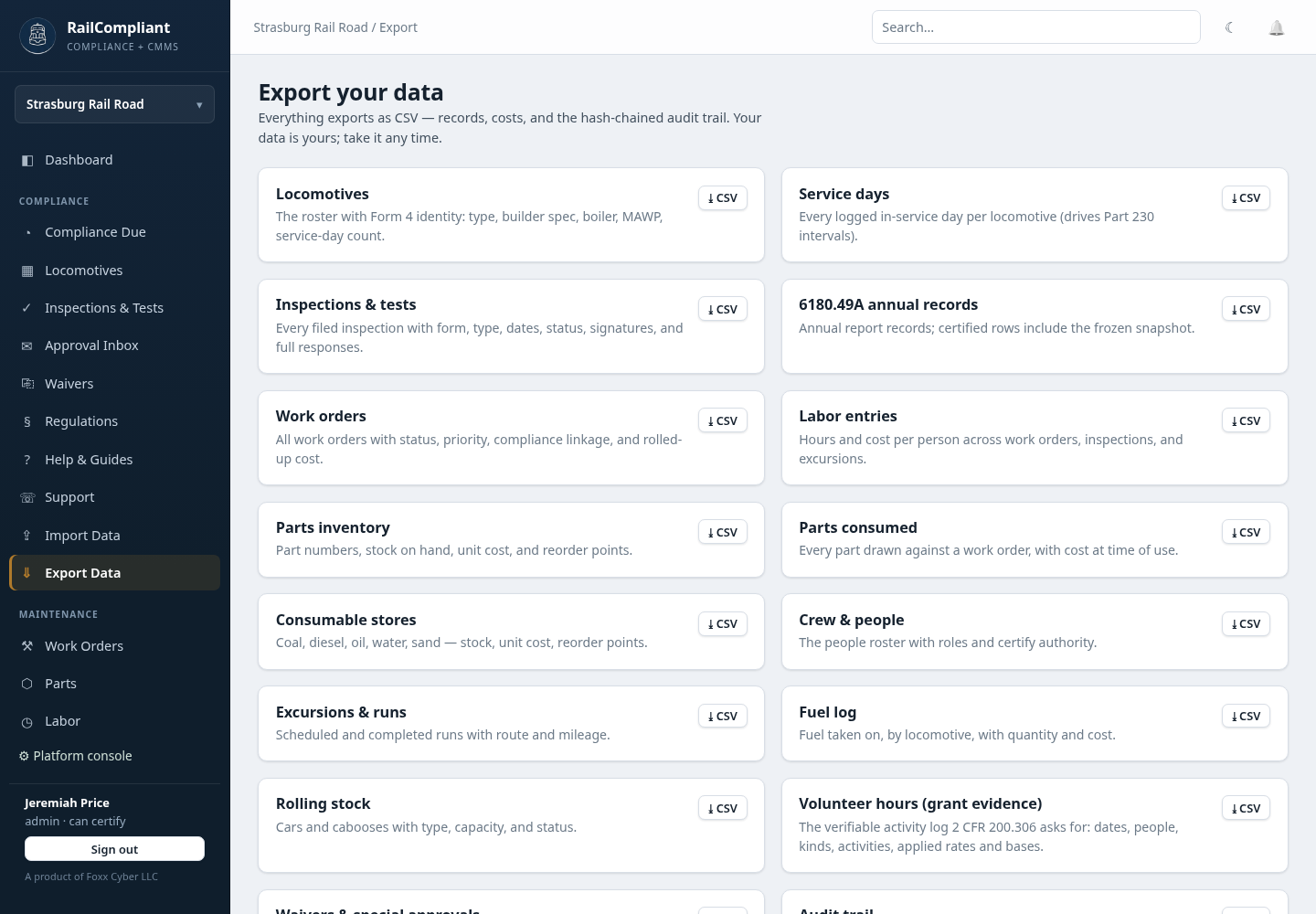
| Dataset | What it contains |
|---|---|
| Locomotives | The roster with Form 4 identity, boiler, MAWP, service-day count |
| Service days | Every logged in-service day per locomotive |
| Inspections & tests | Every filed inspection with dates, status, signatures, and full responses |
| 6180.49A annual records | Annual records; certified rows include the frozen snapshot |
| Work orders | Status, priority, compliance linkage, and rolled-up cost |
| Labor entries | Hours and cost per person across work orders, inspections, and excursions |
| Parts inventory / Parts consumed | Stock and unit cost; every part drawn against a work order |
| Consumable stores | Coal, diesel, oil, water, sand — stock, cost, reorder points |
| Crew & people | The roster with roles and certify authority |
| Excursions & runs | Runs with route and mileage |
| Fuel log | Fuel taken on, by locomotive, with quantity and cost |
| Rolling stock | Cars with type, capacity, and status |
| Volunteer hours | The activity log 2 CFR 200.306 asks for, with rates and bases |
| Waivers & special approvals | Dockets, expiry dates, conditions, covered locomotives |
| Audit trail | The full record history — every create, amend, and approval |
Fields that hold structured data — inspection responses, Form 4 specifications, the before-and-after values in the record history — are embedded as JSON text inside the CSV, so nothing is dropped on the way out.
Typical uses are a board or grant report, analysis in a spreadsheet, an archival copy kept alongside your own records, and a handover if you ever move to another system.
An export contains your railroad's data and nothing else. The audit trail export includes each row's hash pair, so the record chain can be re-verified outside RailCompliant — see How your data is protected.
Related: Locomotives, Rolling stock, Parts inventory.