 foxxcyber/docs
Excursions & runs
Record a run, build its consist, crew it, and let the compliance clock know the locomotive was in service.
An excursion is the record of a train that ran: which locomotives and cars made up the consist, who crewed it, how far it went, and what it burned. Click Excursions & Runs in the sidebar to see them all.
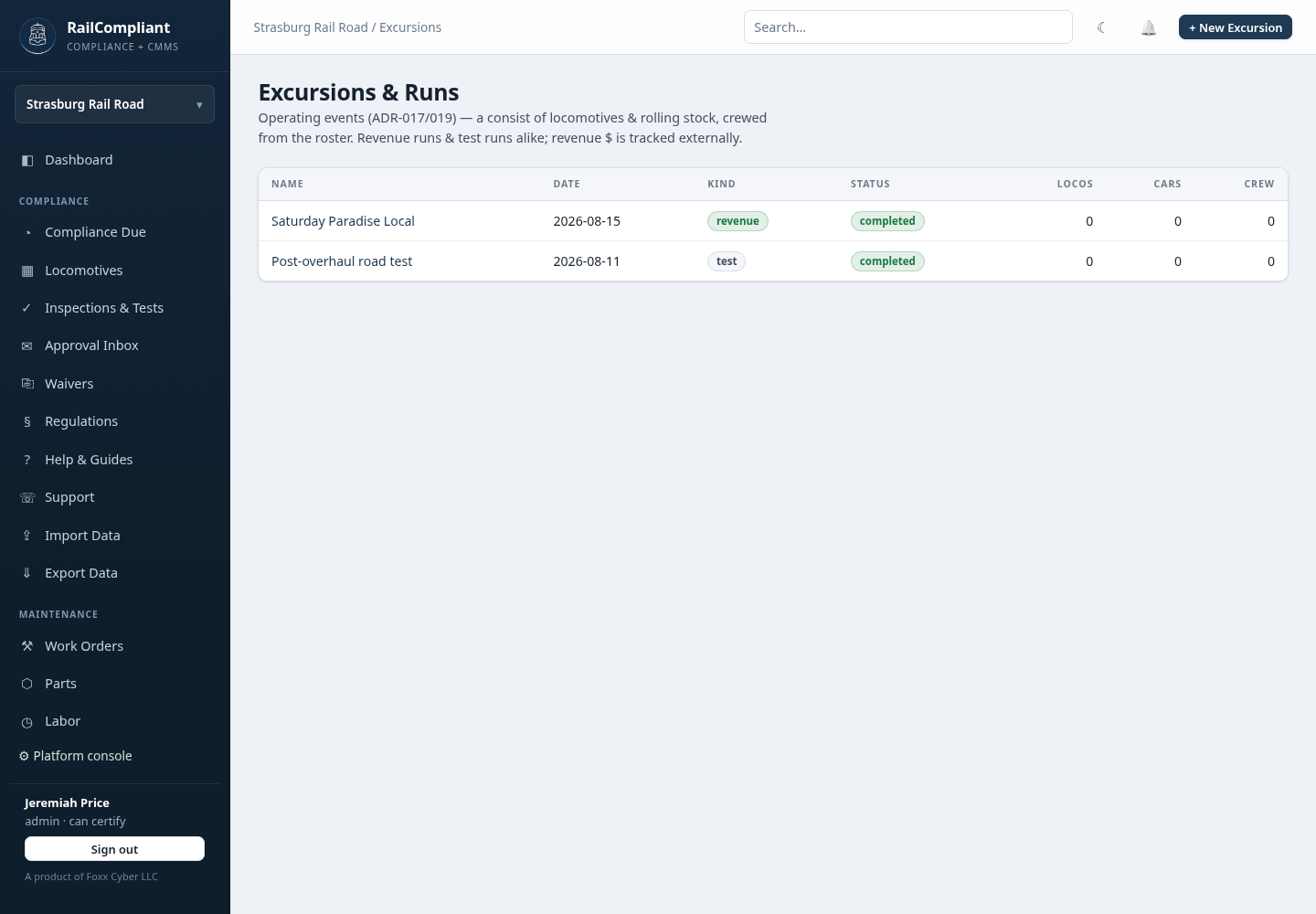
Logging runs matters well beyond the operating department. RailCompliant counts inspection intervals in service days, and an excursion date is one of the three things that marks a day as in service. A railroad that never logs its runs will see its Part 230 service-day clocks sit still while the locomotive is actually working.
Creating an excursion
Click New Excursion. The header form asks for:
- Name — how you refer to the run, for example "Fall Foliage Special".
- Date — the day it operated. This is the date that counts as a service day for every locomotive in the consist.
- Status — planned, running, completed, or cancelled. Plan a run ahead of time and update it afterwards.
- Kind — revenue, test, work, charter, or other. A test run after a repair and a Saturday revenue train are both excursions; the kind is how you tell them apart later. Ticket revenue is tracked outside RailCompliant.
- Route — free text, such as "Yard → Summit → Yard".
- Distance (mi) — the miles run. This feeds each assigned locomotive's mileage and its fuel-per-mile figures.
- Notes.
Click Create excursion to open the record.
Building the consist
The detail page has three panels you fill in after the run is created.
Consist — Locomotives. Pick a locomotive, give it a role in the consist, and click Add. Each assigned locomotive picks up the run's date as a service day and its share of the mileage. Use Remove to correct a mistake.
Consist — Cars. Pick a car from your rolling stock and click Add. See Rolling stock for getting cars onto that list.
Crew. Pick a person from the roster, give them a role, and click Add. Anyone can be crewed whether or not they have an app login — see Crew & qualifications.
Logging hours and fuel
Crew hours records time worked on the run. Choose the person, the date, the hours, the Kind (leave it on person default, or override with volunteer, paid, or contractor), and an optional hourly rate. The panel totals the hours and cost as you go, and those hours flow into the volunteer-hours report described in Labor & volunteer hours.
Fuel on this run records what each locomotive took on. Choose the locomotive and fuel type, enter quantity and unit, optionally draw it From store so your bulk stock is decremented at the same time, and set the cost per unit. When the run has a distance, the panel shows efficiency per mile alongside each fill.
Log the run before you log the fuel. Fills recorded against an excursion with no distance still count, but the per-mile columns stay blank until the run has miles on it.
What the record feeds
One excursion record updates several places at once:
- Service days — the run date counts toward every service-day interval on each assigned locomotive, which is what the Compliance dashboard counts down.
- Mileage — the distance is added to each locomotive's total, shown as "run" miles separately from manually entered miles.
- Fuel and cost — fills roll into the locomotive's averages and the fleet view described in Fuel, water & mileage.
- Volunteer hours — crew hours logged here are attributed across the locomotives that ran, so grant reporting can show effort per machine.
Every change to an excursion is appended to its Record history panel at the bottom of the page, along with who made it.