 foxxcyber/docs
Notifications
What RailCompliant tells you about, where it arrives, and how to change it.
RailCompliant notifies you two ways: the bell in the top bar, and email. Every category can be set independently for each channel, so you can keep a full in-app record while sending only the urgent things to your inbox.
The bell
Click the bell to open Notifications. Unread items are listed newest first; when there is nothing waiting the page says you are all caught up.
Mark a single item read from the list, or use the option to mark everything read at once. Items link straight to the record they concern — an approval request opens the inspection, a filing reminder opens the locomotive.
What gets sent
Account — a welcome message when your railroad is created, being granted access to a railroad, a confirmation when your password changes, a notice when your role or certifying authority changes, the email-verification link, the password-reset link, and replies to your support tickets.
Billing — subscription activated, trial ending soon, payment problem, and subscription cancelled.
Compliance — this is the group that does the real work:
- Inspection routed to you — an inspection has been submitted for your signature.
- Your inspection approved and Your inspection returned — the outcome, sent to whoever submitted it.
- Inspections coming due — a daily digest of what is approaching its interval.
- Inspections overdue — an alert when something has passed it.
- FRA filings coming due and FRA filings overdue — the same for report deadlines (Forms 1, 3, 4, 5, 19, and annual notices).
- Waiver renewal deadlines — reminders as a waiver approaches its extension-filing deadline, escalating as the date gets closer.
- Qualifications coming due and Qualifications expiring — crew designations approaching or past renewal.
Changing your preferences
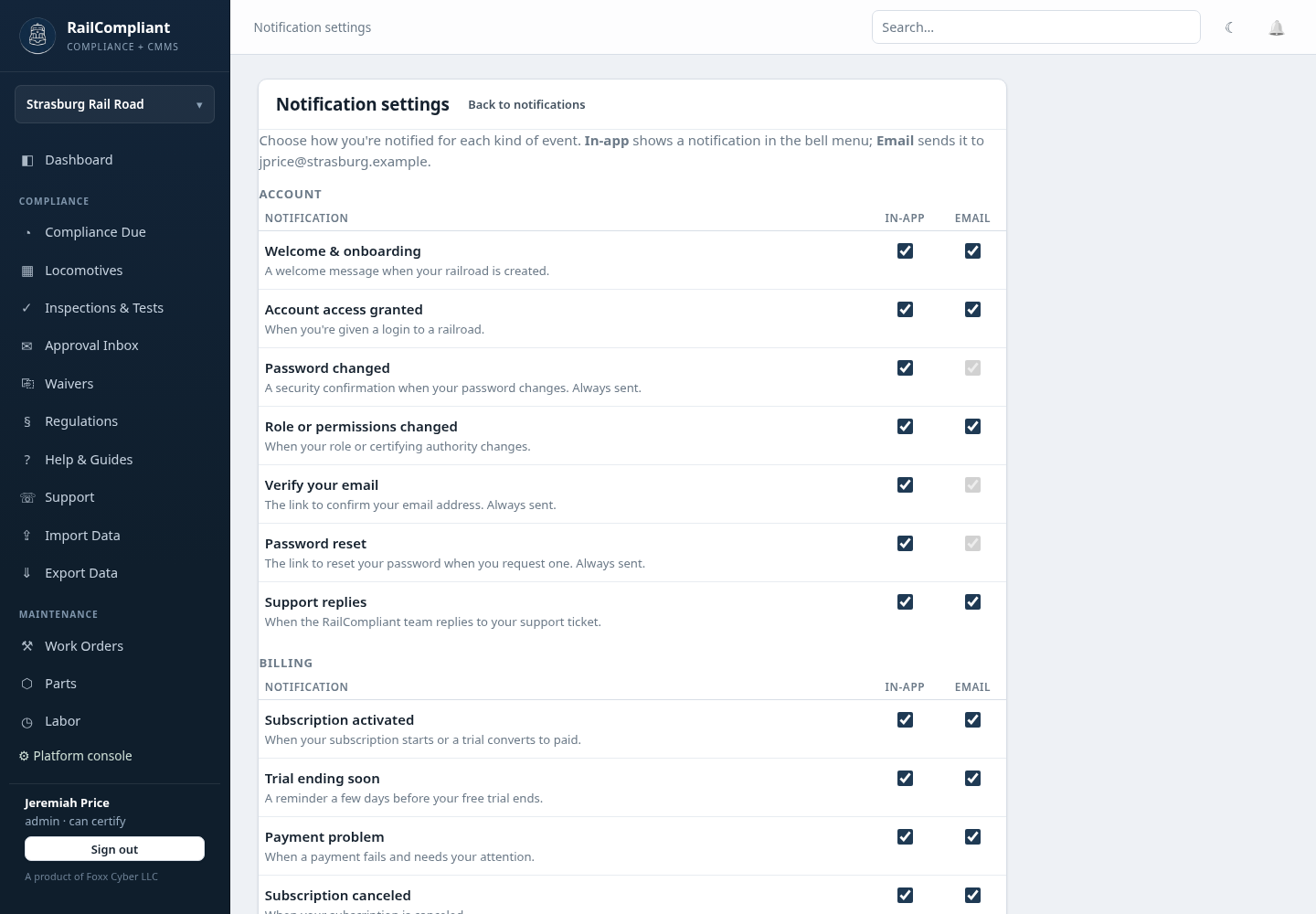
Open Notification settings from the notifications page. Every category is listed in a table with an In-app and an Email checkbox, grouped the same way as above. Untick what you do not want and click Save preferences. The page shows which address email will go to.
Preferences are yours alone. Turning off overdue emails does not stop your colleagues receiving them.
A few security messages cannot be switched off: the password-changed confirmation, the email-verification link, and the password-reset link. Their email checkboxes are fixed. These are how you find out about an account change you did not make.
Timing
Reminder categories are produced by a sweep that runs once a day. A due-soon digest arrives once per day, not once per obligation and not repeatedly through the day. Event-driven notifications — an approval routed to you, a payment problem — are sent as they happen.
Related: Compliance dashboard, Approvals & signatures, Crew & qualifications, Waivers & special approvals.