 foxxcyber/docs
Shop procedures
Keep your railroad's own procedures as books for the shop: write pages with pictures, safety boxes and checklists, import Word or Markdown, tie a book to a locomotive or car, and see every version and who changed it.
Shop Procedures keeps your railroad's own procedures, like how to wash out the boiler or inspect the valve gear, as books the whole shop can read. Click Shop Procedures under Maintenance in the sidebar.
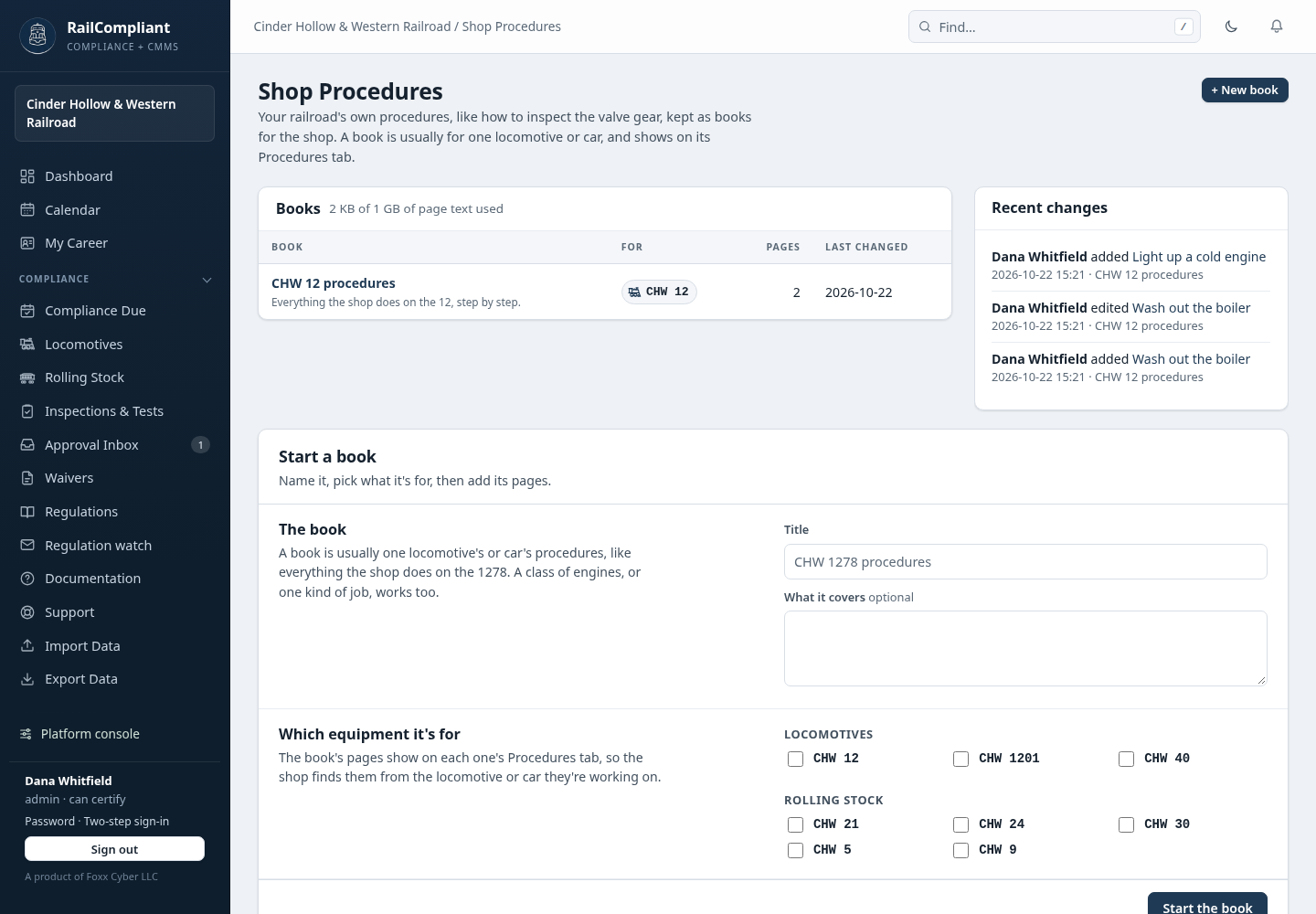
Books
A book holds pages in reading order. It is usually everything the shop does on one locomotive or car (a book for the 12, say), though a class of engines or one kind of job works too.
To start one, click + New book. Give it a Title, a Description if you like, and tick the locomotives and cars it is for under Tagged equipment, then click Start the book.
A book's page lists its pages with who changed each and when. From the row menu (≡) you can edit a page, move it up or down, or delete it. On the right are the equipment the book is for, Recent changes to its pages, and Import pages. Change opens the same box to rename the book, describe it, or change the equipment it is for. A deleted page's text stays in the record history.
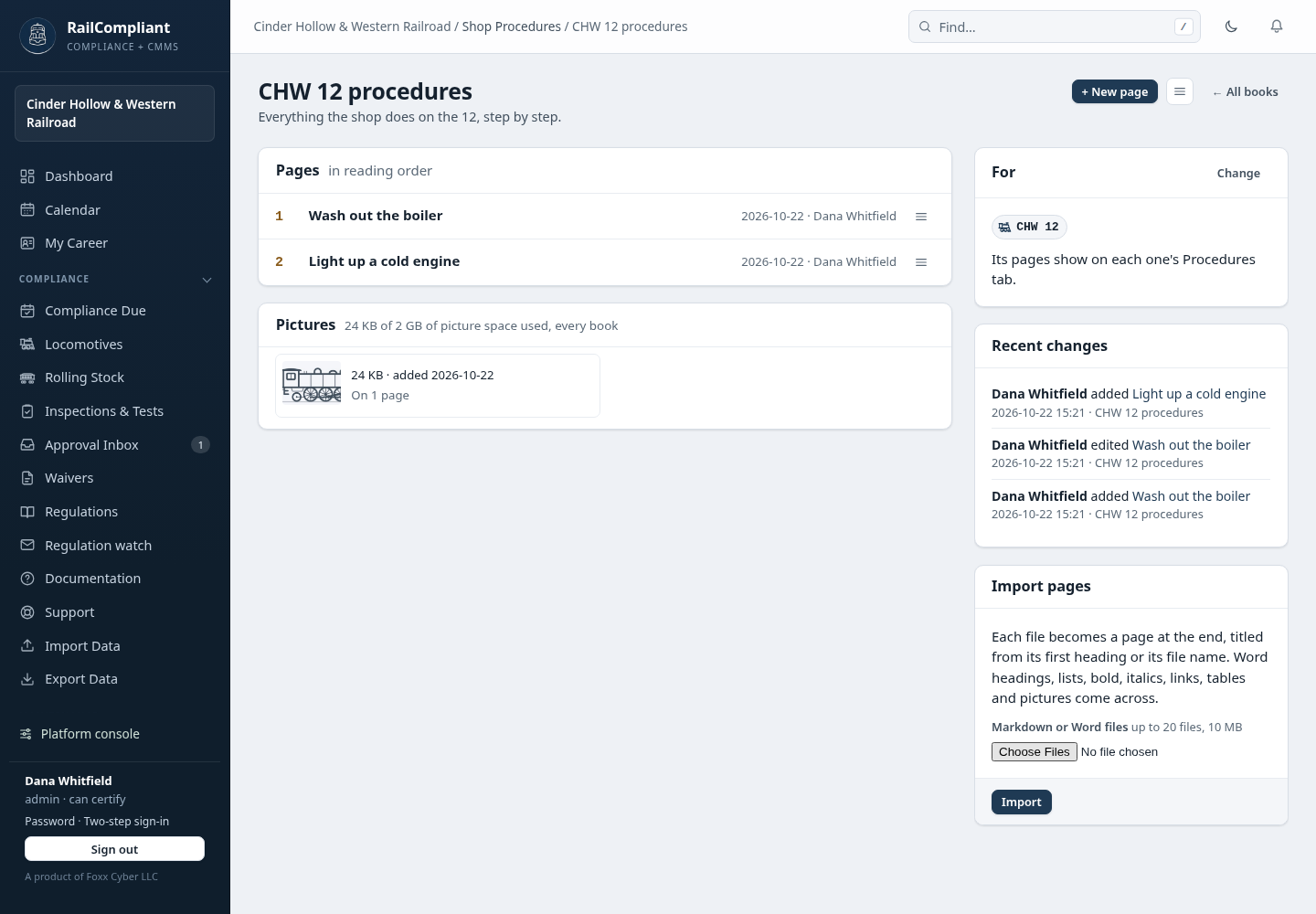
On a locomotive's or car's page
Every locomotive and car has a Procedures tab. It lists the pages of every book that is for it; click one to open it. + New book for this locomotive opens New book with that locomotive already ticked.
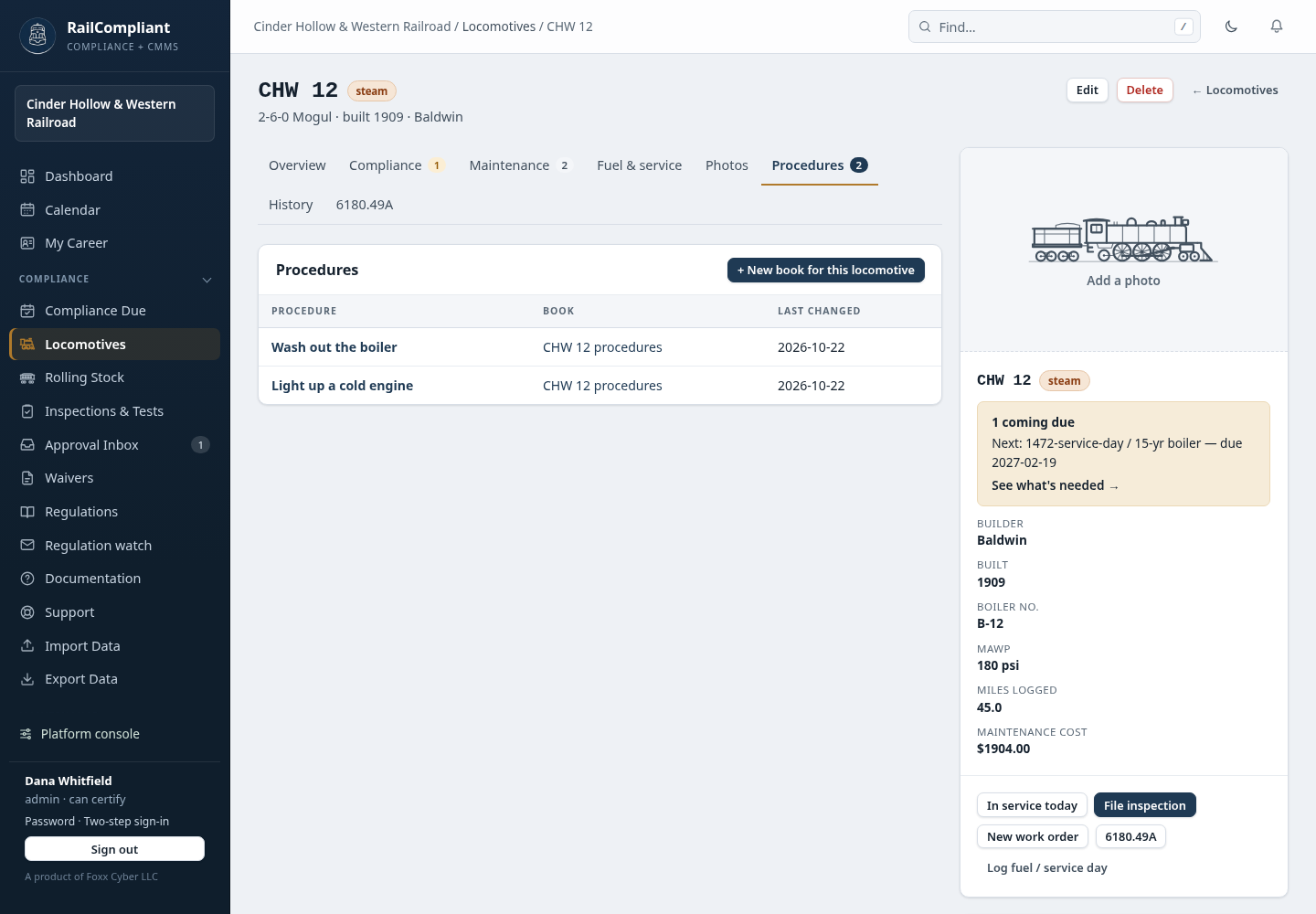
Writing a page
Click + New page on a book, or Edit on a page. You write on the page itself, so what you see is what the shop will read. The toolbar stays at the top of the screen while you scroll.
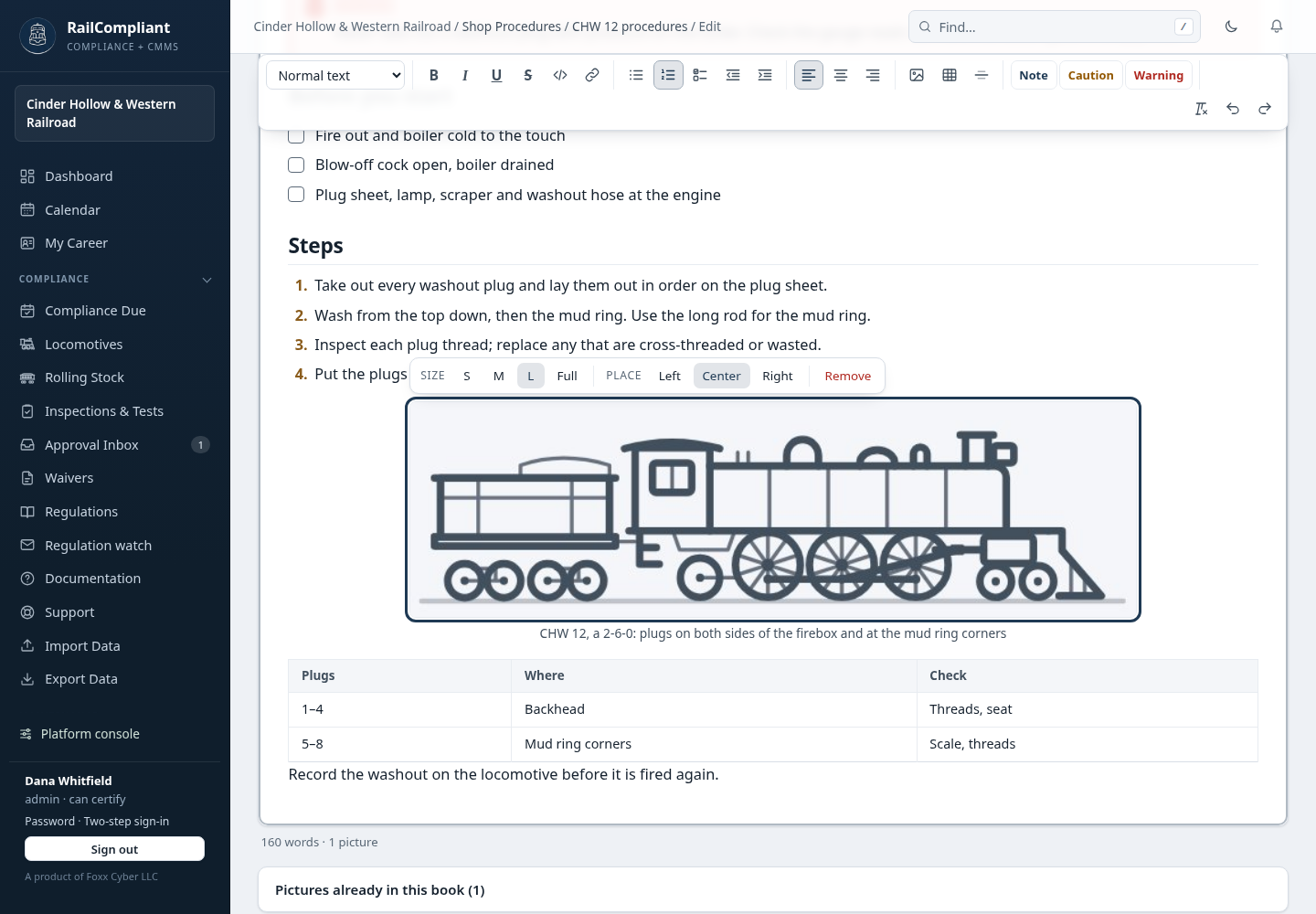
| On the toolbar | What it does |
|---|---|
| Normal text list | Turns the line into a heading, subheading, small heading, quote, or code or readout |
| B I U | Bold, italic, underline, strikethrough |
| Code, link | Marks a part number or setting as code; links words to a web address, an email address, or a page in RailCompliant (Ctrl+K) |
| Lists | Bulleted list, numbered steps, and a checklist with boxes; Tab and Shift+Tab indent a step |
| Alignment | Left, center, or right |
| Picture, table, divider | Adds a picture, a table, or a line across the page |
| Note, Caution, Warning | Puts the paragraph in a colored safety box: a note for the reader, a caution where equipment could be damaged, a warning where someone could be hurt |
| Undo, redo, clear formatting | Ctrl+Z, Ctrl+Y, and back to plain text |
Pictures. Click the picture button, drag pictures onto the page, or paste them; they're added where the cursor is. JPEG, PNG and GIF photos up to 25 MB each work. Click a picture to choose its Size (S, M, L or Full width) and Place. Left and Right put it beside the text, which wraps around it; Center puts it on its own. Type a caption under it if you like. Pictures already in the book are listed under the page, ready to use again.
Tables. Tab moves to the next cell, and from the last cell adds a row. While you're in a table, buttons above it add or remove a row or a column.
If you know Markdown, type it at the start of a line and it turns
into the real thing: # for a heading, - for a list, 1. for steps,
[] for a checklist, > for a quote, ! for a warning box, --- for
a divider. **bold** and `code` work as you type, too.
Pasting. Text pasted from Word, Google Docs or a web page keeps its headings, lists, bold and italics and drops everything else. Pasted Markdown is turned into formatting.
Saving. Click Save changes (or press Ctrl+S). Until you do, your browser keeps a draft. If the tab closes or the connection drops, the next time you open the editor it offers to Restore your changes.
Importing pages
Import pages on a book takes Markdown (.md) and Word (.docx)
files, up to 20 at a time. Each file becomes a page at the end of the
book, titled from its first heading or its file name. Word headings,
lists, bold, italics, links, tables and pictures come across. Charts,
shapes, and pictures in formats RailCompliant can't read (such as EMF)
don't, and the import tells you so. An older Word .doc file can be
saved as .docx from Word first. Every file is checked by the virus
scanner before it's read.
Reading a page
A page uses the whole width of the screen. On the right are the page's recent versions, On this page with its headings, and the book's other pages. Previous and Next at the bottom step through the book. Print prints just the procedure, without the app around it.
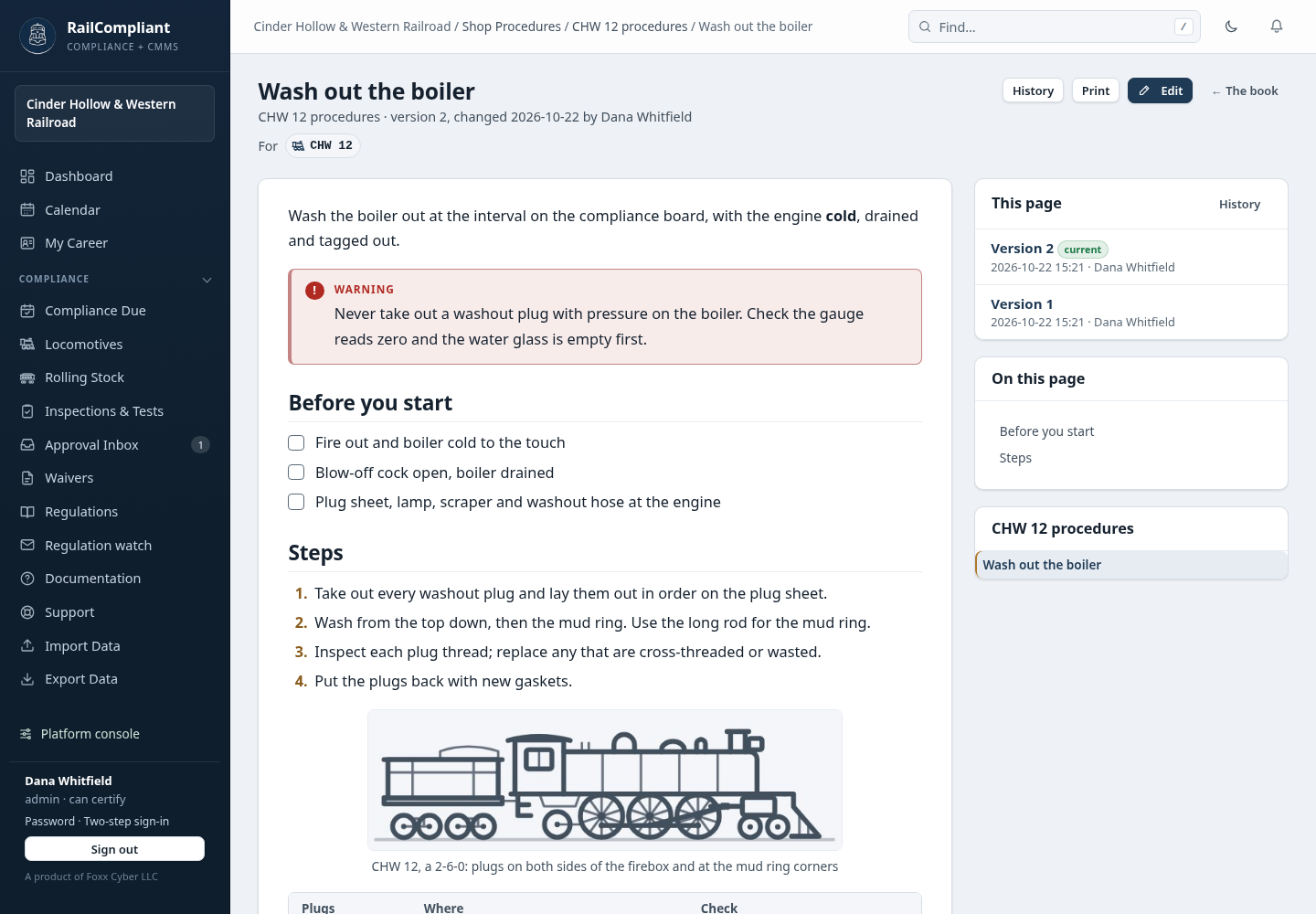
Versions and who changed what
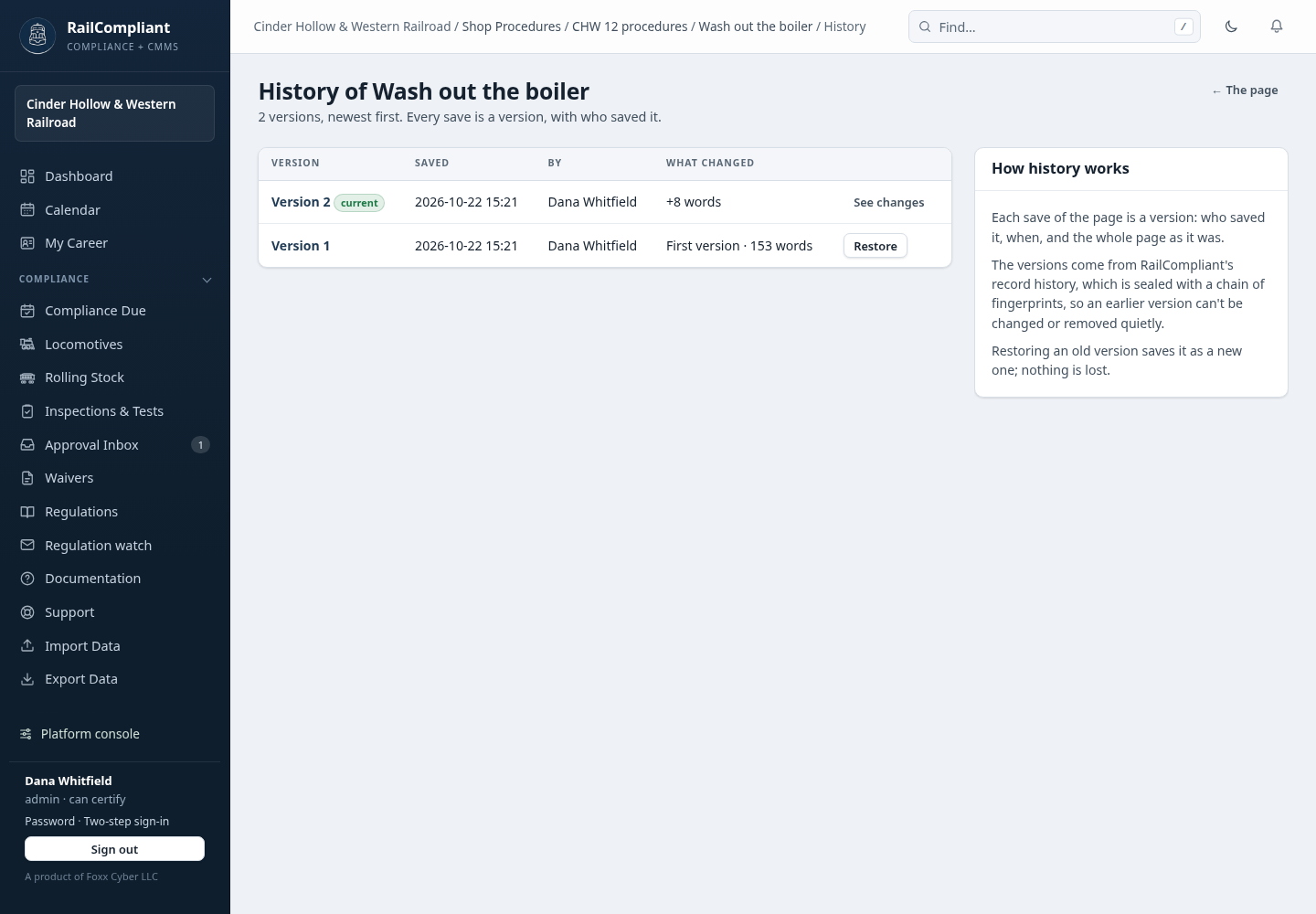
Every save of a page is a version. History on a page lists them, newest first: who saved each one, when, and what it changed (words and pictures added or taken out, a new title).
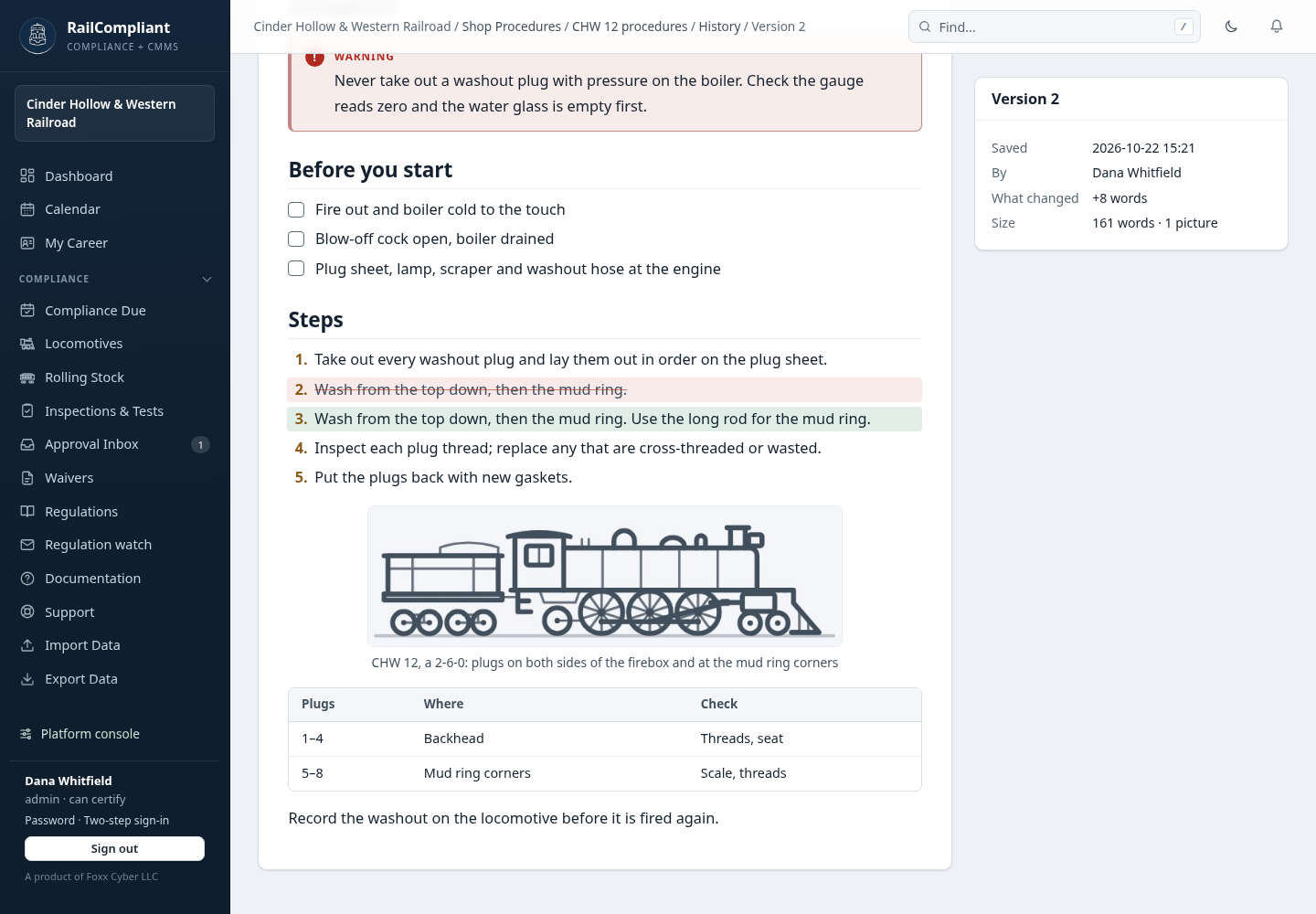
Open a version to read the page as it was then, or click What changed from version N to see the difference. New text is highlighted green, text taken out is struck through in red, and a list shows exactly which steps changed.
Restore makes an earlier version the page again. It's saved as a new version, so the page you replaced stays in the history too. Saving a page without changing anything doesn't make a new version.
The versions come from RailCompliant's record history, which is sealed with a chain of fingerprints (see How your data is protected), so an earlier version can't be changed or removed quietly. Recent changes on the Shop Procedures page and on each book shows who added, edited, restored or deleted which page.
Space and who can use it
Each railroad has 1 GB for the text of its pages and 2 GB for their pictures. The Shop Procedures page shows how much text you've used, and a book's page shows the picture space. A picture no page shows can be deleted from the book's page to free its space.
Shop procedures is a row in the roles and permissions matrix under Maintenance (see Settings & permissions). General members can read and write procedures unless you change it; turn off Change to make the procedures read-only for them.