 foxxcyber/docs
Calendar & work days
Every date the railroad is working to on one colour-coded calendar, a schedule where people plan their own work days, and a link that puts it all on your phone.
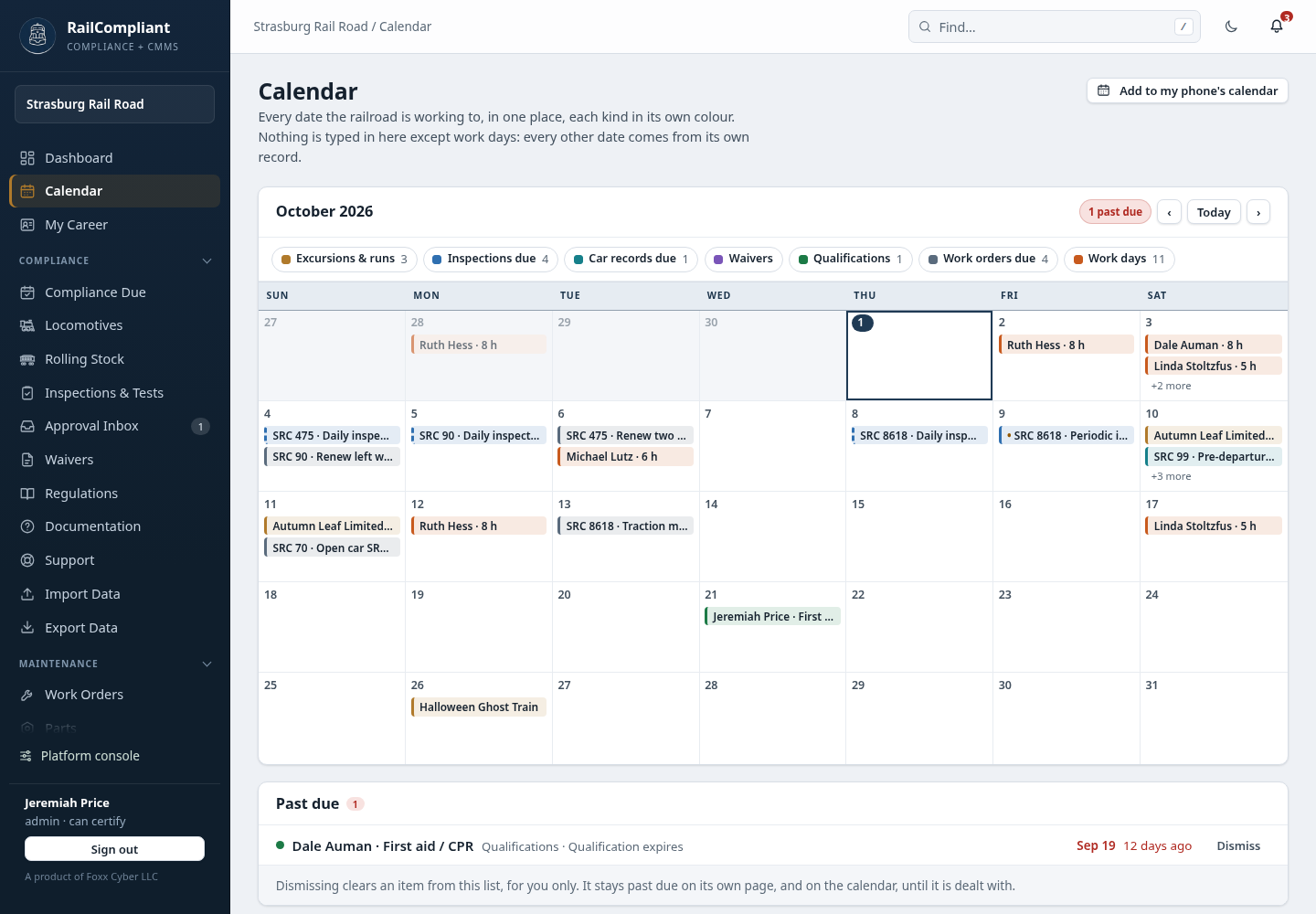
Click Calendar in the sidebar, just under Dashboard. It shows every date RailCompliant already knows about on one month, so nobody has to keep a separate calendar in step with the records.
What is on it
Each kind of date has its own colour and its own switch above the month:
| Kind | The date shown |
|---|---|
| Excursions & runs | Each run on its day, and each day of a multi-day excursion. |
| Inspections due | Every locomotive inspection, on the date it comes due. |
| Car records due | The dates your rolling stock's records come due. |
| Waivers | The day each waiver expires, and the day its extension petition should be filed (about a year before). |
| Qualifications | The day someone's qualification runs out. |
| Work orders due | Open work orders that have a due date. |
| Work days | Who plans to be working, from the schedule below. |
You do not type any of these in, except work days. Each one comes from the record it belongs to, so correcting the record corrects the calendar.
- Click a kind to switch it off or back on. The number beside it is how many there are this month.
- Click a day's number to see everything on that day underneath the month.
- Click an entry to open its record.
- Use ‹, Today and › to move between months.
An inspection whose interval is counted in service days has no fixed calendar date, so its date is a projection from how often the engine runs. It is marked ≈ and moves as service days are logged. See The compliance dashboard.
Anything dated before today that is still open — an inspection that has gone overdue, a waiver past its filing date, an expired qualification, a planned run that was never closed out — is listed in a notice above the calendar, whichever month you are looking at.
You see the kinds of date your role can see elsewhere in the app. A general member who cannot open the crew roster does not see the roster's qualifications here, for example. Your own work days and your own qualifications always show.
Work days
The work-day schedule lets volunteers and staff say which days they plan to work, so the railroad knows who is coming.
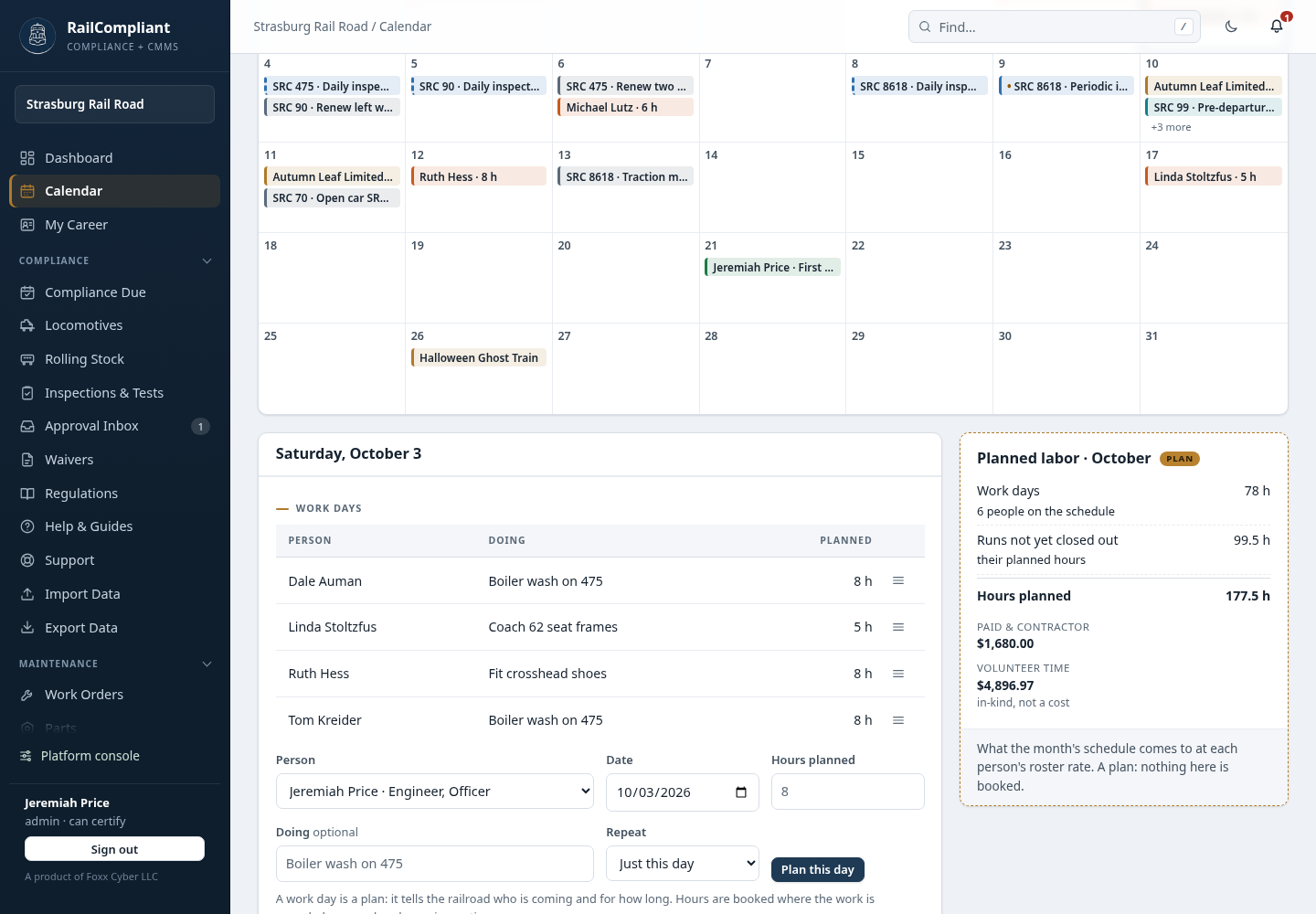
Pick a day on the calendar, then under Work days:
- Hours planned — how long you expect to work.
- Doing — optional; what you will be working on, such as "Boiler wash on 475".
- Repeat — just this day, or the same day every week for 2, 4, 8 or 12 weeks.
Click I'm working this day. Planning a day you already have changes it rather than adding a second one. The menu at the end of a row edits the day or takes it off the schedule.
Who can plan what:
- Anyone whose login is connected to a roster record can plan, change and remove their own days.
- Administrators can plan days for other people, and so can anyone given Change on Work-day schedule in Settings & permissions. The form then offers a Person to choose.
- If your login is not connected to a roster record yet, the page says so; an administrator connects it on the Crew page. See Crew & qualifications.
Planned labor
The Planned labor card adds up the month you are looking at:
- Work days — the hours on the schedule, and how many people.
- Runs not yet closed out — the planned hours on runs still to run.
- Hours planned — the two together.
- Paid & contractor and Volunteer time — what those hours come to at each person's roster rate. Volunteer time is in-kind value, not a cost, and the two are never added together. These two figures are shown to people who can see the Labor report.
A work day is a plan. It does not log any hours. Hours are booked where the work is recorded — on a work order, on an inspection, or on a run when it is closed out. On a day that has passed, the schedule shows the hours booked for each person that day beside what they planned.
The schedule is a way to plan the shop and the volunteer roster. It is not a federal hours-of-service record.
Add it to your phone's calendar
Click Add to my phone's calendar on the Calendar page. There are two calendars you can subscribe to:
- My schedule — your work days, the runs you are on, and your own qualifications coming up for renewal.
- The railroad's calendar — everything you can see on the Calendar page.
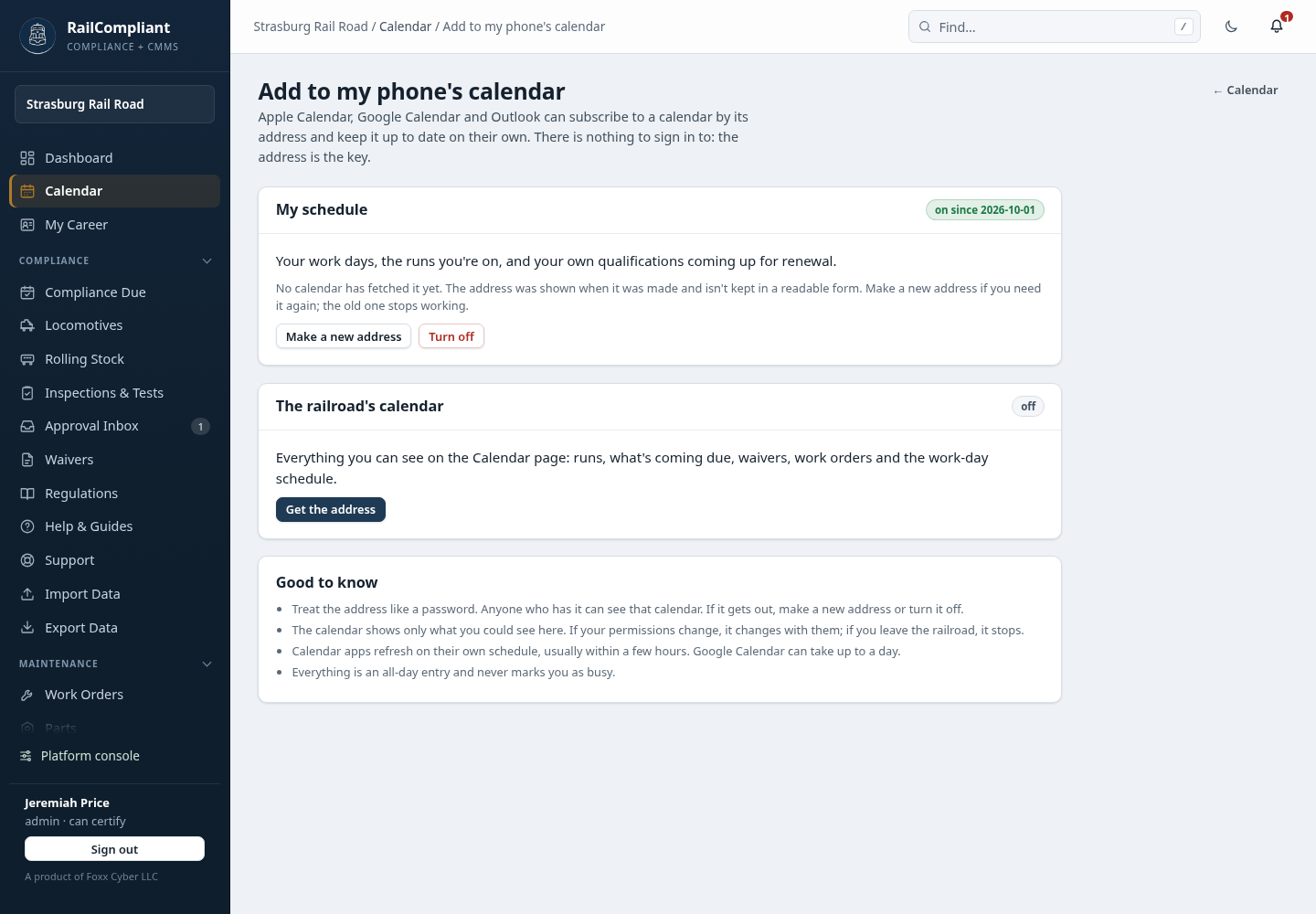
Click Get the address. RailCompliant shows the calendar's address once, with a Copy button and two shortcuts:
- iPhone, iPad or Mac — click Open in Apple Calendar on that device, then Subscribe.
- Google Calendar — click Add to Google Calendar; or on a computer open Google Calendar, choose Other calendars → + → From URL, and paste the address. It then appears on your Android phone as well.
- Outlook — choose Add calendar → Subscribe from web and paste the address.
Your calendar app then keeps itself up to date. Most refresh within a few hours; Google Calendar can take up to a day. Every entry is an all-day entry and never marks you as busy.
There is nothing to sign in to, so the address is the key. Treat it like a password: anyone who has it can see that calendar. It is shown only when you make it. If you lose it or it gets out, click Make a new address (the old one stops working at once) or Turn off.
A subscribed calendar shows only what you could see in the app. If your permissions change, it changes with them, and if you leave the railroad it stops. More on how the links are protected: How your data is protected.