 foxxcyber/docs
Signing up and your first login
Create your railroad's workspace, verify your email, and set up the first records.
Creating your railroad's account
Open the RailCompliant sign-up page and click Create an account.
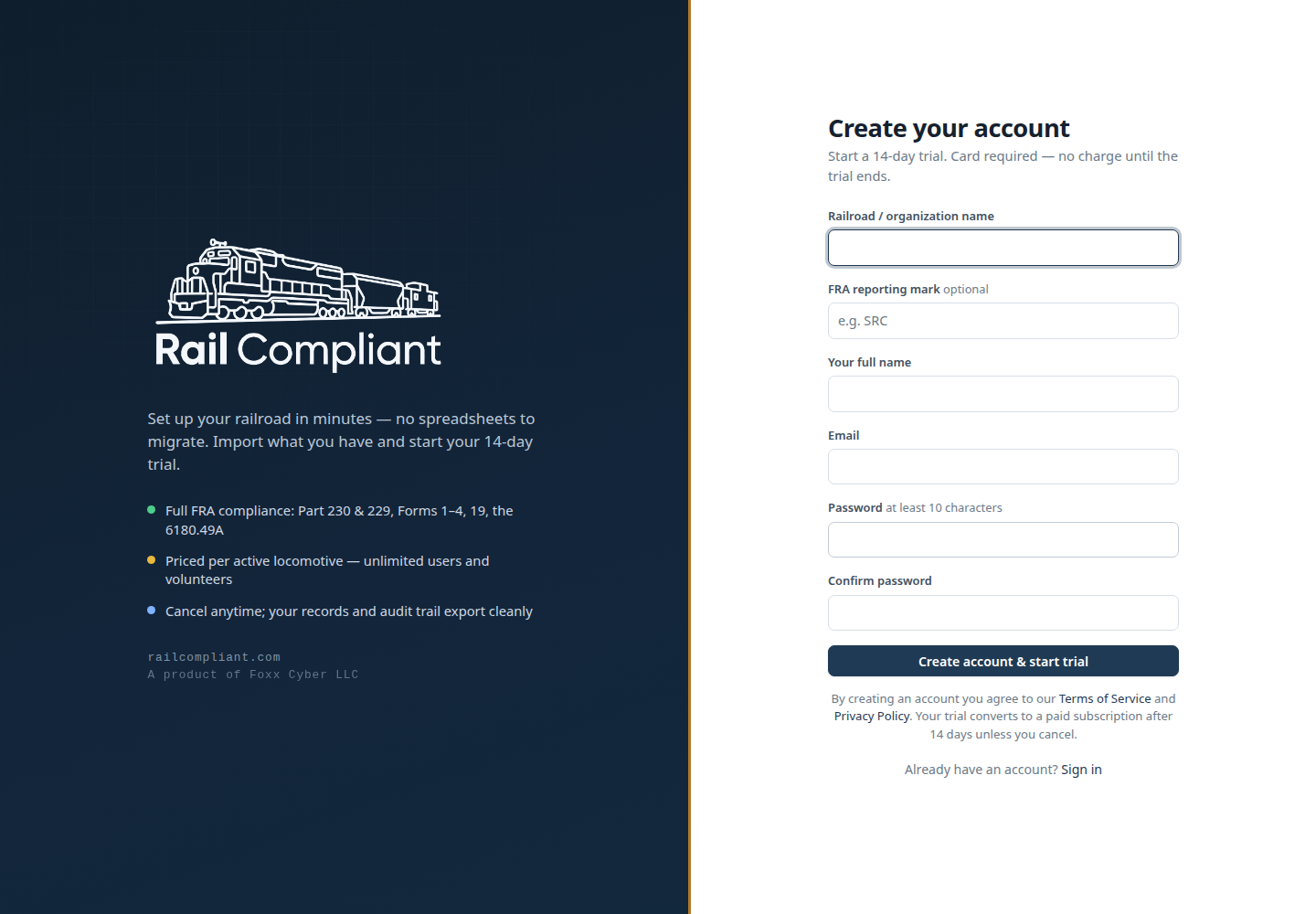
The form asks for:
- Railroad / organization name — how your railroad is named throughout the app.
- FRA reporting mark — optional, but worth filling in; it appears on printed reports.
- Your full name and Email.
- Password — at least 10 characters — and a confirmation.
Click Create account & start trial. That single step creates three things: your railroad as its own workspace, your account as its first administrator with sign-off authority, and a 14-day trial. A card is required at sign-up but you are not charged until the trial ends. See Billing for how pricing works and how to cancel.
Verifying your email address
RailCompliant emails you a verification link when the account is created. Follow it before you start inviting anyone else — password resets, approval notifications, and compliance reminders all depend on a working address. If the message never arrives, you can request another from your account page after signing in.
Signing in
Sign in with your email and password at the sign-in page. If you have forgotten your password, click Reset it and enter your address; RailCompliant sends a single-use link that expires. For security the page gives the same response whether or not the address is registered, so check your inbox rather than the screen for confirmation.
To change a password you already know, use the password page on your account rather than the reset flow.
If an administrator created your account for you, your first sign-in uses a single-use link they emailed you, and RailCompliant asks you to set a password before it lets you go any further.
What to set up first
Work in this order — each step makes the next one useful.
- Add your locomotives. Almost everything else in the app hangs off a locomotive record: inspections, work orders, fuel, the annual report. When you add an engine that has been in service for years, fill in the compliance baseline fields so the interval clocks start from real history rather than from zero. See Locomotives.
- Add your crew roster. Inspections record who performed the work and who certified it, and both come from the roster. See Crew and qualifications.
- Decide who gets an account and who can sign. Being on the roster and having a login are separate things, and sign-off authority is separate again. See Users and access.
- Start filing inspections. Once the fleet and roster exist, the Compliance Due page has something to compute against. See Recording inspections & tests.
If you are bringing records over from spreadsheets, the import tool can load locomotives and rolling stock in bulk.
How railroads and people relate
Everyone at your railroad works inside your railroad's own workspace. Records, photos, parts, people, and the audit history all belong to that workspace, and no other railroad using RailCompliant can reach them.
One person can hold an account at more than one railroad. That is deliberate — contract boiler inspectors, welders, and itinerant machinists routinely work across several operations, and each railroad grants that person access on its own terms, including whether they may certify.
There is no organization switcher inside the app today. If you hold accounts at more than one railroad, sign out and sign in with the account for the railroad you want to work in.