 foxxcyber/docs
Navigating the app
The sidebar, the shop dashboard, and where each part of the app lives.
Every page shares the same frame: your railroad's name at the top left, the sidebar down the left side, a search box and a notification bell across the top, and your own name and role at the bottom of the sidebar with Sign out.
The sidebar
The sidebar is grouped by what you are doing rather than alphabetically.
Dashboard — the shop overview, described below.
Compliance
- Compliance Due — every tracked inspection and test obligation across the fleet, with what is overdue, due soon, and current. See The compliance dashboard.
- Locomotives — the fleet roster. See Locomotives.
- Inspections & Tests — every filed inspection, test, repair, and alteration. See Recording inspections & tests.
- Approval Inbox — what is waiting for your signature, and what you submitted that someone else still has to sign. See Approvals & signatures.
- Waivers — waivers and special approvals and their filing deadlines. See Waivers and special approvals.
- Regulations — the 49 CFR reader. See Regulations library.
- Help & Guides — plain-language guides, described below.
- Support — open a ticket with the RailCompliant team. See Getting help.
- Import Data and Export Data — bulk load and CSV export. See Importing and exporting.
Maintenance
- Work Orders, Parts, and Labor. See Work orders, Parts inventory, and Labor and volunteer hours.
Operations
- Excursions & Runs, Rolling Stock, Fuel, and Stores. See Excursions, Rolling stock, Fuel and mileage, and Consumable stores.
Admin
- Form Templates — the forms inspections are filed on. See Form templates.
- Crew — the roster, qualifications, and account access. See Crew and qualifications.
- Billing — your subscription. See Billing.
Every member of your railroad can open these pages. What differs is what you can do on them: granting someone an account, changing a role, publishing a public page, certifying a report, and changing the subscription are all restricted. A Platform console entry appears only for Foxx Cyber operators and is not part of your railroad's workspace.
The dashboard
The dashboard is headed Shop Overview and opens on your railroad's name. Two buttons sit in the header — Compliance, which jumps to the due board, and New work order.
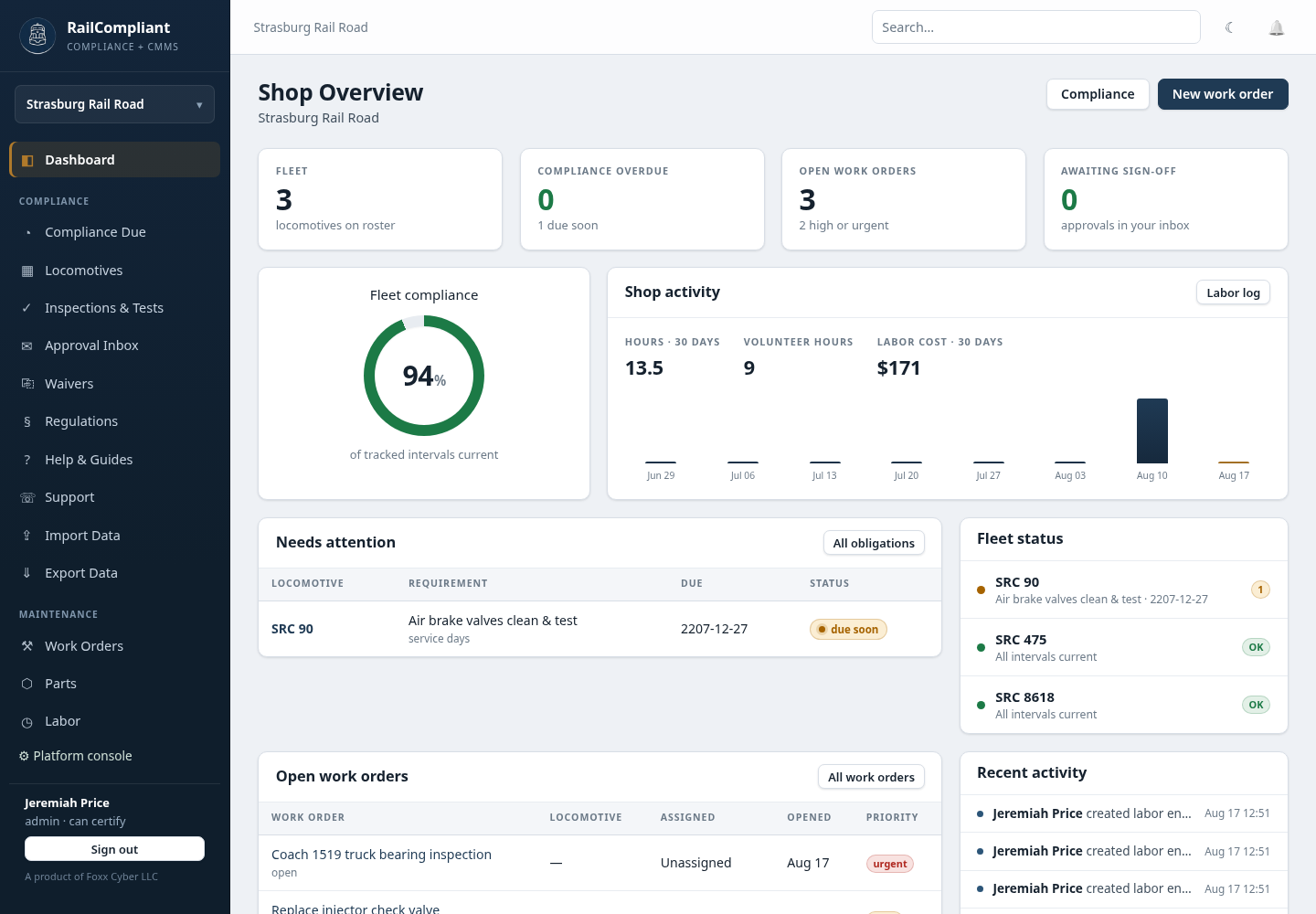
Across the top are stat cards, each of which is a link:
- Fleet — locomotives on the roster.
- Compliance overdue — with a due-soon count underneath.
- Open work orders — with a note of how many are urgent.
- Awaiting sign-off — approvals sitting in your inbox.
- Fleet compliance — the percentage of tracked intervals that are current.
Below that, Shop activity charts hours, volunteer hours, and labor cost over the last 30 days, with a link to the full labor log. Needs attention lists the obligations that are overdue or coming due; when there is nothing to do it says so plainly rather than showing an empty table. Fleet status gives one row per locomotive with its worst interval status, Open work orders lists what is in progress, and Recent activity shows the most recent entries from the record history — who did what, and when.
The notification bell
The bell at the top right shows unread notifications: approvals routed to you, obligations coming due, qualification expiries, waiver deadlines, and billing notices. Click through to mark items read or to open the record. What arrives by email as well as in the app is up to you — see Notifications.
Help & Guides
Help & Guides is a small set of guides written for volunteers rather than for administrators: how the app works in two minutes, your locomotives and cars, service days and staying inspected, work orders and parts and labor, excursions and crews and fuel, and the 6180.49A annual report. Point new volunteers there first. For the regulations themselves, use the Regulations reader instead.