 foxxcyber/docs
Preparing decisions
As the AO Designated Representative, prepare authorization decisions for the AO to sign, and recommend on exceptions.
The AO Designated Representative (AODR) acts for the Authorizing Official in the day-to-day work of RMF. The one thing an AODR cannot do is the authorization decision itself: only an AO or DAO can sign a decision and accept risk. So the AODR prepares the decision, and the AO signs it.
What an AODR can do:
- Prepare authorization decisions (draft, edit, discard).
- Approve or return categorizations and assessment plans.
- Recommend that an exception be approved or denied.
- Set requirements, baselines and guidance for the area, like the AO.
- Validate obligations and POA&Ms on packages that have no SCA team assigned.
What an AODR cannot do: sign a decision, accept risk, decide an exception, release or accept a transfer.
Prepare a decision
Step 1. Choose Recommendations to decide in My queues to see the assessment reports waiting, or open the package directly.
Step 2. Open the package and choose Authorization. In the side panel choose Prepare decision. If a draft already exists the button says Continue decision draft.
- You see: the decision page with the SCA recommendation at the top (the recommendation, the residual risk, who signed the report and a Read the report link) and the form below it.
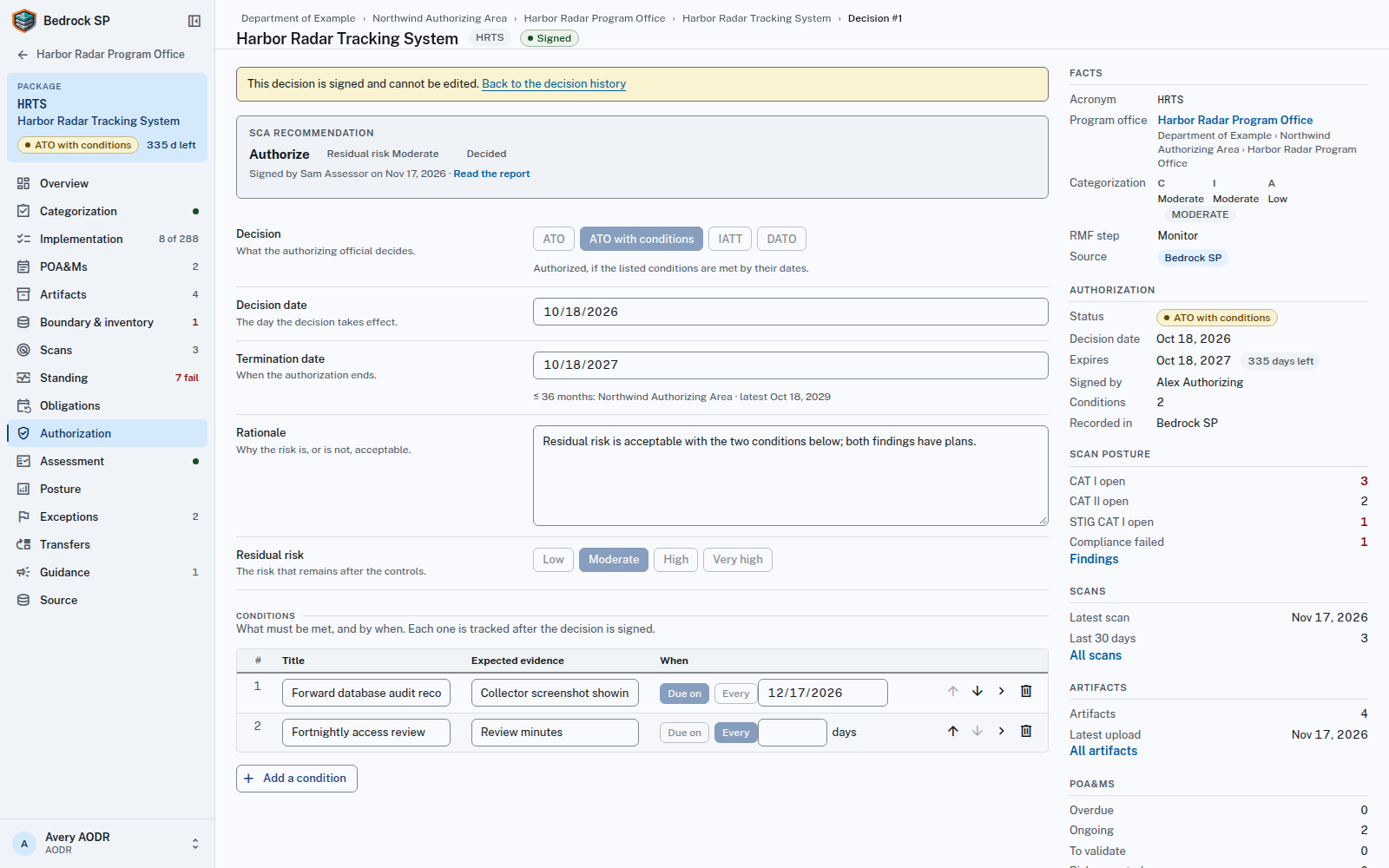
Step 3. Fill in the decision exactly as the AO would: Decision, Decision date, Termination date, Rationale, Residual risk and any Conditions. Copy into conditions starts from the SCA's suggestions. The form checks dates against your requirements and names the limit and the unit that set it.
Step 4. Choose Save draft.
- You see: a banner, Draft prepared by you · last saved. The decision now waits in the AO's Decisions to sign queue, and the AO and DAO see a change alert.
You can keep editing the draft until it is signed. Discard draft removes it.
For what each field means, see Decisions and signing.
Recommend on an exception
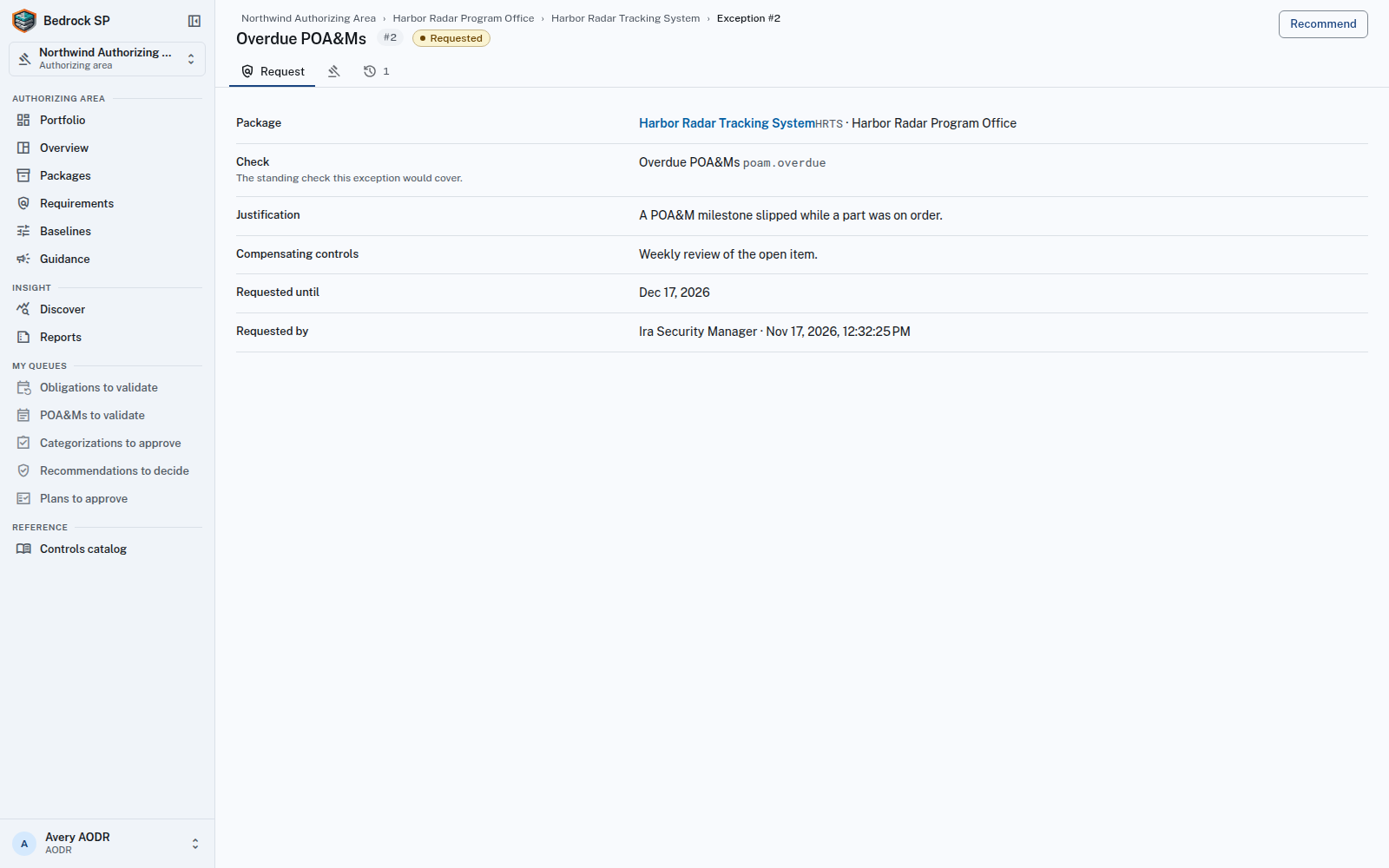
Step 1. Open Exceptions from the package or the sidebar, and open a request that is waiting.
Step 2. Choose Recommend.
- You see: Recommend on this exception with Approve and Deny.
Step 3. Choose one, write a note, and save.
- After this: the AO sees your recommendation on the request, with your name, when they decide. It does not decide anything.