 foxxcyber/docs
Artifacts
Keep the package's documents and evidence files: upload, version, attach to evidence, and know the limits.
Artifacts are the files that belong to a package: the System Security Plan, assessment reports, diagrams, policies, procedures and the evidence behind an obligation, a POA&M completion, an assessment result or an exception request. One model holds them all, so a file you upload once can be attached wherever it is needed.
Upload an artifact
Step 1. Open the package and choose Artifacts.
Step 2. Choose Upload artifact.
- You see: a form with Kind (SSP, SAR, Diagram, Policy, Procedure, Evidence or Other), Title and Description (optional), and the file. Small files go straight to scanning. Larger ones show progress.
Step 3. Wait for the check to finish.
- You see: the file is scanned for malware and checked that it is really the type it claims. Then it appears in the table. If the scanner finds a virus, the upload is refused with the file was found to be infected and nothing is stored. If the scanner is not available, uploads are refused until it is. Nothing is ever stored unscanned.
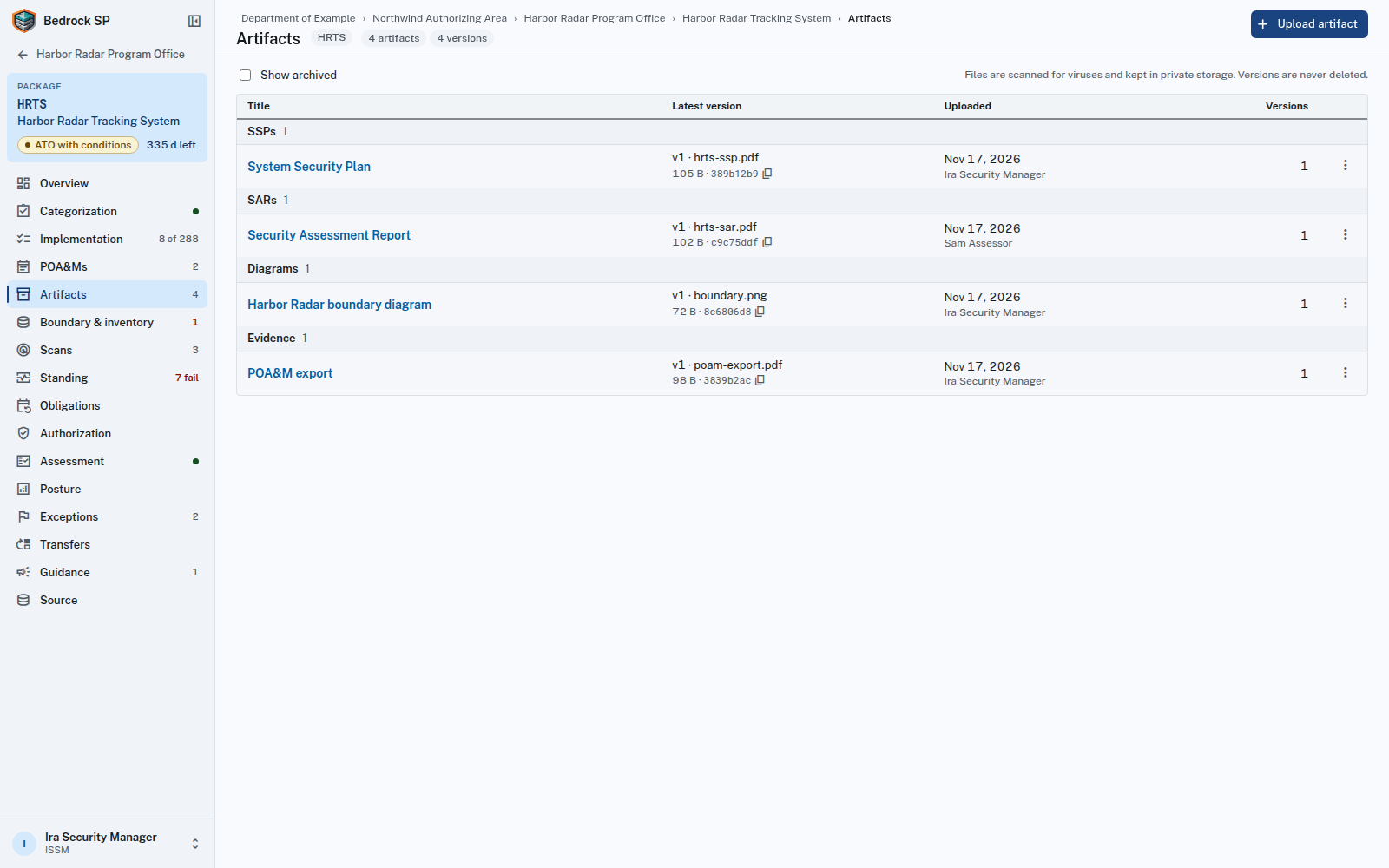
The table shows each artifact's Title, Latest version, Uploaded and the number of Versions.
New versions and details
- New version (row menu) adds a file as the next version. Earlier versions are never changed or deleted.
- Edit details changes the title and description. Archiving only hides an artifact.
- Choose a file to download it. Downloads go through Bedrock SP after a permission check, and each one is recorded.
Who can upload
The PM, ISSM and ISSO upload and edit any kind. The package's assigned SCA team can upload SAR and Evidence artifacts.
Attach files as evidence
Wherever you submit evidence (an obligation, a POA&M completion, an exception request) you see Attach files (optional). Tick artifacts already in the package, or drop a new file in the same dialog. The file is stored with the package and shown as an evidence file where you attached it.
See Files and limits for what is accepted.