 foxxcyber/docs
Guidance, CTOs and exceptions
Acknowledge the AO's guidance, comply with a CTO, and request an exception from a standing check.
Guidance from the AO
The AO sends directives to your unit or to your package. They appear in the package's Guidance section, in the AO guidance panel on the Overview, and as Guidance obligations when the AO asked you to acknowledge them.
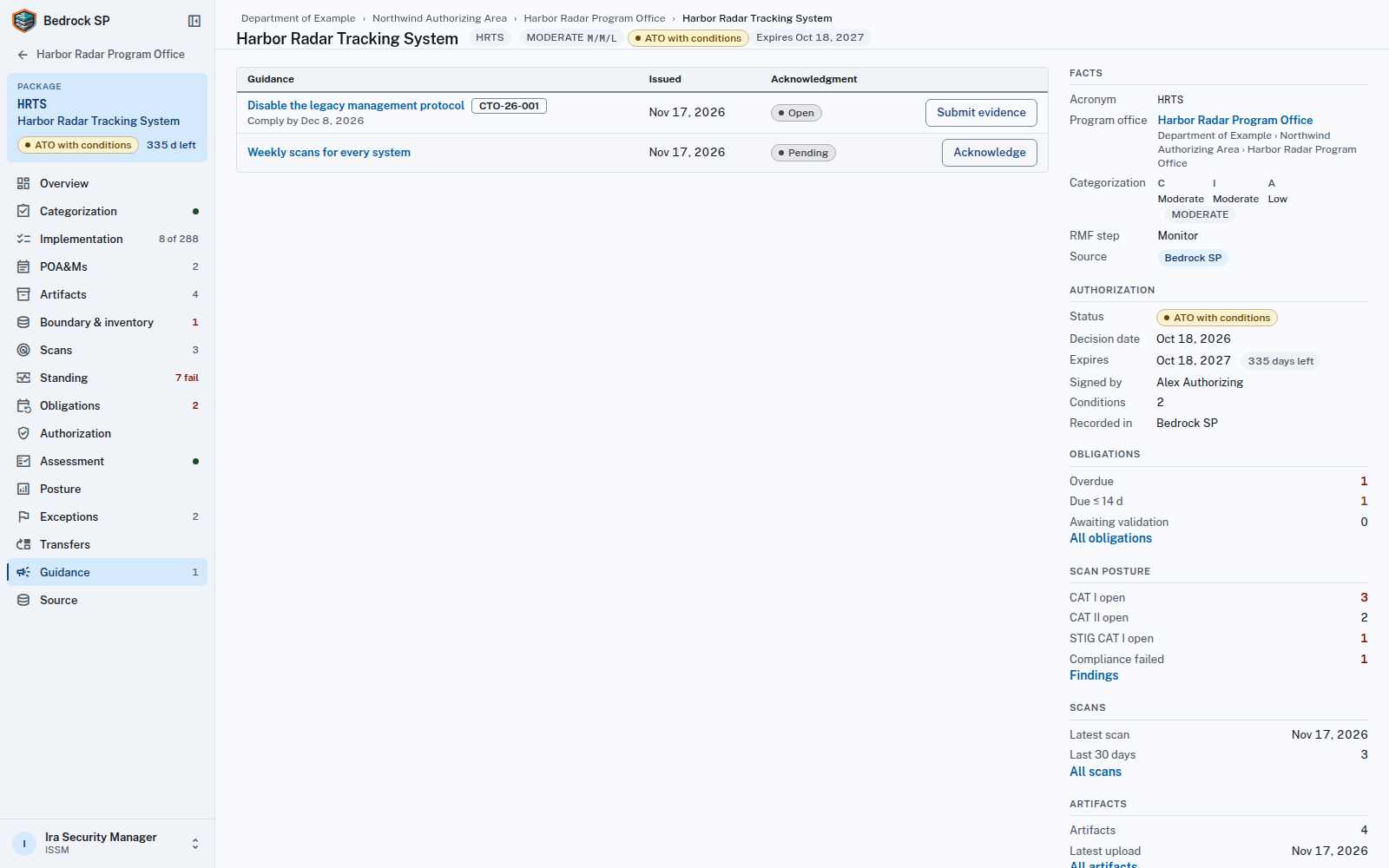
Step 1. Open the package and choose Guidance.
- You see: a table of Guidance (a link to read it), Issued and Acknowledgment. A badge on the sidebar item counts those waiting for you.
Step 2. Read the guidance, then choose Acknowledge on its row.
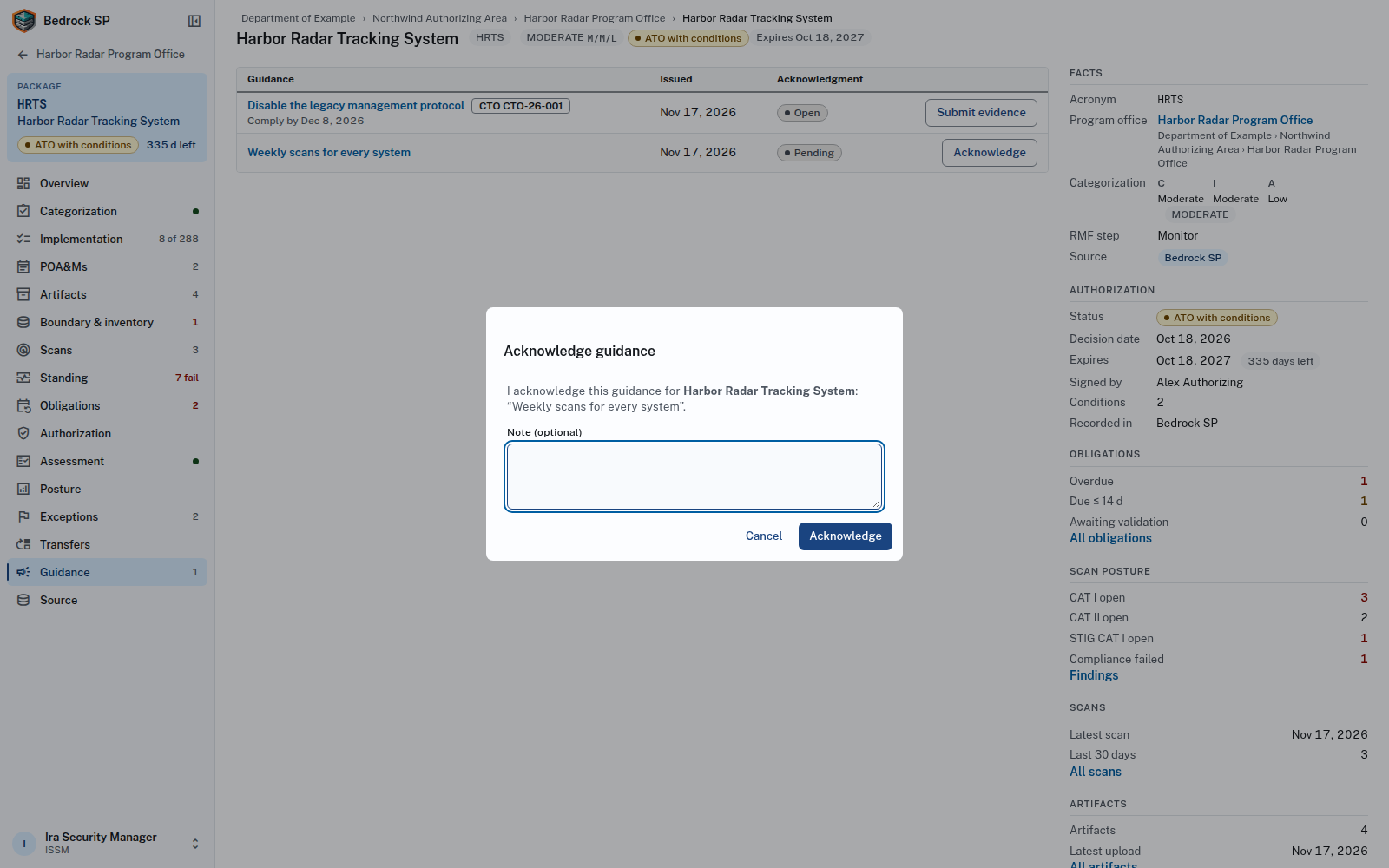
- You see: Acknowledge guidance: I acknowledge this guidance for your package. Add an optional note and choose Acknowledge.
- After this: the obligation is Acknowledged immediately. Acknowledging does not need an SCA. It is the one obligation you complete yourself.
A CTO
A CTO (Cyber Tasking Order) is guidance that orders you to do something by a date. It shows with its number, Comply by date and state, and Submit evidence instead of Acknowledge.
Step 1. Read the Required actions on the CTO's record (choose its title).
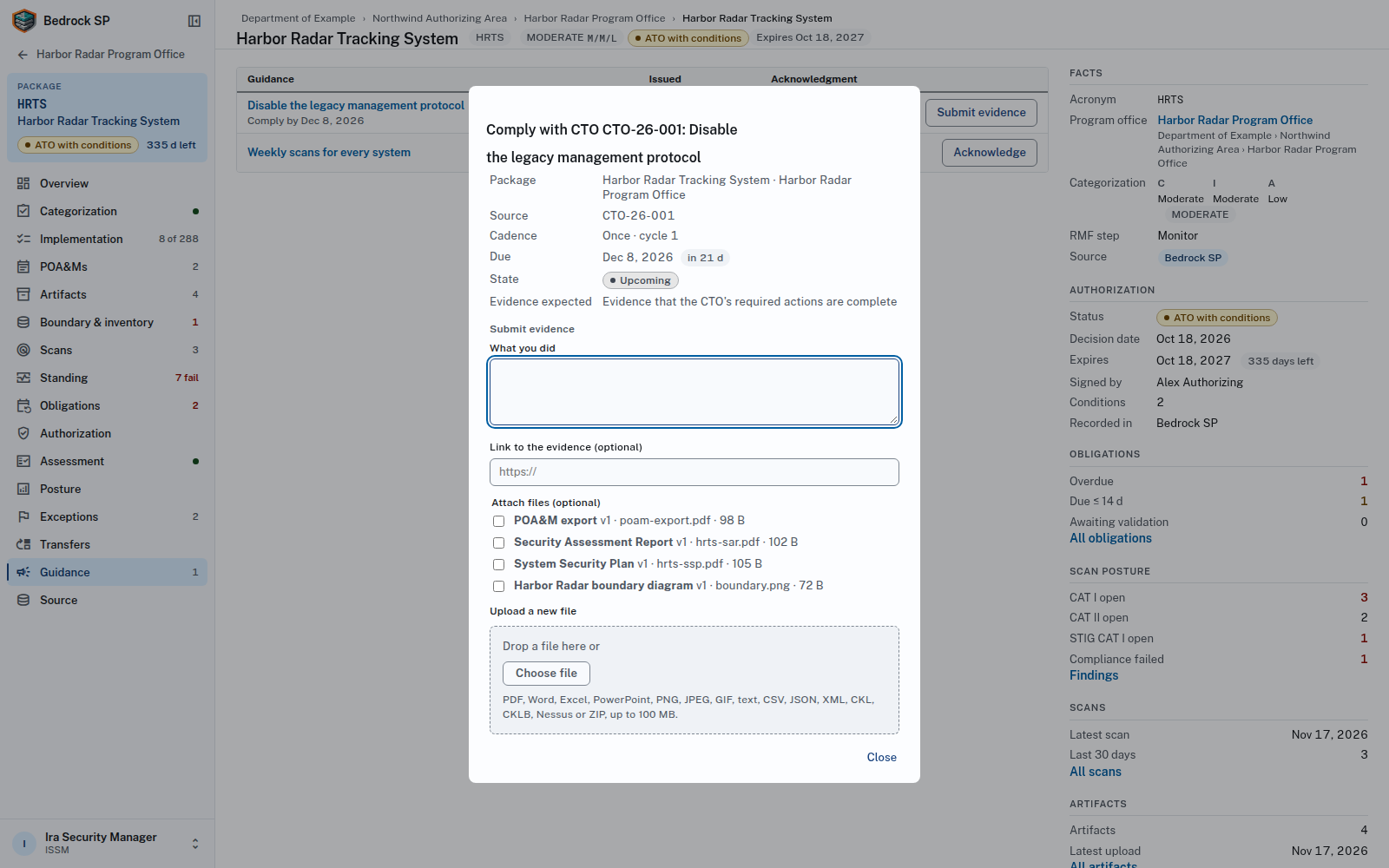
Step 2. Do the work, then choose Submit evidence on the package's Guidance section or Overview.
- You see: the obligation Comply with CTO 26-04: title. Write What you did, attach the evidence file and Submit. If the AO set the CTO not to require evidence, you can submit with an empty note.
Step 3. The SCA validates it. The state goes from Awaiting validation to Complied. A CTO that is past its date is Overdue and fails the CTO compliance check.

Request an exception
An exception is relief from one standing check, for a limited time, when you cannot meet a requirement yet. The AO decides. An approved exception shows the check as covered until it ends.
Step 1. Open the package and choose Request exception (in the side panel, or on a failing check on Standing). The PM and ISSM can request.
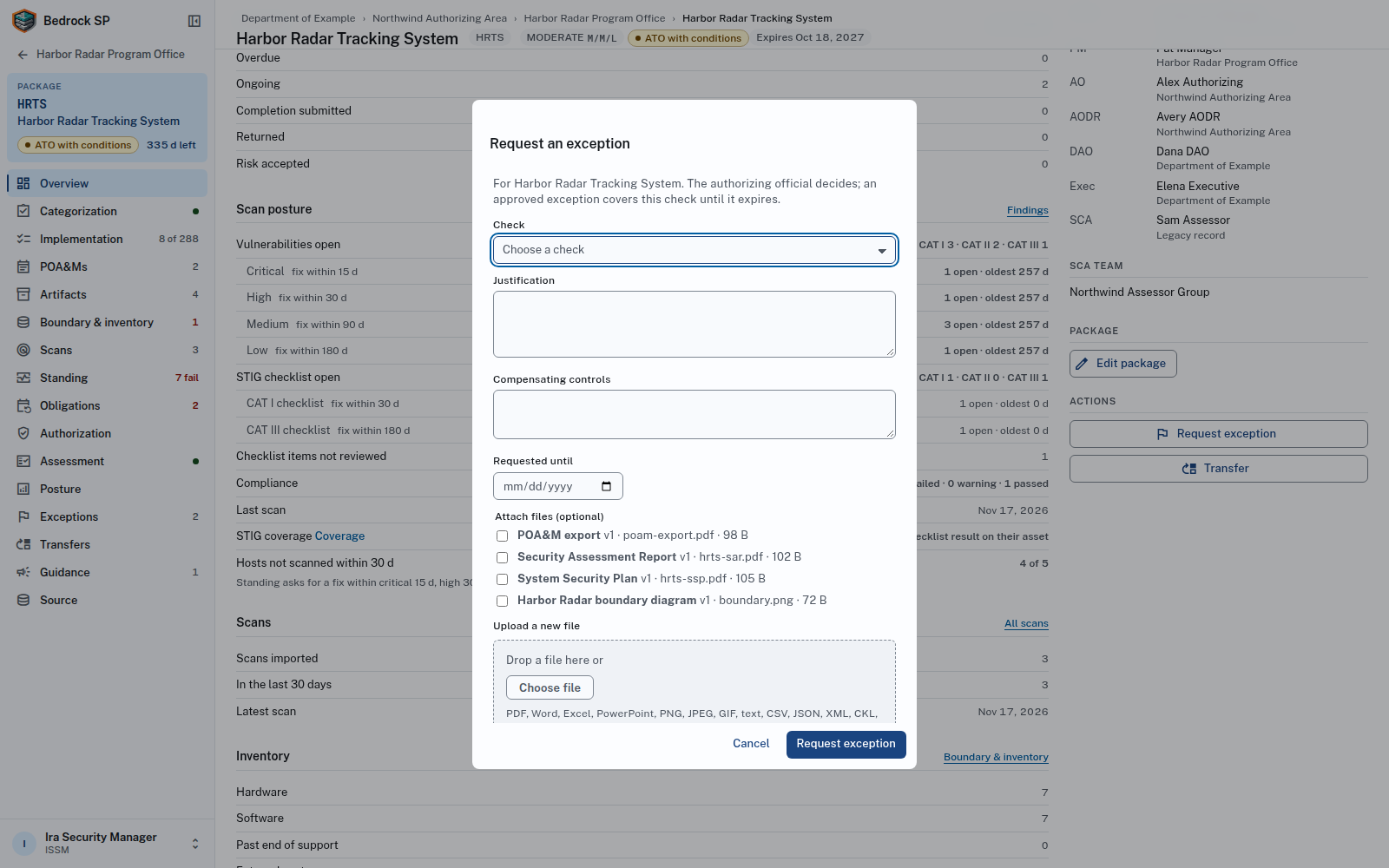
Step 2. Fill in Request an exception:
| Field | What to enter |
|---|---|
| Check | The standing check you need relief from. |
| Justification | Why you cannot meet it. |
| Compensating controls | What reduces the risk meanwhile. |
| Requested until | The date you ask relief to run to. |
| Attach files | Evidence for the AO. |
Step 3. Choose Request exception.
- You see: the exception, Requested. The AODR may recommend and the AO decides. You see their notes on the page.
You can Withdraw a request before it is decided. There is one requested exception per package and check at a time. An approved exception ends on its date, can be revoked by the AO, and ends if the package is transferred.
An exception covers a check, it does not fix it
The check's status does not change. It is shown as covered, and the package's overall standing ignores it until the exception ends.