 foxxcyber/docs
Signing in
Sign in for the first time, change the one-time password, set up two-step verification and keep your account safe.
Your platform administrator adds you and tells you your email address and a one-time password. This page covers the first sign-in and the account page you will use afterwards.
First sign-in
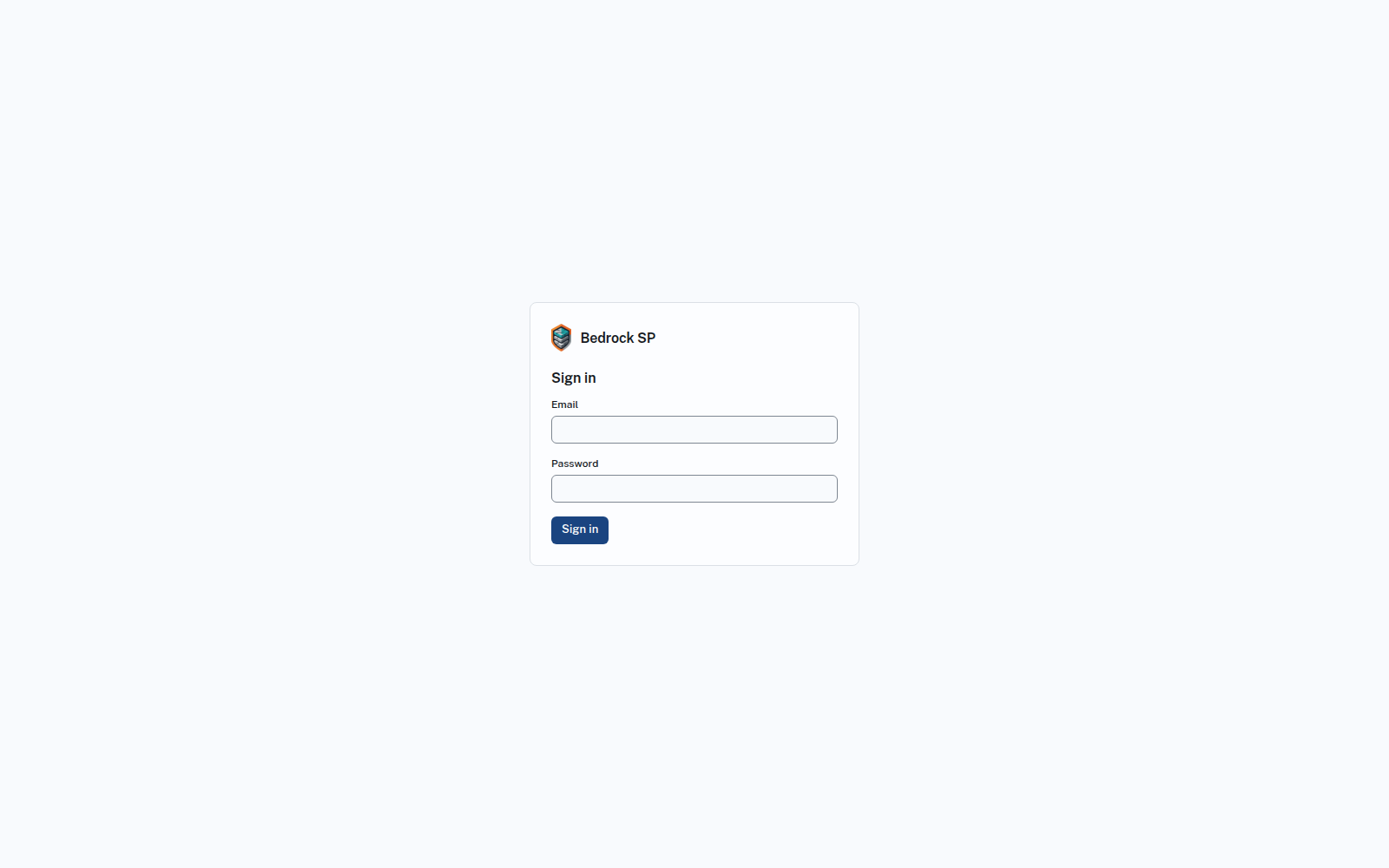
Step 1. Open Bedrock SP and sign in.
- You do: enter your Email and the one-time Password, then choose Sign in.
- You see: a page titled Choose a new password. A one-time password only works to get you here.
Step 2. Choose a new password.
- You do: type the Current password (the one-time one), then a New password and Confirm new password, and choose Change password.
- You see: if two-step verification is required, the next page asks you to set it up. If it is switched off for your installation, you go straight in.
Step 3. Set up two-step verification.
- You do: scan the code on the page with an authenticator app. Enter the 6-digit code it shows, and choose Verify and turn on.
- You see: a page titled Save your recovery codes. Copy the codes somewhere safe and choose I saved them. Each code works once, if you lose your phone.
Step 4. You land on your home page. People who hold an executive, DAO, AO or AODR role start on the Portfolio of their highest unit. Everyone else starts on the home page and goes from there to the sidebar section for their work.
Signing in afterwards
Enter your email and password, then the Code from your authenticator app or one of your recovery codes. If you are signed out for being idle, the sign-in page says so.
Idle sign-out
Bedrock SP signs you out after 15 minutes without activity, unless your administrator has set a different time. A warning appears first, and choosing to stay signed in resets the clock.
Your account page
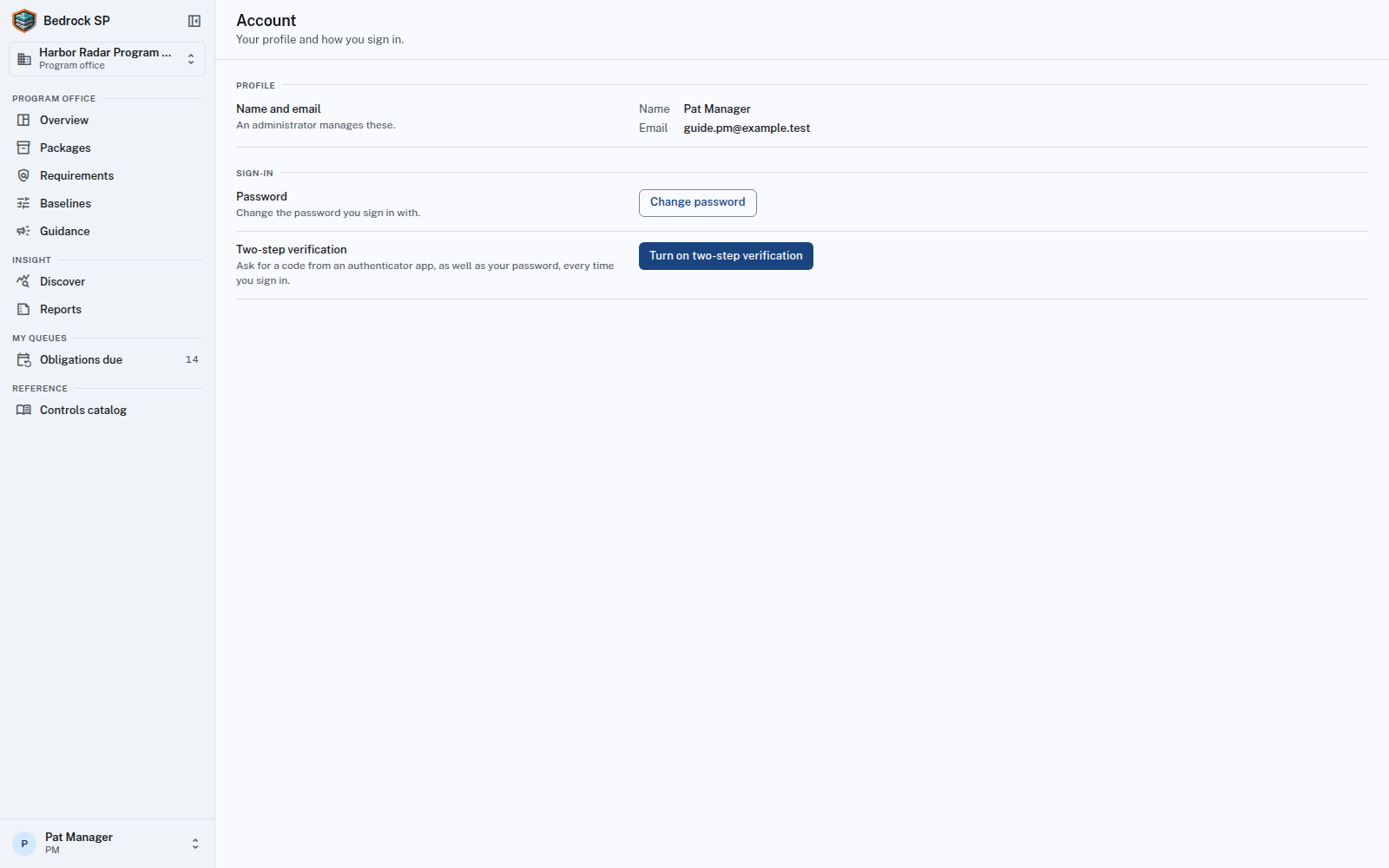
Open the account menu at the bottom of the sidebar and choose Account. The page has these parts:
- Profile: your name and email.
- Sign-in: Change password and Make new recovery codes. The old recovery codes stop working when you make new ones.
- Two-step verification: Turn on two-step verification if you skipped it because your administrator had switched it off.
If you cannot sign in
Ask your platform administrator. They can use Reset sign-in on your row in People. That gives you a new one-time password and clears your two-step setup, so you go through the first sign-in again.