 foxxcyber/docs
The briefing
Print the portfolio as a one-page briefing for a meeting, with a marking line at the top and bottom.
The briefing is the portfolio laid out for paper or PDF.
Open it
Step 1. On the Portfolio, choose Briefing at the top right.
- You see: a printable page for the unit you are looking at. At the top: Prepared by (your name), the date and time, and Data as of (when the numbers were read). Then a Totals table: packages, authorized, meets, failing, expired, at risk, expiring within 90 days, not authorized, obligations overdue, CAT I open, exceptions active and decisions to sign. Below are the same sections your portfolio shows, in the same order.
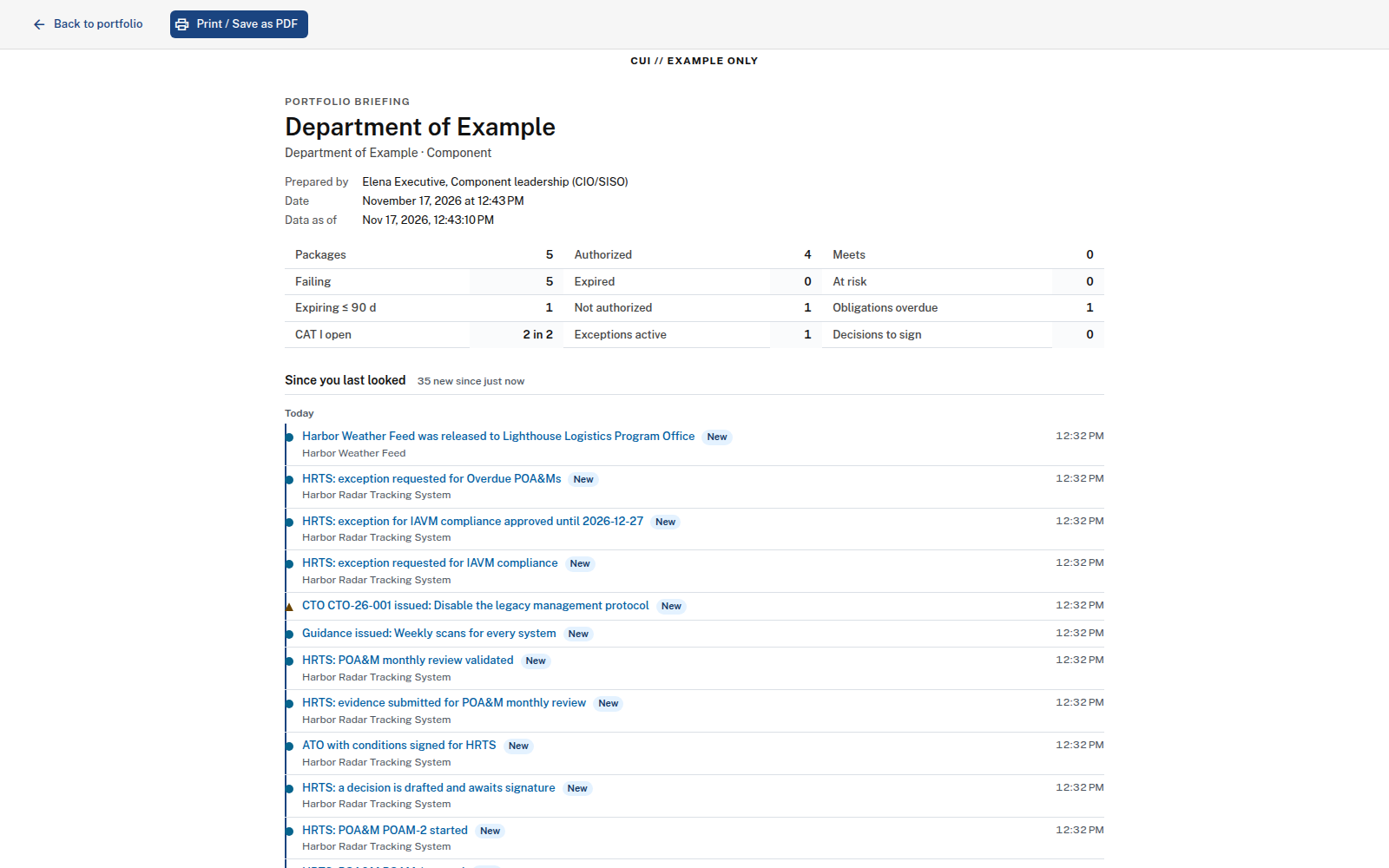
Step 2. Choose Print / Save as PDF.
- You see: your browser's print dialog. Choose a printer or Save as PDF.
The briefing follows your own portfolio layout. A section you hid is left out, and a saved query you added is included.
The marking line
If your organization requires a classification or handling marking, the platform administrator can set one. It prints at the top and bottom of every page of the briefing. It is set under Settings → Briefing in Administration. See Settings.
Open the briefing right before the meeting. It reads live data, so it is as current as the moment you open it, and the Data as of line says exactly when that was.